
Hey guys,
Good morning!
In this post I will demonstrate how to activate/deactivate the remote DAC (Dedicated Administrator Connection) feature of the SQL Server instance, check if the feature is active and how to use it.
Introduction – What is DAC?
Imagine the following situation: All worker threads on the instance are in use and connection to the database is no longer allowed. How would you analyze what is happening and take actions to resolve this problem, since you can't even connect?
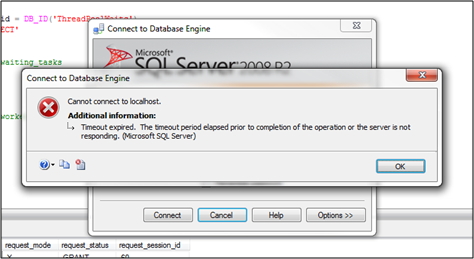
With this in mind, Microsoft created the DAC, a very useful resource for the DBA as it allows connection to the instance using an exclusive and dedicated resource for Database Administrators.
Its operation is very simple: Once activated, the instance creates the DAC connection at startup and leaves it on standby, waiting for the DBA to connect. Even if the instance is overloaded and has no workers available, this connection is already connected to the database and can be used by the DBA.
It is worth remembering that this feature can only be used by users with sysadmin permission and only one user can use this connection at a time.
How do I know if the remote DAC is active?
To identify whether this feature is enabled on the instance, simply use sp sp_configure:
EXEC sp_configure 'remote admin connections'

Viewing the DAC connection via DMV sys.endpoints
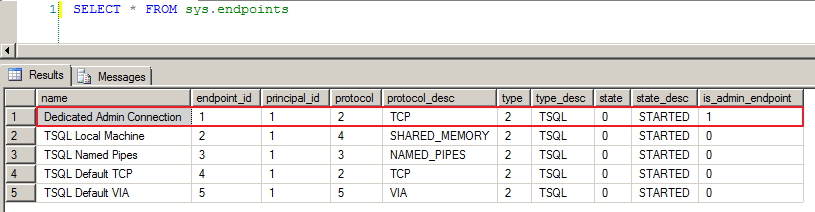
How to activate the DAC?
I will demonstrate two ways: Using T-SQL and SQL Server Management Studio.
Using Transact-SQL
Use master
GO
/* 0 = Apenas DAC local; 1 = DAC remoto */
sp_configure 'remote admin connections', 1
GO
RECONFIGURE
GO
Using SQL Server Management Studio
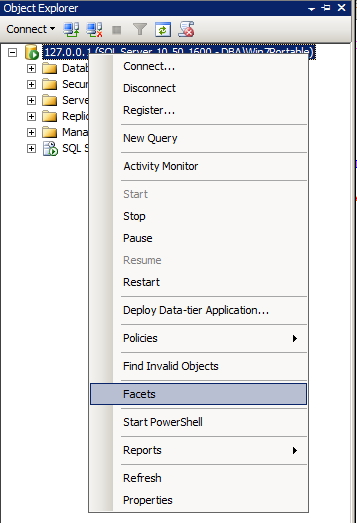
Right-click on your instance and select the “Facets” option, as shown in the image below:
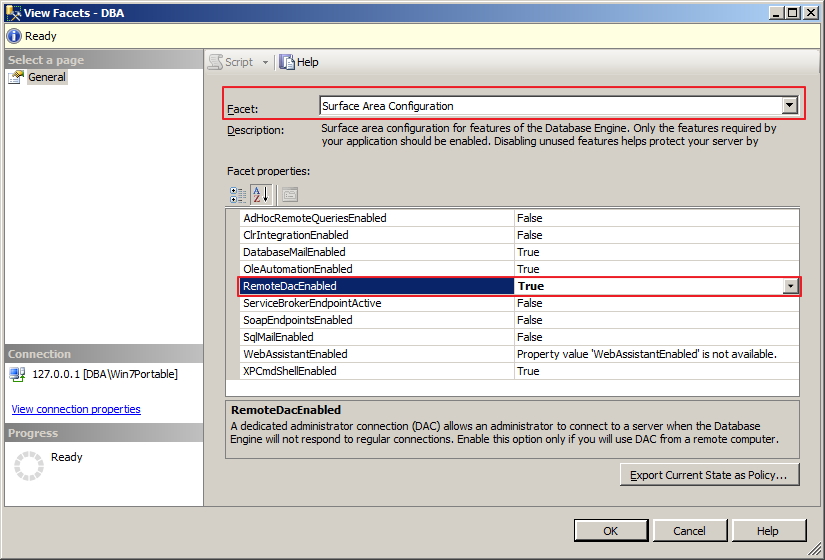
This will open the “View Facets” screen. In the Facets combo, select “Surface Area Configuration” and set the TRUE value for the “RemoteDacEnabled” parameter.
SQL Server Express and the DAC connection
By default, SQL Server Express does not have the DAC connection feature by default. However, this can be enabled using a trace flag. This is the third way to activate the DAC connection, which is using trace flag 7806 in the SQL Server Express initialization parameters. This third option is especially useful for scenarios where you have a problem that prevents the user from logging in (Ex: Logon Trigger), the DAC connection is not activated and you are unable to log into the instance.
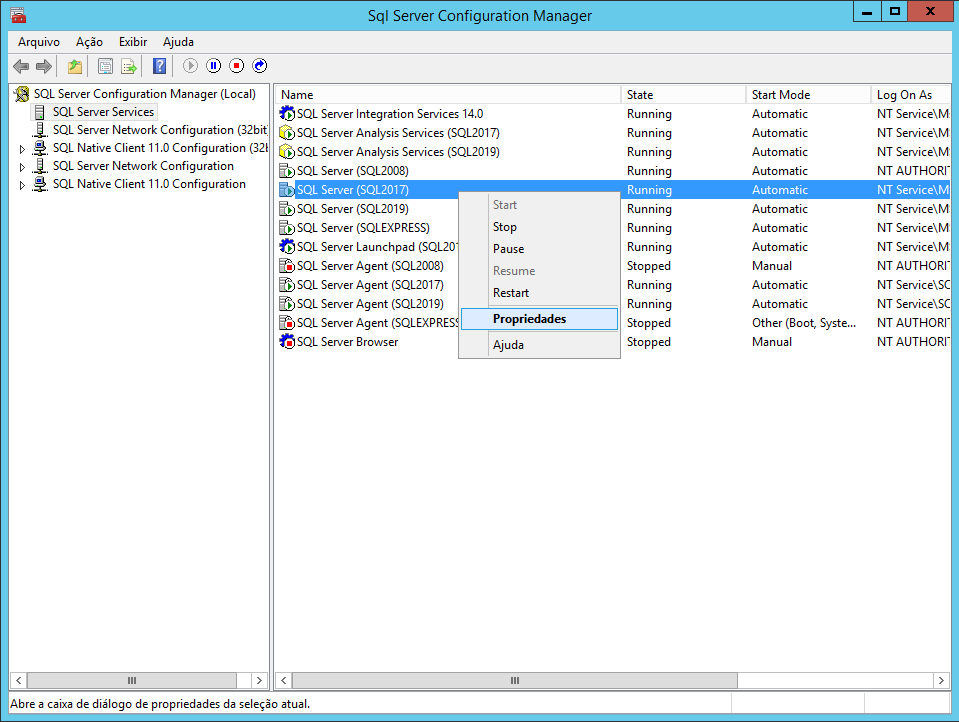
To activate it, simply open SQL Server Configuration Manager and view the properties of the instance you want to enable DAC:
On the instance configuration screen, go to the “Startup Parameters” tab and add the “-T7806” parameter:
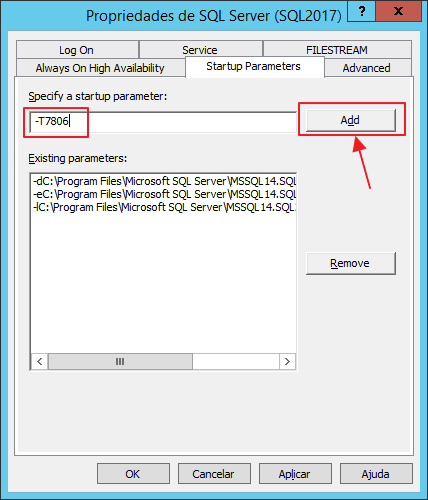
After committing the changes, you will need to restart the SQL Server Express service for the changes to take effect. After that, you will see that it is now possible to connect to the instance using the DAC connection.
Connecting to the instance using the DAC
Using SQLCMD
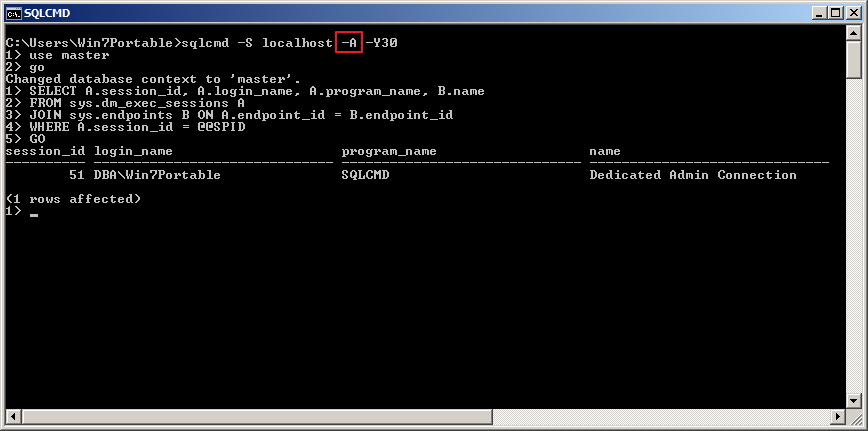
To connect to the instance through SQLCMD using the DAC, simply use the -A parameter, as shown in the example below:
Want to learn more about SQLCMD, the SQL Server command-line utility? Access this link.
Using SQL Server Management Studio
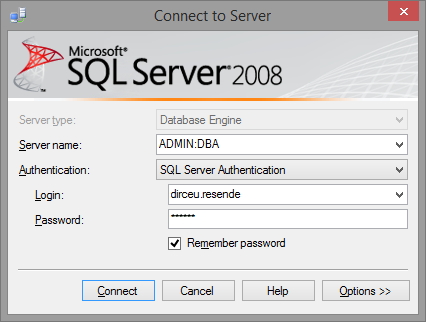
To connect to the instance through SQL Server Management Studio using DAC, simply use the prefix ADMIN: before the instance name when connecting, as shown in the example below:

To identify who is using the DAC connection on the instance:
SELECT
    B.session_id,
    A.name,
    B.connect_time,
    B.last_read,
    B.last_write,
    B.client_net_address
FROM
    sys.endpoints A
    INNER JOIN sys.dm_exec_connections B ON A.endpoint_id = B.endpoint_id
WHERE
    A.is_admin_endpoint = 1

Important: As only one DAC connection is allowed at a time, it is not possible to use it in the Object Explorer, only in the New Query screen.
If you are having difficulty using the DAC connection in an environment where the SQL Browser service is disabled, read this article: SQL Server – How to connect using the DAC connection (Dedicated Admin Connection) without the SQL Browser.
Thanks for visiting and see you next time!
sql, sql server, dac, Dedicated Administrator Connection, Remote Admin Connections, can't connect, dba connection, connection error, login timeout, connection timeout
sql, sql server, dac, Dedicated Administrator Connection, Remote Admin Connections, can't connect, dba connection, connection error, login timeout, connection timeout

Comentários (0)
Carregando comentários…