
Hey guys!
Everything ok?
In this post, I would like to demonstrate how to connect to SQL Server using PHP (Xampp) and the PDO driver on Windows. Many people end up having difficulties installing and configuring the drivers, due to small technical details that end up not being observed and making the connection between PHP and the SQL Server database impossible.
The first step to achieving this connection is download Microsoft® ODBC Driver 18.2.1.1 for SQL Server® to your machine and install the driver.
The next step is to view information about your environment. To do this, create a file called phpinfo.php in the root of your PHP web server (the default directory is C:\xampp\htdocs), with the content below:
<?php
    phpinfo();
?>
After viewing this file in your web browser (http://localhost/phpinfo.php), you should see a screen like this:

On this screen, we need to identify the following environment variables:
- PHP version (in the example case, 7.1.1)
- PHP architecture (in the example case, x86)
- Configuration file location (php.ini)
- Check whether the PHP compilation version is TS (Thread-safe) or NTS (Non Thread-safe) (in the case of the example, it is TS)
After identifying this information, let's now download Microsoft Drivers for PHP for SQL Server, according to your version of PHP:
Relationship between driver version and PHP version
| Driver Version | PHP version | Driver download |
|---|---|---|
| 5.11.0-beta1 | PHP 7.4 to PHP 8.2 | To go down |
| 5.10.1 | PHP 7.4 to PHP 8.1 | To go down |
| 5.9 | PHP 7.3 to PHP 8.0 | To go down |
| 5.8 | PHP 7.2 to PHP 7.4 | To go down |
| 4.3 | PHP 7.0 and PHP 7.1 | To go down |
| 4.0 | PHP 7.0 | To go down |
| 3.2 | PHP 5.6.4+ or PHP 5.5.16+ or PHP 5.4.32 | To go down |
| 3.1 | PHP 5.5.16+ or PHP 5.4.32 | To go down |
| 3.0 | PHP 5.4.32 or PHP 5.3.0 | To go down |
| 2.0 | PHP 5.3.0 or PHP 5.2.4 or PHP 5.2.13 | To go down |
Relationship between driver version and ODBC driver version
Click here to expandRelationship between driver version and database version
Click here to expandRelationship between driver version and Windows version
Click here to expandAfter identifying the correct version of the driver according to your version of PHP, SQL Server and Operating System, download the indicated driver and choose a folder to extract the files during installation.
After that, copy all the files that were installed to the directory php\ext in your Xampp installation (default directory is C:\xampp\php\ext)
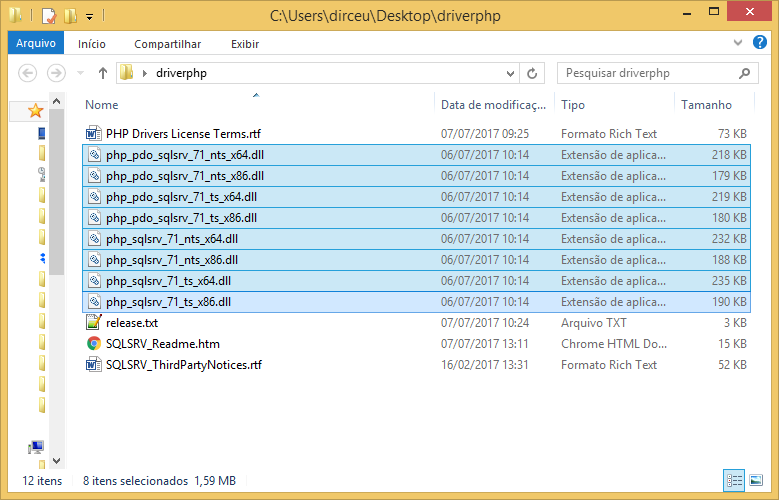
If you don't know the path of your configuration file (the default path is C:\xampp\php\php.ini), in the phpinfo() screen, shown above, you can identify the correct path of your php.ini file by searching for Loaded Configuration File
After copying all the files, edit your installation's php.ini file and add the records below:
extension=php_pdo_sqlsrv_71_ts_x86.dll

extension=php_sqlsrv_71_ts_x86.dll
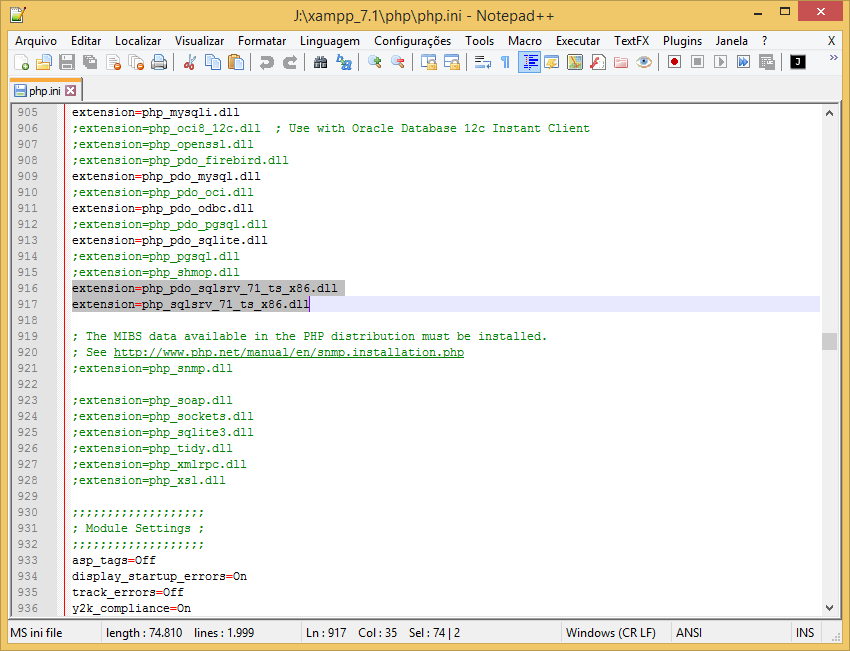
Remembering that the name of the DLLs varies according to the PHP version (71, 70, 54, etc.), Thread-safe (TS or NTS) and architecture (X86 or X64) and must ALWAYS be the same as the name of the files you downloaded and copied to the php\ext directory.
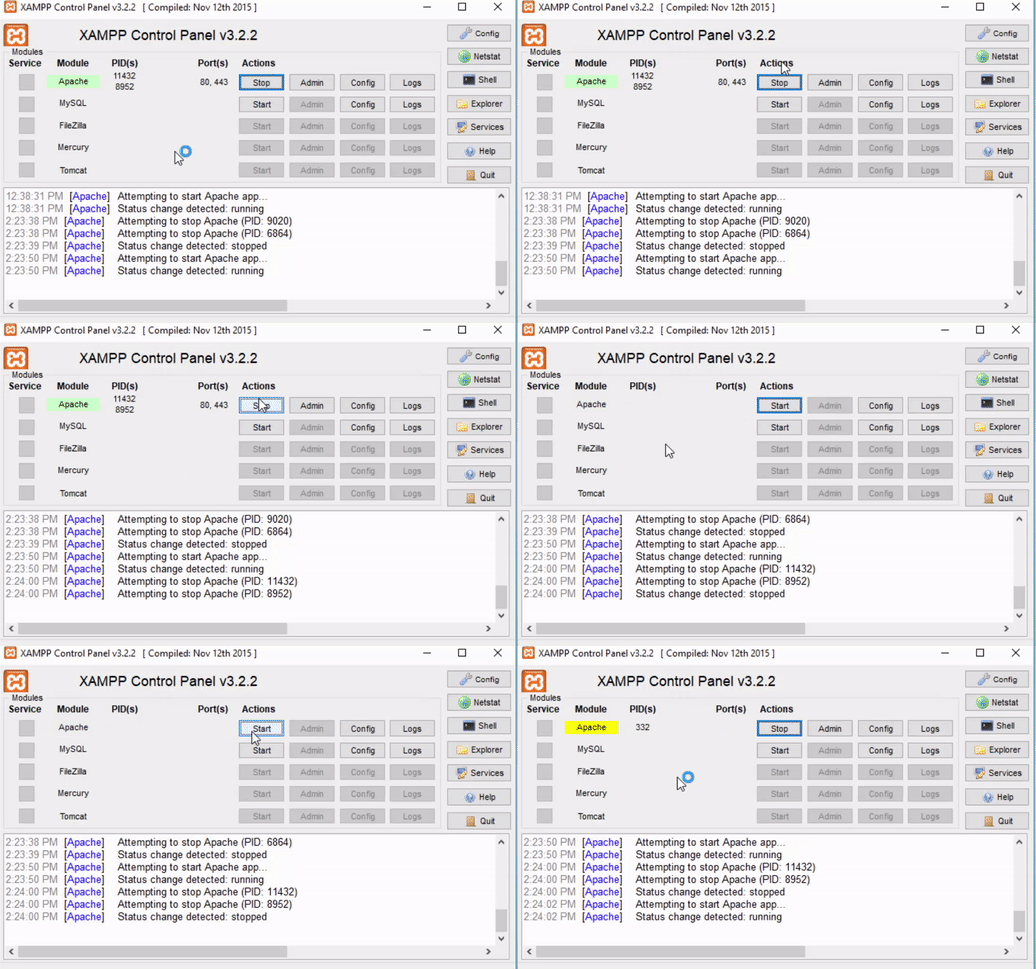
Once you have already edited the php.ini file, simply restart Apache for the changes to take effect, as shown below:
Open the phpinfo.php file again (http://localhost/phpinfo.php) and see if the driver is now loaded:

If it is the same as in the screenshot, it means that the driver is installed and ready to be used!
Connection Test Script
<?php

try
{

    $servidor = "vm-dba";
    $instancia = "sql2016";
    $porta = 1433;
    $database = "master";
    $usuario = "usuario_php";
    $senha = "123456";

    $conexao = new PDO( "sqlsrv:Server={$servidor}\\{$instancia},{$porta};Database={$database}", $usuario, $senha );
}
catch ( PDOException $e )
{
    echo "Drivers disponiveis: " . implode( ",", PDO::getAvailableDrivers() );
    echo "\nErro: " . $e->getMessage();
    exit;
}

$query = $conexao->prepare( "select @@version" );
$query->execute();

$resultado = $query->fetchAll();

echo $resultado['0']['0'];

unset( $conexao );
unset( $query );
Result:
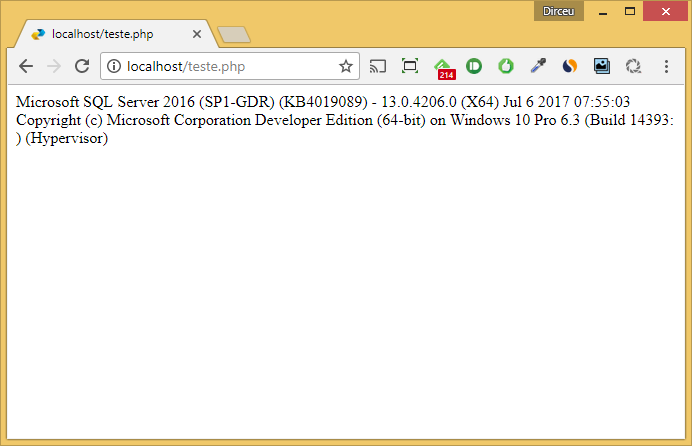
That's it!
I hope you enjoyed this article and you can now start creating applications using PHP and SQL Server!
There is also a very interesting link, from Microsoft itself, that helps developers create a PHP environment. To access this documentation, click this link here.
Big hug!

Comentários (0)
Carregando comentários…