
Hey guys!
Everything is peaceful, right?
Through this article, I will open a new category on my blog called “What not to do”, which are some articles on bad database administration practices that I will start to gather here and thus demonstrate to you everything that should not be done.
To debut this category, I'm going to write here about a bad practice that I see a lot of people using and asking in groups how to do it, which is to enable the sa user in the SQL Server instance.
Why is the SA user disabled by default?
As mentioned in the comments by my friend Edvaldo Castro, if you install SQL Server using Windows Authentication Mode, the “sa” user is disabled by default. If you select the “SQL Server and Windows Authentication Mode” option (also known as Mixed Mode) during installation, you will have to set the password for the sa user and this will be activated by default.
For security reasons, it is highly recommended to keep this user disabled, as it is a user with an administrator profile (belongs to the server role sysadmin), having permission to perform any action on the instance, and a standard user, which is pre-created in all SQL Server instances. Because of this, most attacks made on SQL Server instances are carried out through attempts to access the instance using this user.
Unfortunately, we end up finding several systems and applications that insist on connecting to the database using the user sa (For what?? Why??), generating a major security flaw in the database, making life easier for hackers who try to break into your bank and leaving the DBA without knowing what to do (especially when he doesn't have the option to block the access of this system).
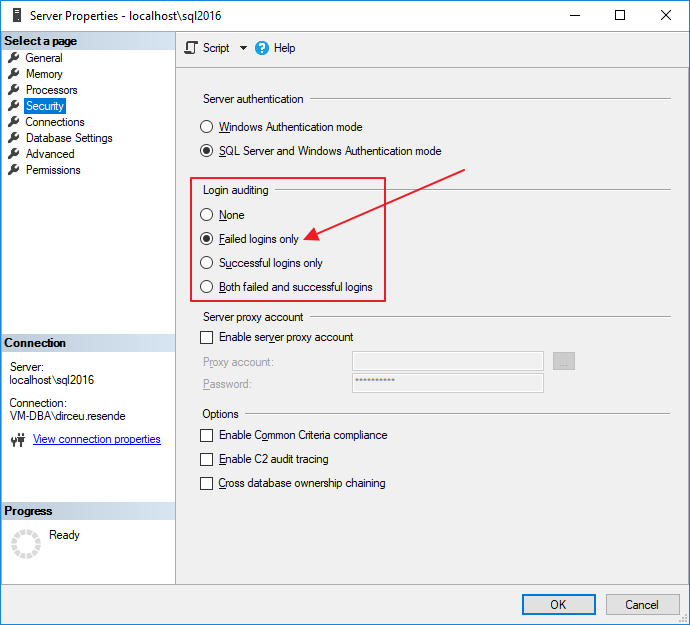
As we can see in the image above, SQL Server allows us to enable an option that generates a log of failed connection attempts, which can help us identify whether our database is suffering brute force invasion attempts. However, unless you actively monitor these authentication failures (which is not very common), you will only identify that this is happening hours, perhaps days, after the attacks. And by then, it may already be too late.
For this reason, a good way to try to hinder the possibility of invasion is to not let the potential attacker know the name of any user with privileges on the instance. And activating the SA user is just the opposite of that.
I want to take that risk. How to activate the sa user?
Well, given the warnings above, and if you really want to take this security risk, I will now demonstrate how to activate the SA user in your SQL Server instance.
If you have not enabled mixed authentication mode (SQL Server and Windows authentication mode) and your instance is only allowing logins using AD authentication (This is a good security practice, but not always viable), you will need to activate Mixed Mode Authentication.
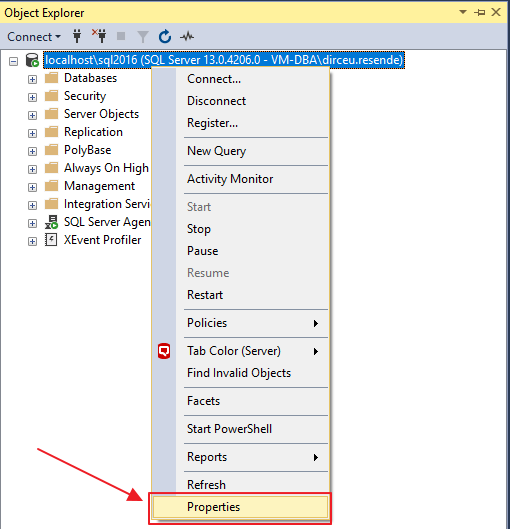
To do this, simply right-click on your instance and select the “Properties” option:
After that, activate the “SQL Server and Windows Authentication mode” option in the security options:
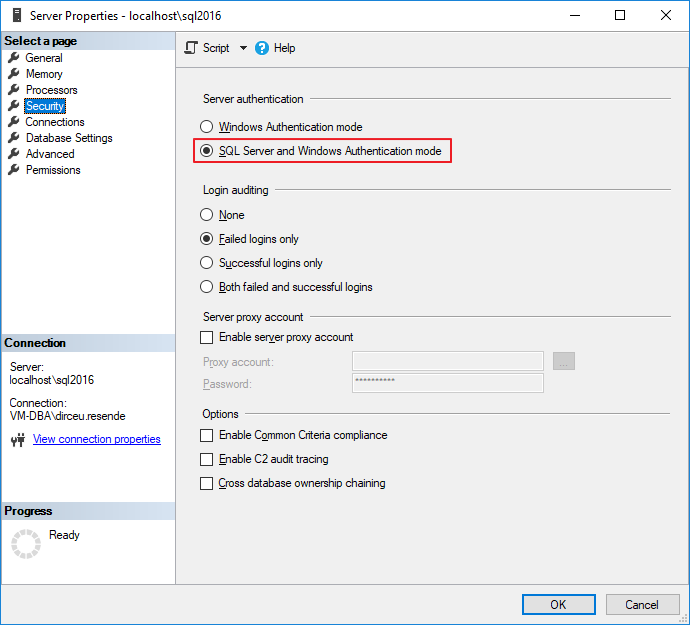
After confirming the changes, your instance will now allow login using both AD (Active Directory) users and SQL Server users (such as sa). It is worth remembering that the SQL Server service needs to be restarted for the changes to be applied.

If you want to apply this change using T-SQL codes, just use this script:
USE [master]
GO
EXEC xp_instance_regwrite N'HKEY_LOCAL_MACHINE', N'Software\Microsoft\MSSQLServer\MSSQLServer', N'LoginMode', REG_DWORD, 2
GO
Now that you have enabled login using SQL Server users, it is time to enable the sa user. To do this, expand the “Security” and “Logins” folders in the “Object Explorer” window and right-click on the “sa” user, which will have an icon and a small red “x”, indicating that this user is deactivated:
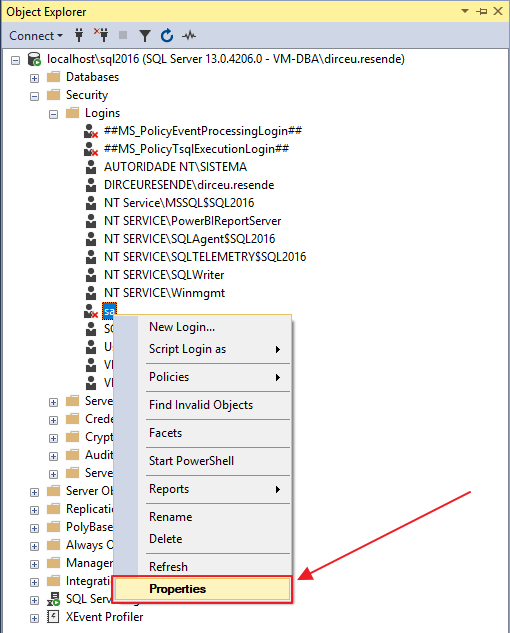
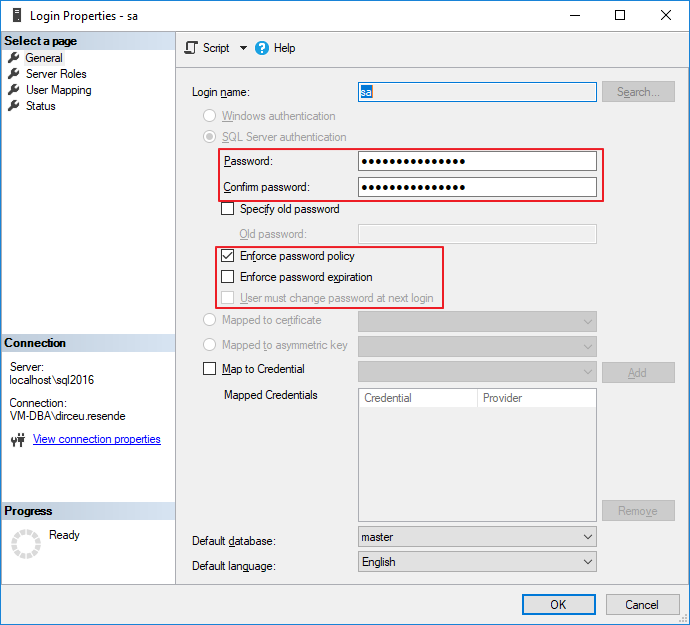
After clicking on the “Properties” button, you will see the screen with the properties of the “sa” user. On this screen, you can define a new password for the user “sa” and also define password complexity policies (Enforce password policy), password expiration policies (Enforce password expiration) and define whether the user must change the password at the next login (User must change password at next login).
In the “Status” tab, you can activate/deactivate the “sa” user login, as shown in the screenshot below:
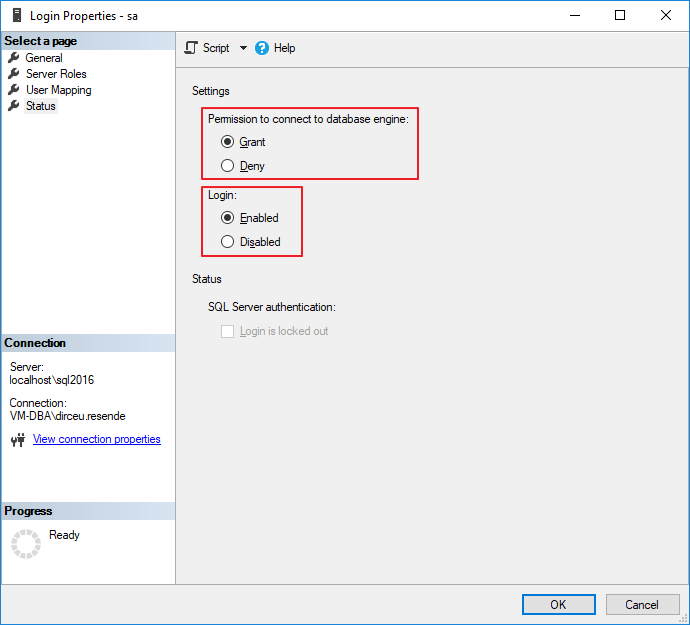
After confirming the changes by clicking the “OK” button, the “sa” user will be active and can now be used normally for invade access your instance.
If you want to enable the SA user using a T-SQL script, simply use the script below:
USE [master]
GO
ALTER LOGIN [sa] WITH PASSWORD=N'@DirceuResende123#'
GO
ALTER LOGIN [sa] ENABLE
GO
Good guys,
I hope you have not activated the “sa” user in your environment and that you enjoyed this article.
A hug and see you next time!

Comentários (0)
Carregando comentários…