Hey guys!
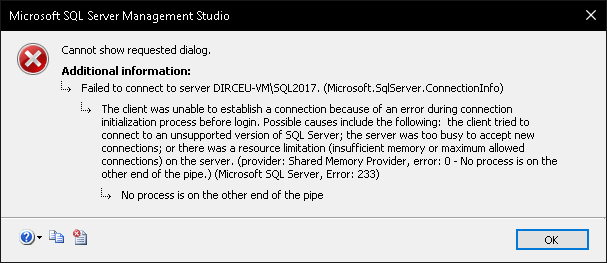
In this post, I would like to share with you the solution to a problem that is quite common and every now and then, someone appears in Whatsapp and Telegram groups with this problem, which is incorrect configuration of the Max Server Memory parameter, setting a value that is too low and as a consequence of this, you can no longer connect to the instance:
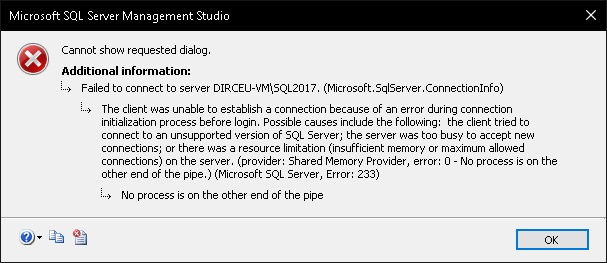
This type of problem occurs a lot due to confusion when specifying the size and putting 128 MB thinking it is 128 GB, for example, or especially due to the value 0 in the max server memory configuration:
- If you changed the setting to 0 using the SSMS interface, it will automatically adjust the maximum size to 16 MB (SQL 2005-2008 R2), 64 MB (SQL 2012 32-bit) or 128 MB (SQL 2012+ 64-bit)
- If you changed the configuration to 0 using T-SQL (sp_configure), it will adjust the maximum size to the default (2,147,483,647 MB = 2 Petabytes)
Solution 1 – Starting SQL in minimal mode
There are several ways to solve this problem, such as starting the SQL Server binary via the command line, but I find it easier to change the service startup parameter in SQL Server Configuration Manager:
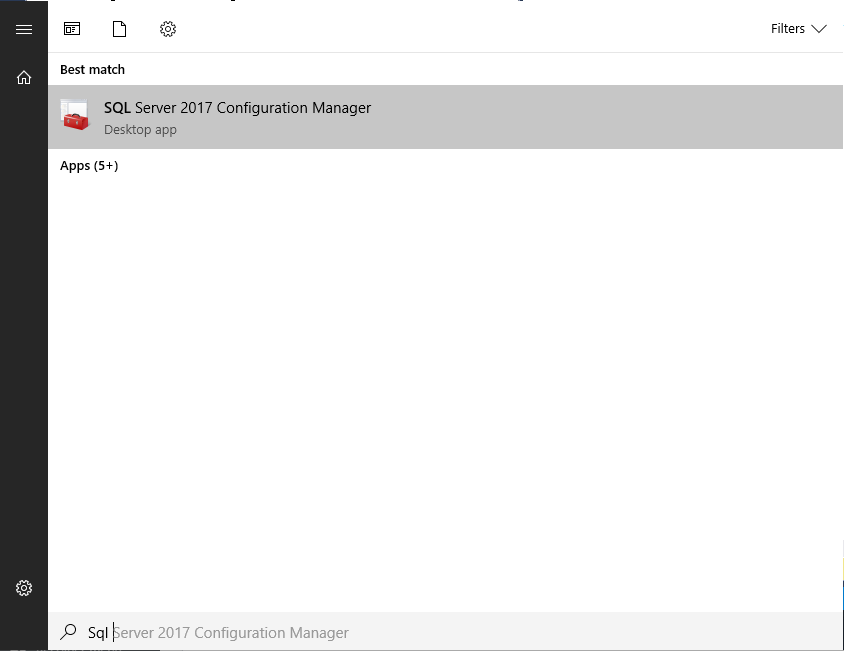
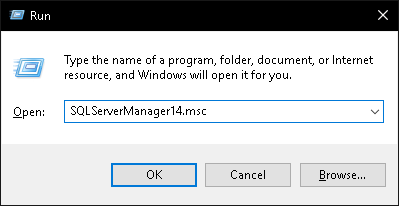
If you don't find SQL Configuration Manager on your server, just open the Start Menu > Run (WinKey + R) and type:
- SQLServerManager10.msc (SQL Server 2008)
- SQLServerManager11.msc (SQL Server 2012)
- SQLServerManager12.msc (SQL Server 2014)
- SQLServerManager13.msc (SQL Server 2016)
- SQLServerManager14.msc (SQL Server 2017)
- SQLServerManager15.msc (SQL Server 2019)
Now that SQL Configuration Manager has opened, locate the SQL Server service that is having problems and right-click and Properties:

On the screen that opened, select the “Startup parameters” tab and add the -f parameter, which is used to start SQL Server with minimum settings, which ignores some SQL Server settings and memory parameters, tempdb is set to the smallest possible size, only one user can connect, and CHECKPOINT is not run.
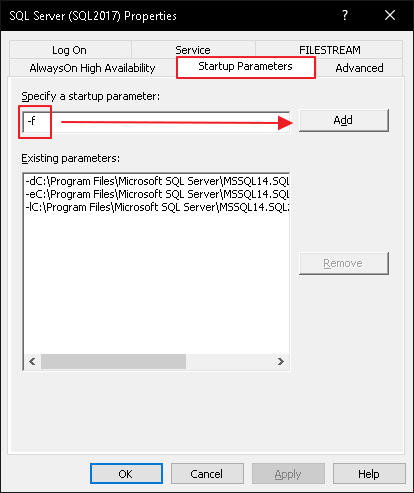
After adding this parameter, restart the SQL Server service:

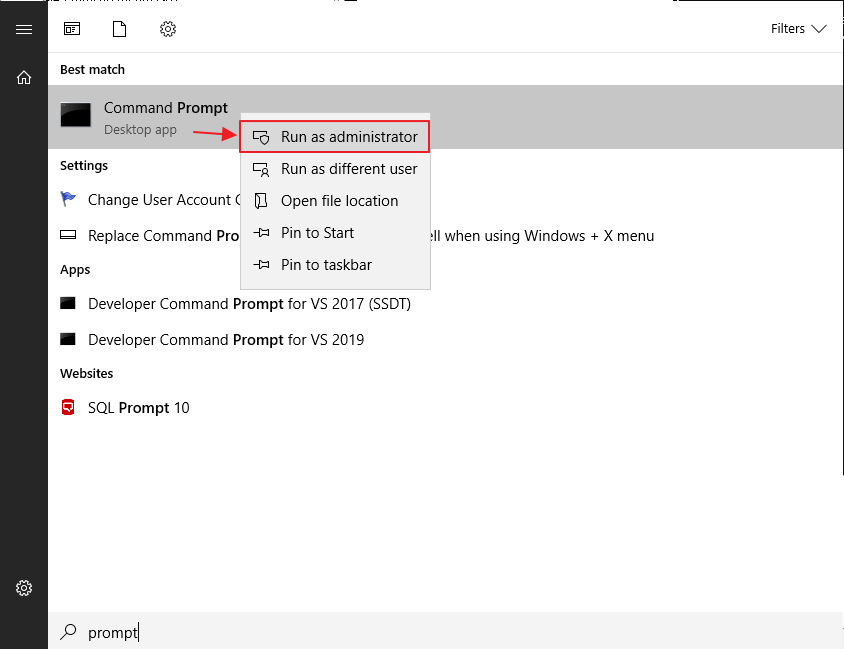
Now open Command Prompt as Administrator:
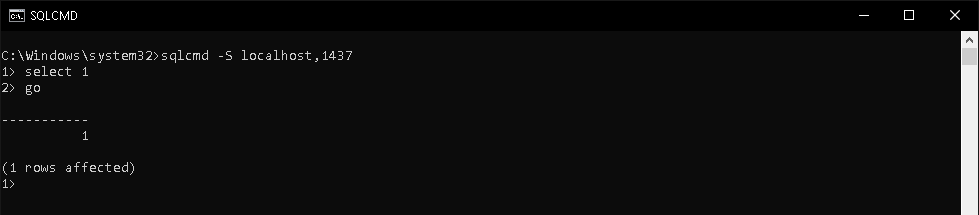
Use SQLCMD to connect to your instance using the command “sqlcmd -S server\instance” or “sqlcmd -S server,port” (I want to learn more about SQLCMD):
If you try to connect via SSMS, you will encounter the following error message:
Login failed for user ‘dirceu.resende’. Reason: Server is in single user mode. Only one administrator can connect at this time. (Microsoft SQL Server, Error: 18461)
Once you've managed to connect to the instance, you can now change the memory parameters:
sp_configure 'show advanced options', 1;
GO
RECONFIGURE;
GO
sp_configure 'max server memory', 4096; -- Altere para a quantidade desejada
GO
RECONFIGURE;
GO
Result:
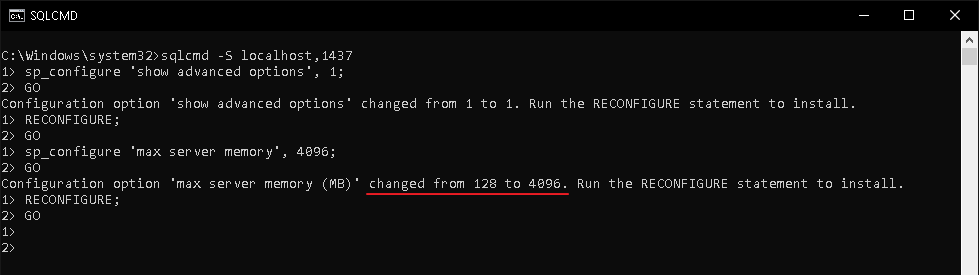
After managing to make the change, remove the -f parameter that we added and restart the service:
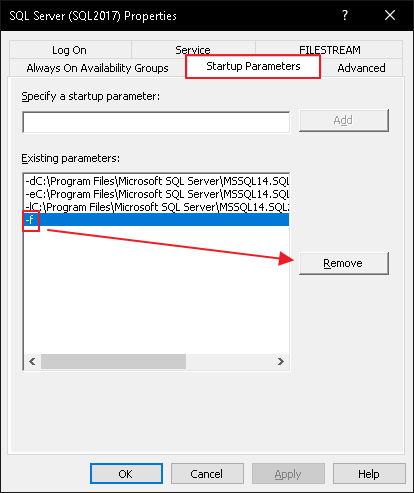
After restarting the service without the -f parameter, the instance started working normally again:

Solution 2 – Dedicated Admin Connection (DAC)
Another way (and even more practical) is to use the Dedicated Admin Connection, also known as DAC, which is a special connection to solve problems where login is no longer possible, be it a very low memory configuration, a logon trigger preventing logins, etc.. By default, the DAC connection remote is disabled, so you must enable the remote DAC connection or you will need to be logged in to the server to be able to use it (local DAC).
To learn more about the DAC connection and how to enable the use of this connection remotely, access the article Enabling and using dedicated remote administrator connection (DAC) in SQL Server and also the article SQL Server – How to connect using the DAC connection (Dedicated Admin Connection) without the SQL Browser.
To connect to the locked instance using DAC through SQLCMD, simply add the -A parameter:
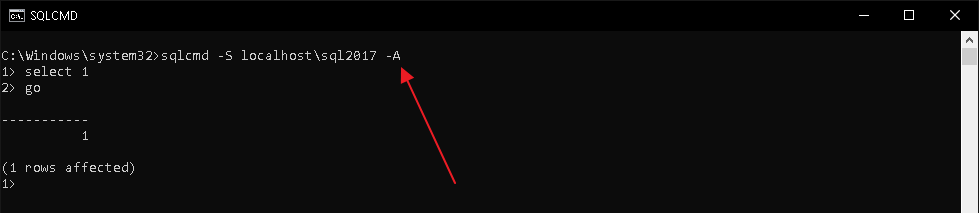
In the tests I carried out with little memory (128 MB), the SQL service couldn't stay online for even 10 seconds and stopped. So I uploaded the service and immediately used the DAC connection to change the memory configuration:
net start "SQL Server (SQL2017)"
sqlcmd -S localhost\sql2017 -A -Q "EXEC sys.sp_configure 'show advanced options', 1; RECONFIGURE; EXEC sys.sp_configure 'max server memory', 4096; RECONFIGURE;"
I hope you enjoyed this quick tip and that it can be useful in your everyday life.
A hug and see you later!

Comentários (0)
Carregando comentários…