
Hey guys!
In this post, I would like to share with you the solution to a question you sent me today on Telegram, where you asked how to hide the informational messages that the BACKUP DATABASE command produces during its execution and that also records them in the SQL Server log.
Introduction
If you have never made a backup in SQL Server (!!!), a very simple example of using the BACKUP DATABASE command is like this, where I use the parameter STATS = 10 so that every 10% in the progress of the backup processing, an output is generated to monitor the execution:
BACKUP DATABASE dirceuresende
TO DISK = 'C:\Temporario\dirceuresende.bak'
WITH STATS = 10
Result:
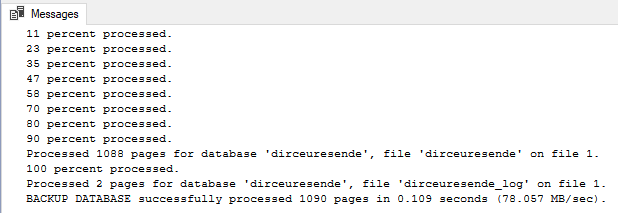
And analyzing our SQL Server log, we can see that 2 records were generated due to this backup:
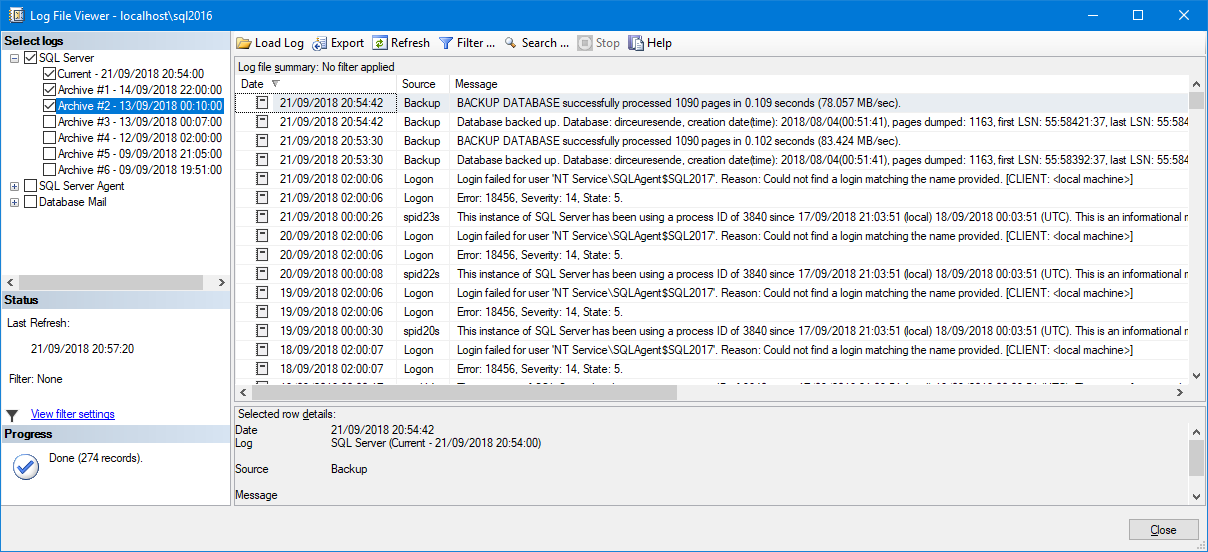
If you have several databases in your instance, including log backups being generated at a high frequency, these informative messages can end up consuming a lot of space and making it difficult to search for information when a problem actually occurs in your environment.
Using traceflag 3226
To get around this scenario, we can use traceflag 3226, which will suppress these informative messages generated by the BACKUP DATABASE command. In case you don't know, traceflags are parameters used to temporarily modify some standard database behavior. For the complete list of SQL Server traceflags, visit official SQL Server Traceflags documentation.
Its use is very simple:
-- Ativa a traceflag
DBCC TRACEON (3226, -1)
GO

-- Executa o backup
BACKUP DATABASE dirceuresende
TO DISK = 'C:\Temporario\dirceuresende.bak'
WITH STATS = 10

-- Se preferir, já pode rodar um backup de log também para testar
BACKUP LOG dirceuresende
TO DISK = 'C:\Temporario\dirceuresende_20180921_215600.ldf'
Result:
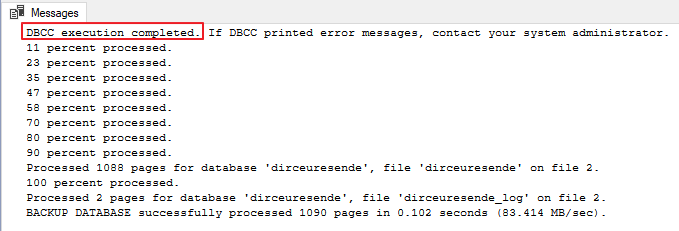
After running the backup, let's analyze the SQL Server log again:

And as shown, we ran the backup and no informational message was generated, not even the log message. But will this traceflag suppress error messages too? Let's test!
I will run the command below, trying to backup a database that doesn't exist, to force an error:
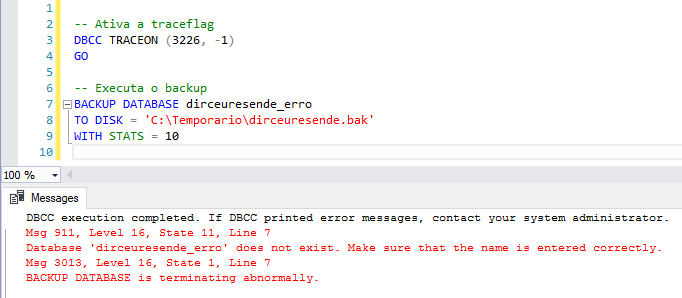
And now let's see if this error was recorded in the SQL Server log:
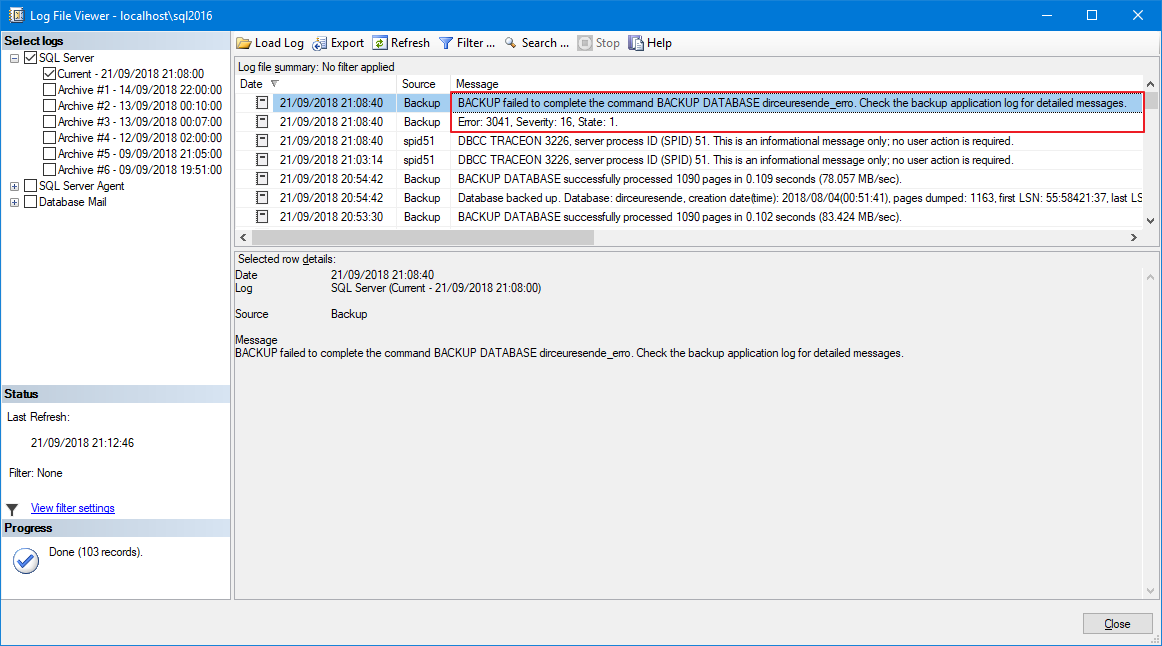
There is our error message. In other words, warning messages were suppressed from the log and error messages continue to be recorded.
Enabling and disabling traceflags
As we saw above, we can activate traceflag 3226 using the command below:
DBCC TRACEON (3226, -1)
GO
Once you run this traceflag, it will be enabled until the SQL Server service is stopped, that is, it does not need to be run every time a backup is performed. If the SQL service is restarted, the traceflag will need to be activated again.
If you want to stop traceflag 3226 and return to the default behavior, without having to restart the SQL Server service, simply run the command below:
DBCC TRACEOFF (3226, -1)
GO
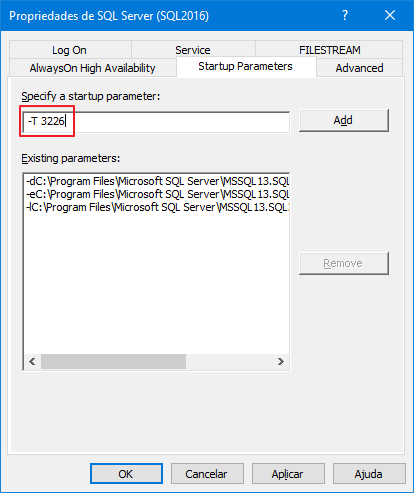
What if you want this traceflag to be activated automatically whenever the SQL Server service is started? In this case, just change the SQL Server service startup parameter by accessing SQL Server Configuration Manager:

And now we add the -T 3226 parameter in the “Startup parameters” tab:
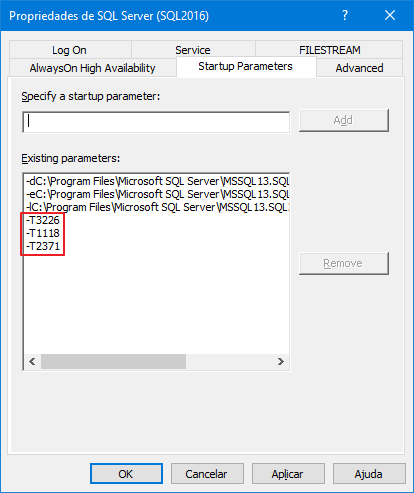
If you want to add more than one traceflag when starting SQL Server, just add them separately:
Well guys, I hope you enjoyed this article and that it ends up being useful to you.
A big hug and see you in the next post.

Comentários (0)
Carregando comentários…