Hey guys!!
In this post I would like to share with you a problem (and the solution) I had at work when I was trying to open the .BIM file of an Azure Analysis Services tabular cube project in Visual Studio 2019 and I came across the error message “An error occurred while opening the model on the workspace database. Reason: An unexpected error occurred (file ‘tmcachemanager.cpp’, line 1790, function ‘TMCacheManager::CreateEmptyCollectionsForAllParents’)”.
Problem description
This is a project that I had been working on for several weeks, and out of nowhere, I tried to open the BIM file and came across the error message below:
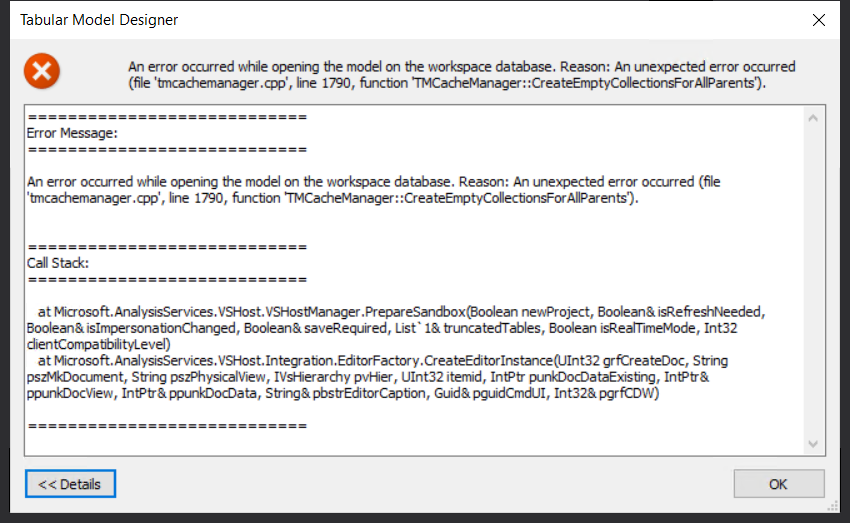
Message transcript:
============================
Call Stack:
============================
at Microsoft.AnalysisServices.VSHost.VSHostManager.PrepareSandbox(Boolean newProject, Boolean& isRefreshNeeded, Boolean& isImpersonationChanged, Boolean& saveRequired, List`1& truncatedTables, Boolean isRealTimeMode, Int32 clientCompatibilityLevel)
at Microsoft.AnalysisServices.VSHost.Integration.EditorFactory.CreateEditorInstance(UInt32 grfCreateDoc, String pszMkDocument, String pszPhysicalView, IVsHierarchy pvHier, UInt32 itemid, IntPtr punkDocDataExisting, IntPtr& ppunkDocView, IntPtr& ppunkDocData, String& pbstrEditorCaption, Guid& pguidCmdUI, Int32& pgrfCDW)
============================
I restarted Visual Studio, then restarted the machine and nothing resolved it.
I decided to search for a solution on Google before trying it on WhatsApp groups (Have you ever searched on Google?) and I only saw posts and links pointing to applying hotfixes and cumulative updates to Analysis Services.
As I was using Visual Studio 2019, with all available updates already installed, Azure Analysis Services, which always has the latest version, and my cube was at the Compatibility Level “SQL Server 2019 / Azure Analysis Services (1500)”, which is also the most current, I discarded all these articles and posts, as none applied to my case.
Ready. Now I no longer had any reference links to help me.
Problem solution
To try to solve this problem, I started doing some tests on my own and one test that worked was changing the “Integrated Workspace Mode” option to False:
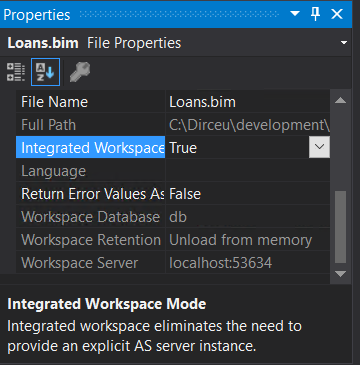
This configuration means that Visual Studio does not use the local internal instance of Analysis Services for development, but rather the original instance informed in the Cube configuration. This is often used to speed up the development stage, and when you process the cube, the data is copied to this local instance as a form of cache, to allow you to preview the data and test correctly when developing within Visual Studio.
After making this change, I was able to open the cube, although I received some error messages related to members and roles, but this is expected due to the change to no longer use Integrated Workspace. In other words, deactivating the Integrated Workspace allowed me to open the BIM file, but it wasn't quite the solution I expected, as I didn't want to change the way I was developing the cube in Visual Studio.
Well, this gave me some insight that the problem might not be corruption of the BIM file or the wrong configuration that I had made. I returned the “Integrated Workspace Mode” parameter to True and tried opening the cube again: I received the same error message 🙁
After many, many tests, trials and errors, and more searches on the internet without success, I finally discovered the solution to my problem: There was something wrong in the cache of data or metadata that is loaded from the cube to the local internal instance of Analysis Services, so this serves to allow preview within Visual Studio.
To finally solve this problem that gave me a headache for several minutes, I closed the solution in Visual Studio, opened the directory where my project and the BIM file were stored, removed the “obj” and “bin” subdirectories from my project folder and opened the solution again.
And voila! My project opened normally again in Visual Studio.
The solution was very simple, even a bit silly, but it's something that I spent a lot of time trying to solve, I didn't find any documentation on the internet that really helped me and I decided to share this problem and the solution with you.
That's it, folks!
A big hug and see you later!!

Comentários (0)
Carregando comentários…