Hey guys,
Good morning!
Today I came across a silly and easy-to-solve problem again, but it's very annoying when using virtual machines in VMware, which is when the message below occurs:
Adapter Ethernet0 may not have network connectivity. MAC address 00:0C:29:58:61:19 of adapter Ethernet0 is within the reserved address range or is in use by another virtual adapter on your system.
Adapter Ethernet0 may not have network connectivity….
When this occurs, the virtual machine's virtual network card conflicts with the network card of other VM(s) and will likely experience internet connection problems.
The first time I saw this message, I thought the solution to resolve this situation would be to go to the VM settings > Hardware > Network Adapter > Advanced… and click on the Generate button, to generate a new MAC Address. I tried several times and this message continued to appear and the VM without network access.
What causes the problem
Although it is not a very common error for most users, it is very common for those who work with several virtual machines, as this problem occurs when the following actions are performed in sequence:
– You copy the disk file (vmdk extension) from a VM and paste it into another folder
– Both virtual machines are running simultaneously
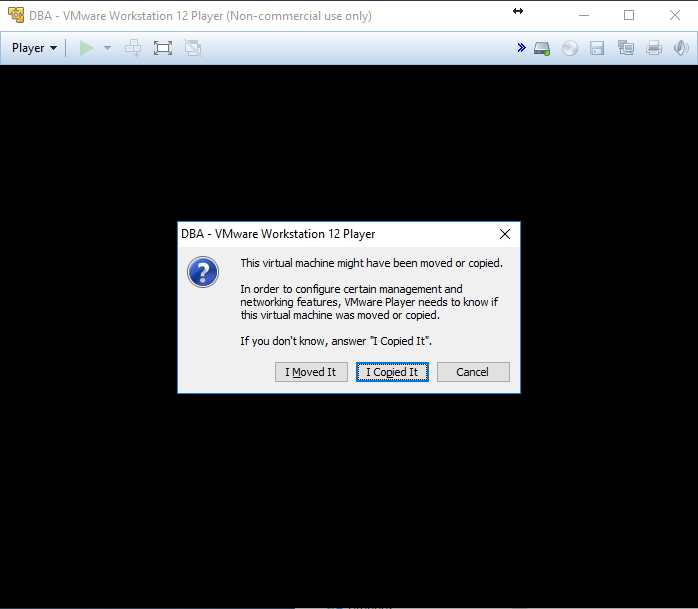
– When the screen below appears, you have selected the option “I Moved It”
I use this a lot, as I have a VM with a clean installation of Windows, without any other software installed. When I need to perform some testing, I copy and paste the disk file and create a new VM to start making changes, saving a lot of time installing and configuring Windows.
How to fix and/or prevent this problem
The way to prevent this problem is very simple: just select the “I Copied It” option on the screen that appears when starting the new VM. By doing this, VMware will associate a new MAC Address for the new virtual machine, avoiding the problem reported in this post.
However, if you have already selected the “I Moved It” option, don’t despair. Just shut down the VM and rename the folder where it is located.
When you open VMware again, it will inform you that this virtual machine no longer exists. You can choose to remove it from the library and add it again or just select the “Browse for virtual machine” option and choose the vmdk file again.
Once you do this, the dialog window shown above will be displayed again, where you must choose the “I Copied It” option.
And that's it!
Thanks for visiting and see you in the next post.
VMware Player MAC Address Duplicated Duplicated Adapter Ethernet0 may not have network connectivity. MAC address 00:0C:29:58:61:19 of adapter Ethernet0 is within the reserved address range or is in use by another virtual adapter on your system. Adapter Ethernet0 may not have network connectivity….
VMware Player MAC Address Duplicated Duplicated Adapter Ethernet0 may not have network connectivity. MAC address 00:0C:29:58:61:19 of adapter Ethernet0 is within the reserved address range or is in use by another virtual adapter on your system. Adapter Ethernet0 may not have network connectivity….

Comentários (0)
Carregando comentários…