
Introduction
Suppose you developed a system for a company and at a certain point, that company requested you, that this system needs to send certain emails to its customers every Monday and your system must perform automatic backups every Friday, at 11:00 pm.
And now? How do we do this?
What is cron
Well, this is the solution for your system! Cron can be interpreted as a service in Linux operating systems that allows you to schedule the execution of scripts and commands at certain scheduled times.
To execute tasks, cron uses a type of table known as crontab. The crontab file is usually located in the /etc directory, but it can also be in a directory that creates a crontab for each user of the system (usually in /var/spool/cron/), it all depends on the settings of the operating system used.
Using cron
The first step is to open crontab. To do this, you can use system text editors or through the command crontab -e to edit your user's unique file. In this case, editing is done as if you were using vi.
The crontab has the following format:
[minutes] [hours] [days of the month] [month] [days of the week] [user] [command]
Filling in each field is done as follows:
– Minutes: enter numbers from 0 to 59;
– Hours: enter numbers from 0 to 23;
– Days of the month: enter numbers from 0 to 31;
- Month: enter numbers from 1 to 12;
– Days of the week: enter numbers from 0 to 7;
– User: it is the user who will execute the command (it is not necessary to specify it if the user's own file is used);
– Command: the task that must be performed.
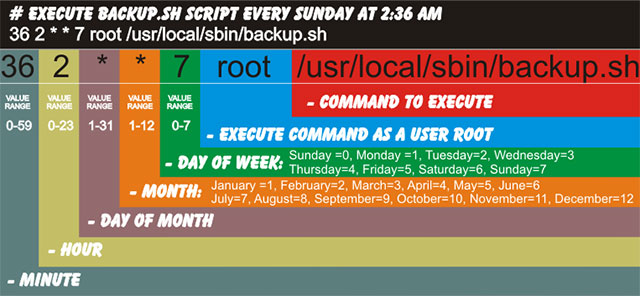
Note that the order of these values indicates the corresponding name of the field. For example, in the month field, 1 to 12 means “January to December”. In the case of days of the week, 0 to 6 means “Sunday to Saturday”. Note that the number 7 can also be used. In this case, like the number 0, 7 is equivalent to “Sunday”. In place of these values, you can enter * (asterisk) to specify constant execution. For example, if the days of month field contains *, the related command will be executed every month.
You can also enter intervals when filling out, separating the start and end numbers using – (hyphen). For example, if you enter 2-5 in the hours field, the related command will be executed at 2, 3, 4 and 5 o'clock.
What if the command has to be executed at 2 am, between 3 and 6 pm and at 10 pm? Just enter 2.15-18.22. In these cases, you separate the parameters with a comma.
Let's look at an example:
#scheduled task
30 22 3.14 * * echo “Don’t panic” > /home/dirceu/log.txt
In this example, the phrase “Don't panic” is inserted in the log.txt file, within the /home/dirceu/ directory, at 10:30 pm, on the 3rd and 14th, in every month and on every day of the week. Notice the line “#scheduled task”. This is a comment. Type # and everything typed in the line will not be considered by cron. It is a useful feature for inserting descriptions when you have several tasks to be performed.
crontab commands
To access crontab, simply type this name into a terminal followed by a parameter. Here is the list of available parameters:
crontab -e: as already mentioned, it is used to edit the current crontab file and create one, if it does not exist;
crontab -l: this command shows the current contents of the crontab;
crontab -r: removes the current crontab file.
Running PHP Scripts on Web Servers via cron
Now that you've learned how to use cron, how can we run our application scripts?
To run PHP scripts, simply enter the command php /path/do/script in your cron. However, as each server has different configurations, this command is not always executed correctly, especially in more complex applications that use PHP's “magic” __autoload feature.
THE KingHost for example, it has a really cool, fast and practical interface for managing scheduled tasks through the control panel itself (despite charging R$5.00 per task... absurd...). I have already configured several tasks and had no difficulty doing so.
Other servers, such as UOL Host, provide SSH access for customers to configure their crons manually through an SSH terminal of their choice (I recommend PuTTY). In this case, I had problems configuring some cron jobs due to the aforementioned __autoload feature.
Fortunately, here is the solution:
wget www.seusite.com.br/seu_arquivo_cron.php
where the wget command reads the requested file, saves a copy on your server and displays the content on the screen. However, in this case, we don't want the message on the screen, much less a copy of the php script, right? So, let's move on to the definitive solution:
wget -q --delete-after www.seusite.com.br/seu_arquivo_cron.phpWhere the -q command inhibits the message generated by wget and the –delete-after command deletes the copy of the created file.

Comentários (0)
Carregando comentários…