
Hey guys!!
In this article I would like to share with you a small study on how to connect using the DAC connection (Dedicated Admin Connection) without the SQL Browser. This idea came from a question sent in my course SQL Server Security – Module 1, where Fabiano Ferreira sent the following question: "in the stpchecklist_seguranca script, there is a validation about the SQL Browser being executed with a single instance and treated as an error. However, is the SQL Browser not used to allow the use of the connection via remote admin connections? If so, would it be an error to leave it active?" – And that was an EXCELLENT question!
What is the DAC connection (Dedicated Admin Connection)?
As you know, the connection DAC (Dedicated Admin Connection) allows SQL Server to reserve a connection slot so that, in extreme cases, such as all connections being used or a logon trigger preventing connections, you can still log into the instance and try to fix the problem, without having to restart the SQL service. To learn more about the DAC connection, click this link here.
What is SQL Browser? How does it work?
SQL Browser is the SQL Server service that “translates” the instance name to the port it is using. I will give an example of how the dirceu-vm server instances are:
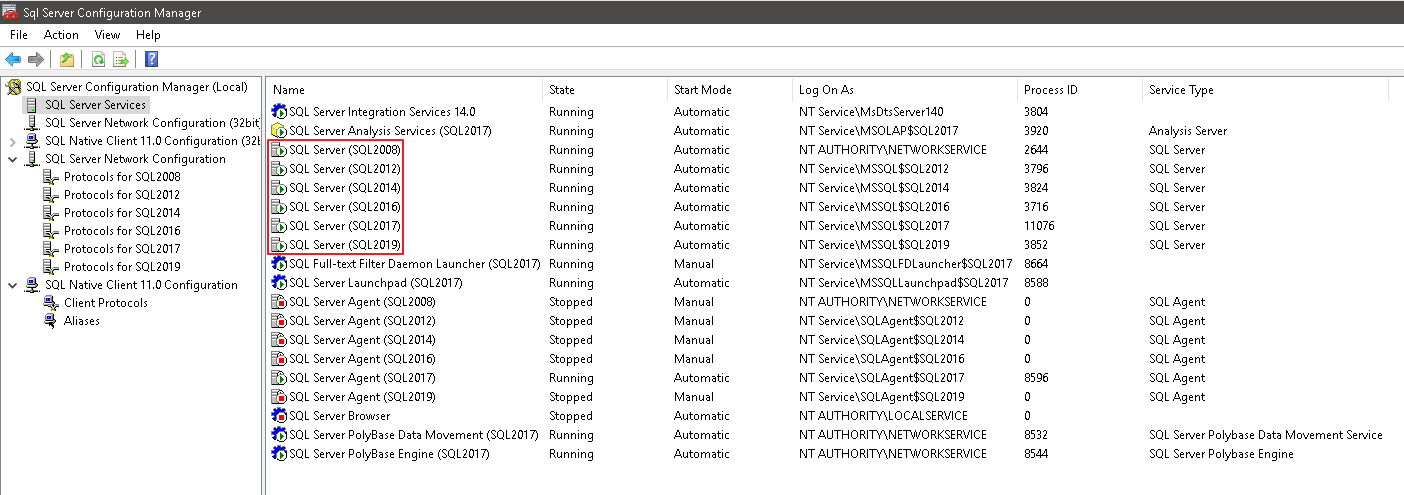
In other words, there are SQL2008, SQL2012, SQL2014, SQL2016, SQL2017 and SQL2019 instances on this server (Ex: dirceu-vm\sql2017). When you make a connection attempt using this instance, SQL Browser will identify the name of the informed instance (SQL2017) and will return which port this instance is using, according to the settings:
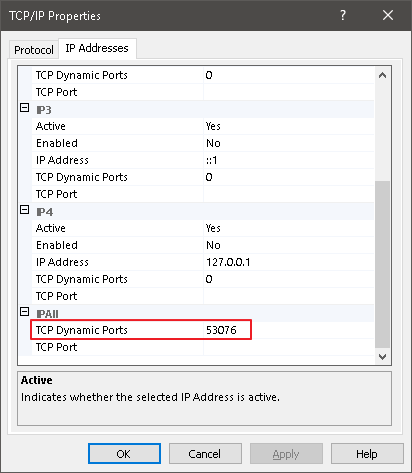
In the case above, my instance is using a dynamic port, that is, you enter the value “0” in this field and each time the service is started, this instance will use a random port. In this scenario, where a server has several instances, the SQL Browser is important, as it identifies the name of the instance requested in the connection and returns which dynamic port this instance is using at that moment.
Connecting to an instance with SQL Browser activated:
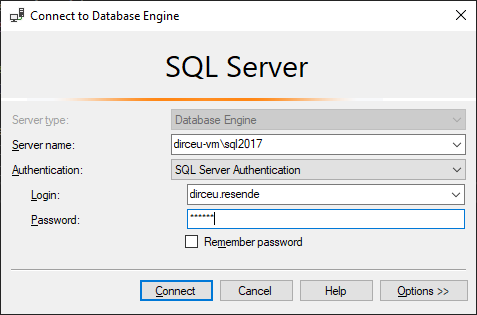
Note that in the example above, I did not need to inform the port number that this instance is using, because from the moment I enter the name of the instance, the SQL Browser service will identify which port this instance is using and make the connection for me. If you disable SQL Browser, you will have to manually inform the connection which port the instance is using. As this port changes each time the service is started, it is difficult to know which port is for each instance.
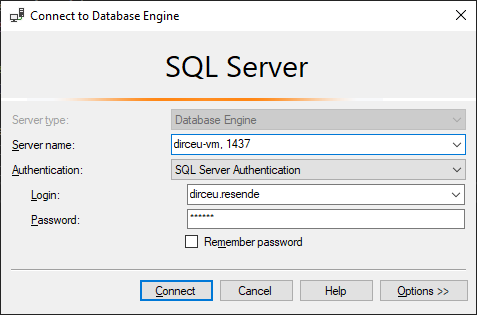
Now, let's use a fixed port for our instance (1437):
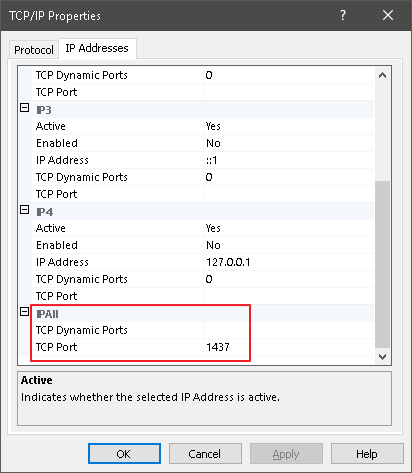
In the example above, I already know which port my instance will use, as it is fixed and I defined it. Even if the server has several instances, if they all have a fixed port, you can leave SQL Browser disabled, as the connection using the “server, port” format can be done without any major difficulties (although the “server\instance” pattern is easier to memorize, it's true).
Connecting to an instance with SQL Browser disabled:
Why disable SQL Browser?
After the above explanation about SQL Browser, it became clear that SQL Server does not need this feature to function normally (Except in Cluster environments. In this case, SQL Browser cannot be disabled), as it ends up exposing the name and ports used by each instance on the network. If you search for security checklists on the internet or good security practices, you will see that most recommend disabling this service.
Although I don't think this will be a big security improvement, since the risk of keeping SQL Browser running is relatively low, I think that any additional difficulty you can offer to a potential attacker is worth implementing.
Furthermore, when you enter “server, port”, you can change this port from time to time and with the impact of only changing the applications connection string and making a very simple change to the instance protocol to change the port (in this screenshot above). Changing the instance name involves making more complex modifications to the database as well, in addition to the applications, and if you use the instance name for some monitoring or routine, this change can impact this.
What about the DAC connection? Disabling SQL Browser does not work!
With SQL Browser activated, simply add the prefix ADMIN: before the server\instance name to connect using the DAC (if this connection is not being used, of course):
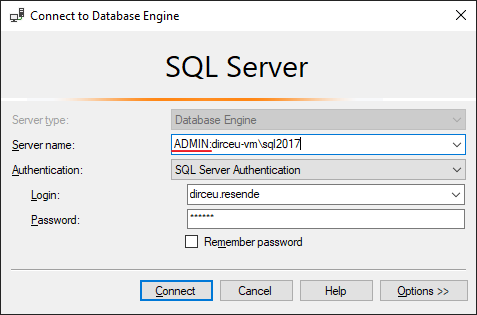
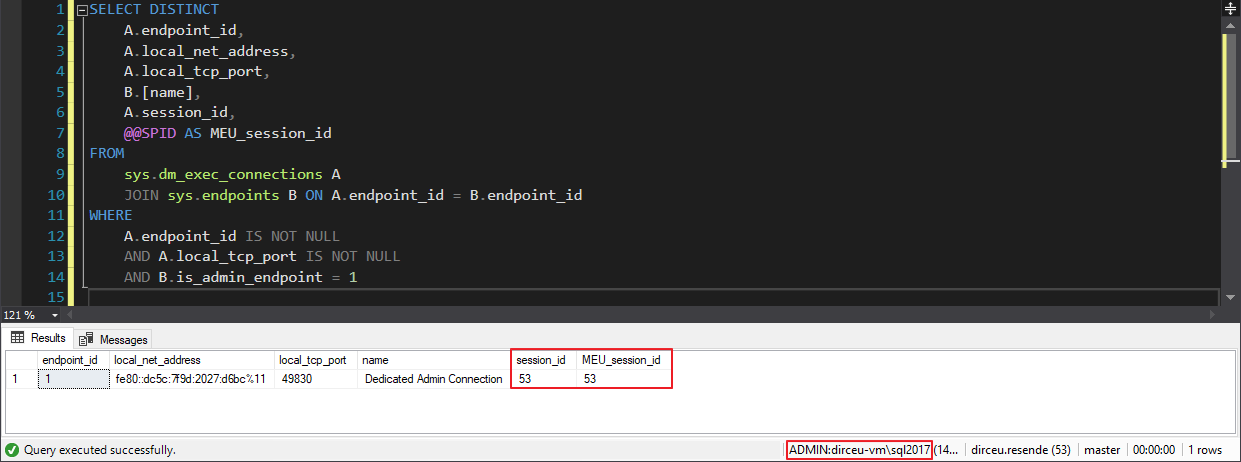
And so, I can connect using the DAC:
But then when I disable SQL Browser and try to connect using DAC, I come across this error message:
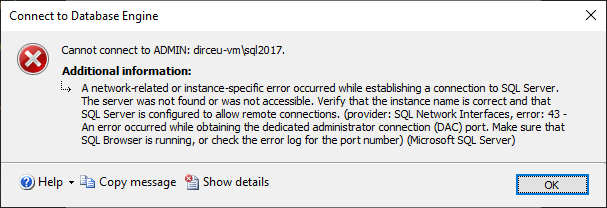
In other words, the DAC does not work without the SQL Browser!!
Calm down, young people! I will explain why this happens.. Just as it “translates” the instance name to the port number, the SQL Browser service also identifies the “ADMIN:” prefix in the connection and returns the port number of the DAC connection for that instance, and thus, the connection is made successfully using the DAC.
In other words, as SQL Browser is disabled, it did not make this “translation” for the port used by the DAC connection in this instance (Each instance can only have 1 DAC connection) and then SQL Server was unable to identify which port it will connect to. The “magic” for using the DAC connection without SQL Browser is simply informing the port used by the DAC of this instance in the “server, port” format.
When we are using the default instance, the default DAC connection port is 1434, but when we have named instances and, especially, multiple instances, the port will be dynamic. And to find out which port is being used by the DAC connection, we can use the queries below:
Using sp_readerrorlog
sp_readerrorlog 0, 1, 'Dedicated admin connection'

Using the sys.dm_tcp_listener_states DMV
SELECT
    [port]
FROM
    sys.dm_tcp_listener_states
WHERE
    is_ipv4 = 1
    AND [type] = 0
    AND ip_address <> '127.0.0.1'
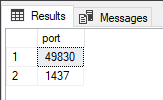
Using the sys.dm_server_registry DMV
SELECT
    *
FROM
    sys.dm_server_registry
WHERE
    value_name = 'TcpDynamicPorts'
    AND registry_key LIKE '%\AdminConnection\Tcp'

Using SQL Server Log
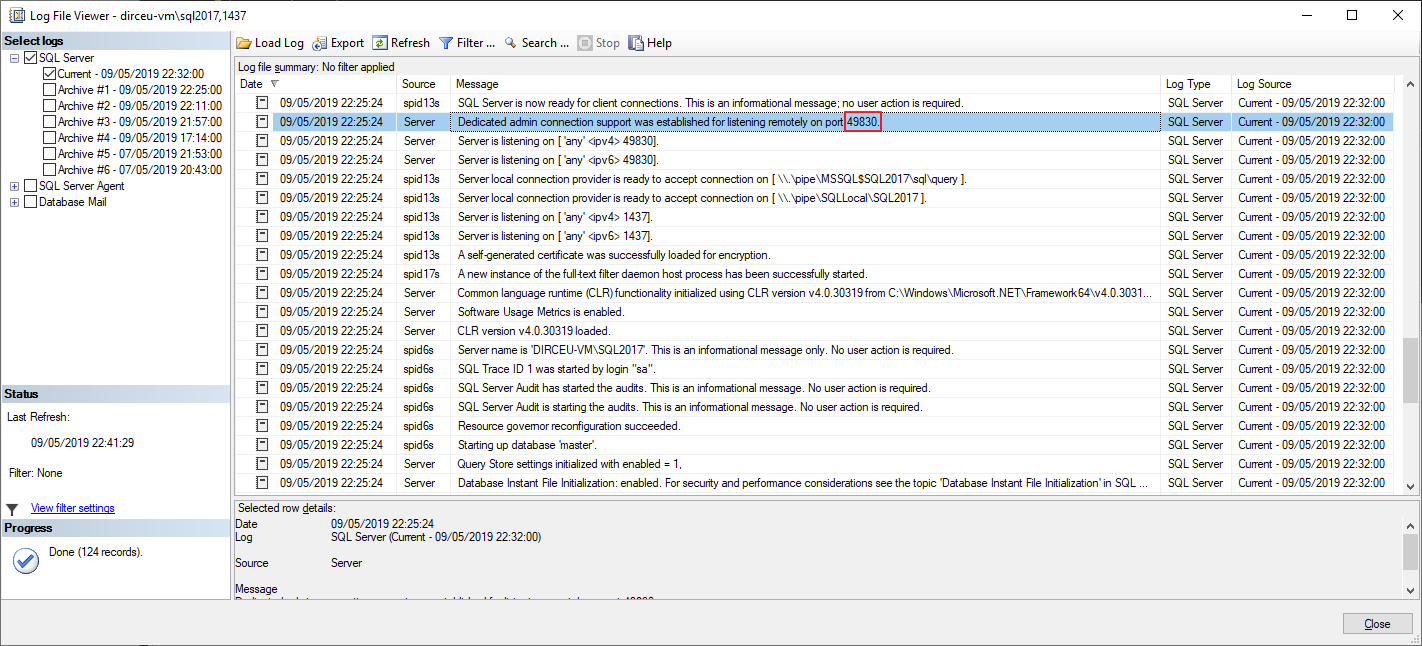
Once we have identified which port is used by the DAC connection (in the case of this example, it is 49830), simply enter it in the connection string:
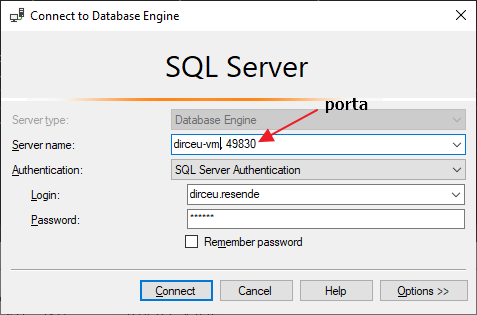
And now, I will check that I am using the DAC connection:
SELECT DISTINCT
    A.endpoint_id,
    A.local_net_address,
    A.local_tcp_port,
    B.[name],
    A.session_id,
    @@SPID AS MEU_session_id
FROM
    sys.dm_exec_connections A
    JOIN sys.endpoints B ON A.endpoint_id = B.endpoint_id
WHERE
    A.endpoint_id IS NOT NULL
    AND A.local_tcp_port IS NOT NULL
    AND B.is_admin_endpoint = 1

And that's it, folks!
I hope you enjoyed this article!
To learn more about all aspects of Security in SQL Server, be sure to take my course Security in SQL Server – Module 1, where I discuss various configurations, good practices and tips to improve the security of your SQL Server environment and it would also be VERY interesting to take the course Windows Fundamentals for DBA SQL Server, from the legend Rodrigo Ribeiro, where he talks about several very important topics that a DBA should know, including the DAC connection, even showing how to change this port :).
A hug and see you in the next article.

Comentários (0)
Carregando comentários…