
Hey guys!
In this post I would like to demonstrate to you how to log in to view reports and identify which user is accessing it, that is, how to record in a database table which user is accessing a particular report and when this was done.
The idea for this post came from a question in a Telegram group and I thought I could help more people by publishing this article. In fact, when I needed to create something like this, I didn't find much clear and objective documentation on the internet.
How to log in to view reports
As the purpose of this post is not to teach how to create reports in SSRS (I will create a post about that), I will move on to the objective of this article. In summary, what you must do to achieve this objective is to use a standard SSRS variable to identify the user running the report (=User!UserID) and pass this variable to the dataset that is querying the data in the database, so that it includes the recording operation of this log in the query process.
Did you find it difficult? I will detail 🙂
Assuming that you have a functional Reporting Services report, like the one shown below, let's start preparing our routine so that we can log the report execution:

I can't help but comment here, as I support, recommend and ALWAYS use Stored Procedures to execute my reports. This gives me great freedom and flexibility to query and process the data, passing parameters and making it so that I can edit the query just by changing objects in the database, without having to change my report.
The current source code of my Stored Procedure looks like this:
CREATE PROCEDURE dbo.stpConsulta_Relatorio (
    @Ds_Objeto AS VARCHAR(100)
)
AS
BEGIN

    SELECT *
    FROM
        sys.objects
    WHERE
        [name] = @Ds_Objeto

END
GO
Now let's start making changes to start logging the changes, including the name of the user who is consulting the report.
First, let's create the table that will store information from the report execution logs:
CREATE TABLE dbo.Logs_Relatorios (
    Id_Log INT IDENTITY(1,1) NOT NULL PRIMARY KEY CLUSTERED,
    Dt_Log DATETIME DEFAULT GETDATE(),
    Ds_Relatorio VARCHAR(100),
    Ds_Usuario VARCHAR(100)
) WITH(DATA_COMPRESSION=PAGE)
Let's change our Stored Procedure that queries the data so that it includes the log record. To do this, I will add the @Ds_Usuario parameter to the SP so that it receives the user's name and inserts it into the bank log.
ALTER PROCEDURE dbo.stpConsulta_Relatorio (
    @Ds_Objeto AS VARCHAR(100),
    @Ds_Usuario AS VARCHAR(100)
)
AS
BEGIN


    -- Loga as operações
    INSERT INTO dbo.Logs_Relatorios ( Dt_Log, Ds_Relatorio, Ds_Usuario )
    VALUES ( GETDATE(), 'Consulta_Relatorio', @Ds_Usuario)


    -- Executa o relatório
    SELECT *
    FROM
        sys.objects
    WHERE
        [name] = @Ds_Objeto


END
GO
The next step is to change our dataset in Report Builder to include the user parameter:
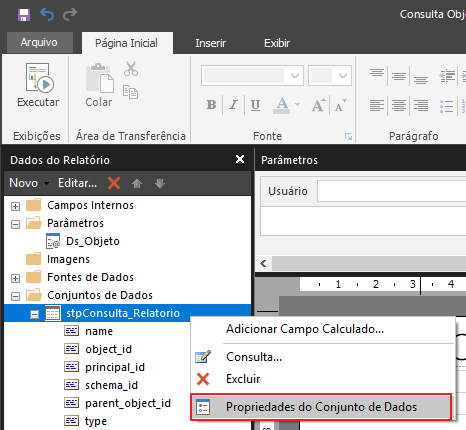
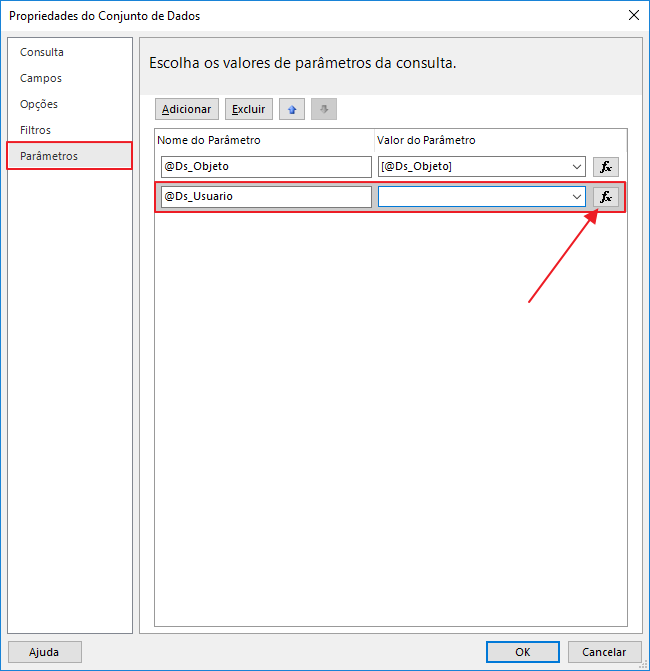
Once the dataset settings screen is open, click on the Parameters option and add the @Ds_Usuario variable to the Stored Procedure call:
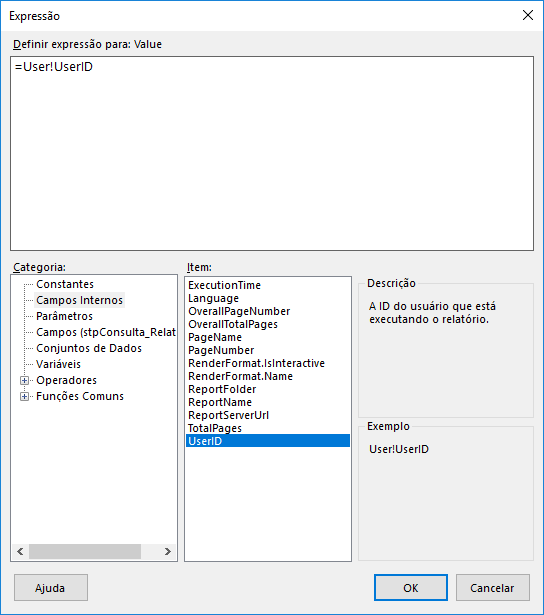
When clicking the Expression button, select the internal field UserID (=User!UserID):
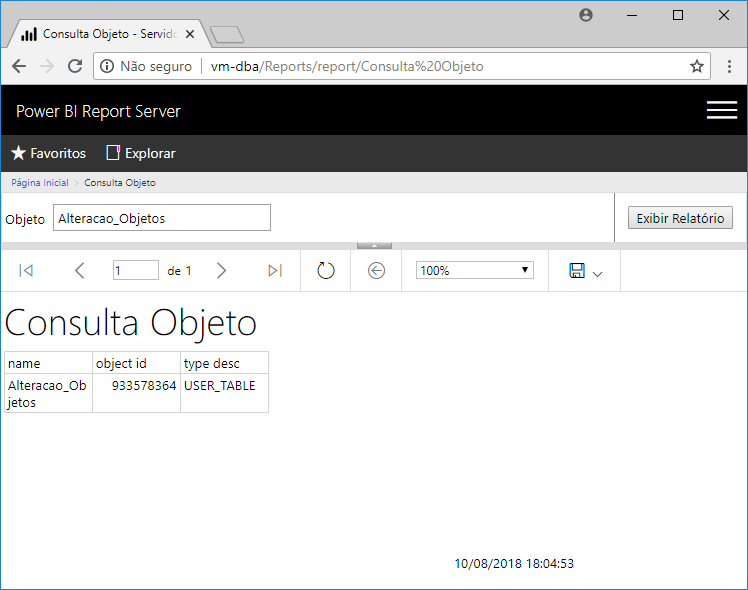
After making these changes, save the Report and access it on the SSRS portal:
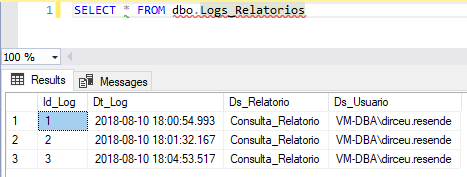
When consulting the data generated in the history table (dbo.Logs_Relatorios), we can view the records generated, with the date when the report was consulted and who consulted it:
[Video] – How to log in to view reports
If you are the type of person who finds it easier to learn with rich visual elements of image and audio (aka Video), I prepared a quick video lesson on how to do this:
What about the ExecutionLog view?
If you are familiar with Reporting Services catalog views and tables, you may be wondering: “Why not use the ExecutionLog view, which already has all this information stored automatically, for all reports?”
Well, first of all, I'll introduce the ExecutionLog view for those who don't know it. This view, which contains data from the ExecutionLogStorage table, records all executions of all Reporting Services reports, including the parameters used, user who executed the report, response time, render time, etc.
SELECT *
FROM ReportServer.dbo.ExecutionLog
Result:

“So, why use manual audit control, if the Report Server itself already does this for me, bringing a lot of interesting information and statistics, to all reports and automatically?”
A: Although I agree with all of this, there are certain situations that force you to look for alternatives to implement your controls and some of the reasons that would lead me to use this solution are:
- BI team wants to centralize all Log information, from all RS instances, in a specific database
- BI team does not have read access to the ReportServer database
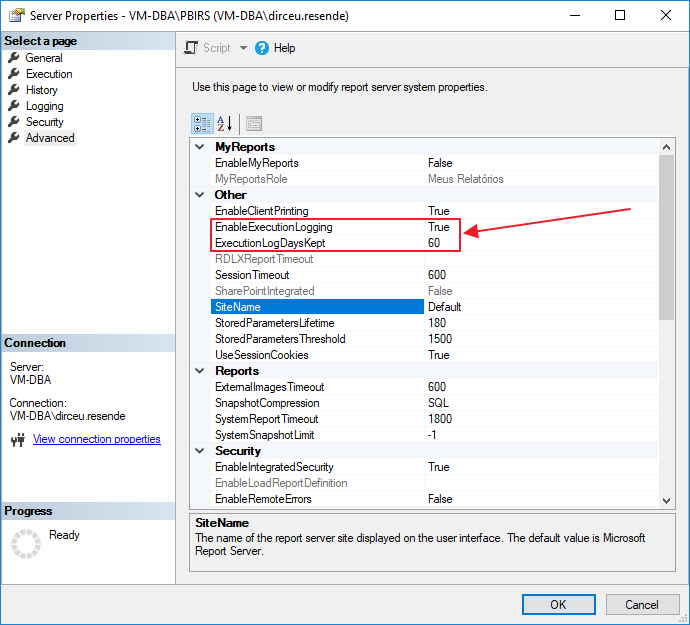
- By default, Report Server has a limit of 60 days for storing data in the ExecutionLogStorage table.
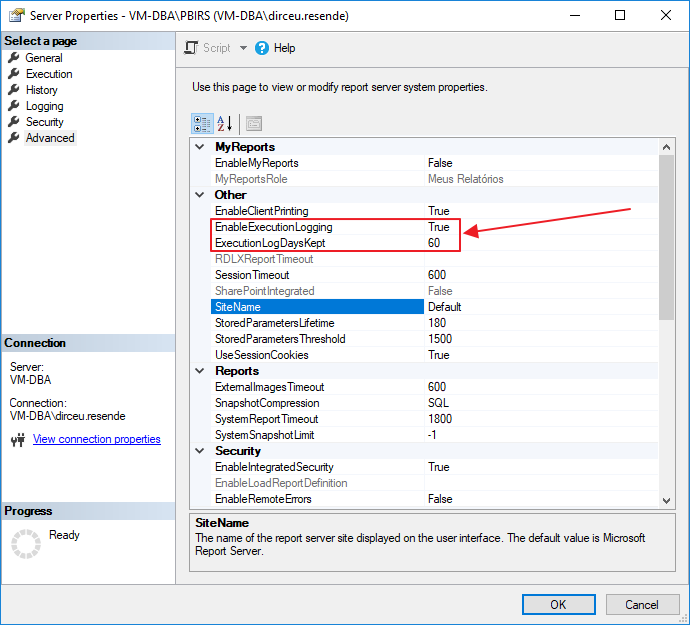
An interesting alternative would be for the BI team to create a job that collects this temporary data and stores it in a definitive table, but when BI analysts do not have access to create jobs, manual control of the logs ends up being a viable option
- Miscellaneous disk space and permissions restrictions on the instance
Furthermore, the example shown above can serve purposes other than auditing, such as filtering data according to the user, returning different queries or even restricting access within the Stored Procedure itself.
Well folks, that's it!
I hope you enjoyed this article and see you next time!
Hug!

Comentários (0)
Carregando comentários…