
Hey guys!
All very well ?
In this very short and quick post, which has nothing to do with development or databases, I'm going to talk about solving a problem I had when upgrading Windows 8.1 on my personal computer (which I use to make my posts) to Windows 10 (finally) and I had great resistance to using the new photo viewing software that comes standard in Windows 10, since I didn't find an option to use the old photo viewer, present since Windows XP and I didn't find this new software as practical and light as the old.
To try to solve this, I even downloaded other software like Irfanview, but what I really wanted was the classic photo viewer. With some research on the internet, I saw that the software is already installed with the OS, but Microsoft didn't want to make its use too easy (even to promote the new software), but with the REG script below, this can be easily reversed:
Automatically open images with classic Photo Viewer
Windows Registry Editor Version 5.00

[HKEY_CURRENT_USER\Software\Classes\.jpg]
@="PhotoViewer.FileAssoc.Tiff"

[HKEY_CURRENT_USER\Software\Classes\.jpeg]
@="PhotoViewer.FileAssoc.Tiff"

[HKEY_CURRENT_USER\Software\Classes\.gif]
@="PhotoViewer.FileAssoc.Tiff"

[HKEY_CURRENT_USER\Software\Classes\.png]
@="PhotoViewer.FileAssoc.Tiff"

[HKEY_CURRENT_USER\Software\Classes\.bmp]
@="PhotoViewer.FileAssoc.Tiff"

[HKEY_CURRENT_USER\Software\Classes\.tiff]
@="PhotoViewer.FileAssoc.Tiff"

[HKEY_CURRENT_USER\Software\Classes\.ico]
@="PhotoViewer.FileAssoc.Tiff"
Copy this code and save it in a file with the .reg extension, or download this file By clicking this link here.
After running the file, the system will ask if you allow the file to make changes to your computer. Click on the “Yes” option.

Another confirmation screen will be shown and you will have to confirm again.
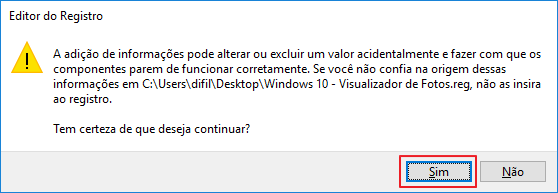
After the second confirmation, a dialog box will be shown confirming the success of the operation:
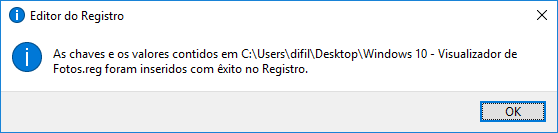
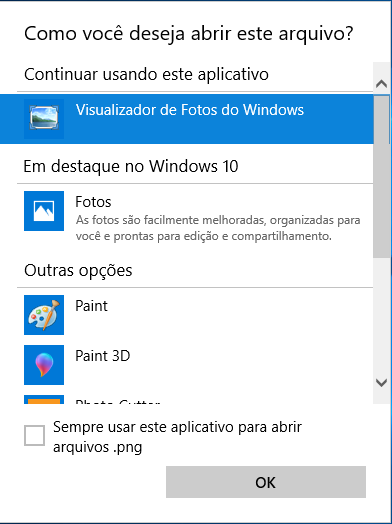
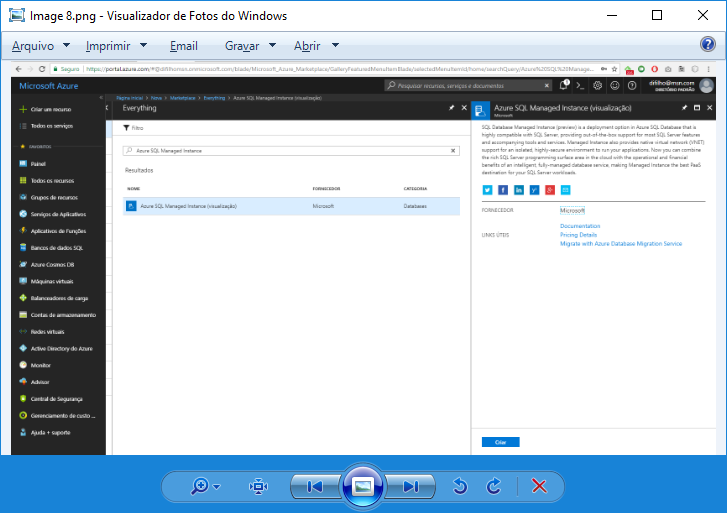
READY! After that, your photos will be opened by the classic Photo Viewer, as was the case in versions prior to Windows 10.
A hug and see you in the next post!

Comentários (0)
Carregando comentários…