
Hey guys! How are you? Excited for another post???
Introduction
Every DBA who manages databases in Azure SQL Database is faced with a classic security and governance scenario. It is very common for different applications to need access to specific databases within the same logical instance (Logical Server) of Azure SQL Database. If you release the IP of these applications in the server's firewall, they will have visibility (even without data access permission) to all other banks hosted there.
This is where implementing Database-level Firewall Rules becomes key. Many people end up configuring everything through the Azure Portal, which limits the view to just server rules, ignoring the power and granularity of database rules that can only be managed via T-SQL.
In today's post, we will dissect how the firewall works in Azure SQL Database, understand the order in which rules are evaluated and how to automate this via script.
Video post summary:
Firewall Architecture: Server-level vs. Database-level
In Azure SQL Database, the firewall is the first line of defense. Even before any authentication attempt is processed by the SQL Server engine, the Azure Gateway checks whether the source IP has permission to try to connect on port 1433. If the IP is not allowed, even if it has permission in the database, the connection will not be made and it will not be possible to know whether this database actually exists or not.
There are two main levels of rules:
- Server-level Firewall Rules: Are stored in the database master. They allow you to attempt to connect to the entire logical server, including all databases on it. They are ideal for administrators and IPs of fixed corporate networks.
- Database-level Firewall Rules: They are stored within the user's own database. They allow you to connect only to that specific bank. If a user tries to connect to another bank on the same server without a matching rule, the connection will be refused.
Technical Comparison:
| Feature | Server-level Firewall | Database-level Firewall |
|---|---|---|
| Storage | Database master | User Database |
| Scope | All Logical Server | Only the specific bank |
| Settings | Azure Portal, PowerShell, CLI, T-SQL | T-SQL only |
| Portability | Does not follow the bank in migrations | Follow the bank (ex: Failover Groups) |
| Ideal Scenario | DBAs and corporate IPs | Specific and multi-tenant applications |
Managing the Server Firewall (Server-level)
Server rules are the most common. They make the DBA's life easier, as a single entry allows access to all server resources. However, from the point of view of Principle of Least Privilege (Least Privilege), they may be excessive for end users.
To manage these rules, you must be connected to the database master.
-- FIREWALL DO SERVIDOR (SERVER-LEVEL)

-- 1. Consultar as regras existentes no servidor
-- Nota: Executar no contexto do banco 'master'
SELECT
    [name],
    [start_ip_address],
    [end_ip_address],
    [create_date],
    [modify_date]
FROM
    sys.firewall_rules
ORDER BY
    [name];

-- 2. Criar ou atualizar uma regra de IP
-- Caso start e end sejam iguais, você libera apenas um IP fixo (/32)
EXEC sp_set_firewall_rule
    @name = N'IP_Dirceu',
    @start_ip_address = '138.99.35.0',
    @end_ip_address = '138.99.35.0';

-- 3. Remover uma regra de IP do servidor
EXEC sp_delete_firewall_rule
    @name = N'IP_Dirceu';
Management of rules at the server level can also be carried out through the Azure portal interface, accessing the Networking tab when accessing the logical server settings (and not the SQL Database)
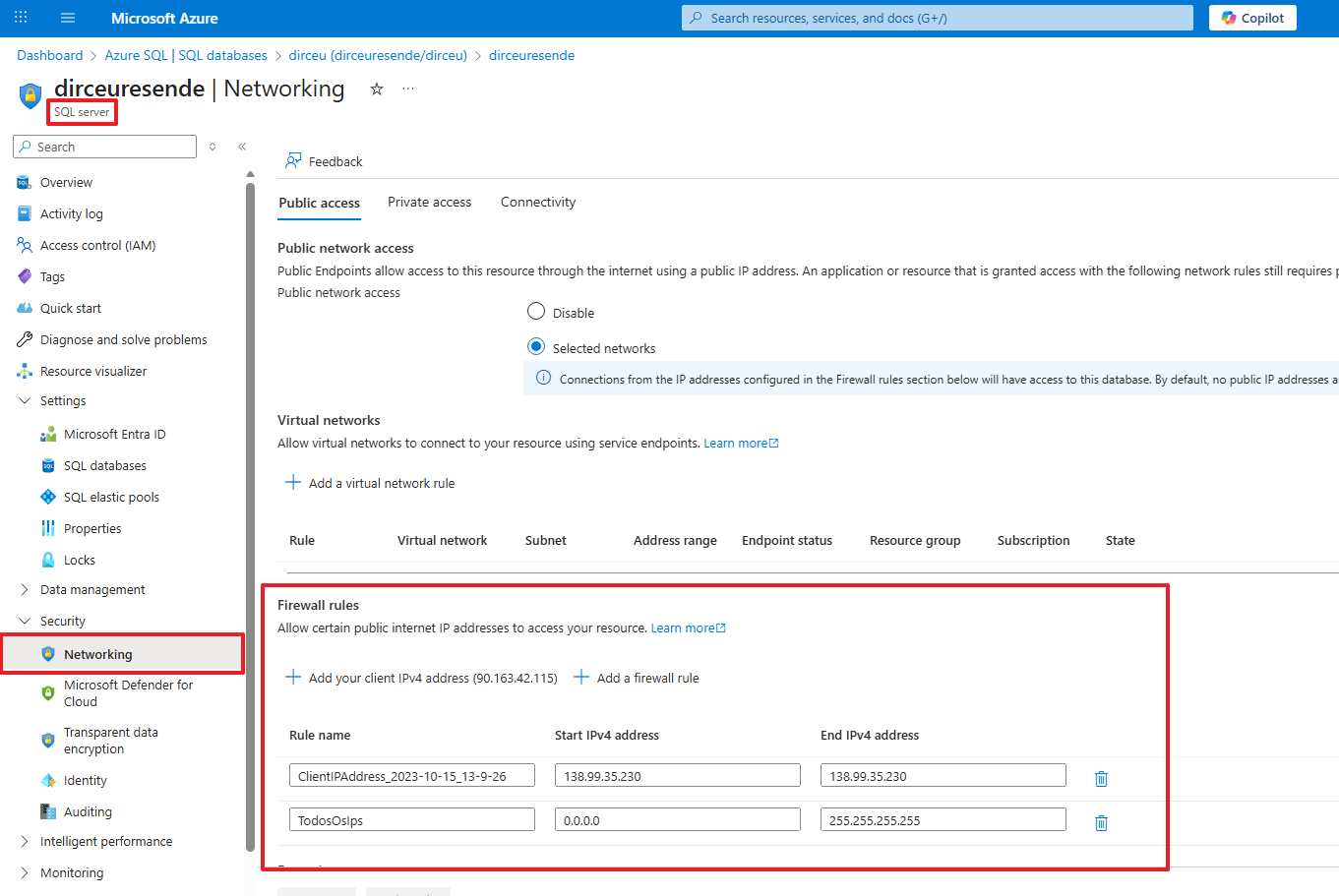
Although it is actually much easier to manage the rules through the portal interface, the big advantage of being able to manage the server's firewall rules using T-SQL is the possibility of automation.
Managing the Database Firewall (Database-level)
This is where the trench DBA differentiates itself. Because the Azure Portal doesn't display these rules, many administrators don't even know they exist, which can cause confusion in security audits.
Database rules are fundamental for database scenarios. Contained Databases and High Availability. In a Failover Group scenario, if the database fails over to another region, the database firewall rules migrate with it, ensuring that the application continues to connect without manual intervention on the new server's firewall.
-- FIREWALL DO DATABASE (DATABASE-LEVEL)
--- 1. Conectar no banco que será consultado e listar regras
SELECT
    [name],
    [start_ip_address],
    [end_ip_address],
    [create_date],
    [modify_date]
FROM
    sys.database_firewall_rules
ORDER BY
    [name];

-- 2. Criar ou atualizar uma regra de IP para o banco atual
-- Isso restringe o acesso deste IP apenas a este DB específico
EXEC sp_set_database_firewall_rule
    @name = N'IP_Dirceu',
    @start_ip_address = '138.99.35.0',
    @end_ip_address = '138.99.35.0';

-- 3. Remover a regra de IP do banco de dados
EXEC sp_delete_database_firewall_rule
    @name = N'IP_Dirceu';
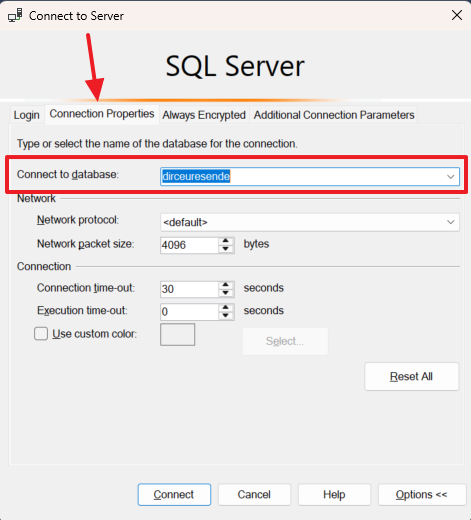
When using database-level rules, remember to change the database in the SQL Server Management Studio connection (or other tool you are using) or set the “Initial Catalog” property if you are using a connection string in any application.
Performance and Security Analysis
Although firewall processing occurs at the Azure Gateway layer, it is important to note that excessive rule configuration (hundreds or thousands of individual entries) can add minimal latency in the initial handshake.
When monitoring performance, keep an eye out for connection errors that result in timeouts. In Azure SQL, firewall-related connectivity issues typically do not generate Wait Types heavy items inside the engine (such as RESOURCE_SEMAPHORE or CXPACKET), but rather client-side network errors (Error 40613).
One point that I always highlight: when using sp_set_database_firewall_rule, you increase the resilience of your disaster recovery. If your database is restored to another server for a validation test, your partners' access rules will already be there, reducing operational RTO (Recovery Time Objective).
I hope you liked this tip, a big hug and see you next time!

Comentários (0)
Carregando comentários…