
Many people ask me: “Is it possible to send emails through SQL Server?” or “How to send emails through SQL Server?”. In this post I will show you how to enable sending emails on your SQL Server and how to send and monitor sent emails.
A feature that is widely used in most systems is the sending of automatic emails containing notifications, promotions, newsletters and much more. Therefore, it would be very interesting to send these emails directly from our SP’s in the database, which can be scheduled by the SQL Server Agent to automate their execution.
Enabling sending emails on the server using T-SQL
View how to enable and configure Database mail via command line (using T-SQL)Enabling the sending of emails on the server via SSMS
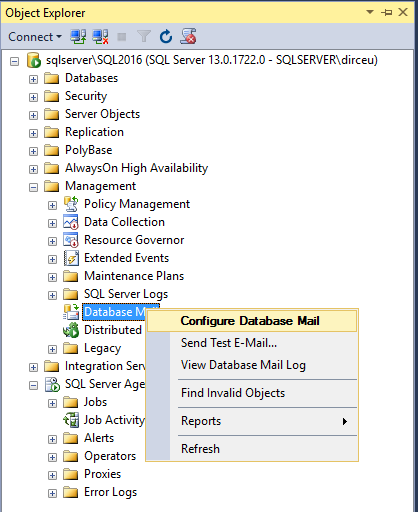
View how to configure Database Mail through Management Studio1) Open the Object Explorer in Management Studio, right-click on the Management > Database mail option and select the “Configure Database Mail” option
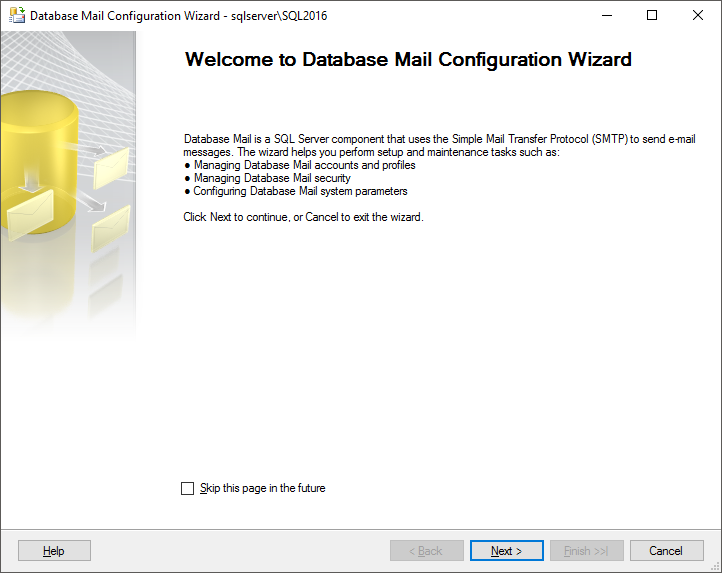
2) You will see the screen below, which is just a presentation of Database Mail. If you prefer, you can even check the option “Skip this page in the future”, so that this screen no longer appears.
3) On this screen you will see 3 options. Initially, select the first option (Set up Database Mail by performing the following tasks)

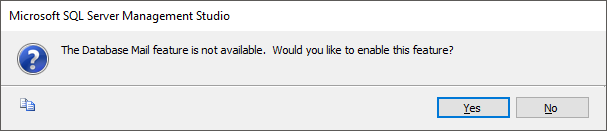
4) By default, the Database Mail feature is disabled on the SQL Server instance. When you select the “Set up Database Mail by performing the following tasks” option on the previous screen, you will see this warning asking if you want to enable Database Mail. Click on the “Yes” button
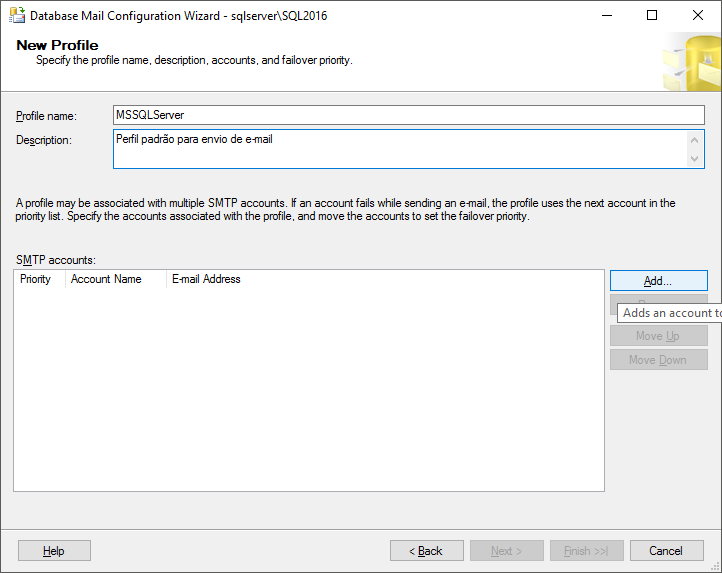
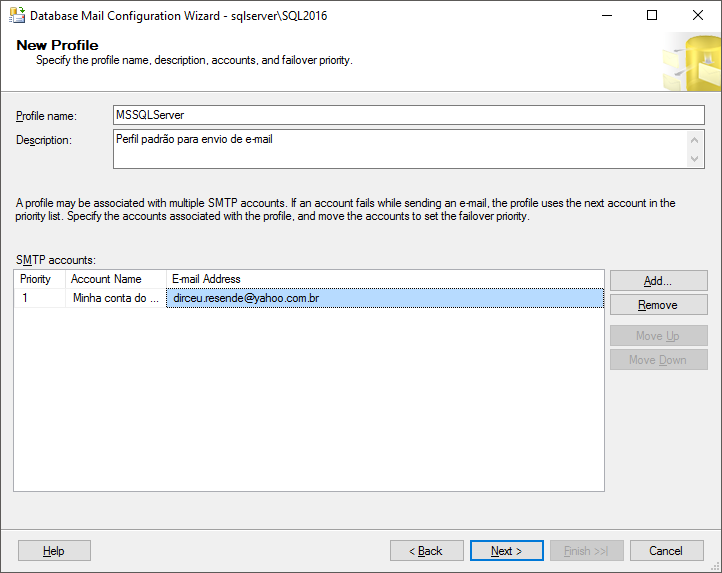
5) On this screen, you can define the name of the email profile that will be needed to send the emails and add the SMTP accounts that you will use to send them. Click the “Add” button to add an SMTP account.
6) Here you will add your email account details, always remembering to check your email provider's SMTP address, port number, whether the connection requires a secure connection (SSL) and other authentication details.
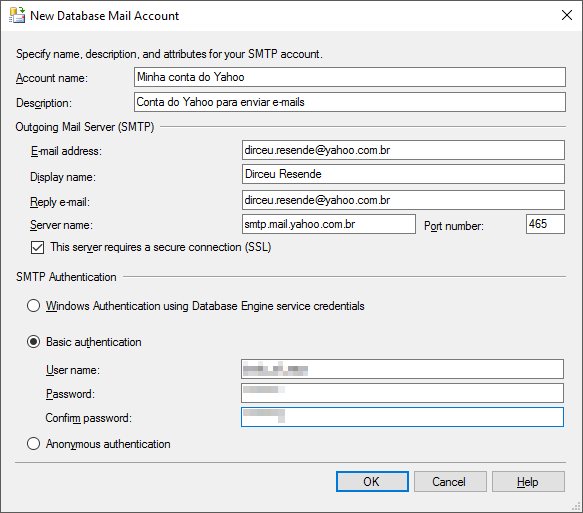
7) Now your SMTP account is configured and you can view it on the Profile SMTP accounts screen.
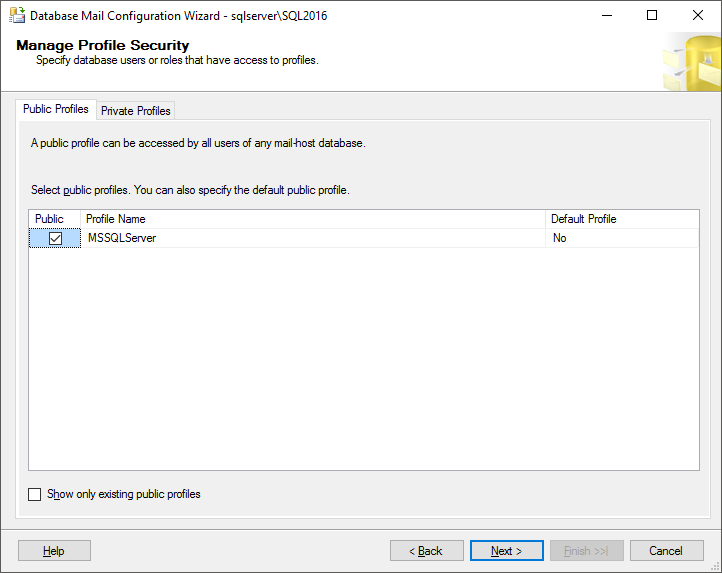
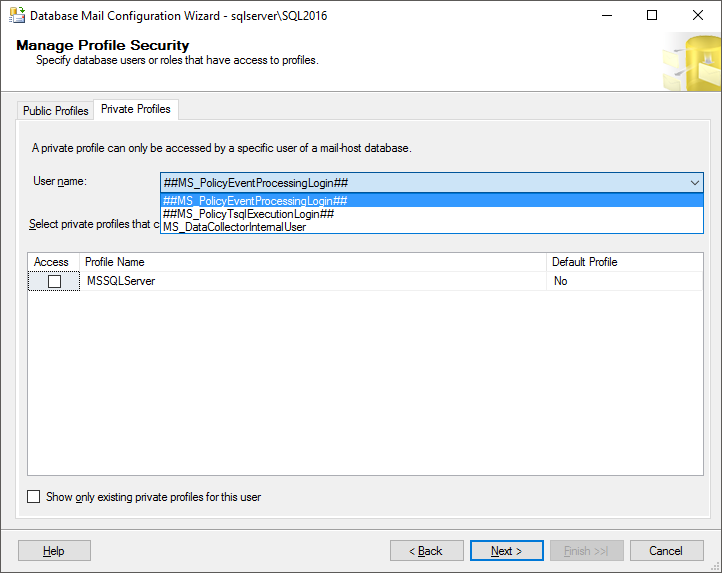
8) On this screen we will configure the security of the created email profile, that is, define who can use it. You can make this profile public or private, where only some users have access. I generally leave the profile public, but limit user access to the sp_send_dbmail procedure via GRANT.
9) Here you can view and change Database Mail parameters, such as maximum attachment size, prohibited attachment extensions, and email retry (which tries to send the email again in case of failure)
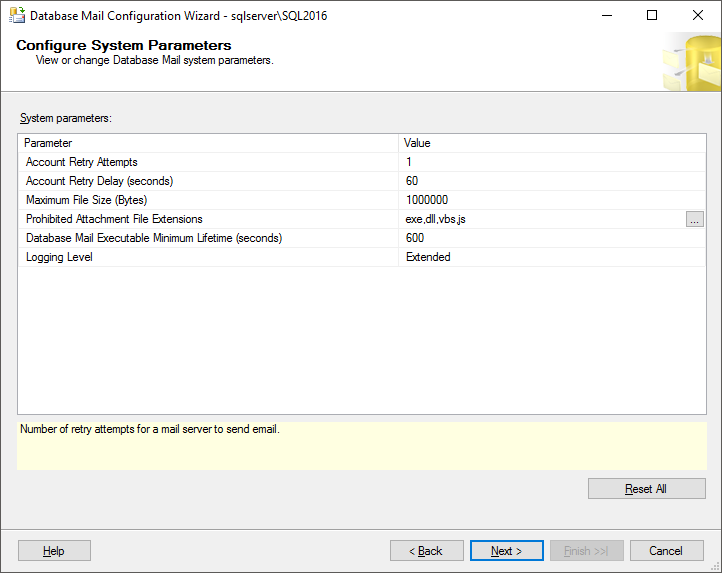
10) And finally, you will see a summary of the changes that you configured and that will be made to the instance after clicking the “Finish” button.

11) Changes made successfully.
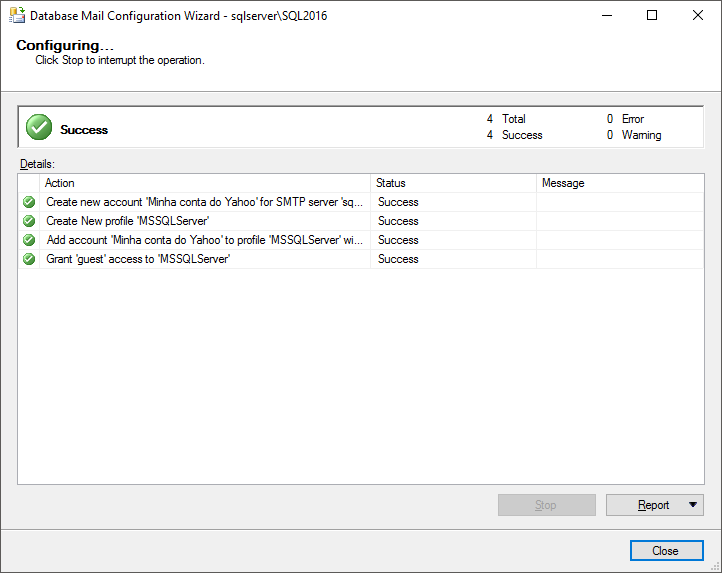
Testing email sending
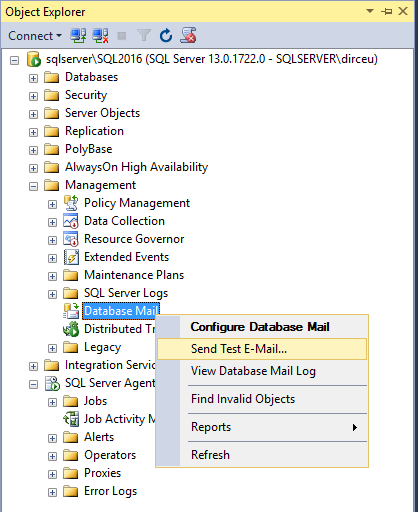
After configuring Database Mail, let's test whether the server is allowing sending normally. To do this, open the Object Explorer in Management Studio, navigate to Management > Database Mail and right-click on the “Send Test E-mail…” option.
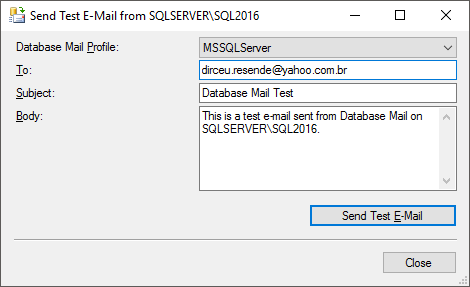
Just select the profile you created (In the example, it is MSSQLServer), fill in the email address of the recipient who will receive the test and click on the “Send Test E-mail” button.
After sending the test, a screen will open confirming that the email went to the Database Mail queue.
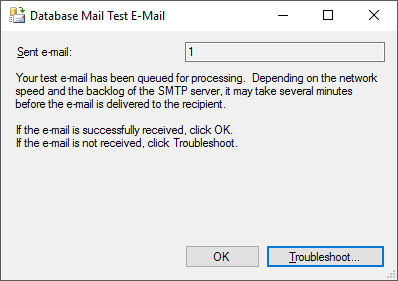
If you have received the test email, just click the “OK” button. If you did not receive it, click the “Trobleshooting” button to be directed to the Microsoft help page (https://technet.microsoft.com/pt-br/library/ms187540(v=sql.105))
Sample test email sent by SQL Server Database Mail:

To view the Database Mail log and check whether your emails were sent or the error message when trying to send, see more in the “Monitoring email sending” part of this post, below.
Sending the email
Now that we have configured the server, we are ready to send emails. The sp that we will use is sp_send_dbmail, from SQL Server itself, which allows sending emails in text or HTML format and attachments.
Sending email in HTML format
EXEC msdb.dbo.sp_send_dbmail
    @profile_name = 'ProfileEnvioEmail',
    @recipients = 'destinatario@seudominio.com.br',
    @subject = 'Assunto do E-mail',
    @body = 'Olá! <strong>Teste</strong>',
    @body_format = 'html',
    @from_address = 'remetente@seudominio.com.br'
Sending an email concatenating the result of a query to the body of the message
EXEC msdb.dbo.sp_send_dbmail
    @profile_name = 'ProfileEnvioEmail',
    @recipients = 'destinatario@seudominio.com.br',
    @subject = 'Assunto do E-mail',
    @body = 'Olá! <strong>Teste</strong>',
    @body_format = 'html',
    @from_address = 'remetente@seudominio.com.br',
    @query = 'SELECT TOP 10 * FROM sys.sysobjects'
Sending an email with the result of a query as an attachment (CSV)
EXEC msdb.dbo.sp_send_dbmail
    @profile_name = 'ProfileEnvioEmail',
    @recipients = 'destinatario@seudominio.com.br',
    @subject = 'Assunto do E-mail',
    @body = 'Olá! <strong>Teste</strong>',
    @body_format = 'html',
    @from_address = 'remetente@seudominio.com.br',
    @query = 'SET NOCOUNT ON; SELECT TOP 10 * FROM sys.sysobjects',
    @query_attachment_filename = 'anexo.csv',
    @attach_query_result_as_file = 1,
    @query_result_header = 1,
    @query_result_width = 256,
    @query_result_separator = ';',
    @query_result_no_padding = 1
Sending email with 2 files attached
EXEC msdb.dbo.sp_send_dbmail
    @profile_name = 'ProfileEnvioEmail',
    @recipients = 'destinatario@seudominio.com.br',
    @subject = 'Assunto do E-mail',
    @body = 'Olá! <strong>Teste</strong>',
    @body_format = 'html',
    @from_address = 'remetente@seudominio.com.br',
    @file_attachments = 'C:\Imagem.jpg;C:\Teste.txt'
Monitoring sending emails
Monitoring actions is always important in IT. Sending emails is no exception. Although it is possible to monitor emails via the email server, it is not always so quick to be able to validate this, mainly because this is somewhat outside the scope of the DBA/Programmer, where this control is generally controlled by the Infrastructure team.
Furthermore, the email server keeps logs of all email traffic, from all accounts, making it more difficult to extract this information than simply consulting the SQL Server catalog tables, which are msdb.dbo.sysmail_mailitems and msdb.dbo.sysmail_event_log.
To make it easier to extract information, I usually create this view, and then just query it:
CREATE VIEW [dbo].[vwMonitoramento_Email] AS
SELECT
    A.send_request_date AS DataEnvio,
    A.sent_date AS DataEntrega,
    (CASE
        WHEN A.sent_status = 0 THEN '0 - Aguardando envio'
        WHEN A.sent_status = 1 THEN '1 - Enviado'
        WHEN A.sent_status = 2 THEN '2 - Falhou'
        WHEN A.sent_status = 3 THEN '3 - Tentando novamente'
    END) AS Situacao,
    A.from_address AS Remetente,
    A.recipients AS Destinatario,
    A.subject AS Assunto,
    A.reply_to AS ResponderPara,
    A.body AS Mensagem,
    A.body_format AS Formato,
    A.importance AS Importancia,
    A.file_attachments AS Anexos,
    A.send_request_user AS Usuario,
    B.description AS Erro,
    B.log_date AS DataFalha
FROM
    msdb.dbo.sysmail_mailitems                  A    WITH(NOLOCK)
    LEFT JOIN msdb.dbo.sysmail_event_log        B    WITH(NOLOCK)    ON A.mailitem_id = B.mailitem_id
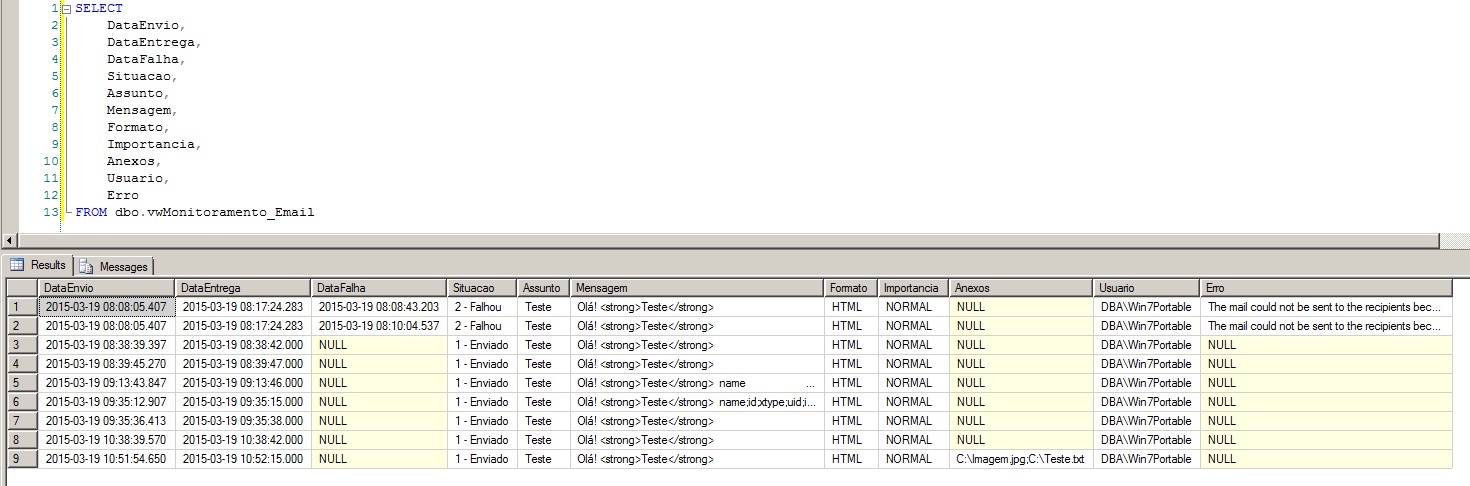
Another way is to use the SQL Server Management Studio interface
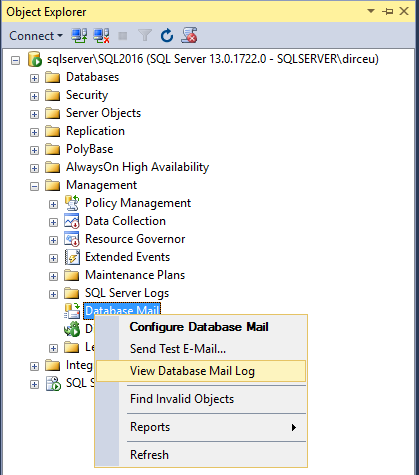
After selecting the “View Database Mail Log” option, you will see the Database Mail logs screen, in an interface similar to that of SQL Server Activity Monitor

Quick help to solve problems (Troubleshooting Database Mail)
If you are having problems configuring or sending emails, here are some tips that can help you resolve these problems.
Validate access data
This topic may seem silly, but make sure you correctly typed the SMTP server address, port, username, password and that you checked the option to use SSL if your SMTP server requests it.
I recently had a huge battle with Database Mail to set up a Yahoo account and another hosted on Hostgator. Although the documentation indicates that I should use port 465 (SSL) in both cases, I used an email client (Outlook) configured using port 465 and sent emails normally and successfully tested sending using port 465 in VBscript, in Database Mail I was only able to send when I set port 587 (TLS). On port 465, the email was not sent at all, probably because it uses the SSL protocol.
Therefore, consult your email provider's documentation and in case of problems when configuring Database Mail, try using other alternative ports (ISPs generally provide two ports for sending secure SMTP, one SSL and the other TLS).
Check if Service Broker is activated for the msdb database (must return 1):
SELECT is_broker_enabled FROM sys.databases WHERE name = 'msdb'If the query result is 0, it means that the Service Broker is not active. As a result, messages sent will not be queued by it and sending will not occur. To fix this, run the command below:
USE master;
GO

ALTER DATABASE msdb SET ENABLE_BROKER WITH ROLLBACK IMMEDIATE;
GO
I've seen several reports of people who tried to activate the Service Broker in MSDB, but the process crashed or simply didn't activate because the Broker was unable to obtain the locks in MSDB to make the necessary changes. If this happens to you, kill all MSDB connections or restart the SQL Service service and try again.
Check if Database Mail is running on the MSDB database:
EXECUTE msdb.dbo.sysmail_help_status_sp

-- Se não retornar "STARTED", executar o comando abaixo para iniciar o Database Mail:
EXECUTE msdb.dbo.sysmail_start_sp
Check message queue status:
EXECUTE msdb.dbo.sysmail_help_queue_sp @queue_type = 'Mail'Check Database Mail logs:
SELECT * FROM msdb.dbo.sysmail_event_logChecks information about sent items and message errors:
SELECT * FROM msdb.dbo.sysmail_allitemsFirewall and Antivirus
Many times, the sending of the E-mail may end up not happening due to the fact that the Firewall/Antivirus blocks the attempt to send messages via the SMTP protocol by the Database Mail process. One way to ensure that the problem is not the Firewall is to release the port used by the connection (Usually 25, 465 or 587) or even disable the Firewall/Antivirus temporarily, just to test whether they are blocking the sending or it is something else.
Send a test email using VBscript script:
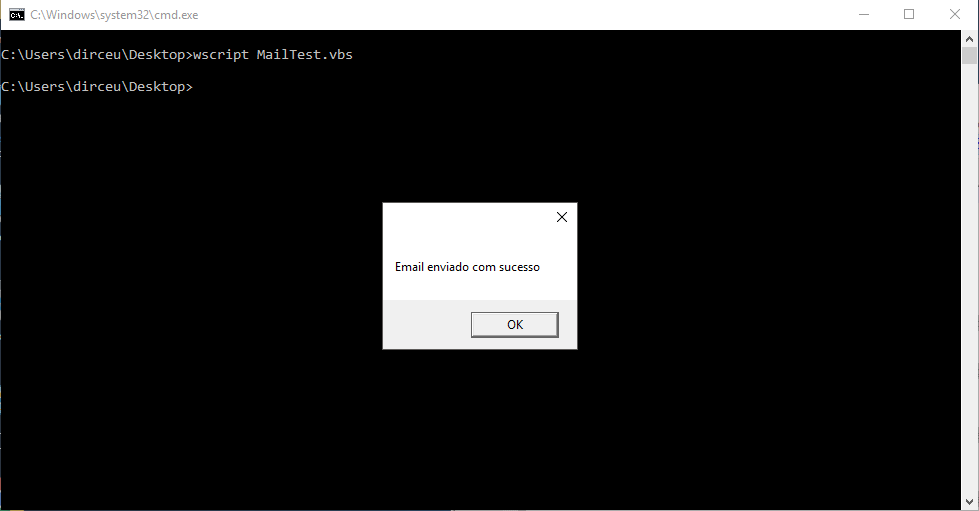
Another alternative to check whether the problem is with SQL Server or the server is to try sending an email in another way. To do this, you can use the VBscript script below:
Const cdoAnonymous = 0 'Sem autenticação
Const cdoBasic = 1 'Autenticação Básica (Base64)
Const cdoNTLM = 2 'NTLM

Set objMessage = CreateObject("CDO.Message")
objMessage.Subject = "Teste de E-mail"
objMessage.From = """Me"" <seu_email@seudominio.com>"
objMessage.To = "destinatario@email.com"
objMessage.TextBody = "Teste de Mensagem.." & vbCRLF & "Foi enviada utilizando autenticação Base64 e SSL."

objMessage.Configuration.Fields.Item _
("http://schemas.microsoft.com/cdo/configuration/sendusing") = 2

' Endereço do servidor SMTP
objMessage.Configuration.Fields.Item _
("http://schemas.microsoft.com/cdo/configuration/smtpserver") = "mail.seudominio.com"

' Tipo de autenticação
objMessage.Configuration.Fields.Item _
("http://schemas.microsoft.com/cdo/configuration/smtpauthenticate") = cdoBasic

' Usuário de autenticação
objMessage.Configuration.Fields.Item _
("http://schemas.microsoft.com/cdo/configuration/sendusername") = "usuario@seudominio.com"

' Senha de autenticação
objMessage.Configuration.Fields.Item _
("http://schemas.microsoft.com/cdo/configuration/sendpassword") = "sua_senha"

' Porta do SMTP
objMessage.Configuration.Fields.Item _
("http://schemas.microsoft.com/cdo/configuration/smtpserverport") = 465

' Utiliza SSL ?
objMessage.Configuration.Fields.Item _
("http://schemas.microsoft.com/cdo/configuration/smtpusessl") = True

' Timeout
objMessage.Configuration.Fields.Item _
("http://schemas.microsoft.com/cdo/configuration/smtpconnectiontimeout") = 60

objMessage.Configuration.Fields.Update
objMessage.Send

If err.number = 0 then Msgbox "Email enviado com sucesso"
After creating the script, simply run it through the Command Prompt (CMD.exe):
Validate network protocols
Another validation that can be done is whether the Named Pipes and TCP/IP network protocols are enabled for your instance. If they are not, enable and restart the SQL Server service for your instance.

Analyze the SQL Server service account
Another point that you should evaluate if you are unable to send your emails is to check whether the service account being used to run SQL Server has permissions to access the external network. It does not necessarily need to be a local Administrator or Domain Admin account, but it must have basic network access permissions to be able to send SMTP email.
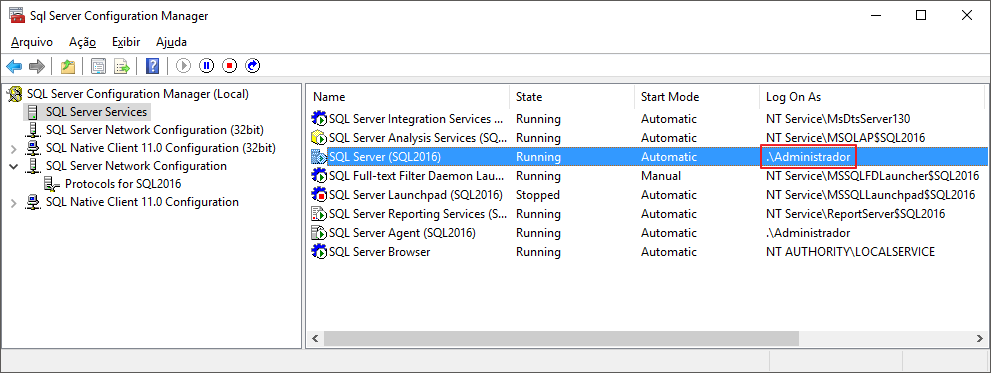
For more details on service accounts, access this link.
Install the latest version of the Service Pack and Cumulative Updates
Microsoft SQL Server 2016 SP1
Microsoft SQL Server 2016 Latest Cumulative Update
For other editions, access this link.
Install the latest version of the Service Pack and Cumulative Updates
If you are using SQL Server 2016 RTM or SP1, be aware of a common problem with Database Mail, which is the need to install Microsoft .NET Framework 3.5 on your server to prevent your messages from getting stuck in the Service Broker queue and always having an unsent status. Otherwise, Database Mail will not work due to a product bug, which was fixed in Cumulative Update 2 (Referral link), reoccurred in Service Pack 1 CU1 and was fixed again in Service Pack 1 CU2 (Referral link).
Microsoft link to help troubleshoot Database Mail
Troubleshooting Database Mail
How to send email mail from within sql server, how to send email mail from within sql server
How to send email mail from within sql server, how to send email mail from within sql server

Comentários (0)
Carregando comentários…