
Today I'm bringing you a very quick post, but it's a really cool feature of SQL Server Management Studio that a DBA from the company I work for (Tiago Neves) showed me, and which allows you to change the color of the status bar according to the server we are connecting to.
It may seem silly, but in the daily life of a DBA it makes all the difference, especially if you are a professional who connects to several SQL Server servers, whether Development, Testing, Approval or PRODUCTION, in addition to facilitating the management and organization of servers and their respective purposes.
If there are dozens or hundreds of servers in your environment, this will certainly make your life a lot easier, as you will no longer need to memorize server names or create a txt file to store the names.
Creating groups and registering servers
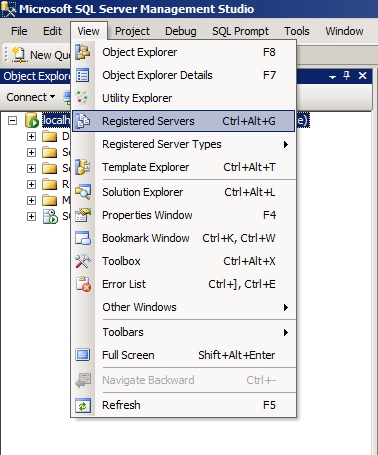
Open the registered servers screen, as shown in the image below
Create server groups to organize your environment (Ex: Development, Production, etc.) by right-clicking and selecting the option “New Server Group…”
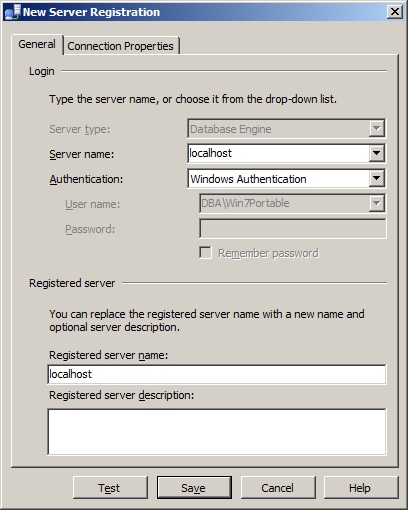
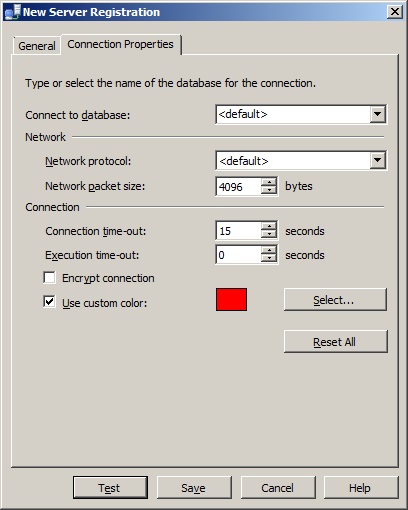
After creating the groups, add your servers to the corresponding groups by right-clicking on the created Group and selecting the option “New Server Registration”. It is on this screen that we will define the color of each server
Using registered clusters and servers
After creating the groups and associating the servers, your screen should look like this
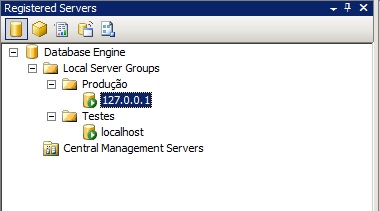
When double-clicking on a server, the “Object Explorer” screen will open with the objects on that server (It can be opened with the right button > Object Explorer as well).
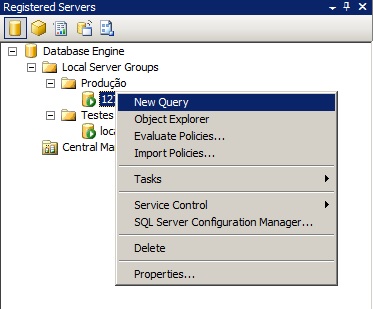
When you right-click on these servers and then click on the “New Query” option, the status bar will change to the color you defined. Very useful for getting your attention if you are running your query on a Production instance, for example.



Comments (0)
Loading comments...