Hey guys!
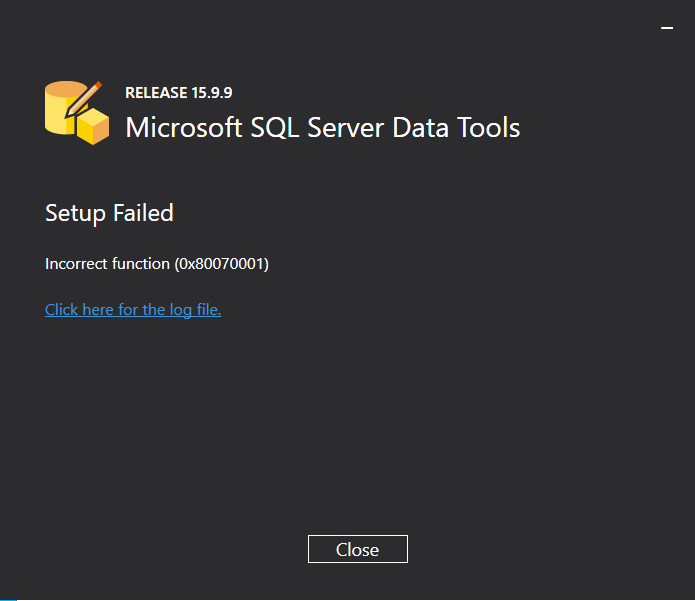
In this post, I would like to share how to resolve an error when installing SQL Server Data Tools (SSDT) 2017 – Setup Failed: Incorrect function (0x80070001), which happens to me frequently, whenever I try to install SQL Server Data Tools version 2017 on some computers.
What is SQL Server Data Tools (SSDT)?
According to her own official Microsoft documentation, SSDT (SQL Server Data Tools) transforms database development by introducing a ubiquitous declarative model that covers all phases of database development in Visual Studio.
You can use SSDT's Transact-SQL design capabilities to compile, debug, maintain, and refactor databases. You can work with a database project or directly with a connected or external database instance.
In summary, SSDT is a free IDE for BI and database analysts to work with database projects (SQL Database Projects / SQLCLR), Integration Service projects (SSIS), Analysis Services (SSAS) and Reporting Services (SSRS), so it is essential for anyone working in the data area with Microsoft data tools.
If we analyze the SSDT download page, we can see that there are already versions 2019 and 2022 (preview) for download, as being components of Visual Studio, while versions 2017 and earlier were standalone installers that already installed a simplified copy of Visual Studio, known as Visual Studio Shell (SSDT 2014 to 2017) or BIDS (SSDT 2005 to 2012).
The biggest problem I see with newer versions, which ends up generating a lot of questions throughout the technical community, is that you need to install Visual Studio Community Edition to use SSDT, if you don't have a Visual Studio license.
If we analyze the official Visual Studio Community documentation, please note that the use of the Community edition has some limitations for commercial use:
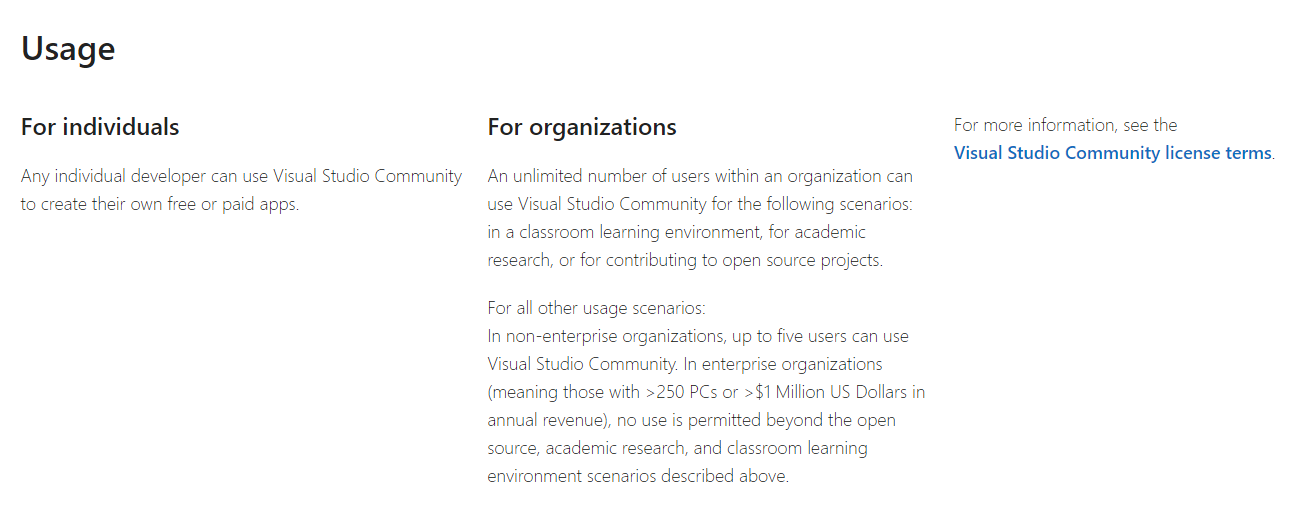
Translation: For all other usage scenarios: In non-enterprise organizations, up to five users can use Visual Studio Community. In enterprise organizations (i.e., those with more than 250 PCs or more than $1 million in annual revenue), no use is permitted other than the open source, academic research, and classroom learning environment scenarios described above.
In other words, if you work in a large company, you cannot use Visual Studio Community. What about SSDT? What would it look like in this situation? Well, until now, I haven't found any official documentation that mentions this exception, so many people end up being afraid to use the newer versions of SSDT because of this doubt regarding licensing and end up opting for the 2017 version, the last version with a standalone installer.
Error installing SQL Server Data Tools (SSDT) 2017
Returning to the original problem of this article, sometimes I can install SSDT 2017 normally and sometimes I cannot, because the error Incorrect function (0x80070001) occurs during the installation.
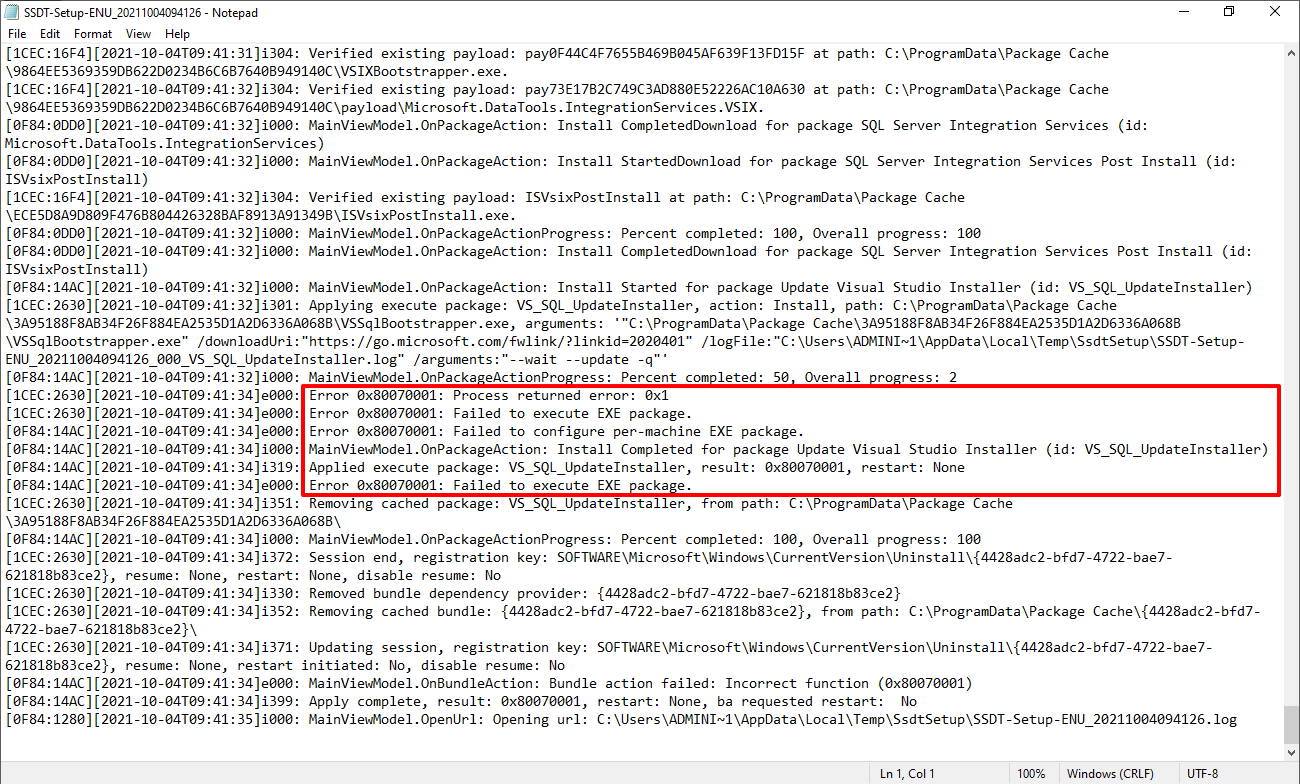
Looking through the installation error log, I was unable to identify a possible cause or solution for this.
To resolve this, we will do offline installation of SSDT 2017 as the issue occurs when trying to download some features from the installer. Download the standalone installer at this link here or click on this other link here to go straight to the download link.
Download the vs_sql.exe file, clicking this link here and save it in the same directory where you downloaded the SSDT installer (SSDT-Setup-ENU.exe).
Open DOS prompt as administrator:
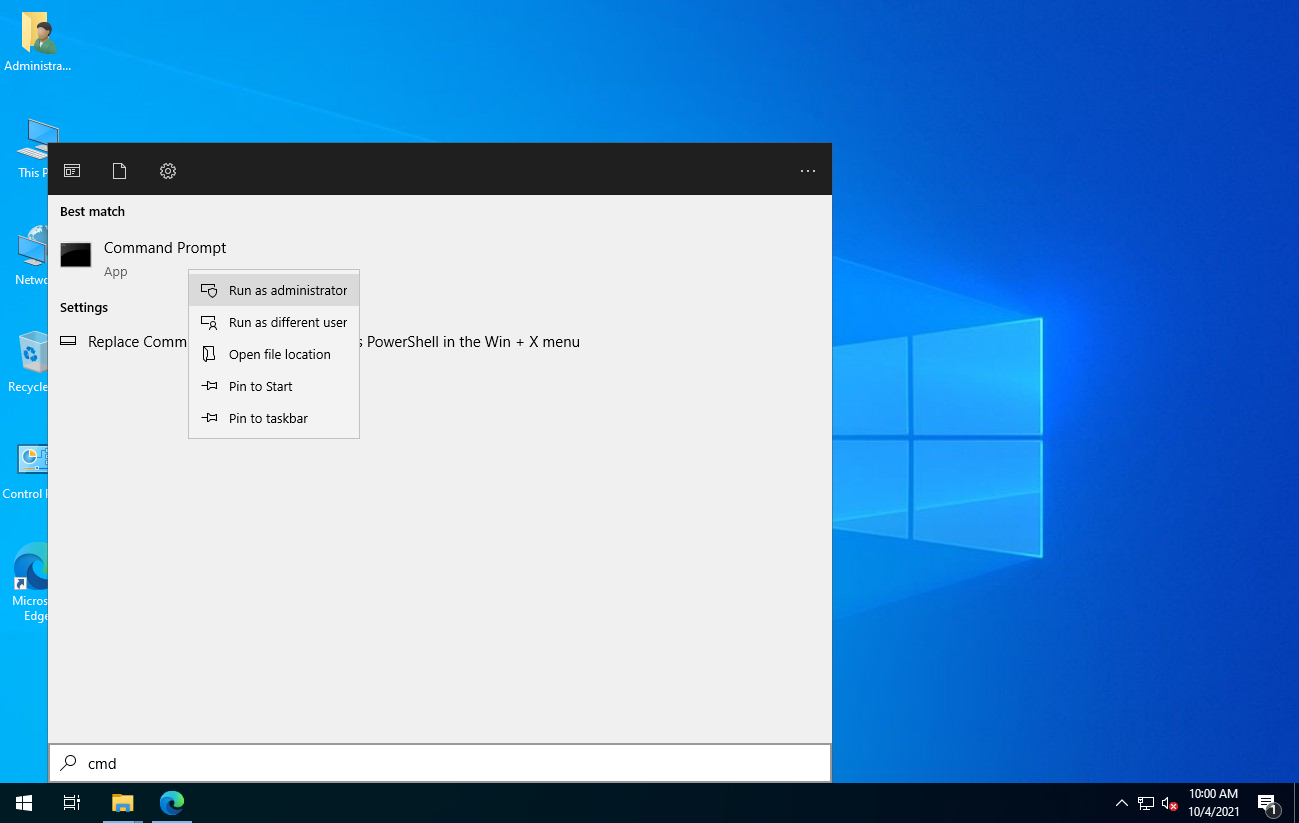
Now navigate to the folder where you downloaded the files and type the command:
vs_sql.exe --layout C:\diretorio_onde_quer_salvar\ --lang en-us
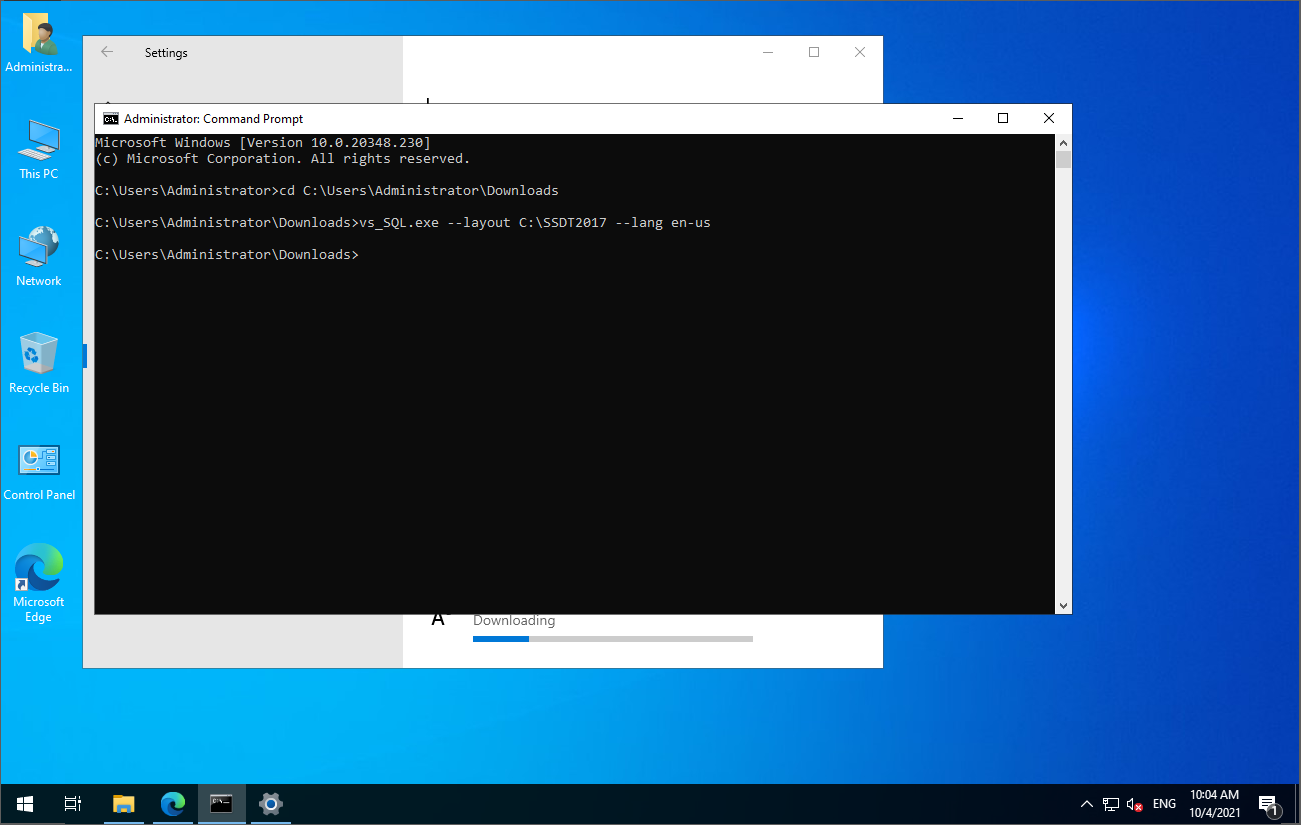
After that, the installation will begin and the files will be downloaded to the chosen directory:
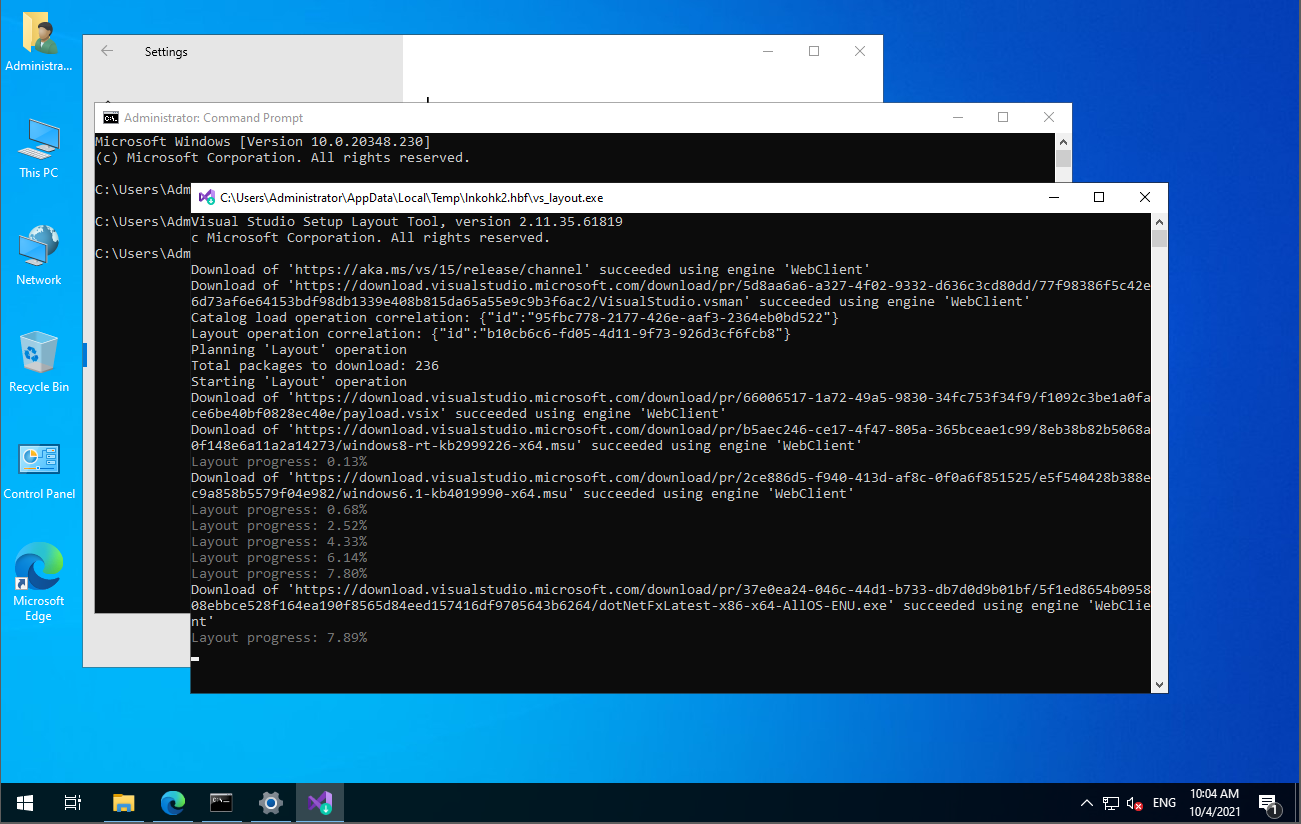
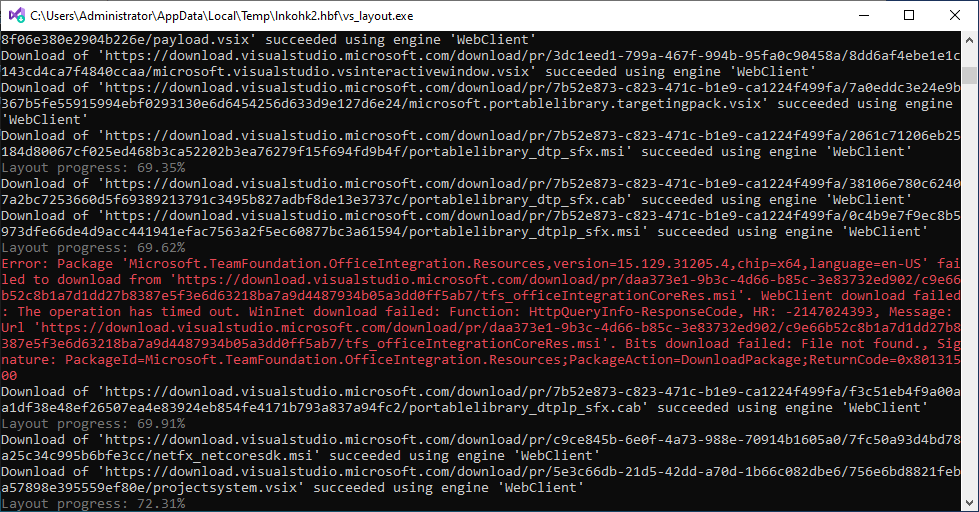
During the download process, I noticed that it took more than 1h at 69.62%. I pressed the “Enter” key, the installer showed this error message and continued the process.
Installation completed with errors:
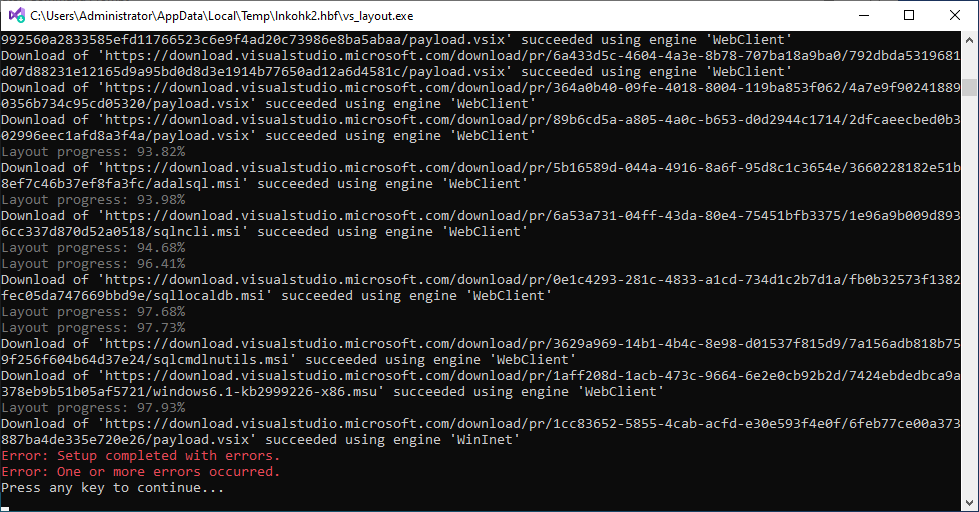
To fix this problem that occurred to me, type the command below: (only do this if you also had download errors)
vs_SQL.exe --layout C:\SSDT2017 --fix
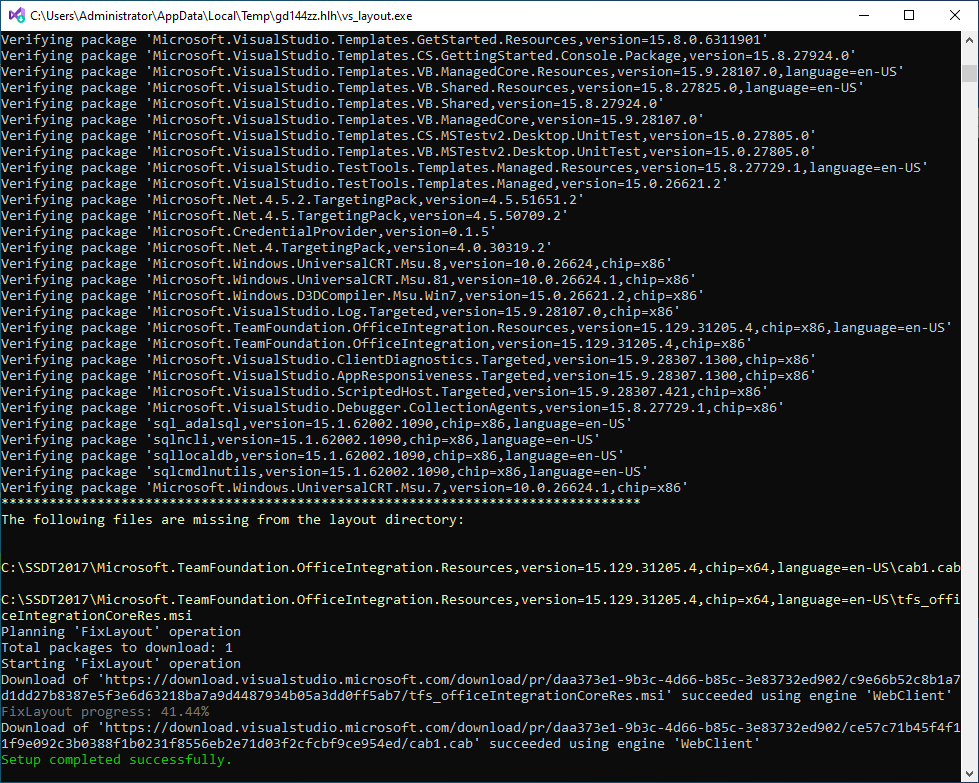
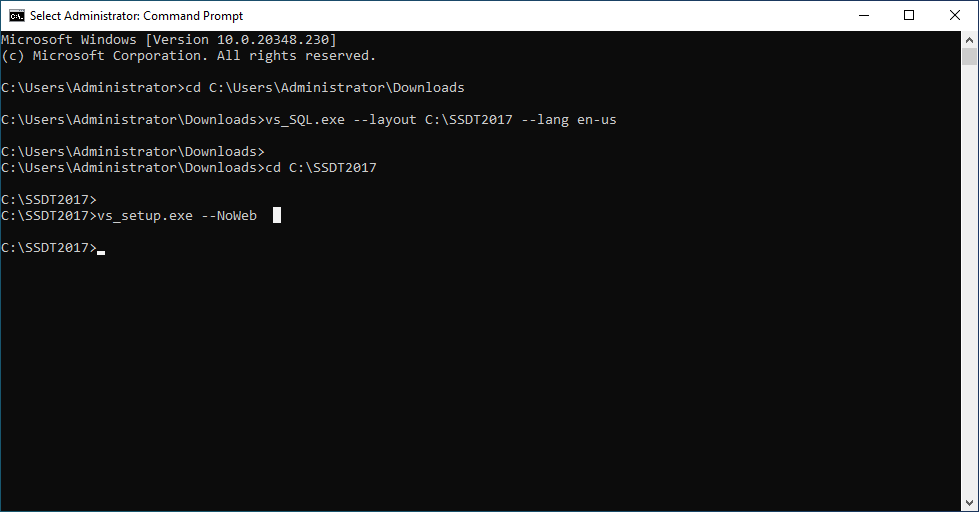
Navigate to the directory where you downloaded the layout files (in my case, C:\SSDT2017) using the “cd” command and type the command below in the Command Prompt window to install the Visual Studio Shell and Database Project:
vs_setup.exe --NoWeb
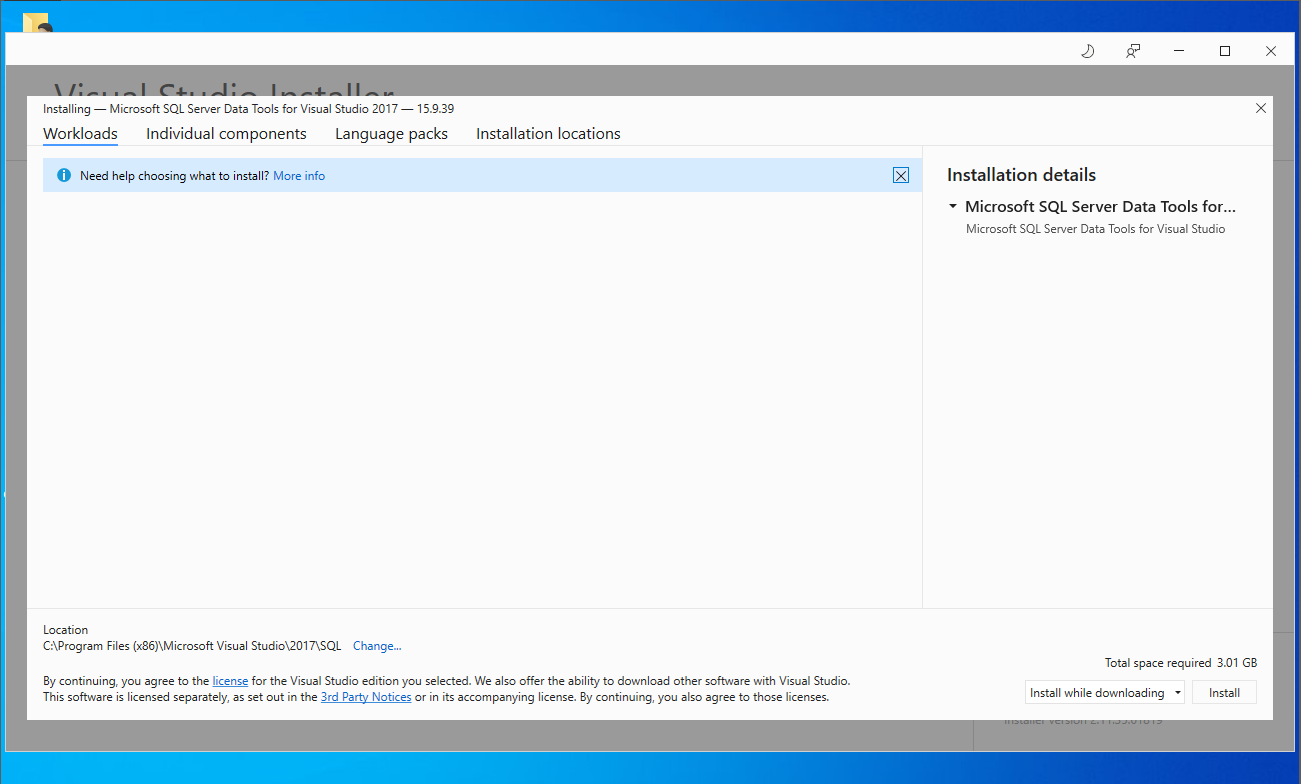
There's not much to change here, just click the Install button (or maybe change the installation path):
Visual Studio Data Tools 2017 Installed

Now you can install SQL Server Data Tools 2017 (SSDT) using the normal installer (SSDT-Setup-ENU.exe), remembering to check the SSIS, SSRS and SSAS options:
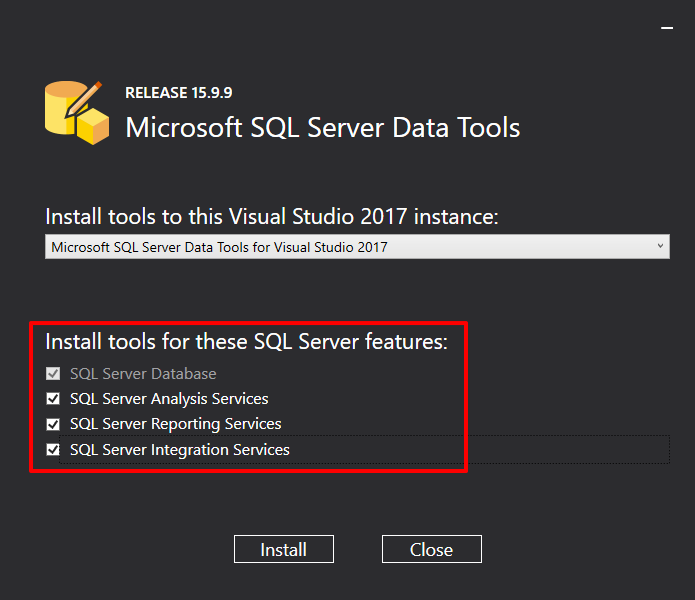
At the end of the process, we see that the installation was completed successfully!
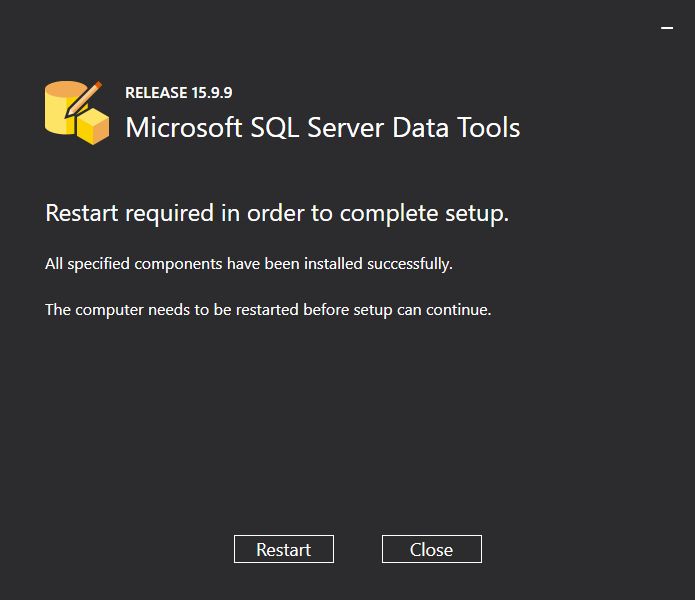
After restarting the server, I open Visual Studio 2017:
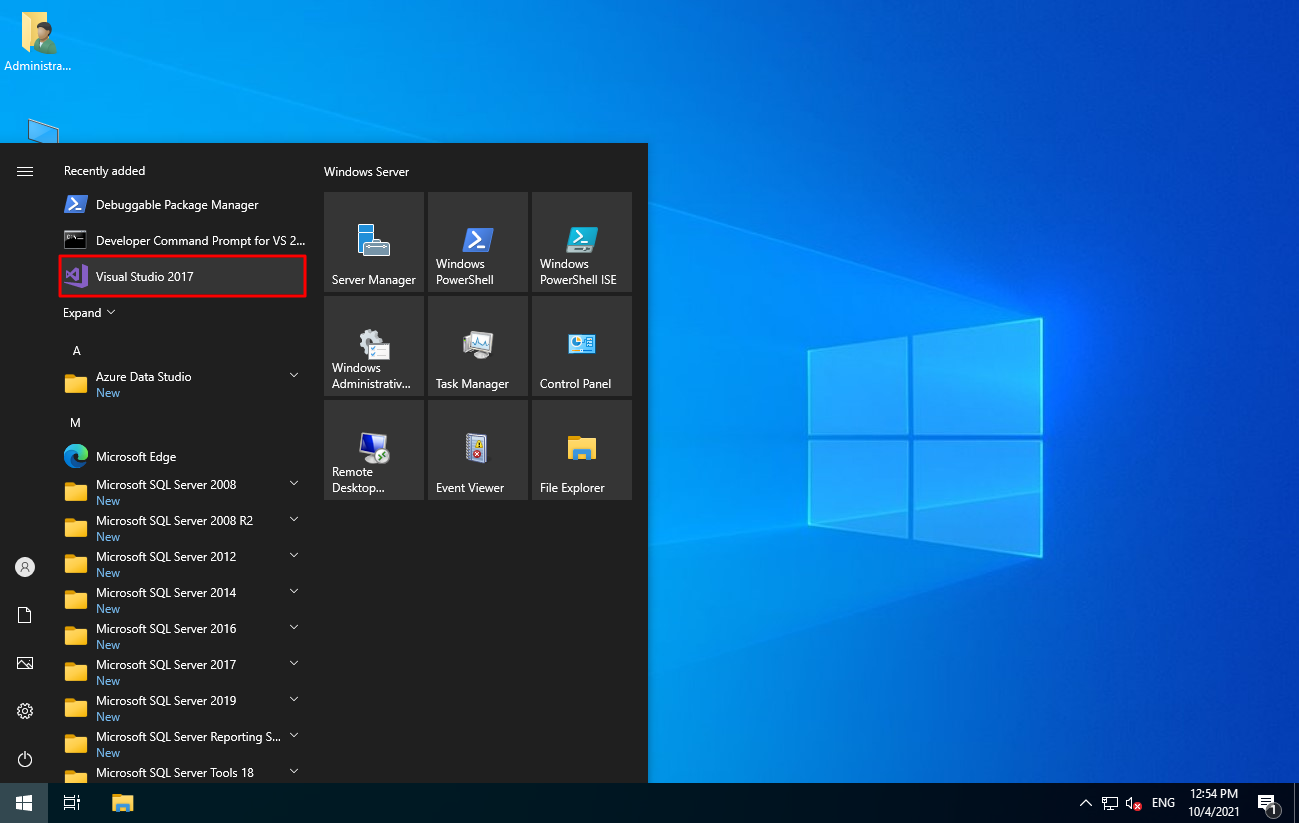
And the SQL Server project templates (Database Project / SQLCLR), Analysis Services (SSAS), Integration Services (SSIS) and Reporting Services (SSRS) are working normally.

And that's it, folks!
A big hug and see you next time.

Comentários (0)
Carregando comentários…