
Hey guys!
In today's post I'm going to give you a very quick tip, which is how to identify the instance's initialization parameters using T-SQL, a very useful scenario when you have access to connect to the instance, but don't have access to the server's operating system.
Using SQL Server Configuring Manager
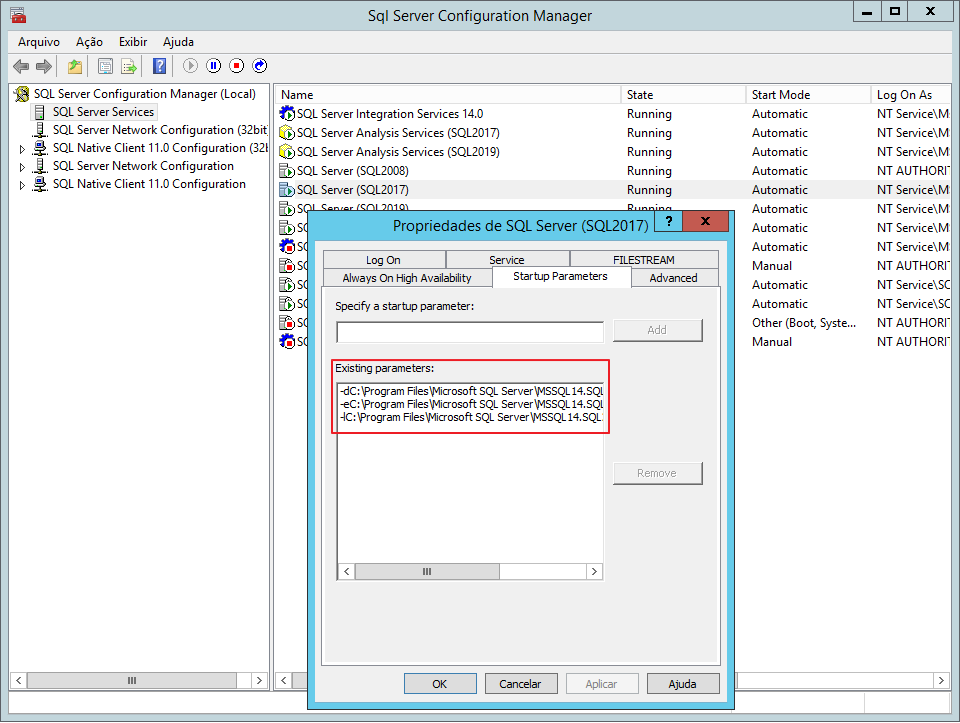
For those who don't know, the SQL Server service has some boot parameters, which allow you to change the behavior of SQL Server. Some of them are already defined by default, such as -d (master data path), -l (master log path) and -e (default errorlog path).
When you have access to the server's operating system, you normally open the SQL Server Configuration Manager, select the instance you want to view the parameters and select the “Properties” option by clicking with the right mouse button, as shown in the image below:
Using sys.dm_server_registry in SQL Server 2008 R2 SP1
But what happens when this access is not possible? In this case, a very practical alternative is to access the Windows registry through SQL Server. SQL Server stores this startup information in the registry key “HKEY_LOCAL_MACHINE\SOFTWARE\Microsoft\Microsoft SQL Server\MSSQL14.SQL2017\MSSQLServer\Parameters”, where MSSQL14.SQL2017 = MSSQL
To facilitate the retrieval of this information, we can use DMV dm_server_registry, available from SQL Server 2008 R2 SP1, filtering by registry_key:
SELECT *
FROM sys.dm_server_registry
WHERE registry_key LIKE '%Parameters'
Result:

Using XP registry access xp_instance_regread
However, those who work with multiple clients and multiple versions of SQL Server may want to standardize a single script for versions prior to SQL Server 2008 R2 SP1, where the sys.dm_server_registry DMV was not yet available.
If you are in this scenario or even your SQL Server is prior to 2008 R2 SP1, you can use the Extended Procedures (XP's) for registry access (xp_instance_regread and xp_regread) to return the value of an individual parameter or create a loop to do this:
DECLARE
    @Contador INT = 0,
    @Total INT = 10,
    @Chave VARCHAR(10)

DECLARE @SQLArgs TABLE
(
    [Value] VARCHAR(50),
    [Data] VARCHAR(500),
    ArgNum AS CONVERT(INTEGER, REPLACE([Value], 'SQLArg', ''))
)


WHILE(@Contador <= @Total)
BEGIN

    SET @Chave = 'SQLArg' + CAST(@Contador AS VARCHAR(2))

    INSERT INTO @SQLArgs
    EXEC sys.xp_instance_regread 'HKEY_LOCAL_MACHINE', 'Software\Microsoft\MSSQLSERVER\MSSQLServer\Parameters', @Chave

    SET @Contador += 1

END


SELECT * FROM @SQLArgs
Result:

Using XP registry access xp_regread
You can also use xp_regread, but you will have to enter the logical name of the instance (in the case of the example, MSSQL10_50.SQL2008), while xp_instance_regread already returns the logical name of the instance to which your session is connected:
DECLARE
    @Contador INT = 0,
    @Total INT = 10,
    @Chave VARCHAR(10)

DECLARE @SQLArgs TABLE
(
    [Value] VARCHAR(50),
    [Data] VARCHAR(500),
    ArgNum AS CONVERT(INTEGER, REPLACE([Value], 'SQLArg', ''))
)


WHILE(@Contador <= @Total)
BEGIN

    SET @Chave = 'SQLArg' + CAST(@Contador AS VARCHAR(2))

    INSERT INTO @SQLArgs
    EXEC sys.xp_regread 'HKEY_LOCAL_MACHINE', 'SOFTWARE\Microsoft\Microsoft SQL Server\MSSQL10_50.SQL2008\MSSQLServer\Parameters', @Chave

    SET @Contador += 1

END

SELECT * FROM @SQLArgs
Result:
Using XP to access the xp_instance_regenumvalues registry
Analyzing the code of the 2 solutions using XP's above, we can notice that they have a big problem: Using WHILE without a correct size defined. If it has fewer than 11 parameters, WHILE will be running more times than necessary. If there is more, it will stop listing some parameters. To solve this, we can use the undocumented Extended Procedure, xp_instance_regenumvalues, to help us with this need:
DECLARE
    @ChaveMestre VARCHAR(50) = 'HKEY_LOCAL_MACHINE',
    @Registro VARCHAR(100) = 'Software\Microsoft\MSSQLSERVER\MSSQLServer\Parameters'

DECLARE @SQLArgs TABLE
(
    [Value] VARCHAR(50),
    [Data] VARCHAR(500),
    ArgNum AS CONVERT(INTEGER, REPLACE([Value], 'SQLArg', ''))
)

INSERT INTO @SQLArgs
EXECUTE master.sys.xp_instance_regenumvalues @ChaveMestre, @Registro

SELECT * FROM @SQLArgs
Result:

Well guys, I hope you liked this tip. For those who didn't know DMV sys.dm_server_registry or these Extended Procedures that I demonstrated in this article, now you know them.
A big hug and see you in the next post.

Comentários (0)
Carregando comentários…