
Faaaaala guys!!
Today I'm really excited about this post. My first using Python in SQL Server 2017, and you can expect much more to come... On February 4, 2017, I had released the post SQL Server – How to integrate the database with Slack and send messages using the CLR (C#) and this time I'm back here to show you how to carry out this same integration using only native features of SQL Server 2017.
Introduction
As you may know, SQL 2017 brought a series of news and new features for our daily lives, and one of them was the possibility of executing scripts written in Python by SQL Server, both for statistical analysis (widely used by data scientists and statisticians) and for carrying out day-to-day tasks.
I don't know Slack
View more informationWhat is Slack?
For those who don't know, the Slack is one of the most famous and used corporate communicators around the world, Ryver's main competitor and aims to replace communication via email with private and public groups (within the team) focused on certain teams and/or subjects. You can create public groups, where your entire team can interact and collaborate, and private groups for each sector, where only those in the group can view the messages.
Slack allows you to respond to emails through the tool itself, send and share files, send private messages, install various plugins to add new features and much more.
In the free plan, message search only retrieves the last 10 thousand messages, the storage limit is 5 GB and some other limitations that you can check in this link.
Where and how can I use Slack in my company?
This feature is especially useful for creating teams in your company and generating alerts and monitoring per team, where each team only receives alerts relating to their activities. Additionally, you can use open groups to send newsletters and notifications that are relevant to the entire company. All this, at no cost and you can receive it by email, view it on the web and on your smartphone.
Another cool way to use Slack is to send sales target tracking to the commercial sector, so that regional and local managers can monitor the sales team's performance in real time, without having to consult and open reports, wherever they are, even outside the company.
If your company adopts Slack, the HR department can use the service to send messages and newsletters to employees. Send Christmas messages, a special message on the employee's birthday, etc.
Anyway, the advantage of Slack is that it can be sent in several different ways (Email, Web, Smartphone), wherever you are, inside or outside the company and represents a major revolution in the way people interact with information.
I use Slack where I work as a communication, monitoring and alerting tool for IT routines, such as critical job failures, backup problems, database corruption, slow queries, locks, etc. Whenever a critical routine fails, an internal email and a notification are sent via Slack, where a Push notification arrives on my cell phone (just like WhatsApp) and wherever I am, I am aware of this failure.
How to add users to Slack
The first step to creating the integration is to create your Slack account, accessing this link. Once created, you will receive an email to log into your account.

Slack home screen, with some groups I created for this post
To add new users, simply click on the menu (Your name) and select the “Invite people” option

You can add your contacts from your Google account, import multiple contacts in CSV format, and more. Once you invite other people, they will receive a link to join your team and after completing the registration, they will be able to view the data via the web browser or mobile app.
How to enable Python in SQL Server 2017
To enable Python in SQL Server 2017 you will need to activate the feature external scripts enabled, with the command below:
EXEC sp_configure 'external scripts enabled', 1
GO

RECONFIGURE WITH OVERRIDE;
GO
Result:
Configuration option 'external scripts enabled' changed from 0 to 1. Run the RECONFIGURE statement to install.
Once executed, you will need to restart the SQL Server 2017 service in Configuration Manager:
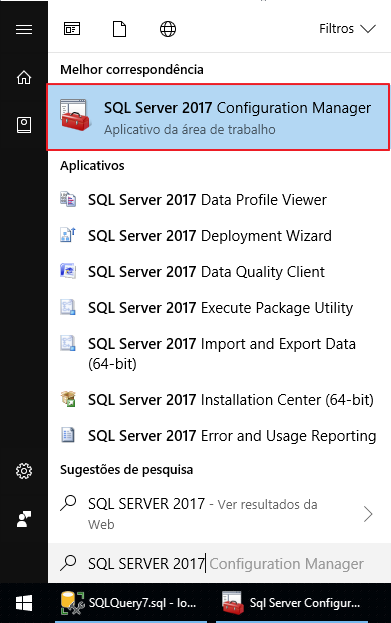
Now just restart the service, as shown in the image below:
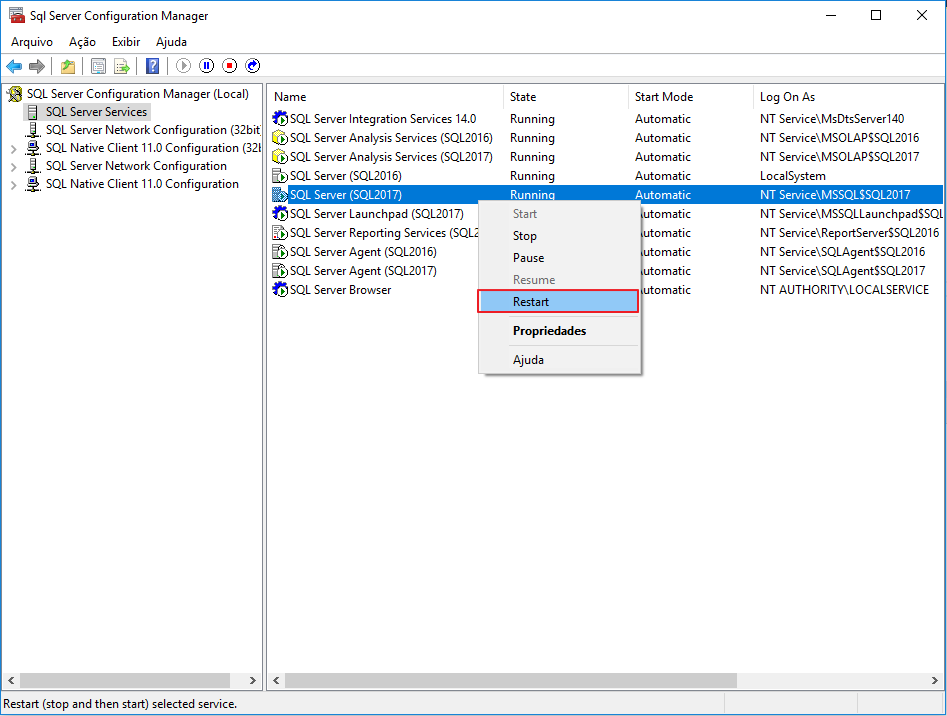
I also recommend restarting the “SQL Server Launchpad” service, since when I tried to run the Python script, I received this error message:
Msg 39011, Level 16, State 1, Line 10
SQL Server was unable to communicate with the LaunchPad service. Please verify the configuration of the service.
How to install the Slacker library
For our integration with Slack via SQL Server, we will use the Slacker library. To install it, open the Command Prompt as Administrator:

Once opened, simply type the command below:
cd "C:\Program Files\Microsoft SQL Server\MSSQL14.NOME_DA_SUA_INSTANCIA\PYTHON_SERVICES\Scripts"
pip install slacker
If you don't know your installation path, you can easily find out with this command here:
SELECT TOP (1) TRIM(REPLACE(B.[value], 'MSSQL\Binn\sqlservr.exe', '')) + 'PYTHON_SERVICES\Scripts'
FROM sys.dm_server_registry A
CROSS APPLY STRING_SPLIT(REPLACE(CAST(value_data AS VARCHAR(MAX)), '"', ''), '-') B
WHERE A.registry_key LIKE 'HKLM\SYSTEM\CurrentControlSet\Services\MSSQL%'
AND A.value_name = 'ImagePath'
Result:

After typing the commands above, the library will have been successfully installed:

How to enable the Slack API
To be able to send messages via Slack, we need to create a custom integration. To do this, access the URL https://api.slack.com/docs/oauth-test-tokens logged into the user account that will serve as a BOT and send automatic messages.
Click on the “Create token” button.
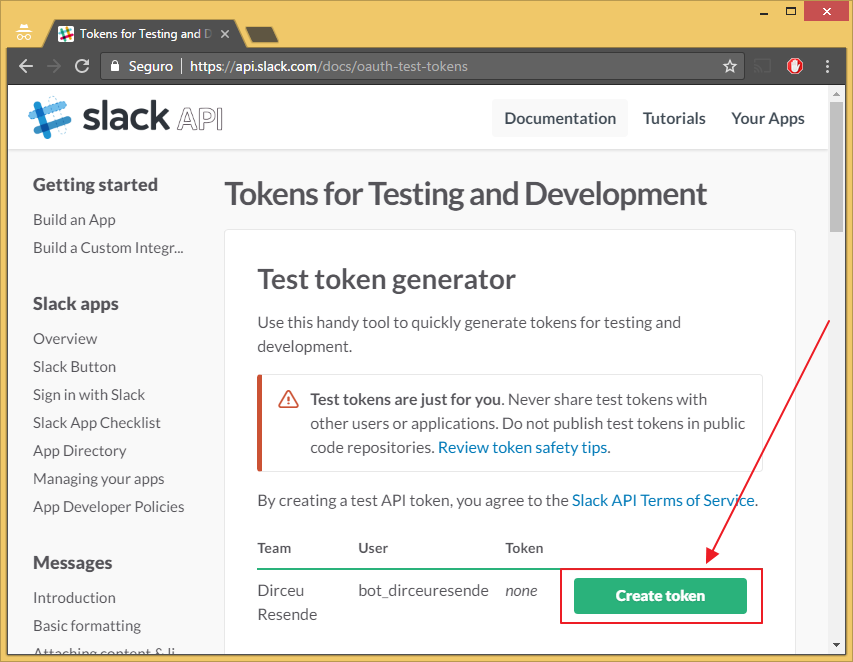
Copy the generated token to your application. It is with this huge code (76 characters in my case) that you will authenticate with the API and be able to send your messages through the API.

How to send messages on Slack through SQL Server
Now that I've explained what Slack is, we've enabled Python scripts on the instance and you've generated your access token, we can start sending messages on Slack through SQL Server 2017.
Simple version (formatting only)
Stored Procedure code that sends messages:
USE [dirceuresende]
GO

CREATE OR ALTER PROCEDURE dbo.stpEnvia_Mensagem_Slack (
    @Ds_Mensagem NVARCHAR(4000),
    @Ds_Canal NVARCHAR(256)
)
AS
BEGIN

    DECLARE @SlackToken NVARCHAR(100) = 'seu token aqui' -- https://api.slack.com/docs/oauth-test-tokens
    DECLARE @Script NVARCHAR(MAX) = '
from slacker import Slacker
slack = Slacker("' + @SlackToken + '")
slack.chat.post_message(channel, text)'


    EXEC sys.sp_execute_external_script
        @language = N'Python',
        @script = @Script,
        @params = N'@channel nvarchar(256), @text nvarchar(max)',
        @channel = @Ds_Canal,
        @text = @Ds_Mensagem


END
Example of use for private message to another user:
EXEC dbo.stpEnvia_Mensagem_Slack
    @Ds_Mensagem = N'Teste de integração', -- nvarchar(max)
    @Ds_Canal = N'@bot_dirceuresende' -- nvarchar(128)
Result:

Example of use for a message in a channel:
EXEC dbo.stpEnvia_Mensagem_Slack
    @Ds_Mensagem = N'Teste de integração', -- nvarchar(max)
    @Ds_Canal = N'#ti' -- nvarchar(128)
Result:

Full version (with colors, links and formatting)
Stored Procedure code that sends the message:
USE [dirceuresende]
GO

CREATE OR ALTER PROCEDURE dbo.stpEnvia_Mensagem_Slack_Completa (
    @Ds_Mensagem NVARCHAR(4000),
    @Ds_Canal NVARCHAR(256),
    @Ds_Cor_Hexa NVARCHAR(10) = '',
    @Ds_Titulo NVARCHAR(128) = '',
    @Ds_Link NVARCHAR(256) = '',
    @Ds_Mensagem_Interna NVARCHAR(4000) = ''
)
AS
BEGIN


    DECLARE
        @SlackToken NVARCHAR(100) = 'seu token aqui', -- https://api.slack.com/docs/oauth-test-tokens
        @ConteudoTexto NVARCHAR(MAX) = '[
    {
        "fallback": "' + @Ds_Mensagem + '",
        "color": "#' + @Ds_Cor_Hexa + '",
        "pretext": "' + @Ds_Mensagem + '",
        "title": "' + @Ds_Titulo + '",
        "title_link": "' + @Ds_Link + '",
        "text": "' + @Ds_Mensagem_Interna + '",
        "mrkdwn_in": ["text", "pretext"]
    }
]'


    DECLARE
        @Script NVARCHAR(MAX) = '
from slacker import Slacker
slack = Slacker("' + @SlackToken + '")
slack.chat.post_message(channel, text, username, as_user, parse, link_names, attachments, unfurl_links, unfurl_media, icon_url, icon_emoji, thread_ts)'


    EXEC sys.sp_execute_external_script
        @language = N'Python',
        @script = @Script,
        @params = N'@channel nvarchar(256), @text nvarchar(max), @username nvarchar(128), @as_user nvarchar(10), @parse nvarchar(100), @link_names nvarchar(10), @attachments nvarchar(max), @unfurl_links nvarchar(10), @unfurl_media nvarchar(10), @icon_url nvarchar(255), @icon_emoji nvarchar(100), @thread_ts nvarchar(100)',
        @channel = @Ds_Canal,
        @text = @Ds_Mensagem,
        @as_user = 'false',
        @attachments = @ConteudoTexto,
        @icon_emoji = '',
        @icon_url = '/wp-content/uploads/2018/01/cropped-Azure-SQL-Database-generic_COLOR-2-180x180.png',
        @link_names = 'true',
        @parse = 'none',
        @thread_ts = '',
        @unfurl_links = 'true',
        @unfurl_media = 'true',
        @username = 'BOT Dirceu Resende'


END
Usage examples
Sending formatted messages
EXEC dbo.stpEnvia_Mensagem_Slack_Completa
    @Ds_Canal = N'informativos', -- nvarchar(max)
    @Ds_Mensagem = N'Teste de Mensagem', -- nvarchar(max)
    @Ds_Cor_Hexa = N'ff0000', -- nvarchar(max)
    @Ds_Titulo = N'Título da Mensagem com Borda Vermelha', -- nvarchar(max)
    @Ds_Link = N'', -- nvarchar(max)
    @Ds_Mensagem_Interna = N'Essa é a mensagem do Slack. Aceita *negrito*, _italico_ e ~sublinhado~' -- nvarchar(max)

Sending messages with external links
When you click on the message title, you will be directed to the URL https://dirceuresende.com/blog 🙂
EXEC dbo.stpEnvia_Mensagem_Slack_Completa
    @Ds_Canal = N'informativos', -- nvarchar(max)
    @Ds_Mensagem = N'', -- nvarchar(max)
    @Ds_Cor_Hexa = N'00ff00', -- nvarchar(max)
    @Ds_Titulo = N'Título da Mensagem com Borda Verde', -- nvarchar(max)
    @Ds_Link = N'https://dirceuresende.com/blog', -- nvarchar(max)
    @Ds_Mensagem_Interna = N'Essa é a mensagem do Slack. Aceita *negrito*, _italico_ e ~sublinhado~' -- nvarchar(max)
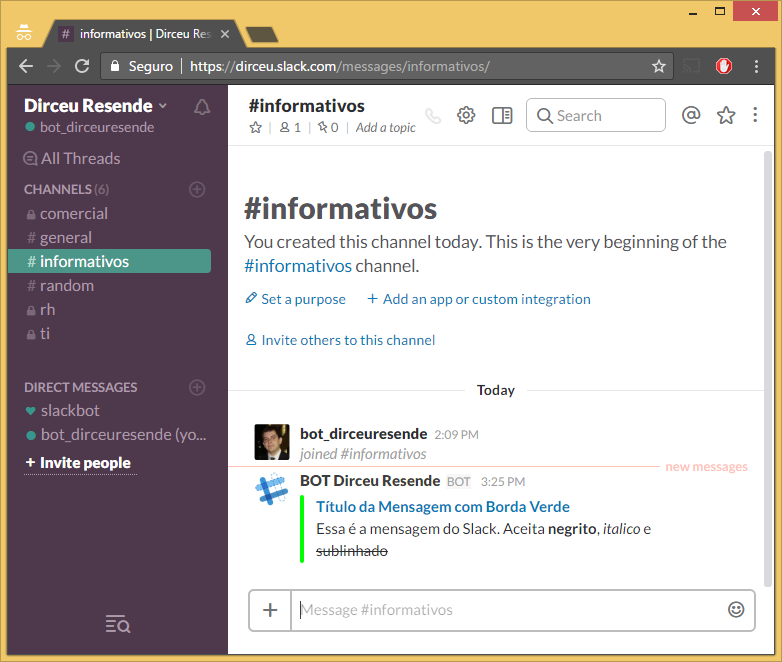
Sending a message with line breaks
EXEC dbo.stpEnvia_Mensagem_Slack_Completa
    @Ds_Canal = N'informativos', -- nvarchar(max)
    @Ds_Mensagem = N'', -- nvarchar(max)
    @Ds_Cor_Hexa = N'0000ff', -- nvarchar(max)
    @Ds_Titulo = N'', -- nvarchar(max)
    @Ds_Link = N'', -- nvarchar(max)
    @Ds_Mensagem_Interna = N'Essa é a mensagem do Slack com Borda Azul.\n\nAceita *negrito*\nAceita_italico_\nAceita ~sublinhado~' -- nvarchar(max)

To learn more about formatting in Slack, access this link.
And that's it, folks!
I hope you enjoyed this post and see you next time!

Comentários (0)
Carregando comentários…