
Hey guys,
Are you all right?
Today I was checking out what's new on the blogs that I recommend and I ended up seeing a super cool tip on Leka's blog which I decided to share here with you too, which consists of enabling the Dark theme in the SQL Server Management Studio (SSMS) interface, just as it has existed in Visual Studio for a few versions now.
Since the release of SSMS 2016, released in July, it was already possible to choose the Light and Blue themes and this ended up generating an expectation from the community about the release of the Dark theme, which ended up not happening. Not satisfied, Leka opened a connect at Microsoft requesting the release of the Dark theme and then, he decided to post the solution for this, while Microsoft does not officially make it available in SSMS, since the theme already exists, but is disabled by default, as it still requires several adjustments.
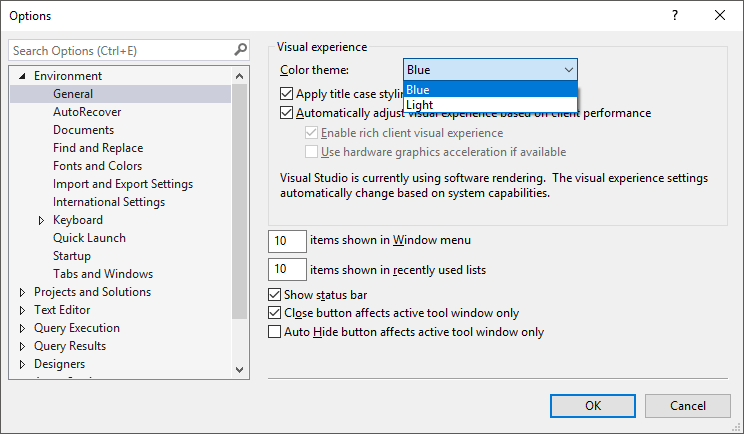
Themes officially available in SSMS 2016 13.0.16106.4
How to enable Dark theme in SSMS 2016
If you want to activate the Dark theme in your Management Studio to check the “preview” version of the theme, follow the steps below:
- Download the SQL Server Management Studio (SSMS) 2016
- Open your favorite text editor using an Administrator user
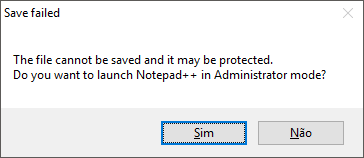
If you forget to open the file in Administrator mode, Notepad++ helps you 🙂
- Open the file “C:\Program Files (x86)\Microsoft SQL Server\130\Tools\Binn\ManagementStudio\ssms.pkgundef” (if you are using SSMS 18, the file is located in the directory “C:\Program Files (x86)\Microsoft SQL Server Management Studio 18\Common7\IDE”)
-
Locate the entrance // Remove Dark theme and comment out (by inserting // at the beginning of the line) or remove the contents of the file starting from this line and ending at the entry // Remove DacFx 11.0 binding path to avoid conflicts with 13.0 assemblies, as shown in the figure below:
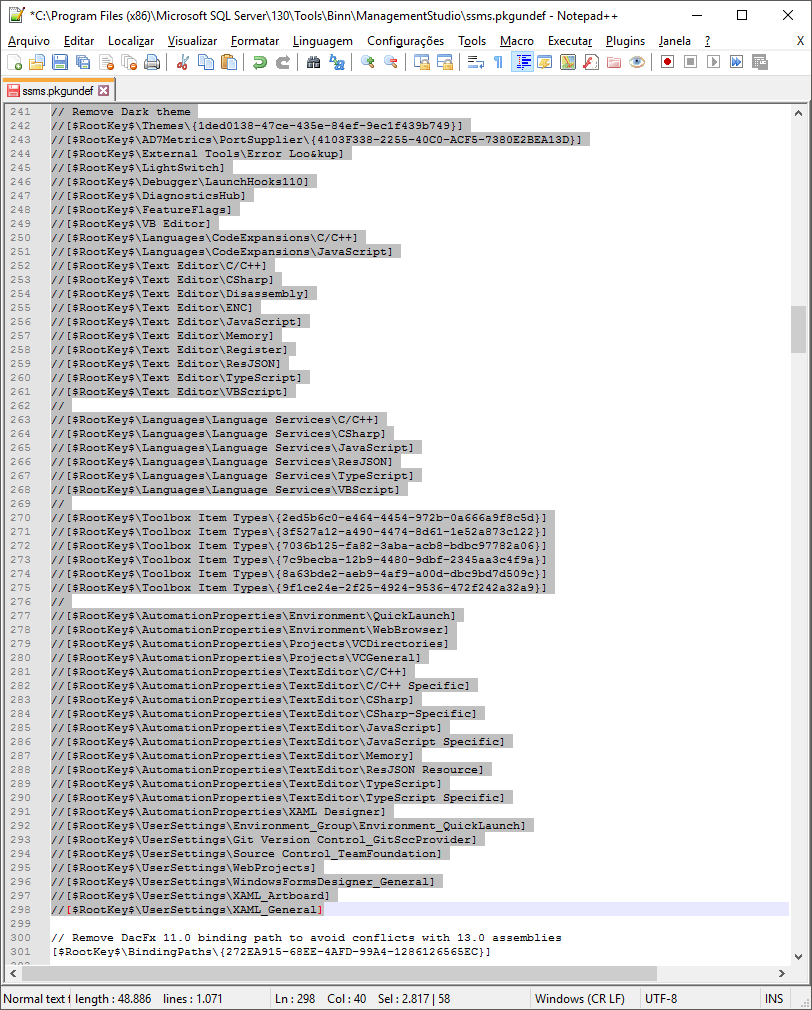
Note: Our friend Reginaldo Silva warned us about a bug when using the Debugger on this theme after making these settings. To prevent this from happening, he instructs us NOT to comment on the line [$RootKey$\Debugger\LaunchHooks110] 🙂
- Save the file and restart SSMS 2016
Ready! Now your SSMS 2016 supports the Dark theme.
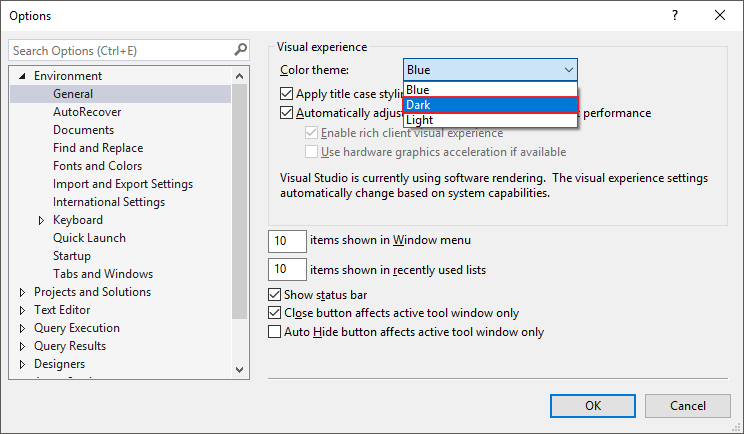
See some screenshots of this theme in use (remembering that it is still a preview, and not completely finished):
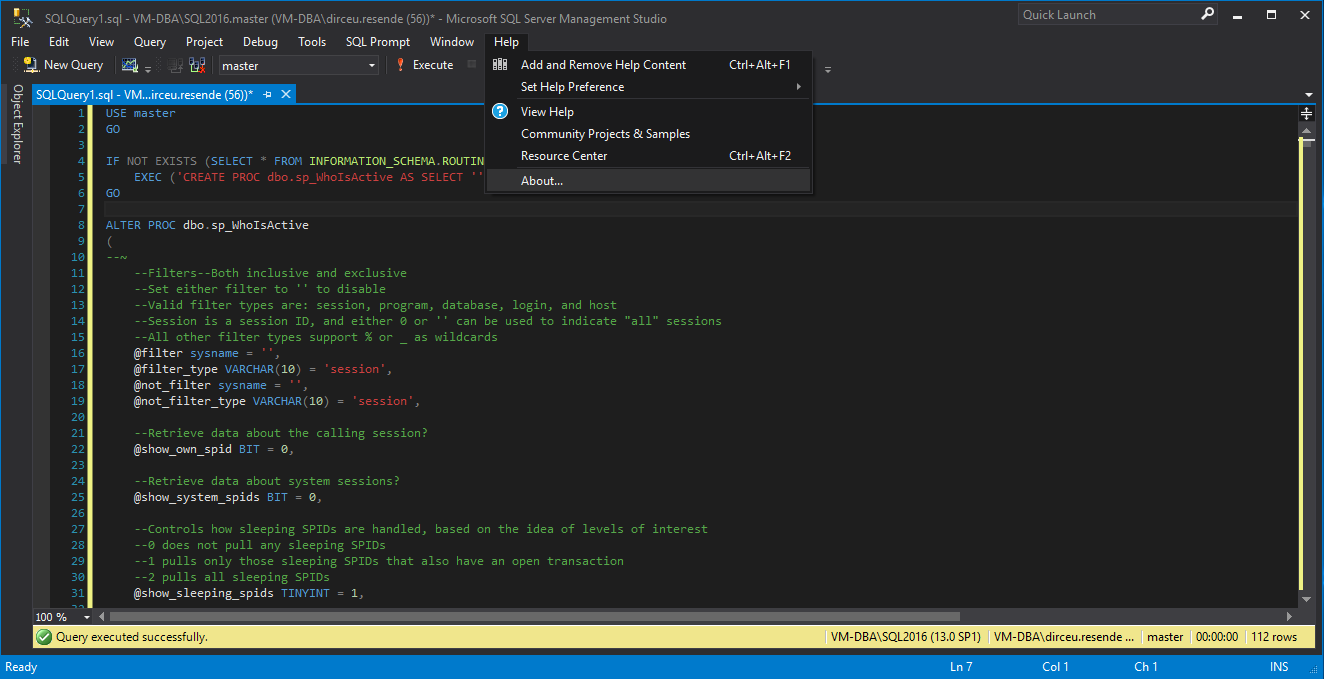
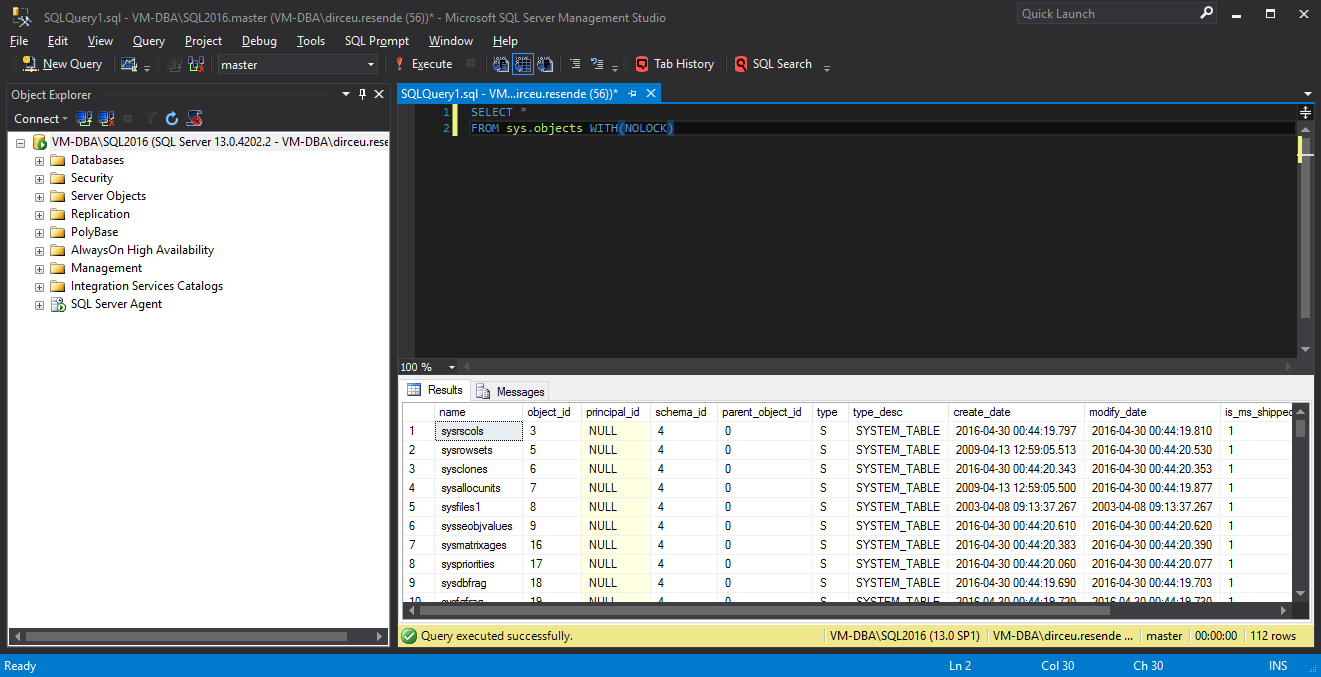
How to use Dark theme colors in any version of SSMS
Even if you are not using the 2016 version of SQL Server Management Studio (I see no reason for that), you can also use the Dark theme colors in your version of SSMS. Previous versions do not have the Themes feature, but you can edit the Editor's themes and formatting colors or simply import a file with the settings already made, which I found on the blog SentryOne.
Manual configuration
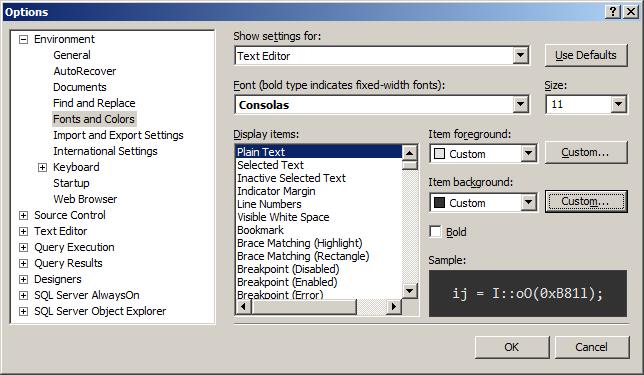
If you don't want to import the settings and want to do it manually, these are the theme's color settings:
Comment: RGB(255,175,45)
Keyword: RGB(127,176,228)
Script Comment: RGB(255,175,45)
Script keyword: Cyan RGB(0,255,255)
Script string: Yellow RGB(255,255,0)
SQL Operator: RGB(199,199,199)
SQL Stored Procedure: RGB(128,255,128)
SQL String: Yellow RGB(255,255,0)
SQL System Function: RGB(220,1120,255)
SQL System Table: RGB(128,255,128)
Importing the configuration file
If you want to do it the easy way, just download the theme configuration accessing this link and follow the steps below:
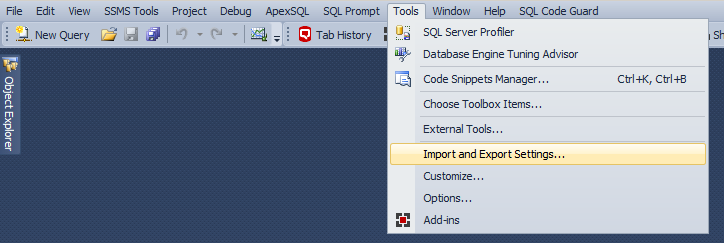
Select the “Tools” > “Import and Export Settings…” option from the SQL Server Management Studio menu bar
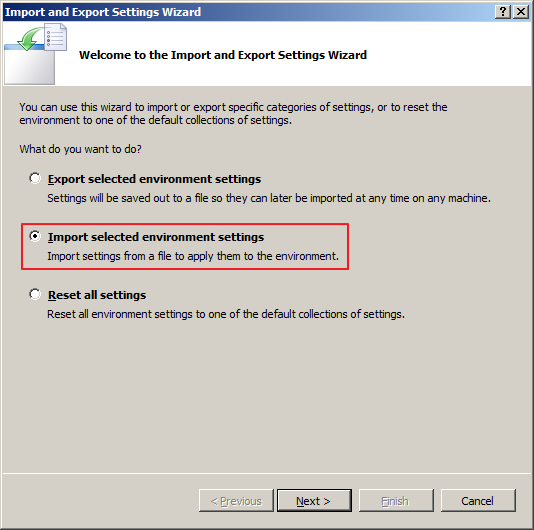
Check the option “Import selected environment settings” and click Next
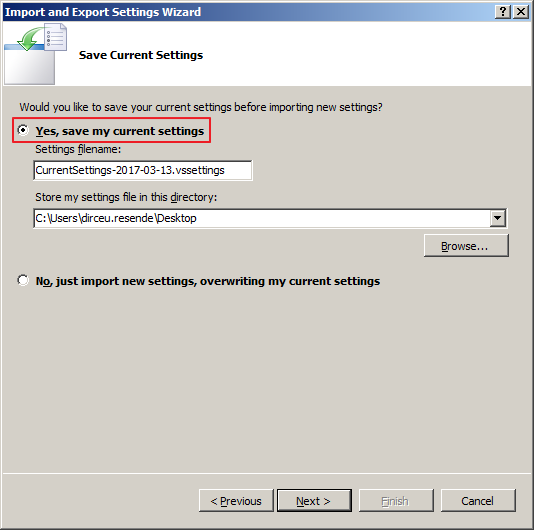
On this screen, I recommend you save your current settings so that you can return these settings if you don't like the theme. To do this, simply follow the screen below.
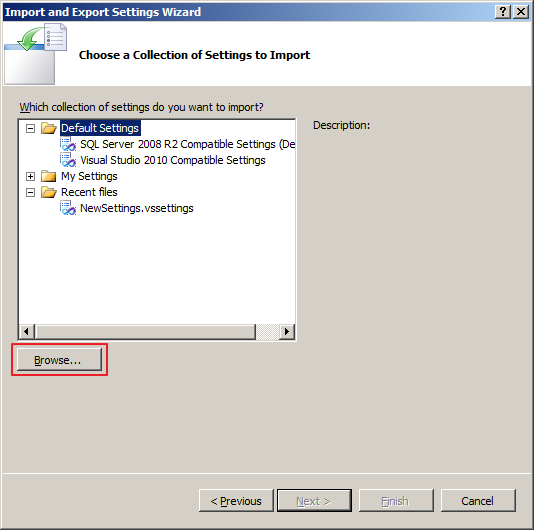
Click the “Browse” button and select the settings file you downloaded.
After selecting the file, it will be available on the next screen, under the “My Settings” folder.
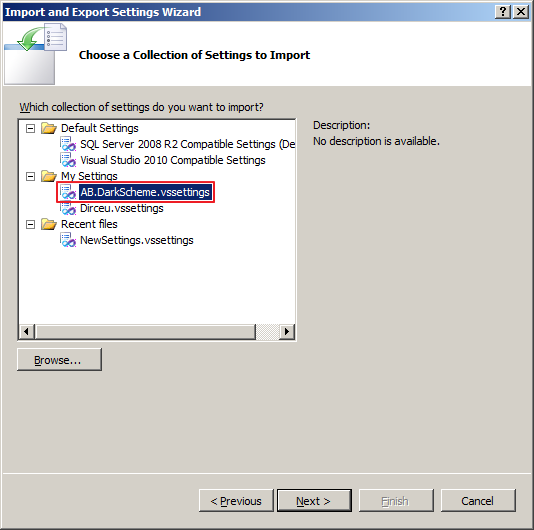
After clicking “Next”, the import interface will show what will be imported and changed in your SSMS settings
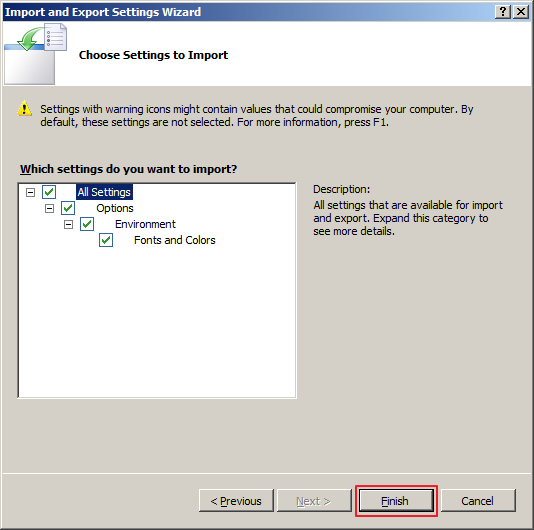
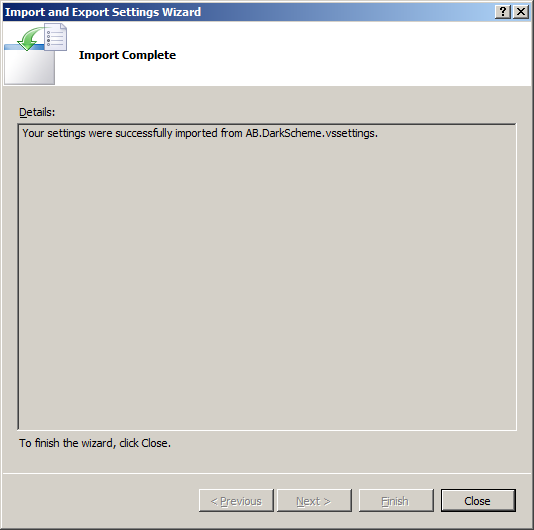
Ready. Import complete.
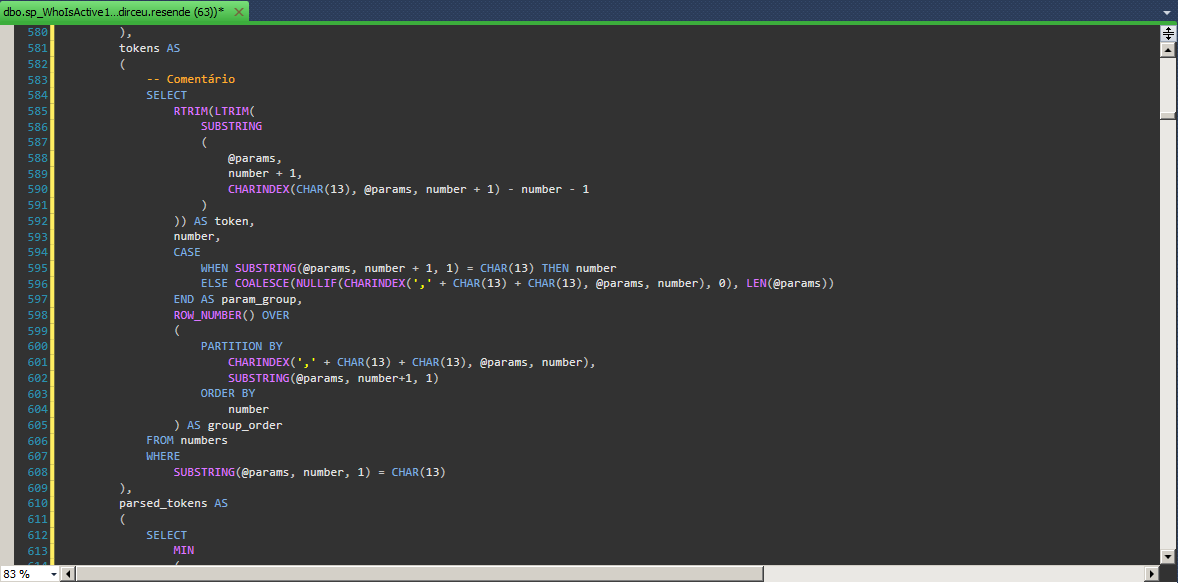
See what the SSMS query editor looked like after carrying out this process.
That's it folks!
I hope you liked this tip and see you later.

Comentários (0)
Carregando comentários…