
Goodnight!
In this post I will talk a little more about SQLCMD, the SQL Server command line utility. As an Oracle DBA, I only used SQL*Plus, which is Oracle's command line utility, to carry out my activities and I found it super practical, lightweight, the possibility of creating highly customizable and easy-to-execute scripts (@wait, @locks, etc), 0% machine processor usage and less than 20 MB of memory.
I discovered SQLCMD when I was going to perform some activity on SQL Server databases and thought that sending evidence of execution by taking a screenshot of SQL Management Studio was a bit strange. I was used to SQL*Plus, where it generated a spool and all the output of the executed commands and the return were written to an output text file, which I sent to activity requesters as evidence.
In fact, SQL*Plus is much more complete than SQLCMD, but this does not take away the merit of SQLCMD, which was of great help to me in a case where I needed to execute a 500 MB SQL script to import data into a SQL Server database. I tried Management Studio about 10 times, but it wouldn't load the file even for prayer. The solution was to use the well-known SQLCMD, which performed the activity with 1 command line, without any problems.
I'm not going to go into much detail, because there really are lots and lots of SQLCMD parameters, as well as commands from the tool itself to “program” in it, like macros, definition of variables, etc. I will only focus on the main features. If you want to delve deeper, I suggest visiting the Microsoft's SQLCMD page or check this link (in English)
Another interesting use for SQLCMD is mass script execution (batch), as I demonstrate in the article SQL Server – How to batch execute all .sql scripts in a folder or directory using SQLCMD.
Connection parameters
- -d
: Used to specify the name of the database on which the command will be executed. This parameter is currently obsolete and should be disabled in future versions, being replaced by the USE command [bank]. - -S
: Used to specify the SQL Server connection server. If you want to connect to an instance other than the default or the server has a port other than the default (1433), use the syntax:
sqlcmd -S\ , .
Ex: sqlcmd -S server_casa\instanciaTeste, 1453 - -A: Allows you to connect to the server with a dedicated connection for the database administrator (Dedicated Administrator Connection – DAC)
Login parameters
- -E: Attempts to connect to the server using Windows Authentication authentication mode. It is not necessary to enter the username or password, since the connection is made using the user logged in to the machine, which is previously registered in Active Directory. If the -P or -U parameters are not provided, this parameter is used automatically.
- -U
-P : Attempt to connect to the server using the SQL Server Authentication authentication mode, where it is necessary to enter a username and password and this user must have previously been created in the server's user policies (In Management Studio, Security > Logins)
File input and output parameters
- -i
: Defines the input file to be executed by SQLCMD. If part of the path has spaces, use quotation marks (I always use them, whether there is a space or not).
Ex: sqlcmd -S pc-casa -i “C:\My Files\query.sql” - -o
: Defines the output file, where the output messages returned by SQLCMD will be written. - -e: Defines that the queries contained in the input file also appear in the output file.
- -u: Defines that the output file will be written in Unicode (UTF-8) format.
Query parameters
- -q
: Executes the query passed as a parameter (use quotation marks). To execute more than one query, use the semicolon (;). This parameter cannot be used in conjunction with -i, as they are mutually exclusive. - -Q
: Does the same thing as the -q parameter, but after execution, it closes SQLCMD. - -t
: Defines the timeout time (in seconds) of the query that will be executed. After exceeding the defined limit, the connection will be closed, even if it has not been executed completely yet. - -s
: Sets the column separator character.
Ex: sqlcmd -S pc-casa -s ; -Q “select * from sys.sysobjects” - -W: Removes trailing whitespace.
Error parameters
- -m
: Defines at what error severity level messages will be written to the output file. Using parameter -1, all messages, including informative ones, will be recorded. This parameter does not accept spaces. -m-1 is valid, but -m -1 is not. - -V
: Defines at what severity level returned messages will be treated as errors.
Miscellaneous parameters
- -?: Displays the SQLCMD HELP
Examples of use
-- Conecta no servidor "servidor-casa", utilizando o usuário "dirceu", senha "resende", executa o script "teste.sql" e grava o resultado e o próprio arquivo de entrada no arquivo teste.log
sqlcmd -S servidor-casa -U dirceu -P resende -i "C:\Meus Dados\SQL\teste.sql" -e -o "C:\Meus Dados\SQL\teste.log"

-- Conecta no servidor "servidor-casa" utilizando autenticação Windows e executa o script "teste.sql"
sqlcmd -S servidor-casa -i "C:\Meus Dados\SQL\teste.sql"

-- Conecta no servidor "servidor-casa", instância "instanciaTeste", porta 1453. Executa uma query no servidor, onde o tempo de expiração é de 60 segundos. O resultado da query virá separado por ";" e não terá espaços em branco.
sqlcmd -S servidor-casa\instanciaTeste,1453 -q "SELECT TOP 10 * FROM sys.sysobjects" -t 60 -s ; -W

-- Conecta no servidor "servidor-casa", executa uma query no servidor, onde o tempo de expiração é 30 segundos. O resultado da query virá separado por ";", não terá espaços em branco e será gravado no arquivo "saida.log"
sqlcmd -S servidor-casa -q "SELECT * FROM sys.sysobjects" -t 30 -s ; -W -e -o "C:\saida.log"
It is also possible to execute queries normally in SQLCMD (then I think it's better to do it in Management Studio... lol)
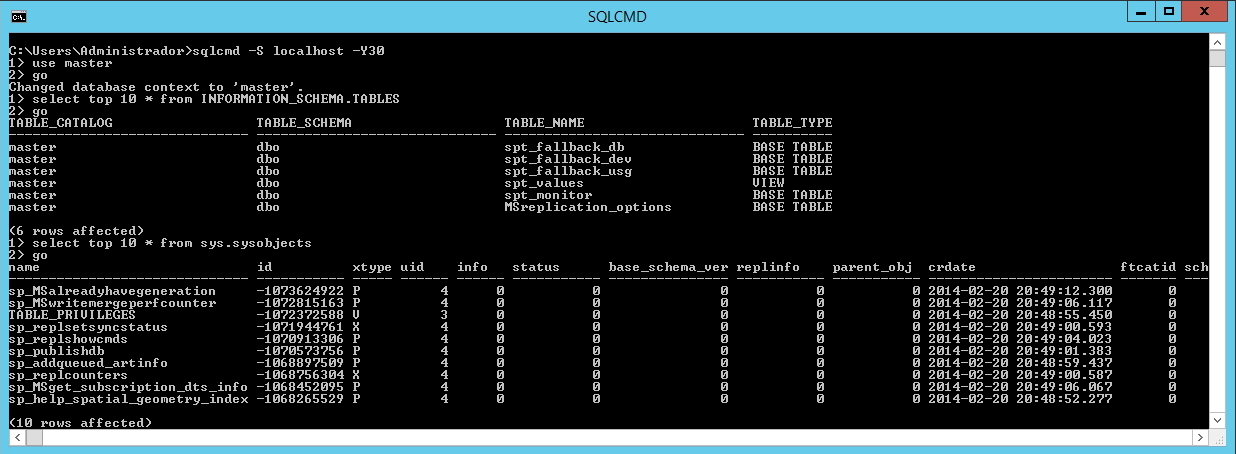
Setting the maximum width to 30 characters

Defining that there will be no white spaces and the column separator will be “;”
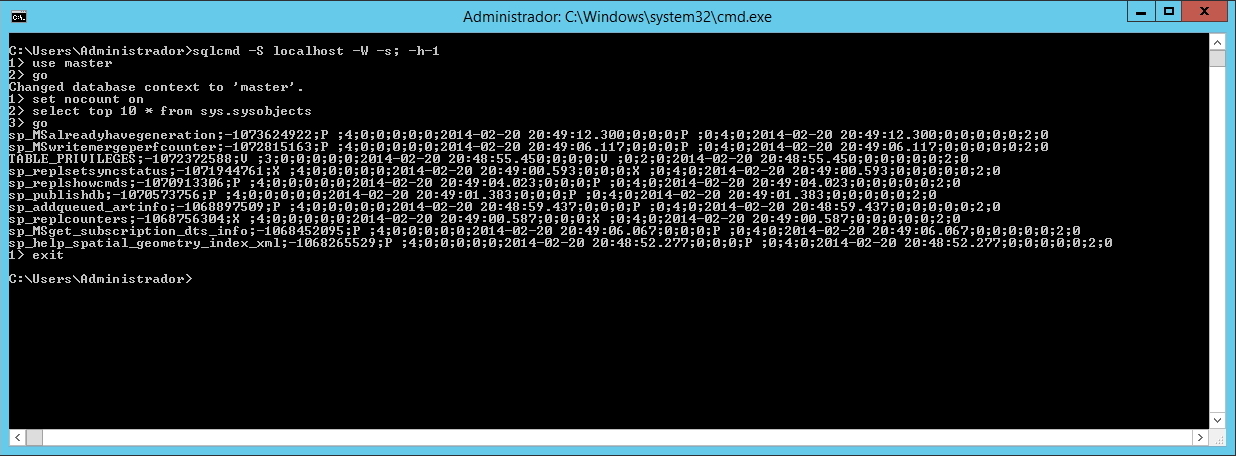
Defining that there will be no blank spaces, the column separator will be “;” and no headers
That's it folks,
Until next time!

Comentários (0)
Carregando comentários…