
Hey guys!
In this very simple article, I will share with you a script that I developed to meet a very common need in the daily lives of those who create courses and training, which is to create a spreadsheet or CSV file, containing the list of videos, size and duration of each video, in order to maintain the folder structure to be able to calculate the total duration of the videos and also, to be able to add the total duration per directory and per file, to make this available on a course platform, for example.
For this example, I used the files from my course Database on Azure, which are already separated by separate directories for each module:

But notice that there are 2 folders within the course directory, called “General” and “Marketing”, which are promotional videos and I don’t want to consider them when setting up and making the training schedule available, nor when calculating the total duration of the videos. I.e, I want to ignore these 2 directories from my listing.
Furthermore, at the end of the listing, instead of showing it on the console screen, I want to export this list to a CSV file, where I can open it in a text editor or Microsoft Excel.
How to run Powershell scripts
Just like any other Powershell script, to run it, simply open the command prompt by typing the command “cmd” in the search bar:

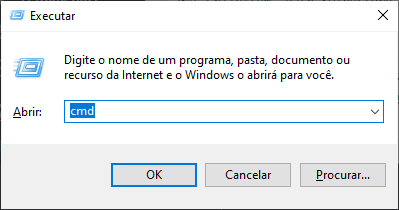
Another way to open the command prompt is to press the Win + R keys, to open the Run window, type the command “cmd” and press the “Enter” key:
In the console screen that opened, type the command “powershell” to enter the Powershell console:
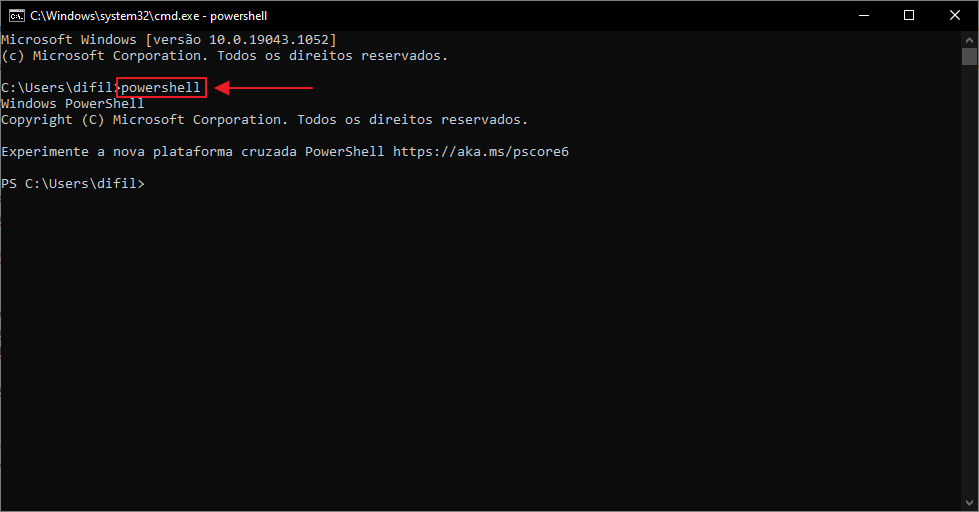
Now just type the Powershell commands you want.
Running the Powershell script to generate the listing
To run our Powershell script to generate the desired listing, copy the script below and paste it into the Powershell screen:
$Directory = "C:\Cursos\Azure\"
$Shell = New-Object -ComObject Shell.Application

Get-ChildItem -Path $Directory -Recurse -Force -Include *.mp4 | where fullname -notmatch 'Marketing' | where fullname -notmatch 'Geral' |
ForEach {

    $Folder = $Shell.Namespace($_.DirectoryName)
    $File = $Folder.ParseName($_.Name)
    $Duration = $Folder.GetDetailsOf($File, 27)

    [PSCustomObject]@{
        Directory = $_.Directory -Replace ([Regex]::Escape("\Videos")), "" -Replace ([Regex]::Escape($Directory)), ""
        Name = $_.Name -Replace ".mp4", ""
        Size = "$([int]($_.length / 1mb)) MB"
        Duration = $Duration
    }

} | Export-Csv -Path "C:\Cursos\Azure\temp.csv" -NoTypeInformation -Encoding UTF8 -Delimiter ";"
If you don't know how to do this, copy the script above and right-click in the console to paste (it will paste directly, without showing the menu). Now press the “Enter” key to execute:
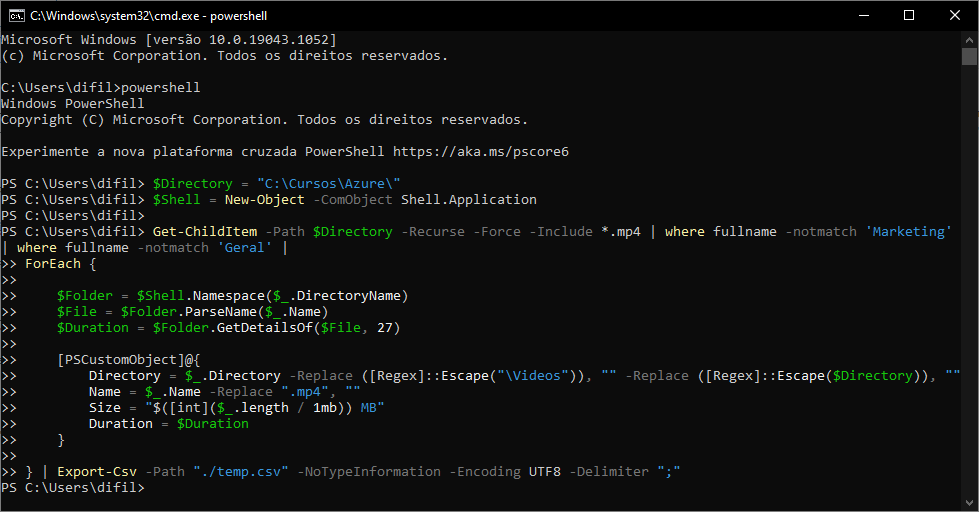
If you saw this screen above, it is because the script ran without errors.
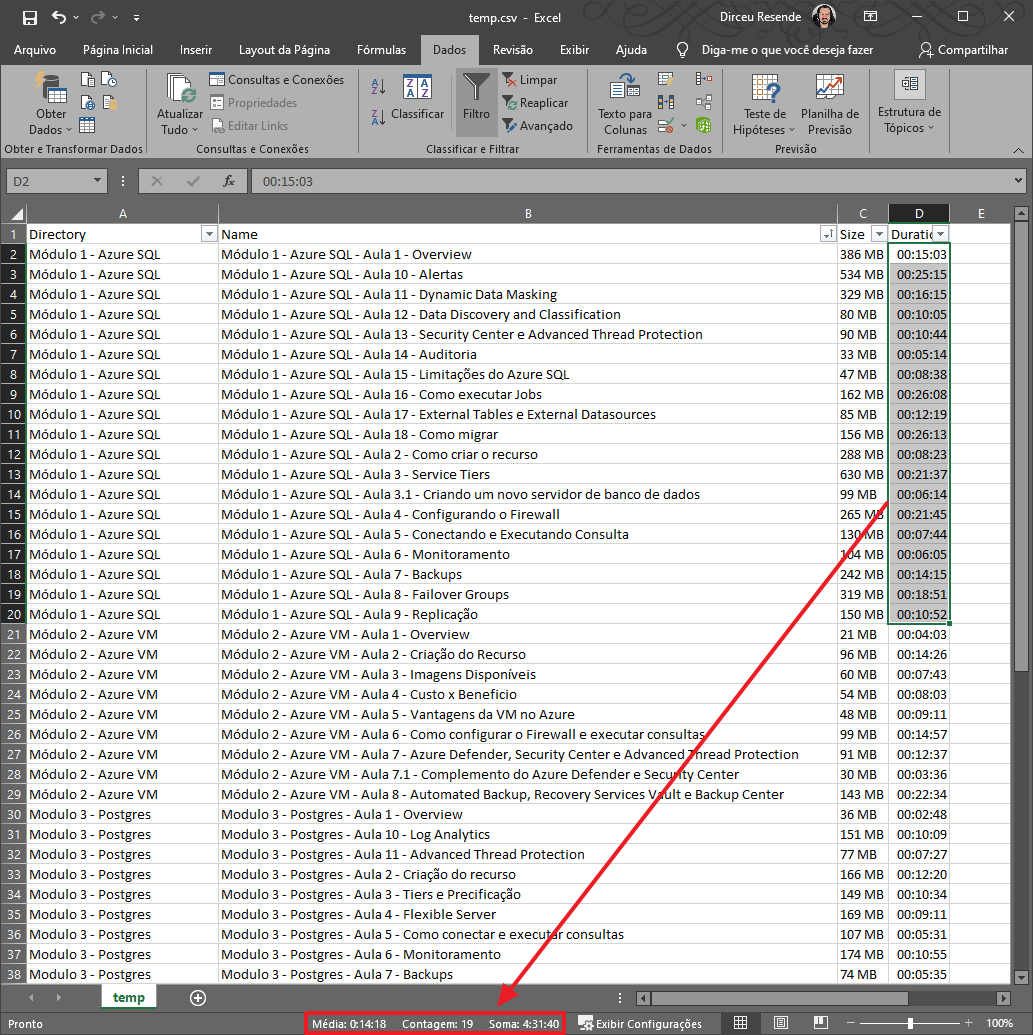
Opening the generated temp.csv file, we will see the complete list of videos, directory, size and duration. I can select, for example, videos only from the “Module 1 – Azure SQL” directory and now analyze the number of videos, average duration and total duration of these videos, as shown in the example below:
So, did you like this tip?
A big hug and see you next time!

Comments (0)
Loading comments...