
Hey guys!
In this post I would like to share with you how to increase the speed of your queries by changing the server's power configuration
Introduction
If you follow the IT technical community, especially SQL Server, you certainly know the Fabrício Lima, CEO of PowerTuning and one of the pioneers when it comes to blogging about SQL Server in Brazil.
A few years ago he reported a very interesting case in the article “Everyday Cases: I bought a better server and SQL Server is slower! How can you???” where a customer buys a much better server than the previous one and queries end up being much slower than on the old server due to the Windows power plan.
Since then, I always analyze this when I access a new environment. Despite believing in all the references he cites in his post (and I also believe him lol), I wanted to test this in my own environment and draw my conclusions about it.
The testing environment
To carry out the tests in this post, I will use the following table:
USE [dirceuresende]
GO

IF (OBJECT_ID('dbo.TesteCPU') IS NOT NULL) DROP TABLE dbo.TesteCPU
SELECT TOP(10000)
    MyInt = CONVERT(BIGINT, o1.[object_id]) + CONVERT(BIGINT, o2.[object_id]) + CONVERT(BIGINT, o3.[object_id])
INTO
    dbo.TesteCPU
FROM
    sys.objects o1
    JOIN sys.objects o2 ON o1.[object_id] < o2.[object_id]
    JOIN sys.objects o3 ON o1.[object_id] < o3.[object_id]
The query I will use to test performance on different power plans will be this:
SELECT
    SUM(CONVERT(BIGINT, o1.MyInt) + CONVERT(BIGINT, o2.MyInt))
FROM
    dbo.TesteCPU o1
    JOIN dbo.TesteCPU o2 ON o1.MyInt < o2.MyInt
OPTION(MAXDOP 16) -- Forçar usar todos os cores do meu servidor
The tool that I will use to execute several queries simultaneously and measure execution times is SQLQueryStress, which I already talked about in the article SQL Server – How to use the SQLQueryStress tool.
To manage my power plans, activate/deactivate Turbo Boost and manage my processor frequencies, I use the tool Quick CPU, which I think is the best available for Windows for processor management.
And finally, the processor used in this test is an Intel i9 9900K with 8 logical cores and 16 cores, with Turbo Boost 2.0 enabled, where I defined a maximum frequency of up to 4.7 GHz.
The Tests
Using the SQLQueryStress tool, I will run the query I shared above (which forces to use all 16 colors) in 10 iterations, executing 2 times simultaneously in each iteration.
I added a waiting time of 2 seconds between each query, to let the processor “rest” and reduce the clock.
And the result was this:
Using the Energy Saving power plan:
59.21 seconds of total duration, 3.91 seconds of average execution time and 18.5 seconds of CPU (parallelism) in each iteration

Using the High Performance power plan:
43.64 seconds of total duration, 2.33 seconds of average execution time and 10.56 seconds of CPU (parallelism) in each iteration
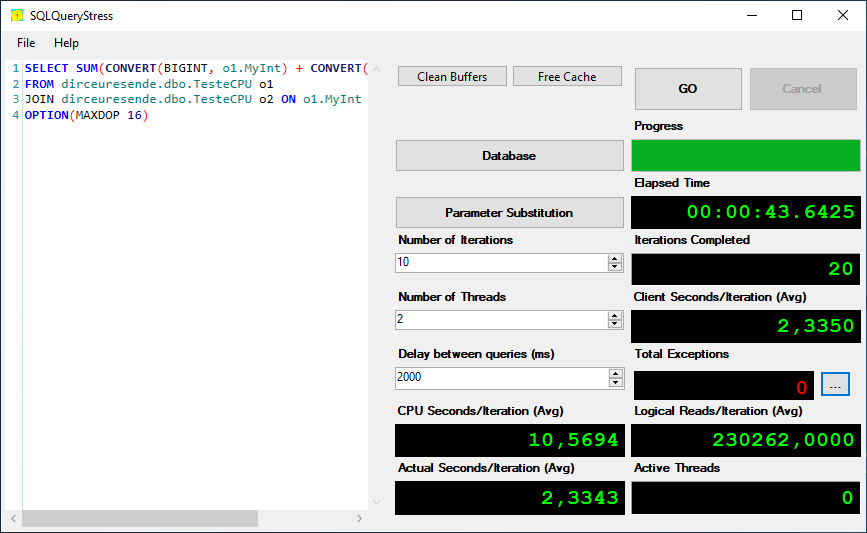
As you can see, in the High Performance power plan, we had a reduction in total duration of 21%, a reduction in average execution time of 40.4% and a reduction in CPU time of 43%.
What is happening?
To try to understand what could be causing such an absurd difference in performance due to a simple configuration of the Windows power plan, let's understand how these power plans work. According to official documentation, we have 3 power plans by default in Windows:
- Balanced: This plan gives you full performance when you really need it. This plan saves energy during periods of inactivity.
- Energy saving: This plan saves energy by reducing system performance. It can help mobile PC users get the most out of a single battery charge.
- High performance: This plan maximizes system responsiveness and performance. Mobile PC users may find that their battery charge does not last as long when they use this plan.
To understand exactly what makes these Windows power plans different from each other, we can view the advanced settings for each power plan:
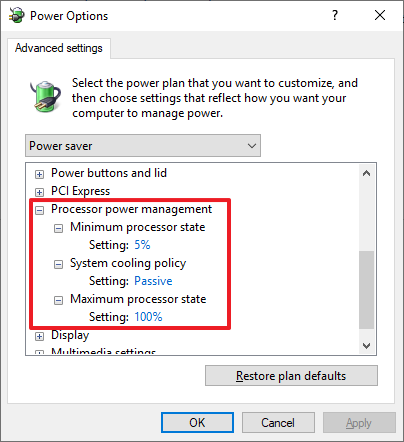
Energy Saving (minimum CPU usage at 5%, maximum usage at 100% and passive cooling)
Balanced (minimum CPU usage at 5%, maximum usage at 100%, and active cooling)

High Performance (minimum CPU usage at 100%, maximum usage at 100% and active cooling)
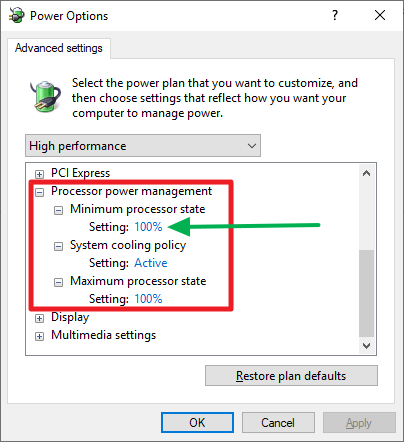
As we can see, the biggest difference is in relation to cooling (active/passive) and minimum CPU usage. While in “Balanced” and “Energy Saving” modes, the minimum usage is 5% and the CPU clock frequency will vary from 5% to 100% of maximum capacity, depending on usage, in “High Performance” power mode, Windows will always use the maximum CPU capacity at all times.
In the “Balanced” and “Energy Saving” power modes, if the bank server has periods where it has little activity and suddenly it receives some heavy queries, it will end up having to increase the processor speed when this heavy query arrives and immediately after executing it, it will reduce the clock automatically to save energy.
In my tests with Turbo Boost enabled, the “Energy Saving” power plan only raised the processor frequency to the processor's nominal maximum (3.6 GHz) and reached a minimum of 1.4 GHz. The “Balanced” power plan reached 4.7 GHz when I ran some queries and after running, it varied between 3.5 GHz and 4.5 GHz. In the “High Performance” plan the clock rate varied between 4.5 and 4.7 GHz.
This is what makes the difference in the “real world” when using a power plan other than “High Performance”
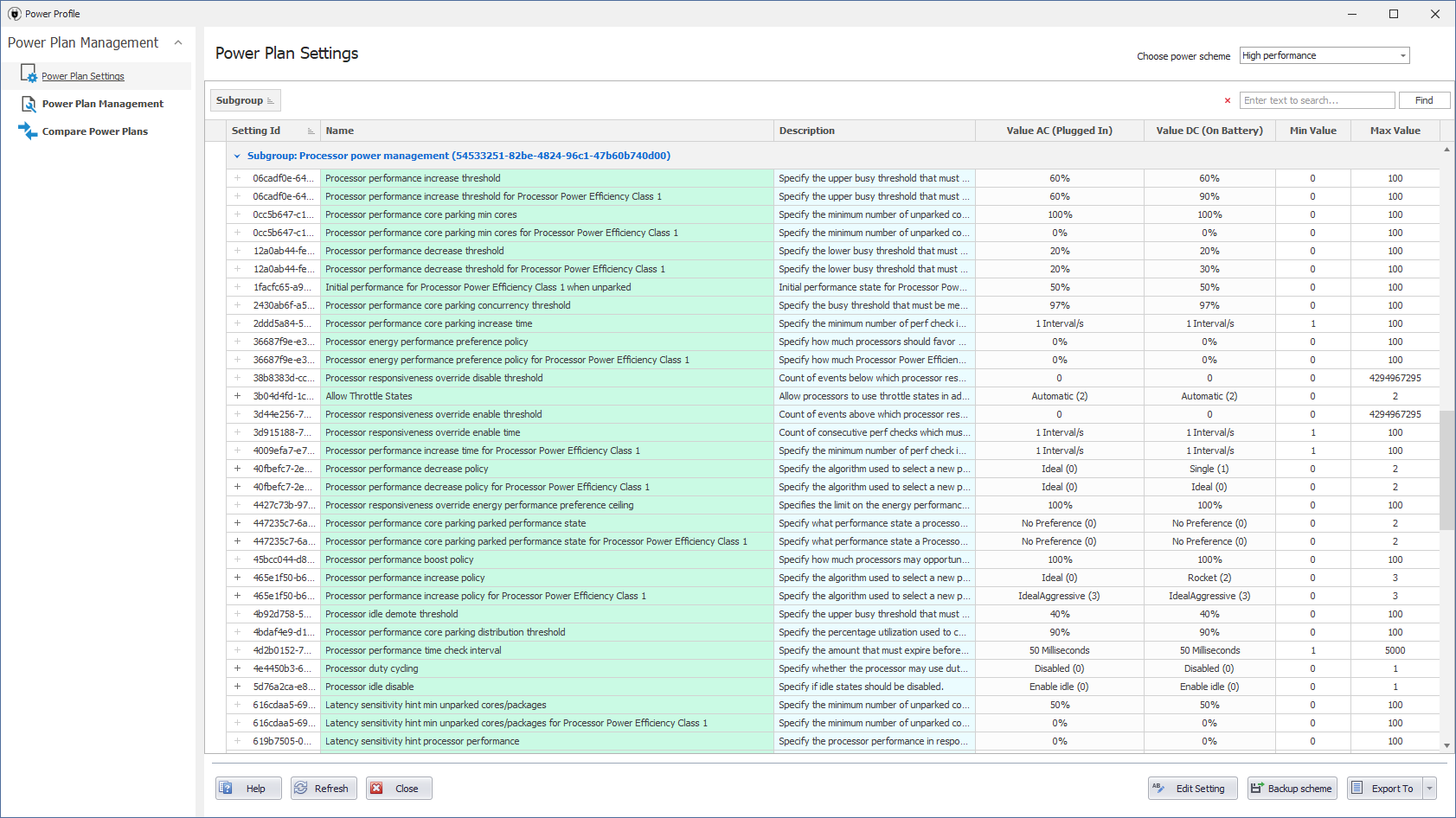
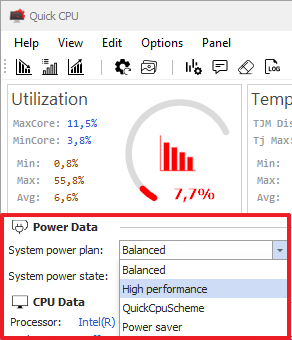
You can also use Quick CPU to take a closer look at power plans:
How to identify and change your current power plan
The easiest way to identify and change your current power plan is to use the Windows Choose Power Plan screen. To open this screen, open the DOS Prompt screen or the Run window (Windows + R) and type this:
%windir%\system32\control.exe /name Microsoft.PowerOptionsYou can also type “power plan” in the Start menu

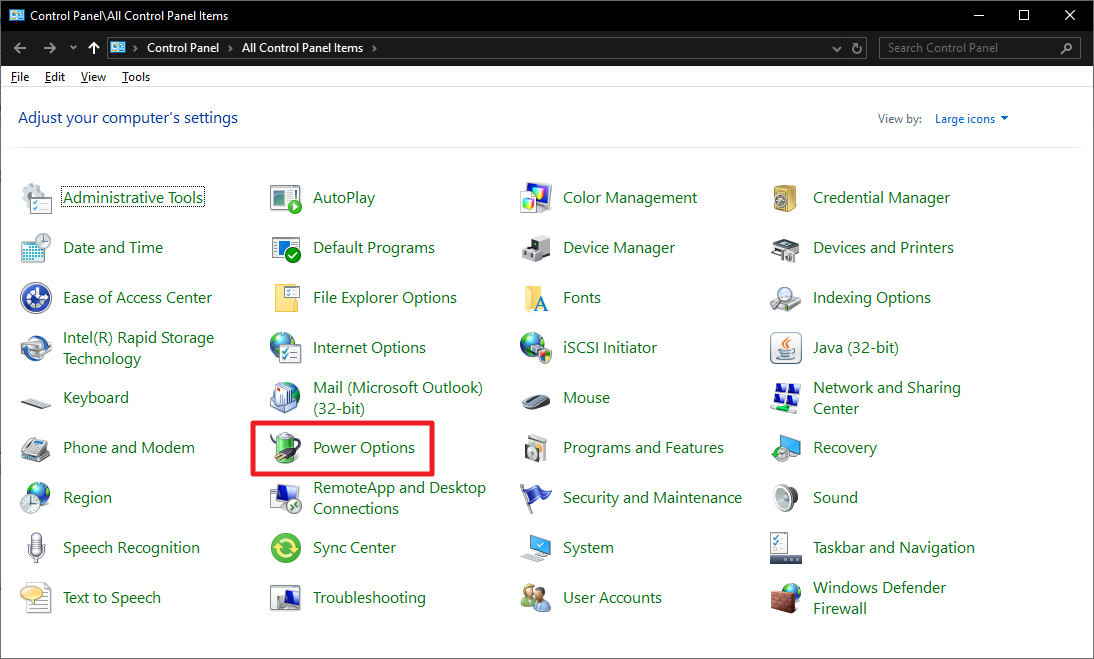
You can access power options through Control Panel as well:
Or even, using the Quick CPU tool
How to identify and change the current power plan by SQL Server
If you do not have RDP access to the server and need to identify using only SQL Server, you can use the query below:
DECLARE
    @value VARCHAR(64)

EXEC master.dbo.xp_regread
    @rootkey = 'HKEY_LOCAL_MACHINE',
    @key = 'SYSTEM\CurrentControlSet\Control\Power\User\PowerSchemes',
    @value_name = 'ActivePowerScheme',
    @value = @value OUTPUT;

SELECT (CASE
    WHEN @value = '381b4222-f694-41f0-9685-ff5bb260df2e' THEN '(Balanced)'
    WHEN @value = '8c5e7fda-e8bf-4a96-9a85-a6e23a8c635c' THEN '(High performance)'
    WHEN @value = 'a1841308-3541-4fab-bc81-f71556f20b4a' THEN '(Power saver)'
END)
Result:
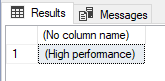
And to change the power plan also via SQL Server (the service user must have permission to do this), you can use the command below:
DECLARE @Fl_Xp_CmdShell_Ativado BIT = (SELECT (CASE WHEN CAST([value] AS VARCHAR(MAX)) = '1' THEN 1 ELSE 0 END) FROM sys.configurations WHERE [name] = 'xp_cmdshell')

IF (@Fl_Xp_CmdShell_Ativado = 0)
BEGIN

    EXECUTE sp_configure 'show advanced options', 1;
    RECONFIGURE WITH OVERRIDE;

    EXEC sp_configure 'xp_cmdshell', 1;
    RECONFIGURE WITH OVERRIDE;

END


-- 8c5e7fda-e8bf-4a96-9a85-a6e23a8c635c (High Performance = Alta Performance)
-- 381b4222-f694-41f0-9685-ff5bb260df2e (Balanced = Balanceado)
-- a1841308-3541-4fab-bc81-f71556f20b4a (Power saver = Economia de Energia)

EXEC sys.xp_cmdshell 'powercfg.exe /setactive 8c5e7fda-e8bf-4a96-9a85-a6e23a8c635c' -- High Performance


IF (@Fl_Xp_CmdShell_Ativado = 0)
BEGIN

    EXEC sp_configure 'xp_cmdshell', 0;
    RECONFIGURE WITH OVERRIDE;

    EXECUTE sp_configure 'show advanced options', 0;
    RECONFIGURE WITH OVERRIDE;

END
References
- Everyday Cases: I bought a better server and SQL Server is slower! How can you???
- Windows Power Plans and CPU Performance
- Power Plans and Windows Server 2008 R2
- SQL Server on Power-Saving CPUs? Not So Fast.
And that's it, folks!
I hope you enjoyed this post and see you next time!

Comments (0)
Loading comments...