
Hey guys!
In this post, I would like to share with you a situation that I have seen in about 4 clients in the last 3 months and I always have to explain the same thing when users access the bank using an external IP or hostname, created so that users can connect to these data sources outside the company network and without the need for a VPN, but the server only recognizes the internal addresses (IP/Hostname) and it cannot configure the Power BI Gateway correctly because it gives an error when it tries to add the data source.
Therefore, I decided to create this article, with two extremely simple solutions, so that it can be useful to people in the community, and not just my BI clients.
Simulating and explaining the problem
Click to view content- Within the same network as the server or using a VPN, access to the instance is made using an internal hostname (dirceu-vm) or IP (192.168.0.27, for example)
- Outside the network, there are some virtual machines with a fixed IP that have direct access to the company's network and access the server through a public IP, directing ports and releasing these IPs in the Firewall. In other words, access outside the network to this server is done using the public IP (Ex: 189.123.111.222) or public host (acessoexterno.dirceuresende.com)
- Some people who develop reports in Power BI are inside the network and others access it via public IP
- Power BI Gateway is installed and configured on the database server, with the data source already created
The user who accesses externally can access the database and create the report normally within Power BI Desktop:
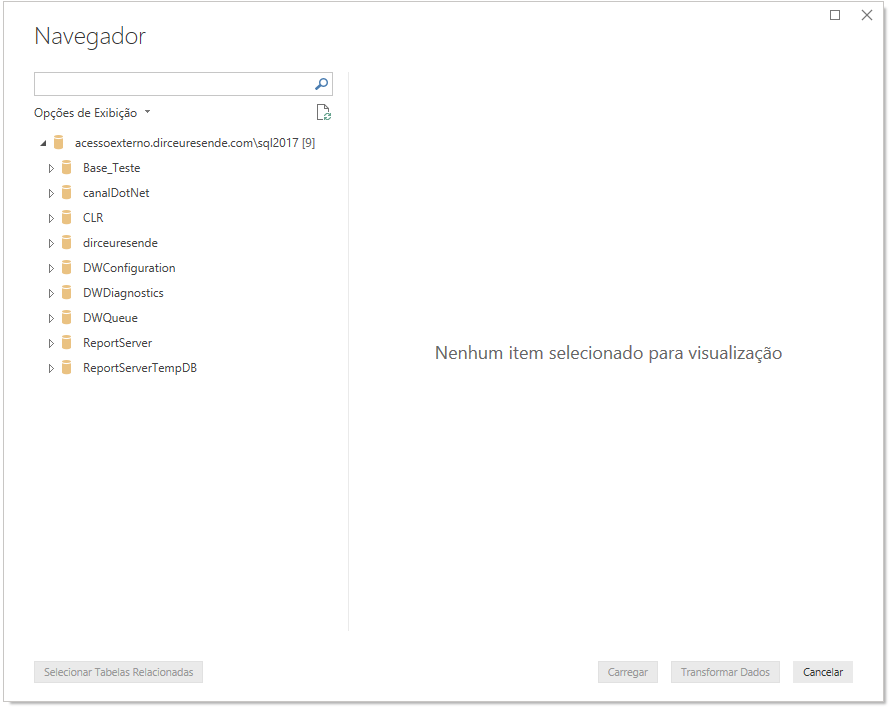
When a user inside the network publishes the report, it works normally. But when a user with external access publishes a report, this error message occurs:
And then when you click on “show details”, you will see this error message:
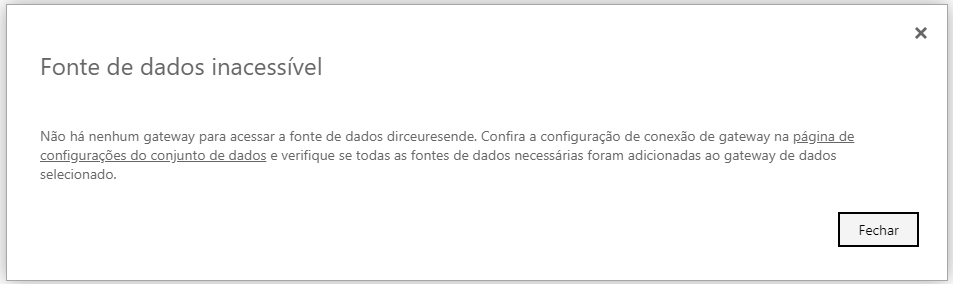
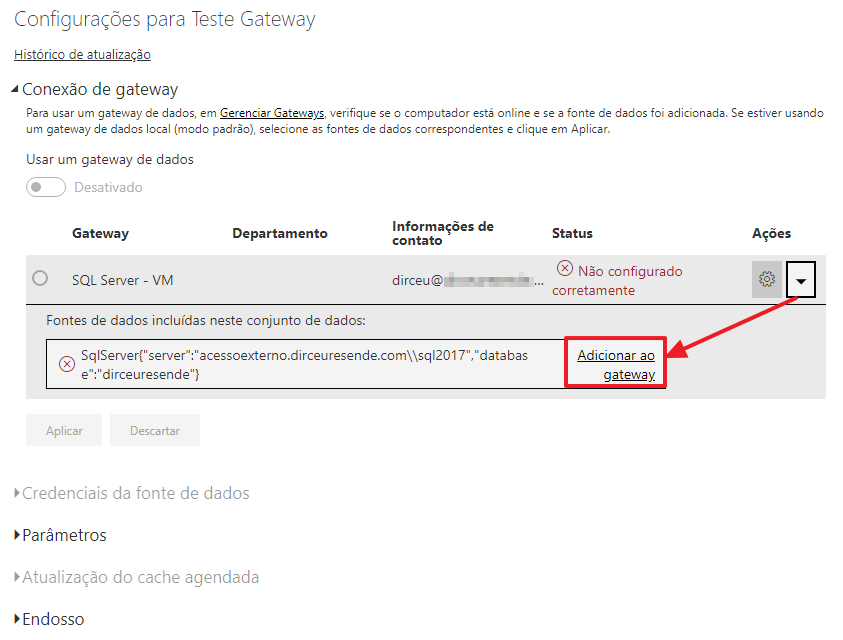
Let's try to add the data source to the Gateway then:
I configure the connection data normally:
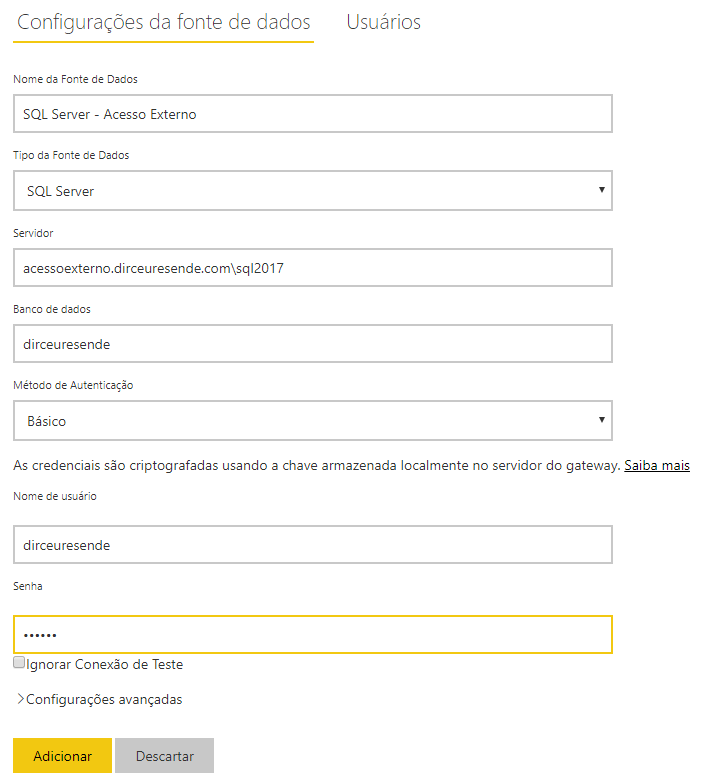
But when I try to add the data source, we come across a very common message, which is shown when it is not possible to locate the requested instance:
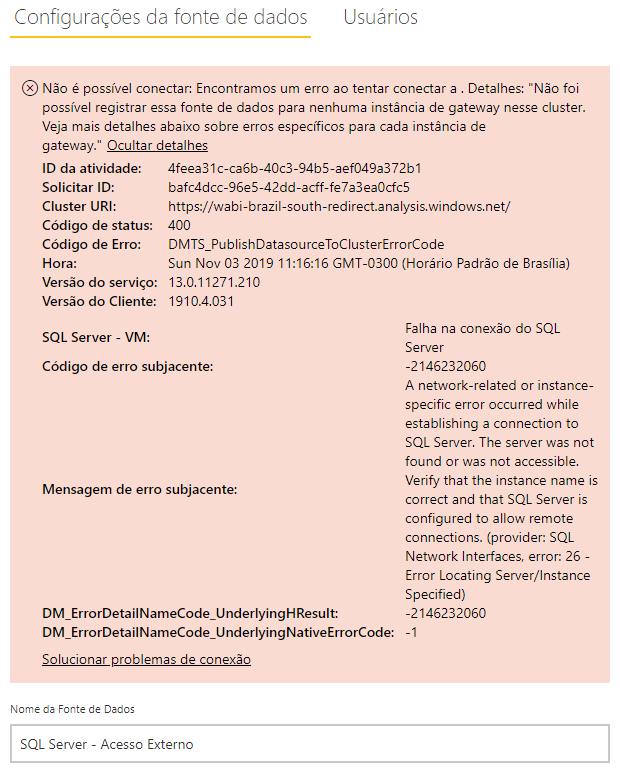
And now ?
Solving the connection problem
In this case, the first test I do to understand exactly what is happening before blaming the Gateway is to try to access this address logged on the server where the Gateway is installed:
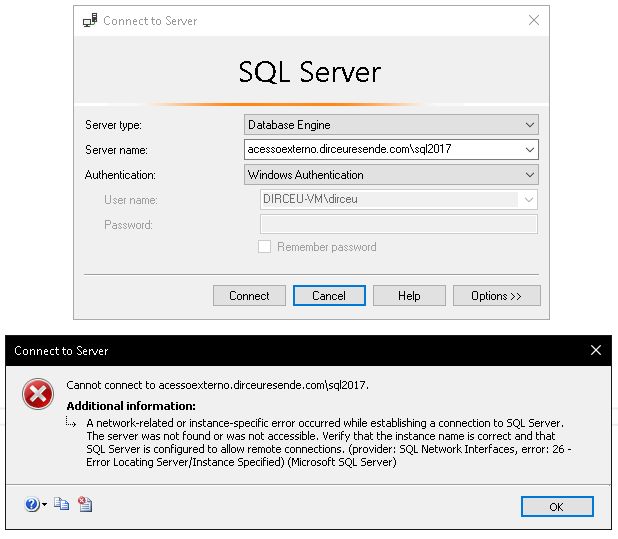
As expected, the server is not recognizing this external address that these users are accessing, and therefore, the connection to the Gateway is not working. The same thing would happen if the external access was to IP 189.123.123.123, for example, and the bank server's internal IP was 192.168.0.27, for example.
To be able to make the gateway server recognize this hostname or external IP, we can use these 2 solutions that I will demonstrate below (if you know others, leave them here in the comments):
Solution 1 – Alias in SQL Server Configuration Manager
Click to view content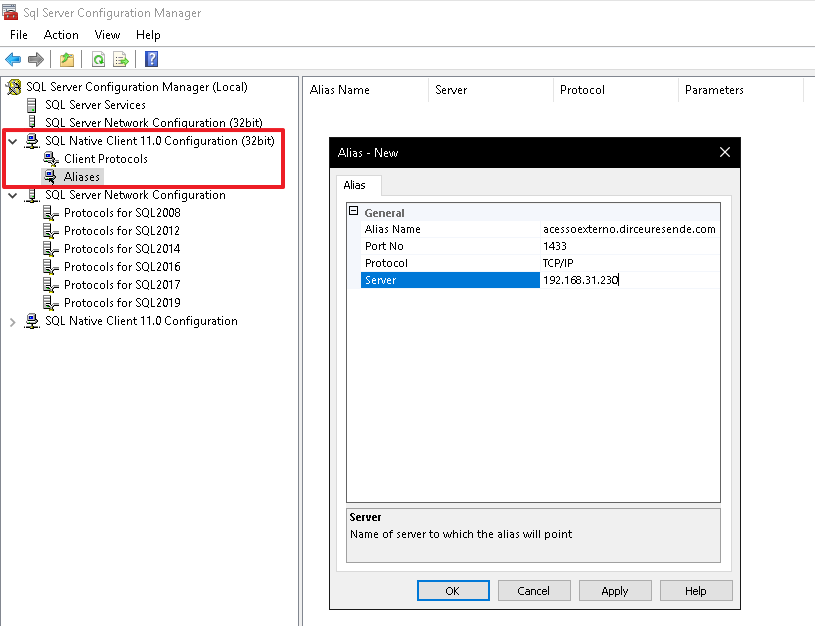
Don't forget to create the alias in x64 settings as well:
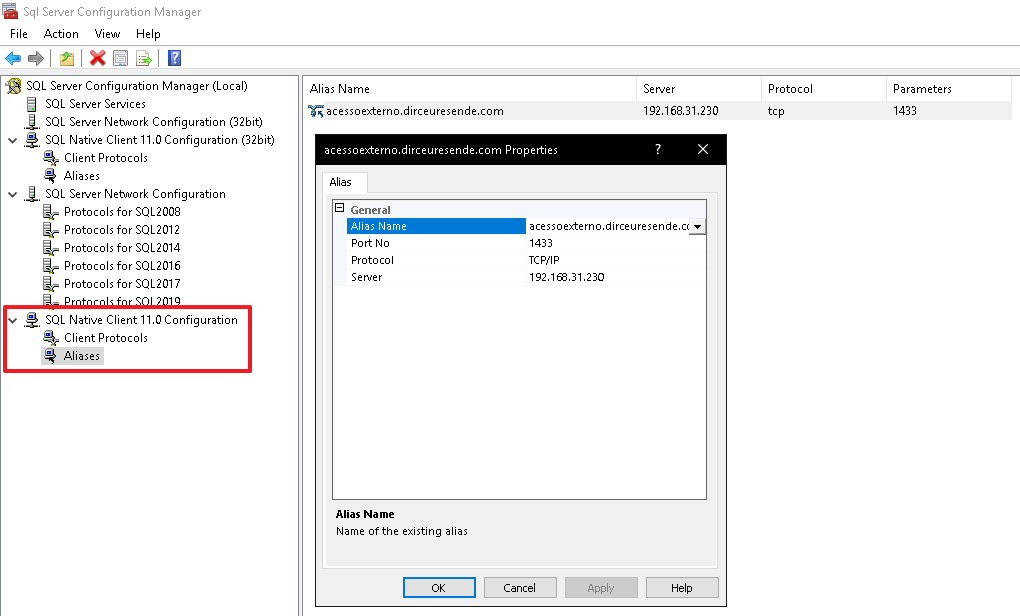
After this note, the connection now works normally within the server where the Gateway is located (and in this case, the bank as well):
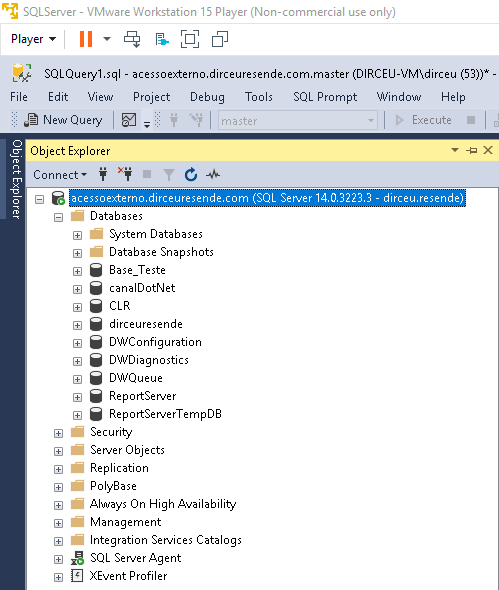
A simple test assures me that this note only affects SQL Server:
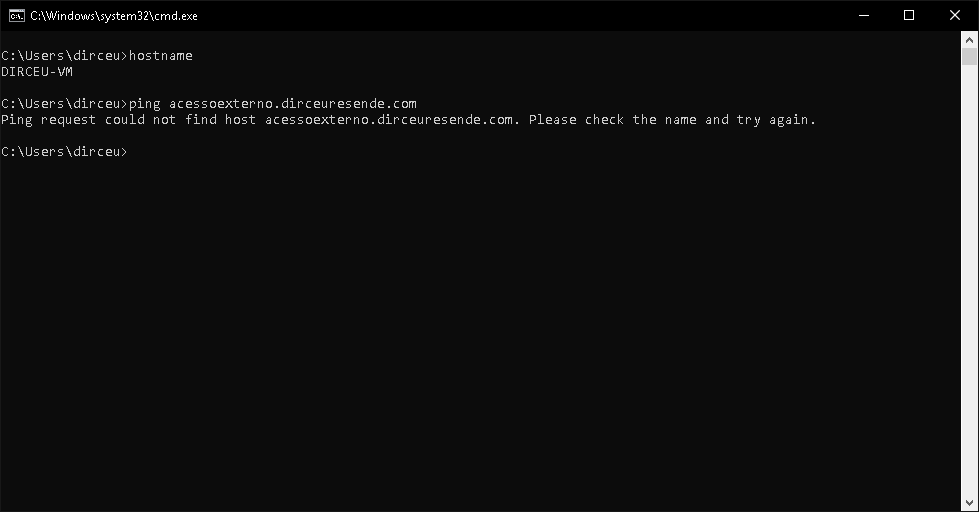
Solution 2 – Hosts file
Click to view contentFor this note to work, you will need to enter the IP where the chosen host should point, leave a blank space and then enter the hostname that will be affected by this manual note:
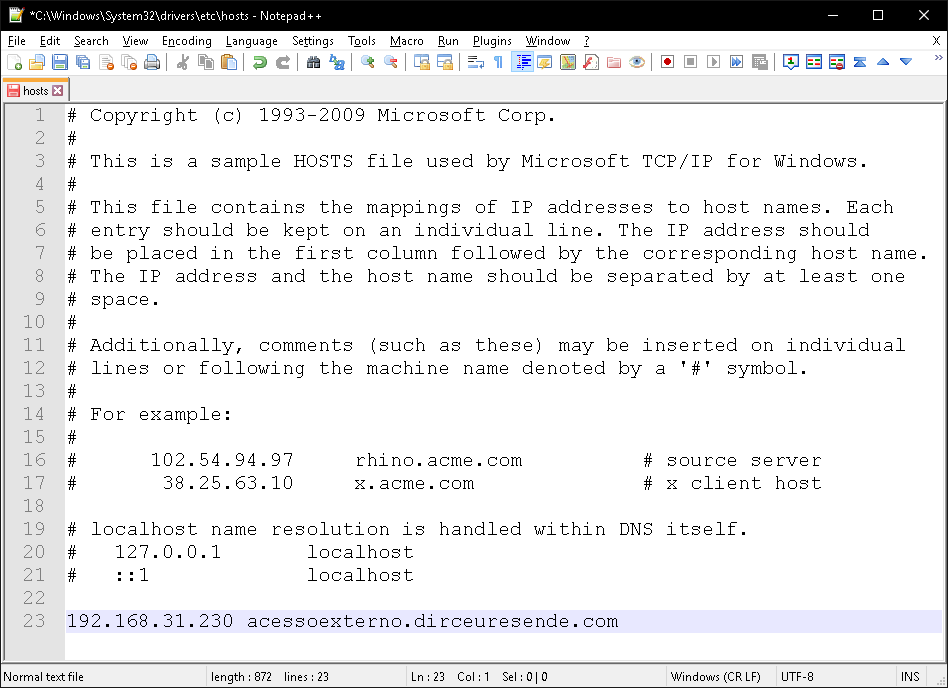
And when doing this, any software that tries to use this hostname, for any type of protocol or port, will try to connect to the IP informed in the hosts file (192.168.31.230, in the case of the example).
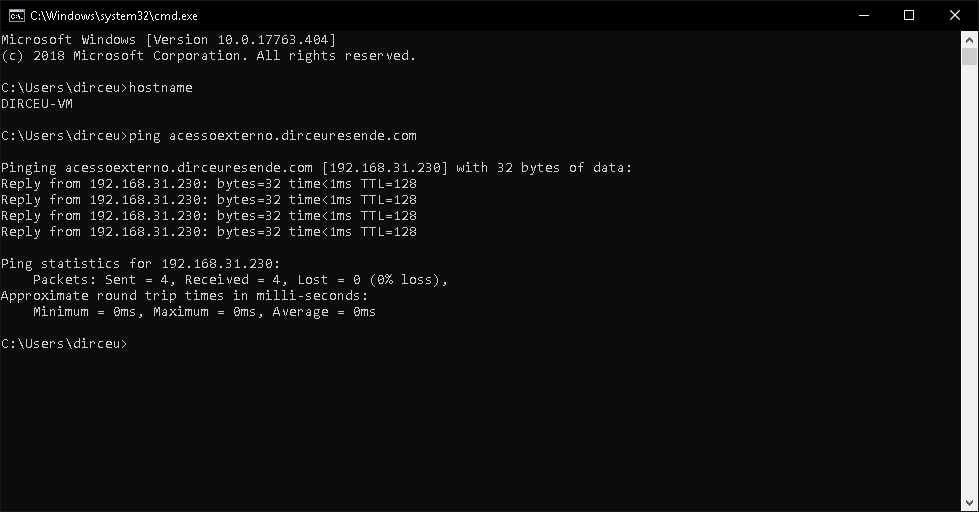
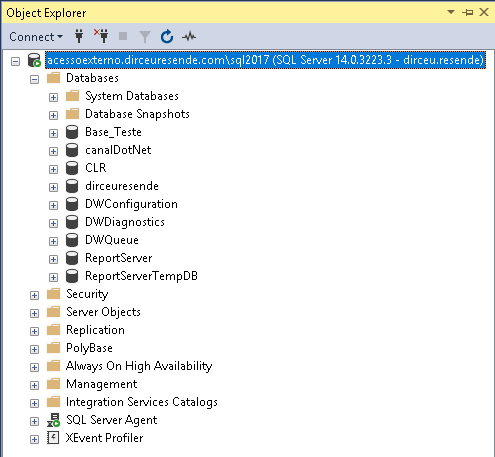
Just like SQL Server Management Studio (SSMS), Power BI and many others:
Testing the solution on Power BI Gateway
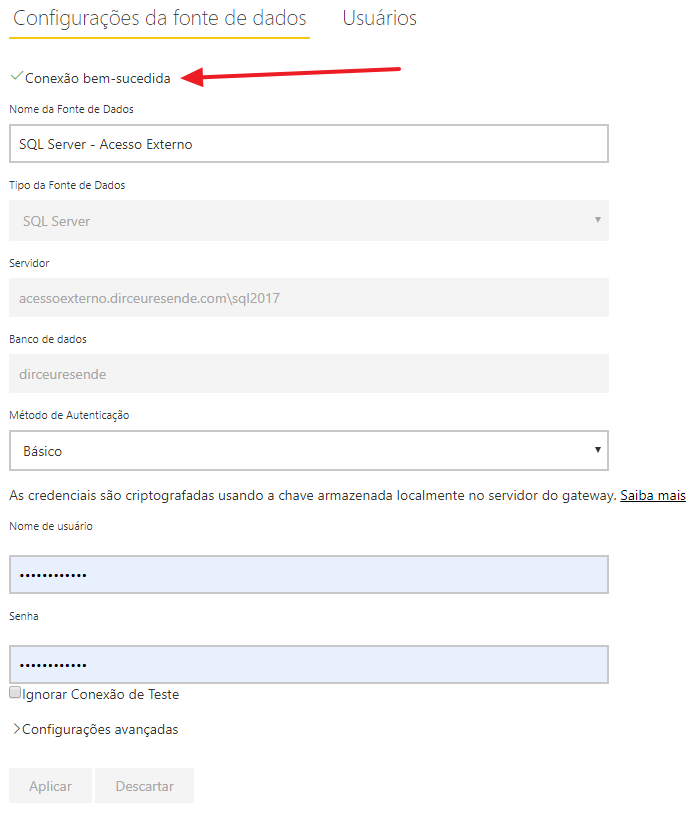
Now that I have demonstrated 2 ways to make this note, let's test whether they will actually work for my original objective, which is to use this data source in my Power BI report published in the cloud.
Connection successful:
Running gateway and report dataset associated with the data source:
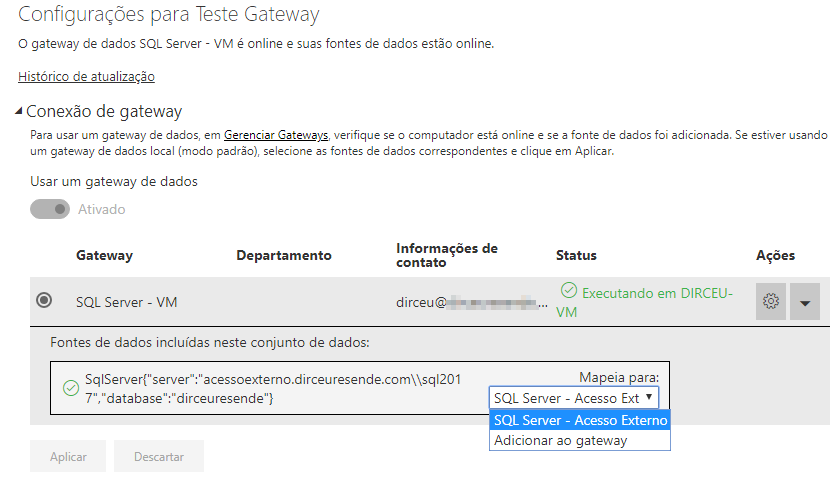
And as a consequence of this, the report works both for those who access using the internal address of the network and the external address 🙂

I hope you liked this tip, a big hug and see you in the next article!

Comments (0)
Loading comments...