
Hey guys!
In this article, I would like to share with you a Powershell script to create documentation of your project offline (in CSV) in Azure Data Factory, a very common need that people have, especially to list and track source datasets easily, and also list Integration Runtimes (IR), Dataflows, Linked Services, Pipelines and Triggers.
Below is the list of objects documented by this script:
- Tables read and written by ADF (Datasets)
- Integration Runtime (IR) — lists, nodes, and metrics
- Dataflows
- Linked Services
- Pipelines
- Triggers
Example of documentation output:
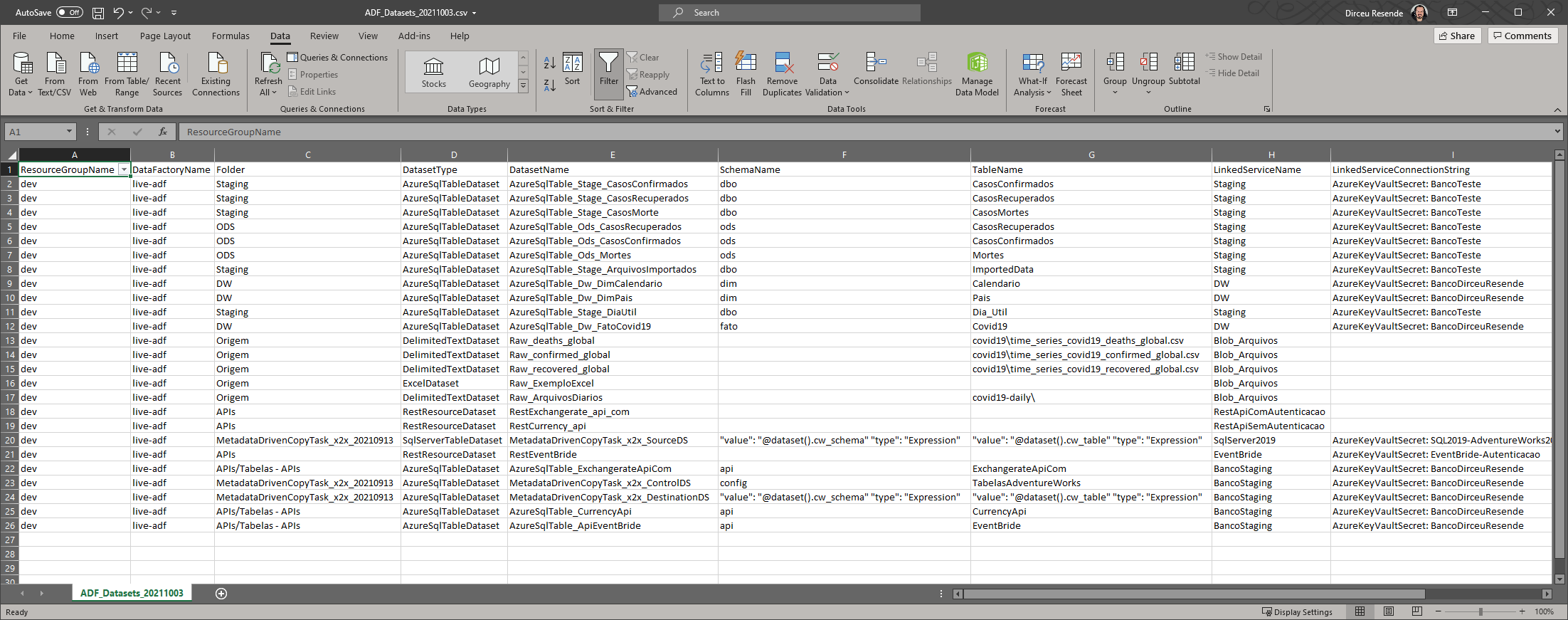
My motivation for creating this article was the need to identify the source tables of my Data Factory project, which had more than 300 datasets in total, around 70 of which were tables in the source systems, and the rest were transformation datasets.
When I needed to do this, I found the article Documenting Azure Data Factory, which had a very complete Powershell script, but the datasets part didn't return what I needed, which were more details regarding the tables, linkedservice used, table name, schema name, etc.
It was then that I started studying the ADF API and created my own version of this script, implementing these improvements, as well as a filter based on the ADF name, in case you want to update the documentation for just one instance, instead of all.
Prerequisite: Install the Azure (AZ) Powershell module
If you haven't installed the Azure Powershell module yet (it is not installed by default), you will need to install this module to use the script in this article, and I will guide you step-by-step below.
Click here to install the Azure (AZ) Powershell module
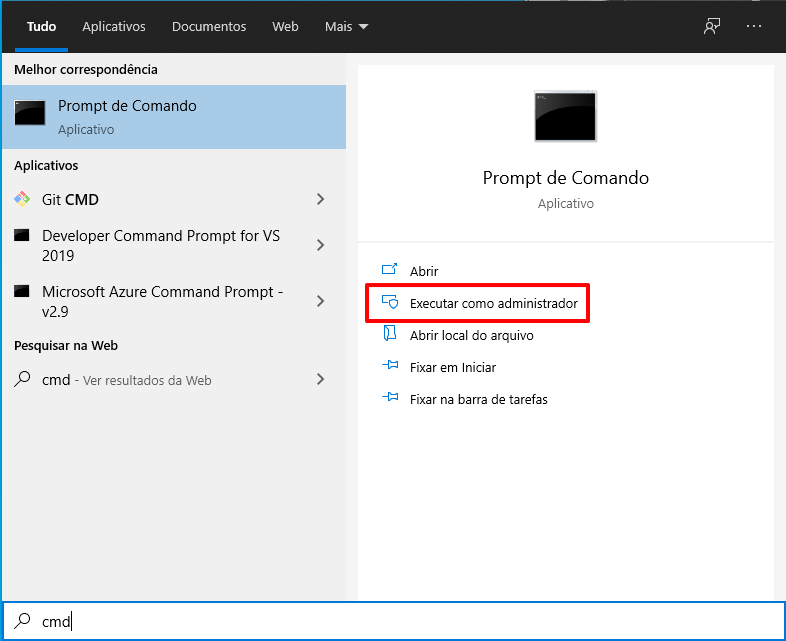
To install the Azure (AZ) Powershell module, open Command Prompt (cmd.exe):
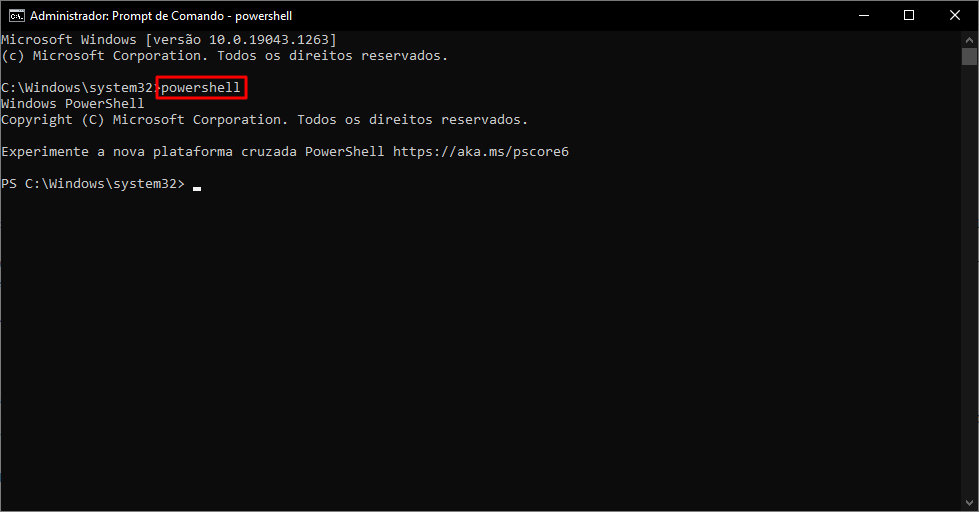
Enter the command powershell, to launch the Powershell interface:
Enter the command Install-Module -Name Az
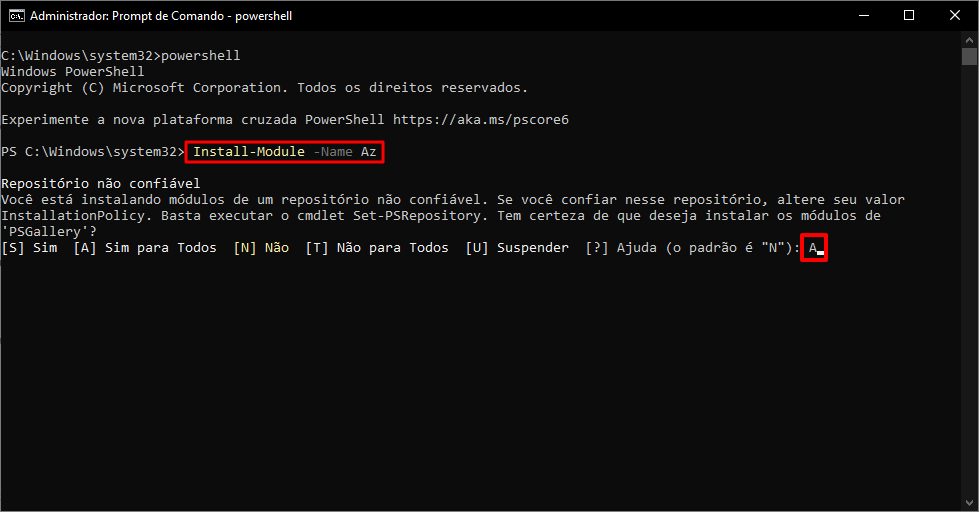
An untrusted repository warning will appear for you. Type the letter “A” (Yes to all) to continue with the installation.
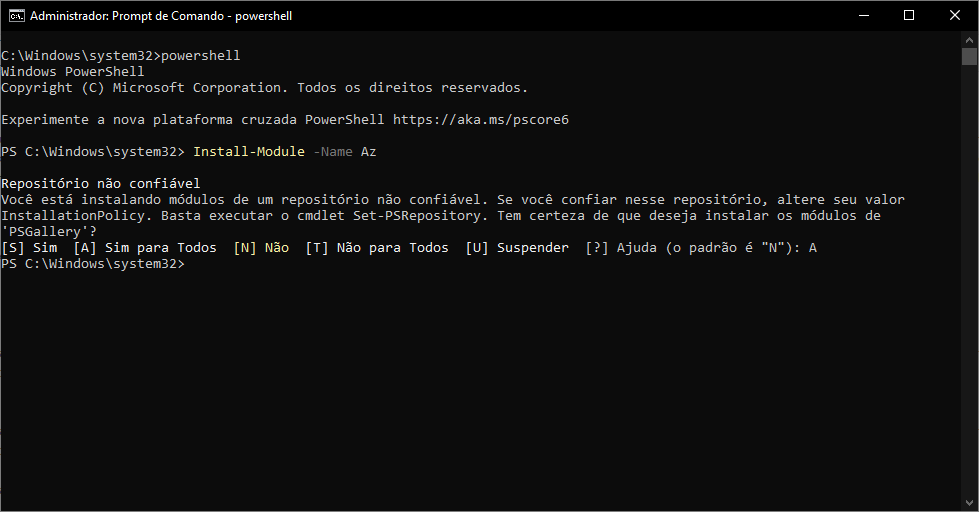
Ready! Azure (AZ) Powershell module installed successfully.
If you have already installed the module, you can ignore this topic and go straight to using the script.
Testing the connection with Azure Powershell
If you want to test whether the connection is working normally, use the guide below.
If you think it's working, you can skip this step. If you try to run the documentation script and encounter error messages, try the tests below.
Click here to view the content
Enter the command powershell, to launch the Powershell interface:
We will now need to type the command Connect-AzAccount to connect to Azure via Powershell, but first, we will need to import the module. To do this, type the command Set-ExecutionPolicy Unrestricted to allow the script to run, and then type the command Import-Module Az.Accounts:

Enter the command now Connect-AzAccount, to connect to Azure via Powershell:
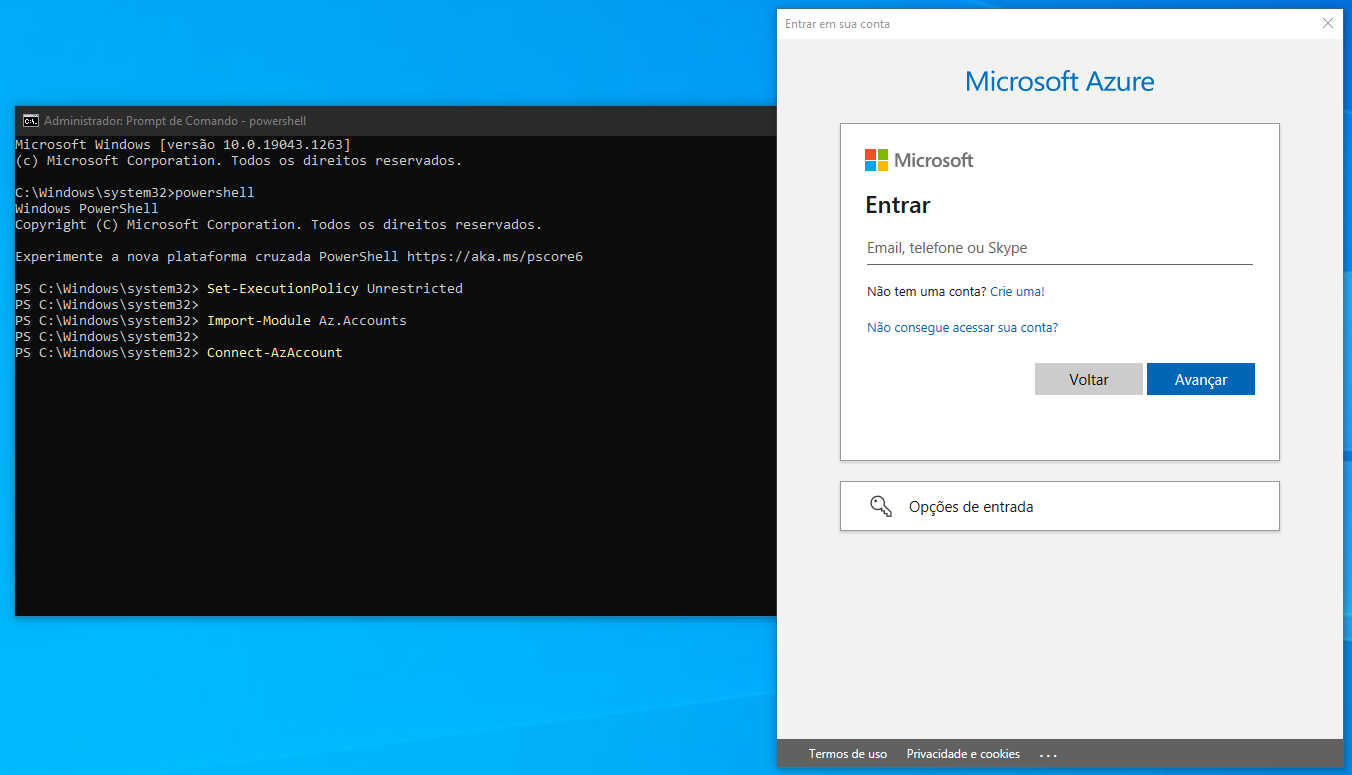
Enter your credentials and you will be authenticated to Azure.

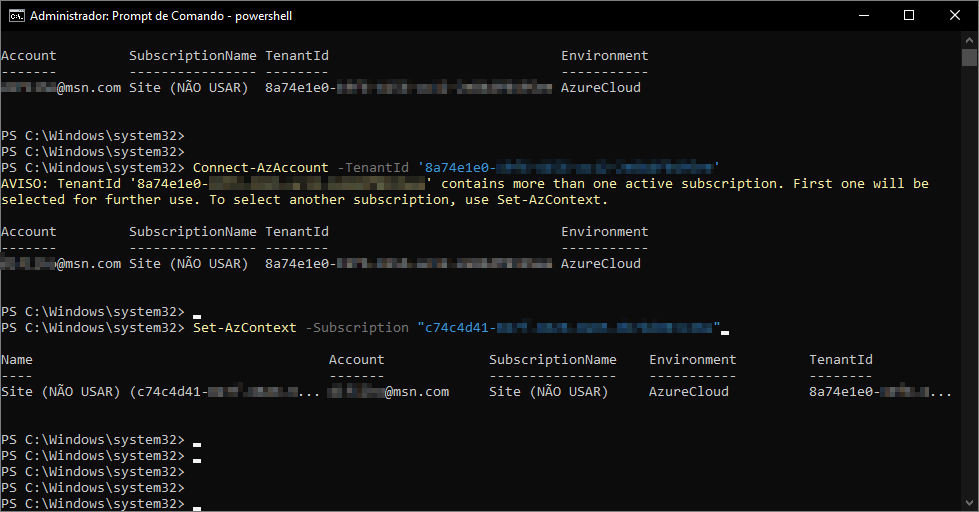
Since I have more than one TentandId in my Azure account, I received some warnings stating this. The selected account is the first one returned, but to avoid running the risk of running the script on the wrong subscription, let's define the subscription I want manually using the command Set-AzConnect -TenantId “xxxx-xxxx-xxxx-xxxx”
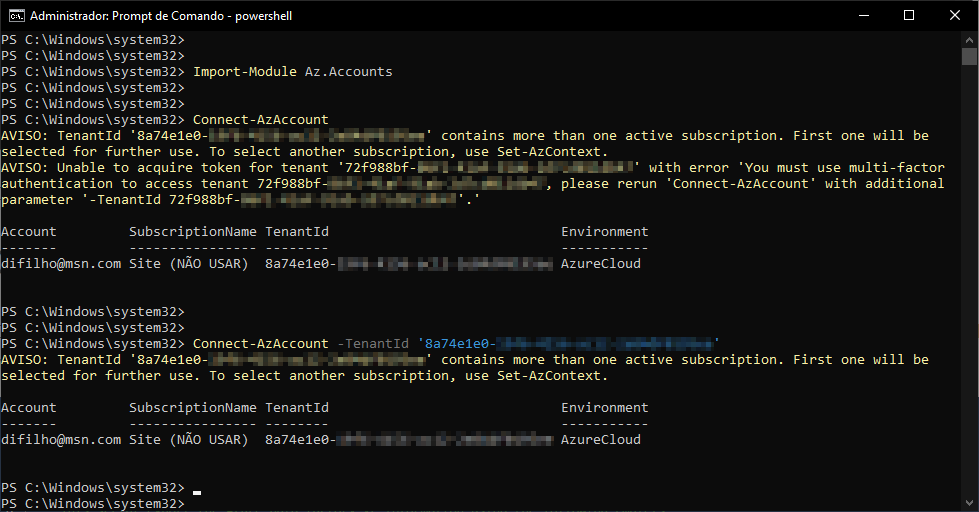
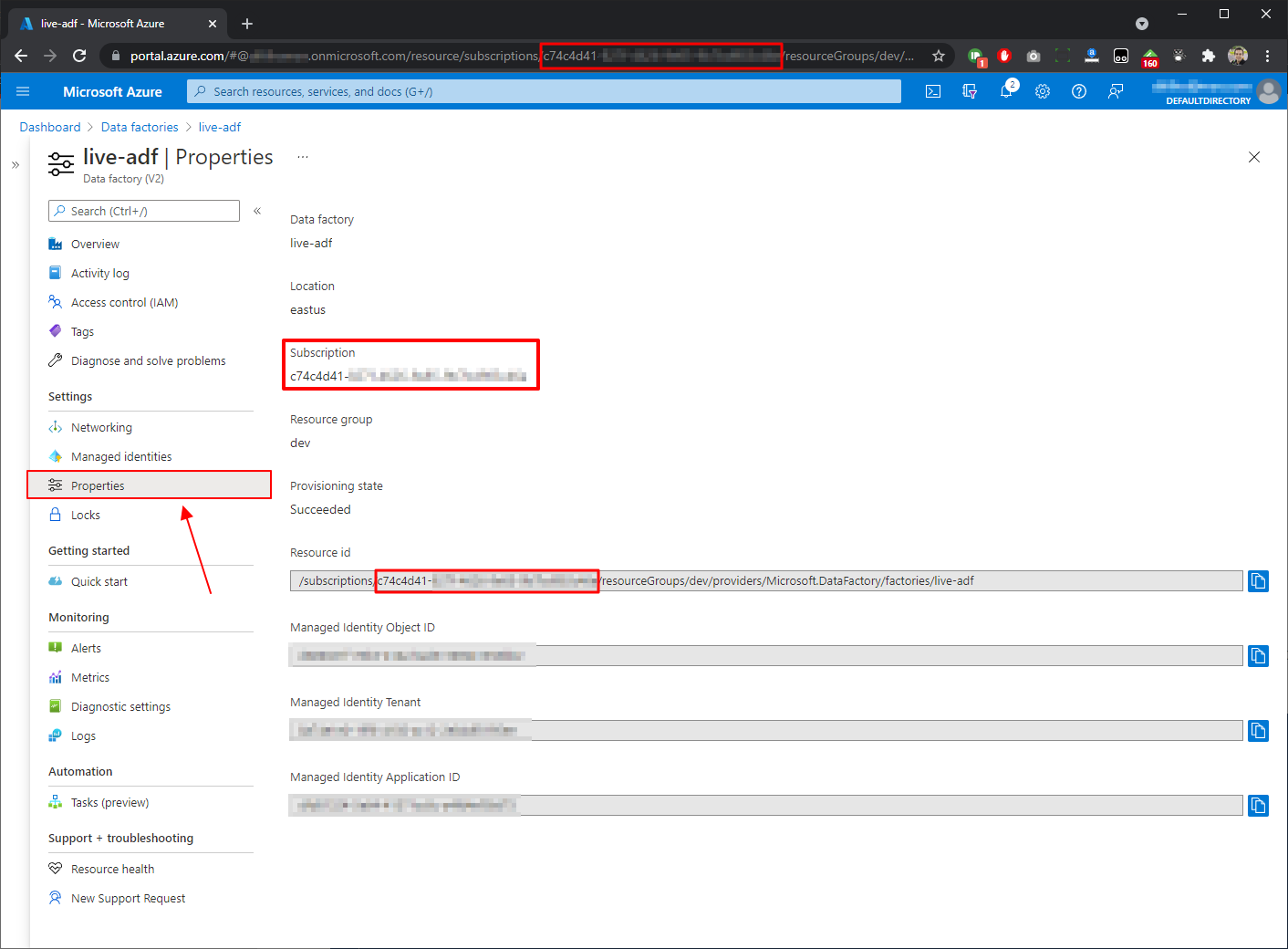
To find out which Tenant ID you want to use, log into the Azure portal and open the properties of one of the Azure Data Factories (ADF) you want to use, and copy the “Managed Identity Tenant” property.
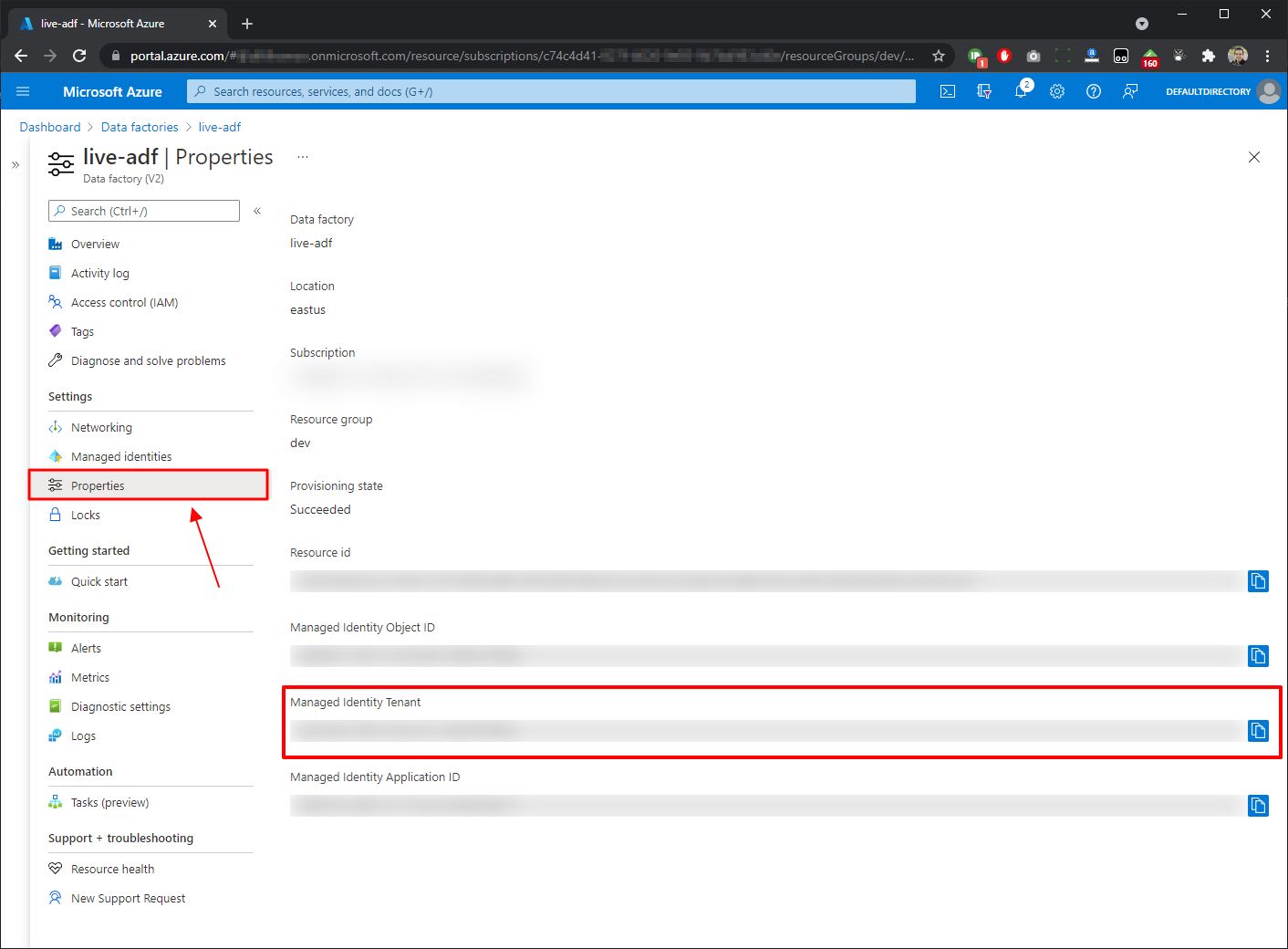
The tenant I selected also has more than one subscription. To manually define which one I want to use, I will use the command Set-AzContext -Subscription “xxxx-xxxx-xxxx-xxxx”
To find out the Subscription ID, go back to the Azure portal and open the properties of one of the Azure Data Factories (ADF) you want to use, and copy the “Subscription” property. This ID is also present in the URL itself and also makes up the Resource ID address.
How to use Powershell script
To use the ExportAzureDataFactoryDocumentation.ps1 powershell script and start documenting your Azure Data Factory (ADF) instances, open Command Prompt (cmd.exe):
Enter the command powershell, to launch the Powershell interface:
Navigate to the local directory where you downloaded the ExportAzureDataFactoryDocumentation.ps1 script using the command cd “local_directory” and type run the script below:
# Não se esqueça do ponto (.) antes do caminho do arquivo!
# Ah, o diretório de saída (OutputFolder) deve existir
."ExportAzureDataFactoryDocumentation.ps1"
    -TenantId "8a74e1e0-xxxx-xxxx-xxxx-xxxxxxxxxxxx"
    -SubscriptionId "c74c4d41-xxxx-xxxx-xxxx-xxxxxxxxxxxx"
    -OutputFolder "C:\Dirceu\Exported\"
To find out which Tenant ID you want to use, log into the Azure portal and open the properties of one of the Azure Data Factories (ADF) you want to use, and copy the “Managed Identity Tenant” property.
To find out the Subscription ID, copy the “Subscription” property. This ID is also present in the URL itself and also makes up the Resource ID address.
You can also use the full file path without needing to navigate to the directory and also filter the Data Factory name to export documentation from just one instance instead of exporting from all instances of the subscription.
Set-ExecutionPolicy Unrestricted

Import-Module Az.Accounts

."C:\Dirceu\adf-doc\ExportAzureDataFactoryDocumentation.ps1"
    -TenantId "8a74e1e0-xxxx-xxxx-xxxx-xxxxxxxxxxxx"
    -SubscriptionId "c74c4d41-xxxx-xxxx-xxxx-xxxxxxxxxxxx"
    -OutputFolder "C:\Dirceu\Exported\"
    -DataFactoryName "nome do seu adf"
Execution result:
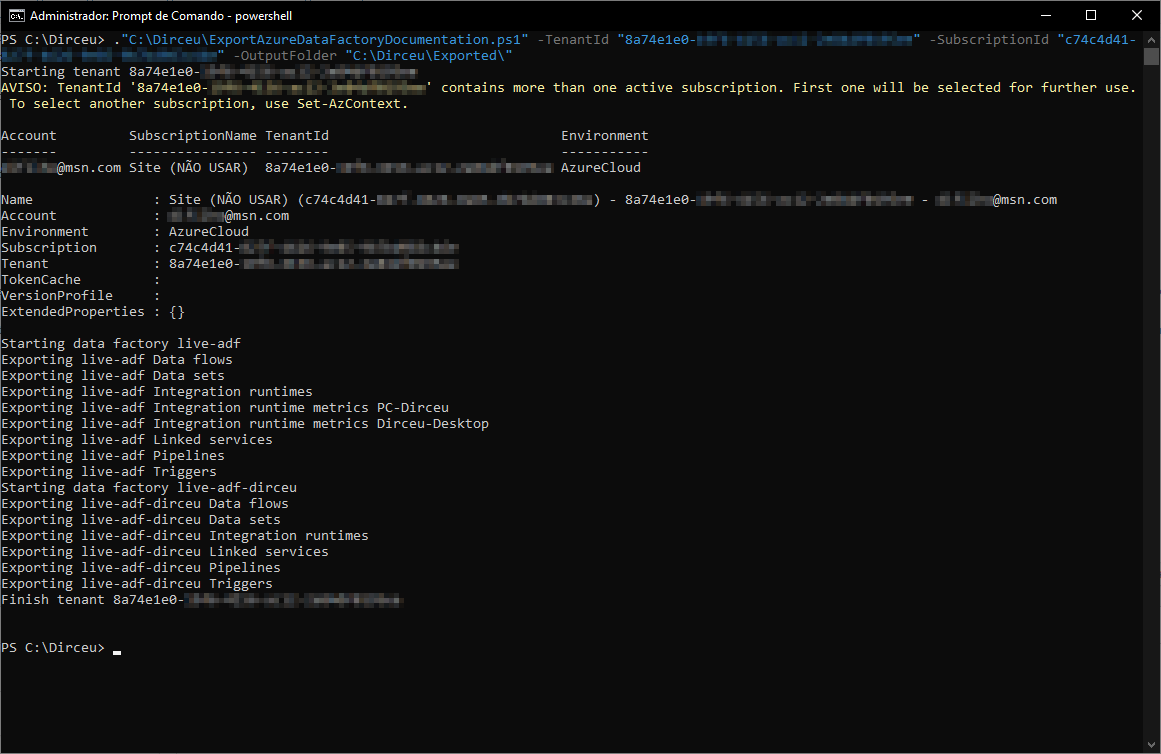
Files generated successfully!
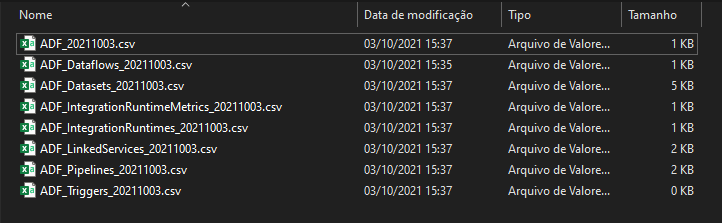
Contents of generated files
I'll show you here what you can expect from the documentation generated and what information is returned.
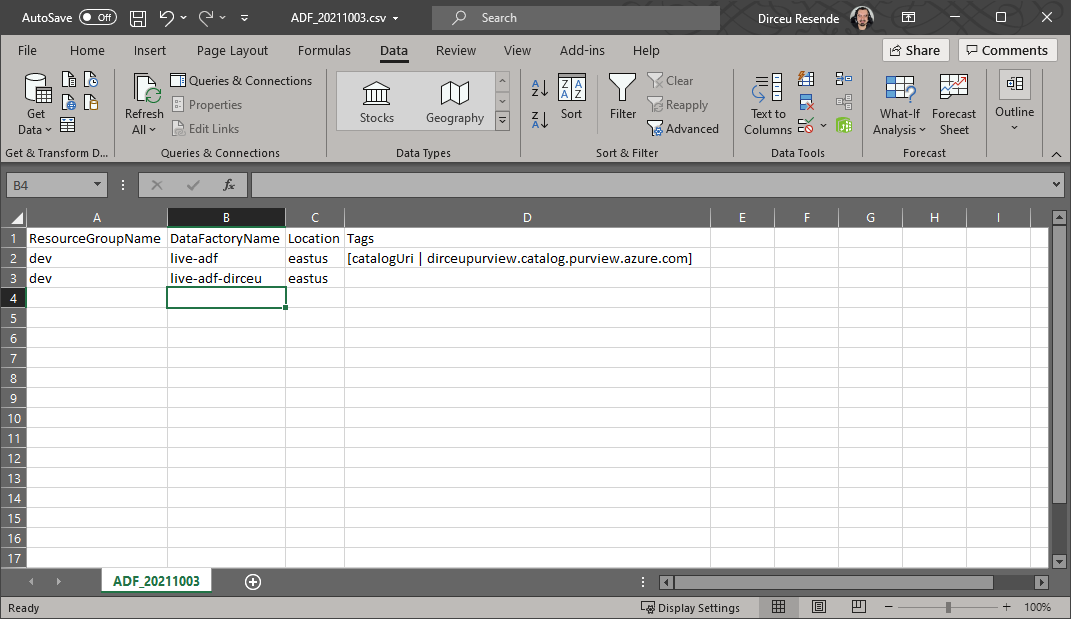
List of Data Factories
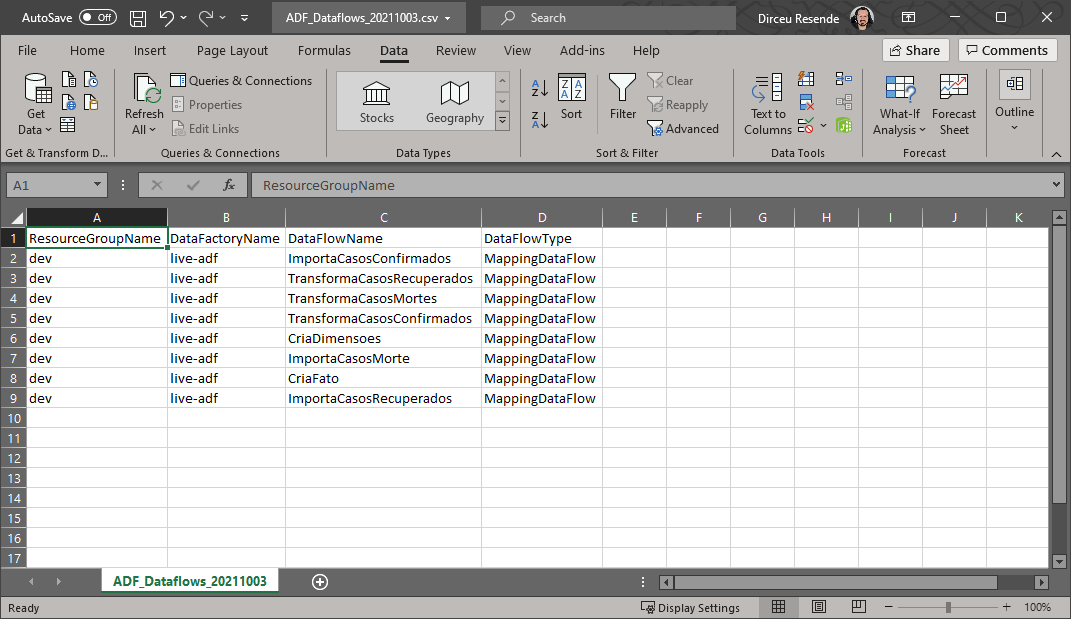
List of Dataflows
List of Datasets
List of Pipelines

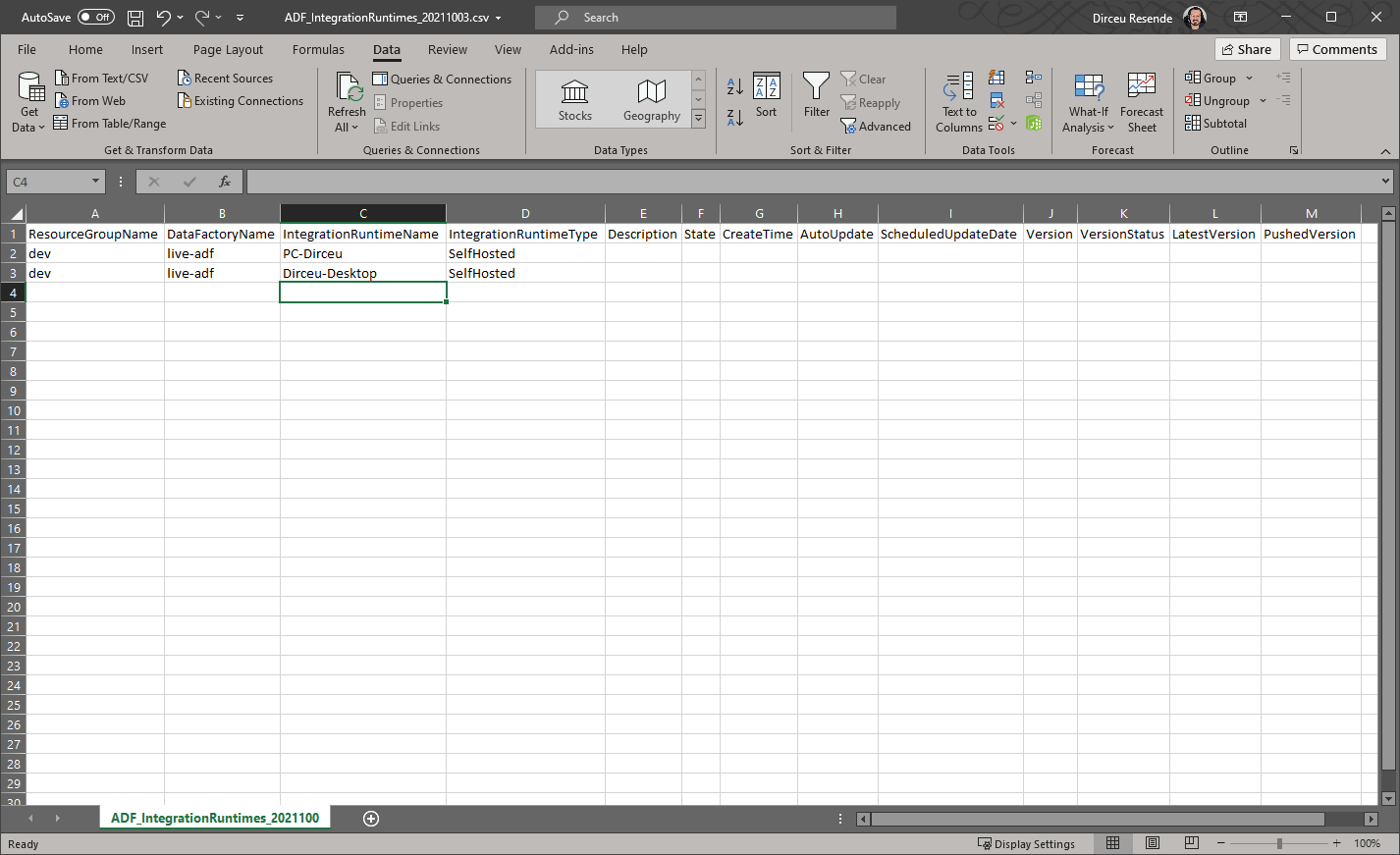
List of Integration Runtime (IR)
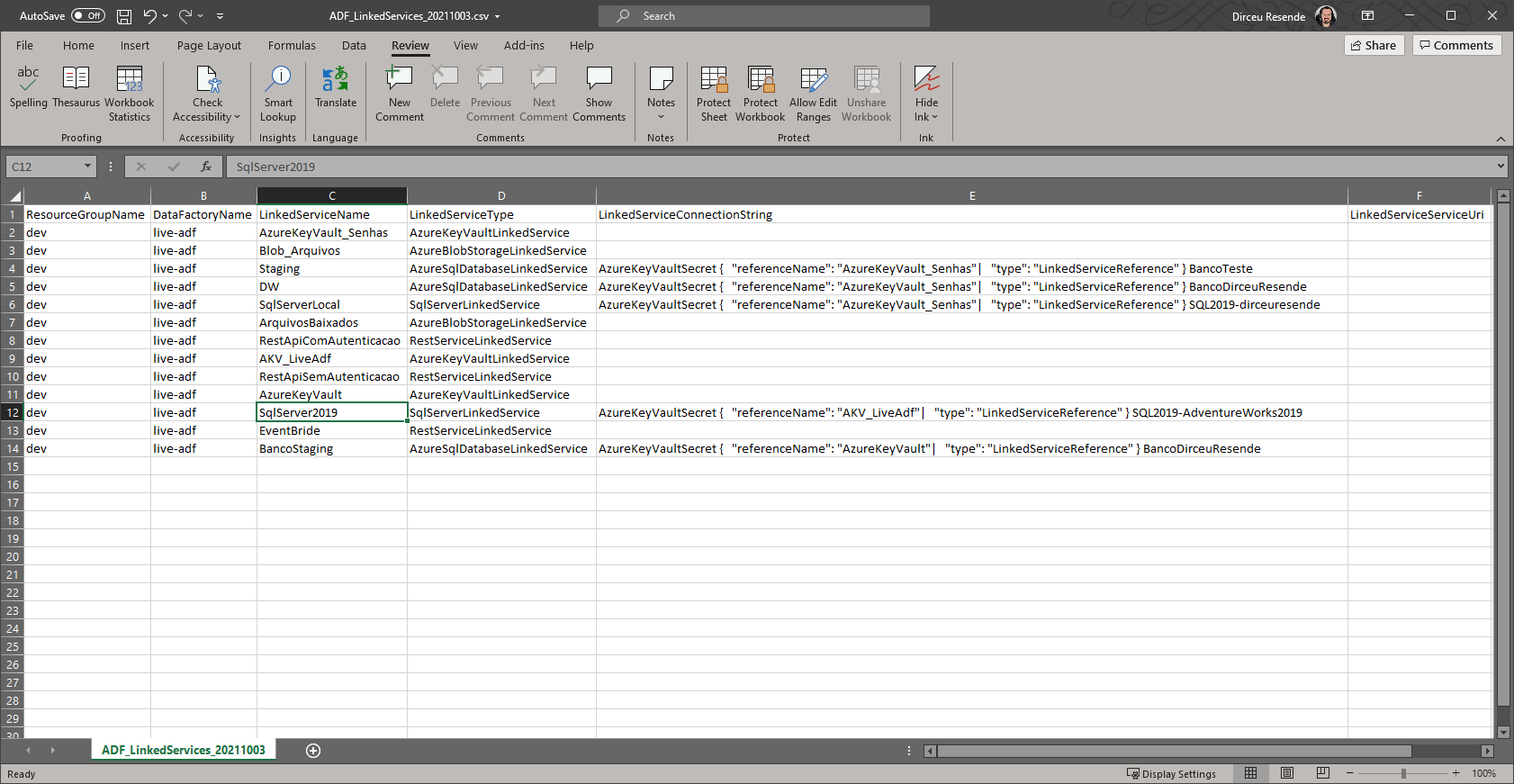
List of Linked Services
ExportAzureDataFactoryDocumentation.ps1 script source code
The code for this script is available in this github repository here, where you can always have access to the most up-to-date version of the code and also submit improvements and new features, but I will also leave the code below:
<#
.History
   21/07/2020 - 1.0 - Initial release - David Alzamendi
   03/10/2021 - 1.1 - Included DataFactoryName parameter and Datasets enhancements
.Synopsis
   Export Azure Data Factory V2 information using Power Shell cmdlets
.DESCRIPTION
    This script export the Azure Data factory V2 information using the following cmdlets
    Pre-requirements:
        AzModule ----> Install-Module -Name Az
        Be connected to Azure ----> Connect-AzAccount
    APIs documentation is available in https://docs.microsoft.com/en-us/powershell/module/az.datafactory/?view=azps-4.2.0#data_factories
    Module descriptions are in https://docs.microsoft.com/en-us/dotnet/api/microsoft.azure.commands.datafactoryv2.models?view=azurerm-ps

.EXAMPLE
   ExportAzureDataFactoryDocumentation -TenantId "XXXXXX-XXXXXX-XXXXXX-XXXXXX" -OutputFolder "C:\Temp\"
#>
Param
(
    # Tenant Id
    [Parameter(Mandatory=$true)]
    $TenantId,
    # Subscription Id
    [Parameter(Mandatory=$true)]
    $SubscriptionId,
    # Define folder name
    [Parameter(Mandatory=$true)]
    $OutputFolder,
    # Define Data Factory name
    [Parameter(Mandatory=$false)]
    $DataFactoryName
)

Begin
{
    write-host "Starting tenant" $TenantId

    # Define file names
    $ADFOutputFile = $OutputFolder + "ADF_$(get-date -f yyyyMMdd).csv"
    $ADFDataflowOutputFile = $OutputFolder + "ADF_Dataflows_$(get-date -f yyyyMMdd).csv"
    $ADFDatasetsOutputFile = $OutputFolder + "ADF_Datasets_$(get-date -f yyyyMMdd).csv"
    $ADFLinkedServiceOutputFile = $OutputFolder + "ADF_LinkedServices_$(get-date -f yyyyMMdd).csv"
    $ADFPipelineOutputFile = $OutputFolder + "ADF_Pipelines_$(get-date -f yyyyMMdd).csv"
    $ADFTriggerOutputFile = $OutputFolder + "ADF_Triggers_$(get-date -f yyyyMMdd).csv"
    $ADFIntegrationRuntimeOutputFile = $OutputFolder + "ADF_IntegrationRuntimes_$(get-date -f yyyyMMdd).csv"
    $ADFIntegrationRuntimeMetricOutputFile = $OutputFolder + "ADF_IntegrationRuntimeMetrics_$(get-date -f yyyyMMdd).csv"
    $ADFIntegrationRuntimeNodeOutputFile = $OutputFolder + "ADF_IntegrationRuntimeNodes_$(get-date -f yyyyMMdd).csv"

    # Connect to Azure
    Connect-AzAccount -Tenant $TenantId

    # Change Subscription
    Set-AzContext -Subscription $SubscriptionId

    $adflist = Get-AzDataFactoryV2

    # Define function for hash tables like tags or nodes
     function Resolve-Hashtable {

        param (
            $Collection
        )

        if($Collection.Keys -gt 0) {
            $KeyArray = @()
            $Collection.Keys | ForEach-Object {
                $KeyArray += "[$_ | $($Collection[$_])] "
            }
        }
        else {
            $KeyArray = ''
        }

        [string]$KeyArray

    }

    # Define function for pipelines parameters hash table
    function Resolve-Hashtable-Pipelines {

        param (
            $Collection
        )

        if($Collection.Keys -gt 0) {
            $KeyArray = @()
            $Collection.Keys | ForEach-Object {
                $KeyArray += "[$_] "
            }
        }
        else {
            $KeyArray = ''
        }

        [string]$KeyArray

    }

    # Define function for pipeline lists
     function Resolve-List-Pipelines {

        param (
            $List
        )

        if($List.Count -gt 0) {

            for ($i = 0; $i -lt $List.Count; $i++)
            {

                $KeyString += "["+ $List.Item($i).Name + " | " + $List.Item($i) + " | " + $List.Item($i).Description + "]"

                $KeyString = $KeyString.replace("Microsoft.Azure.Management.DataFactory.Models.","")

            }


        }
        else {
            $KeyString = ''
        }

        [string]$KeyString
    }

}
Process
{

    # Start
    foreach ($adfname in $adflist)
    {


        if ( $DataFactoryName -eq $null -Or $DataFactoryName -eq $adfname.DataFactoryName )
        {


            Write-host "Starting data factory"  $adfname.DataFactoryName
            # Get-AzDataFactoryV2
            # Gets information about Data Factory.
            Get-AzDataFactoryV2 -ResourceGroupName $adfname.ResourceGroupName -Name $adfname.DataFactoryName `
            | Select-Object  ResourceGroupName,DataFactoryName,Location,@{Name = 'Tags'; Expression = {Resolve-Hashtable($_.Tags)}} `
            | Export-Csv -Append -Path  $ADFOutputFile -NoTypeInformation


            # Get-AzDataFactoryV2DataFlow
            # Gets information about data flows in Data Factory.
            # 21/07/2020 Mapping Data Flows are not available for factories in the following regions: West Central US, Australia Southeast.
            # To use this feature, please create a factory in a supported region.
            Write-host "Exporting" $adfname.DataFactoryName "Data flows"

            try
            {
                Get-AzDataFactoryV2DataFlow -ErrorAction Stop -ResourceGroupName $adfname.ResourceGroupName -DataFactoryName $adfname.DataFactoryName `
                | Select-Object ResourceGroupName,DataFactoryName,@{L=’DataFlowName’;E={$_.Name}}, @{L=’DataFlowType’;E={$_.Properties -replace "Microsoft.Azure.Management.DataFactory.Models.",""}}   `
                | Export-Csv -Append -Path $ADFDataflowOutputFile -NoTypeInformation -ErrorAction Stop
            }
            catch
            {
                Write-host "Data Flows are not available for factories in the following regions: West Central US, Australia Southeast."
            }

            # Get-AzDataFactoryV2Dataset
            # Gets information about datasets in Data Factory.
            Write-host "Exporting" $adfname.DataFactoryName "Data sets"

            Get-AzDataFactoryV2Dataset -ResourceGroupName $adfname.ResourceGroupName -DataFactoryName $adfname.DataFactoryName | Select-Object `
                ResourceGroupName,
                DataFactoryName,

                @{
                    L=’Folder’;
                    E={
                        ($_).Properties.Folder.Name
                    }
                },

                @{
                    L=’DatasetType’;
                    E={
                        $_.Properties -replace "Microsoft.Azure.Management.DataFactory.Models.",""
                    }
                },

                @{
                    L=’DatasetName’;
                    E={
                        $_.Name
                    }
                },

                @{
                    L=’SchemaName’;
                    E={

                        $obj = ($_)
                        $type = $obj.Properties -replace "Microsoft.Azure.Management.DataFactory.Models.","";

                        switch ($type) {
                            "SqlServerTableDataset" { $obj.Properties.SqlServerTableDatasetSchema; break }
                            "AzureSqlTableDataset" { $obj.Properties.AzureSqlTableDatasetSchema ; break }
                        }

                    }
                },

                @{
                    L=’TableName’;
                    E={

                        $obj = ($_)
                        $type = $obj.Properties -replace "Microsoft.Azure.Management.DataFactory.Models.","";

                        switch ($type) {
                            "CommonDataServiceForAppsEntityDataset" { $obj.Properties.entityName; break }
                            "SqlServerTableDataset" { $obj.Properties.Table; break }
                            "AzureSqlTableDataset" { $obj.Properties.Table; break }
                            "DelimitedTextDataset" { -join($obj.Properties.location.container, "\", $obj.Properties.location.fileName); break }
                        }

                    }
                },

                @{
                    L=’LinkedServiceName’;
                    E={
                        ($_).Properties.LinkedServiceName.ReferenceName
                    }
                },

                @{
                    L=’LinkedServiceConnectionString’;
                    E={

                        $dataRawLocal = (Get-AzDataFactoryV2LinkedService -ResourceGroupName ($_).ResourceGroupName -DataFactoryName ($_).DataFactoryName -Name ($_).Properties.LinkedServiceName.ReferenceName).Properties.AdditionalProperties;
                        $secretNameValid = (Select-String -InputObject $($dataRawLocal.typeProperties) -Pattern "secretName.*");

                        if( $secretNameValid -eq $null ) {
                            (Get-AzDataFactoryV2LinkedService -ResourceGroupName ($_).ResourceGroupName -DataFactoryName ($_).DataFactoryName -Name ($_).Properties.LinkedServiceName.ReferenceName).Properties.ConnectionString -replace "Integrated Security=False;Encrypt=True;Connection Timeout=30;", ""
                        }
                        else {
                            -join ("AzureKeyVaultSecret: ", $secretNameValid.Matches.Value.Split(":")[1].trim().Replace("`"", ""))
                        }

                    }
                },

                @{
                    L=’LinkedServiceServiceUri’;
                    E={
                        (Get-AzDataFactoryV2LinkedService -ResourceGroupName ($_).ResourceGroupName -DataFactoryName ($_).DataFactoryName -Name ($_).Properties.LinkedServiceName.ReferenceName).Properties.ServiceUri
                    }
                } `
            | Export-Csv -Append -Path $ADFDatasetsOutputFile  -NoTypeInformation


            #Get-AzDataFactoryV2Dataset -ResourceGroupName $adfname.ResourceGroupName -DataFactoryName $adfname.DataFactoryName `
            #| Select-Object  ResourceGroupName,DataFactoryName,@{L=’DatasetName’;E={$_.Name}}, @{L=’DatasetType’;E={$_.Properties -replace "Microsoft.Azure.Management.DataFactory.Models.",""}}, @{L=’TableName’;E={($_).Properties.Table}}, @{L=’SchemaName’;E={($_).Properties.SqlServerTableDatasetSchema}}  `
            #| Export-Csv -Append -Path $ADFDatasetsOutputFile  -NoTypeInformation


            # Get-AzDataFactoryV2IntegrationRuntime
            # Gets information about integration runtime resources.
            # Nodes column is available, but they are not being populated
            Write-host "Exporting" $adfname.DataFactoryName "Integration runtimes"

            Get-AzDataFactoryV2IntegrationRuntime  -ResourceGroupName $adfname.ResourceGroupName -DataFactoryName $adfname.DataFactoryName -Status `
            | Select-Object ResourceGroupName,DataFactoryName,@{L=’IntegrationRuntimeName’;E={$_.Name}},@{L=’IntegrationRuntimeType’;E={$_.Type}},Description,State,CreateTime,AutoUpdate,ScheduledUpdateDate,Version,VersionStatus,LatestVersion,PushedVersion `
            | Export-Csv -Append -Path $ADFIntegrationRuntimeOutputFile -NoTypeInformation

            $irlist = Get-AzDataFactoryV2IntegrationRuntime -ResourceGroupName $adfname.ResourceGroupName -DataFactoryName $adfname.DataFactoryName

            foreach ($irname in $irlist)
            {

                # Integration Runtime needs to be online to capture further information
                if($irname.state -eq "Online" -or $irname.state -eq "Starting" -or $irname.Type -eq "SelfHosted")
                {

                    # Get-AzDataFactoryV2IntegrationRuntimeMetric
                    # Gets information about integration runtime metrics.
                    Write-host "Exporting" $adfname.DataFactoryName "Integration runtime metrics" $irname.Name

                    Get-AzDataFactoryV2IntegrationRuntimeMetric -ResourceGroupName $adfname.ResourceGroupName -DataFactoryName $adfname.DataFactoryName $irname.Name `
                    | Select-Object ResourceGroupName,DataFactoryName,@{Name = 'Nodes'; Expression = {Resolve-Hashtable($_.Nodes) }} `
                    | Export-Csv -Append -Path $ADFIntegrationRuntimeMetricOutputFile -NoTypeInformation


                    $metrics = Get-AzDataFactoryV2IntegrationRuntimeMetric -ResourceGroupName $adfname.ResourceGroupName -DataFactoryName $adfname.DataFactoryName $irname.Name

                    foreach ($metricname in $irname.Nodes)
                    {

                       try
                       {
                            # Get-AzDataFactoryV2IntegrationRuntimeNode
                            # Gets an integration runtime node information.
                            Write-host "Exporting" $adfname.DataFactoryName "Integration runtime" $irname.Name " node" $metricname.NodeName

                            Get-AzDataFactoryV2IntegrationRuntimeNode -ErrorAction Stop -ResourceGroupName $adfname.ResourceGroupName -DataFactoryName $adfname.DataFactoryName -IntegrationRuntimeName $irname.Name -IpAddress -Name $metricname.NodeName `
                            | Select-Object ResourceGroupName,DataFactoryName, IntegrationRuntimeName,@{L=’NodeName’;E={$_.Name}},Status,MachineName,VersionStatus,Version,IPAddress,ConcurrentJobsLimit `
                            | Export-Csv -Append -Path $ADFIntegrationRuntimeNodeOutputFile -NoTypeInformation
                        }
                        catch
                        {
                            write-host "Impossible to retrieve information from" $metricname.NodeName
                            # Add-Content -Path -Append $ADFIntegrationRuntimeNodeOutputFile -NoTypeInformation -Value "$adfname.ResourceGroupName,$adfname.DataFactoryName,$irname.Name,$metricname.NodeName,Unreachable"
                            $Unreachable = "{0},{1},{2},{3},{4}" -f $adfname.ResourceGroupName,$adfname.DataFactoryName,$irname.Name,$metricname.NodeName,"Unreachable"
                            $Unreachable | add-content -path $ADFIntegrationRuntimeNodeOutputFile

                        }

                    }

                }

            }


            # Get-AzDataFactoryV2LinkedService
            # Gets information about linked services in Data Factory.
            Write-host "Exporting" $adfname.DataFactoryName "Linked services"

            Get-AzDataFactoryV2LinkedService -ResourceGroupName $adfname.ResourceGroupName -DataFactoryName $adfname.DataFactoryName `
            | Select-Object ResourceGroupName, DataFactoryName,
                @{L=’LinkedServiceName’;E={$_.Name}},
                @{L=’LinkedServiceType’;E={$_.Properties -replace "Microsoft.Azure.Management.DataFactory.Models.",""}},
                @{L=’LinkedServiceConnectionString’;E={($_).Properties.ConnectionString -replace "Integrated Security=False;Encrypt=True;Connection Timeout=30;", "" -replace ",", "|" -replace "`r`n", " "}},
                @{L=’LinkedServiceServiceUri’;E={($_).Properties.ServiceUri}} `
            | Export-Csv -Append -Path $ADFLinkedServiceOutputFile -NoTypeInformation


            # Get-AzDataFactoryV2Pipeline
            # Gets information about pipelines in Data Factory.
            Write-host "Exporting" $adfname.DataFactoryName "Pipelines"

            Get-AzDataFactoryV2Pipeline -ResourceGroupName $adfname.ResourceGroupName -DataFactoryName $adfname.DataFactoryName `
            | Select-Object ResourceGroupName,DataFactoryName,@{L=’PipelineName’;E={$_.Name}}, @{Name = 'Activities'; Expression = {Resolve-List-Pipelines($_.Activities)}} , @{Name = 'Parameters'; Expression = {Resolve-Hashtable-Pipelines($_.Parameters)} } `
            | Export-Csv -Append -Path $ADFPipelineOutputFile -NoTypeInformation


            # Get-AzDataFactoryV2Trigger
            # Gets information about triggers in a data factory.
            Write-host "Exporting" $adfname.DataFactoryName "Triggers"

            Get-AzDataFactoryV2Trigger -ResourceGroupName $adfname.ResourceGroupName -DataFactoryName $adfname.DataFactoryName `
            | Select-Object ResourceGroupName,DataFactoryName,@{L=’TriggerName’;E={$_.Name}}, @{L=’TriggerType’;E={$_.Properties -replace "Microsoft.Azure.Management.DataFactory.Models.",""}},@{L=’TriggerStatus’;E={$_.RuntimeState}} `
            |  Export-Csv -Append -Path $ADFTriggerOutputFile -NoTypeInformation


        }

    }
    # End


}
End
{
    write-host "Finish tenant" $TenantId
}That's it, folks!
I hope you enjoyed this article and see you next time!

Comentários (0)
Carregando comentários…