
Introduction
Hey guys!
In this article that I am sharing with you, I would like to help you with a very common problem for those who work with BI and need to update Power BI report data automatically more than once a day. Generally I see many scenarios where the BI team creates an automatic routine to update data in the database, configured to run at specific times, and then schedules the update of this data in the Power BI service at a time when probably the data has already been updated by the ETL/DW routine.
And then when the routine takes longer than expected, your data becomes out of synchronization and, in fact, maintaining this synchronization between the execution times of the database routine and the update in Power BI is a very complicated task.
Wouldn't it be MUCH BETTER if there was the possibility for the routine that loads and processes the data to also start updating the Power BI datasets? The time has come to learn how to do this 🙂
Installing Power BI cmdlets
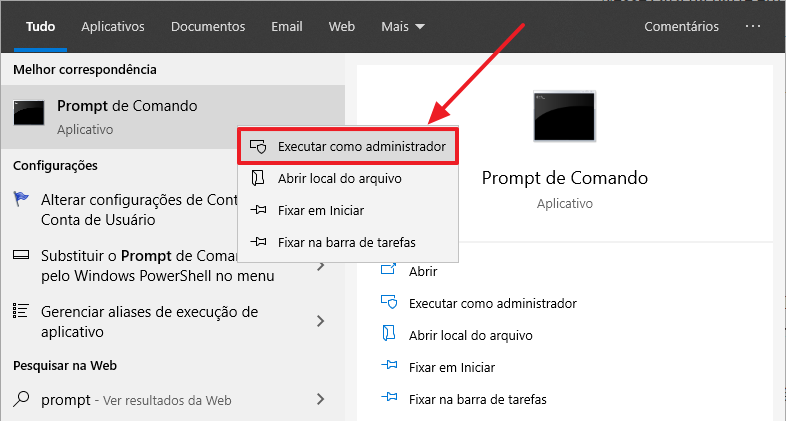
Click here to view the contentOpen Powershell (ISE or Command Prompt) as Administrator:
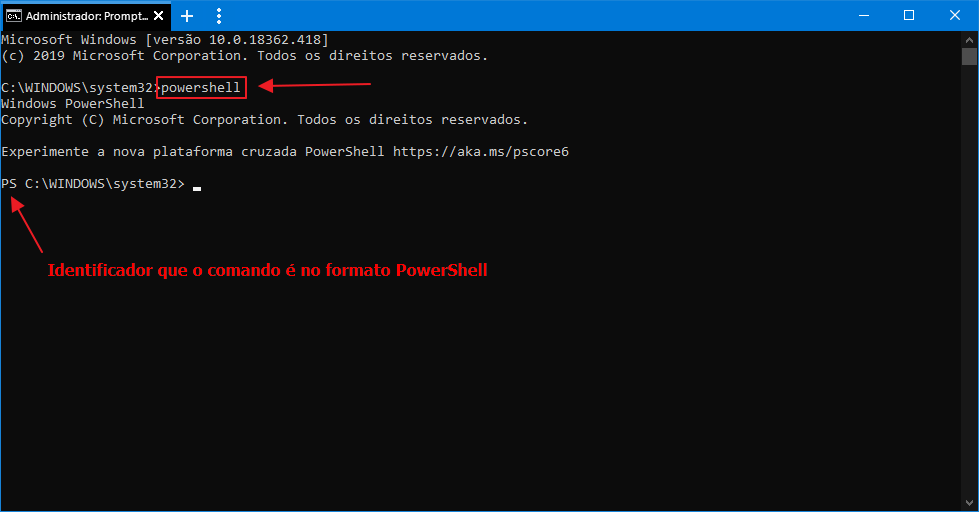
On the Command Prompt screen, type the command “powershell” to initialize the PowerShell interface.
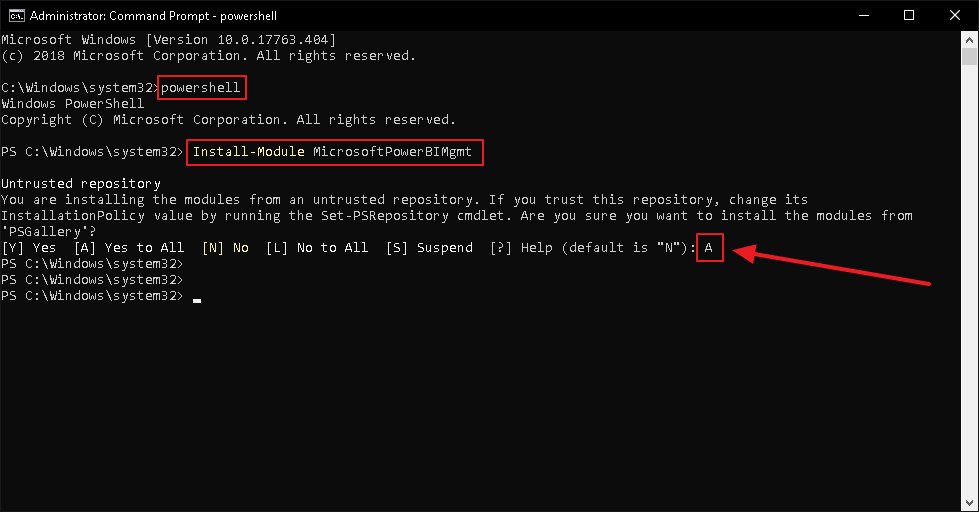
After that, type the command “Install-Module MicrosoftPowerBIMgmt” to install the Cmdlets. A confirmation will probably appear if you trust this repository. Check the “Yes for all” option:
After that, the cmdlets are already installed and we can start using them. If you want to use the PowerShell ISE interface to install the cmdlets, feel free. Installation follows the same steps. If you want to know more about these cmdlets and some more details about installation, such as installing modules separately and also examples using PowerShell ISE, I recommend reading the article [POWER BI] – Cmdlets for PowerShell – Administering Power Bi like a Pro!.
Creating Powershell script to update data
Click here to view the content- Connect-PowerBIServiceAccount: Used to connect to the Power BI service using the username and password of this Power BI account
- Invoke-PowerBIRestMethod: Using to make a call to the Power BI API that will perform certain actions according to the parameters used
Below, I will provide a script for updating a specific dataset:
#1. Autenticação
$Usuario = "minha_conta@minhaempresa.onmicrosoft.com"
$Senha = "senha_dificil_123"

$SenhaSegura = ConvertTo-SecureString $Senha -AsPlainText -Force
$Credencial = New-Object System.Management.Automation.PSCredential($Usuario,$SenhaSegura)

Connect-PowerBIServiceAccount -Credential $Credencial

#2. Recupera o ID do Workspace e do Dataset
$Workspace_ID = "8fda9bda-13c5-45ec-9a4f-3bcfe51ed57f"
$Dataset_ID = "fd3df53a-9a3a-40ee-91f0-585c9fb52c67"

#3. Monta a URL de atualização do DS
$Url_Atualizacao = 'groups/' + $Workspace_ID + '/datasets/' + $Dataset_ID + '/refreshes'

#5. Executa a atualização e notifica por e-mail em caso de falha
$NotificacaoFalhaPorEmail = @{"notifyOption"="MailOnFailure"}

Invoke-PowerBIRestMethod -Url $Url_Atualizacao -Method Post -Body $NotificacaoFalhaPorEmail
To identify the Workspace and dataset ID, simply access the Power BI side menu, open the workspace where this dataset is located and then click on the dataset you want to update:
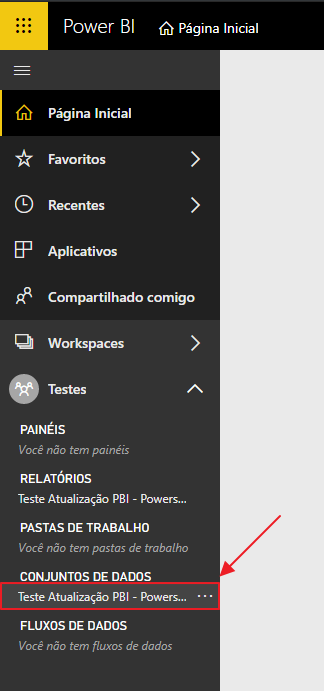
When you open the dataset, you can get the Workspace and dataset ID from the URL:

Replace the script I made available with these 2 ID’s:
#2. Recupera o ID do Workspace e do Dataset
$Workspace_ID = "ee72886a-26c8-4d59-97f6-e7b811adc507"
$Dataset_ID = "3aaf8f29-f54b-4b9c-a171-d8d0ef2fcea7"
If you want to update more than one dataset in the script, just do it like this:
#2. Recupera o ID do Workspace e do Dataset
$Workspace_ID = "8fda9bda-13c5-45ec-9a4f-3bcfe51ed57f"

#3. Monta a URL de atualização do DS
$Url_Atualizacao1 = 'groups/' + $Workspace_ID + '/datasets/fd3df53a-9a3a-40ee-91f0-585c9fb52c67/refreshes'
$Url_Atualizacao2 = 'groups/' + $Workspace_ID + '/datasets/fd3df53a-9a3a-40ee-91f0-449e4c453c13/refreshes'
$Url_Atualizacao3 = 'groups/' + $Workspace_ID + '/datasets/fd3df53a-9a3a-40ee-91f0-fef43a0bc123/refreshes'

#5. Executa a atualização e notifica por e-mail em caso de falha
$NotificacaoFalhaPorEmail = @{"notifyOption"="MailOnFailure"}

Invoke-PowerBIRestMethod -Url $Url_Atualizacao1 -Method Post -Body $NotificacaoFalhaPorEmail
Invoke-PowerBIRestMethod -Url $Url_Atualizacao2 -Method Post -Body $NotificacaoFalhaPorEmail
Invoke-PowerBIRestMethod -Url $Url_Atualizacao3 -Method Post -Body $NotificacaoFalhaPorEmail
After making this change, save the script with whatever name you want, but the file extension must be .ps1.
How to run Powershell script from SQL Server Agent
Click here to view the contentIdeally, this Power BI update process should be in the same job that updates and processes the data in the database:
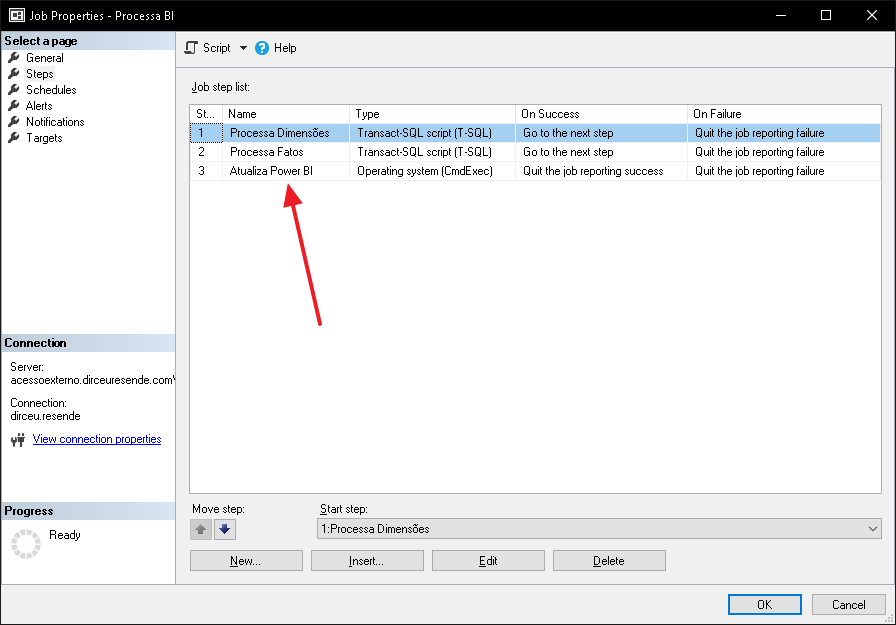
And in this new step, which will be of the type “Operating system (CmdExec)”, you will place the following command to execute:
powershell.exe -ExecutionPolicy Unrestricted -File "C:\Scripts\Atualiza Power BI.ps1"
Remember to change the .ps1 file path to the location where you saved your script. After scheduling the job, your Power BI report will be automatically updated at the end of processing.
How to run Powershell script through Integration Services (SSIS)
Click here to view the contentTo do this, add a “Run Process” task, which is used to execute commands at the operating system level:

On the configuration screen for this task, type powershell.exe in the “Executable” parameter and -ExecutionPolicy Unrestricted -File “C:\Scripts\Atualiza Power BI.ps1” in the “Arguments” parameter. Optionally, change the “Window Style” setting to “Hidden”, so that the window does not appear on the screen during the update:
Example:
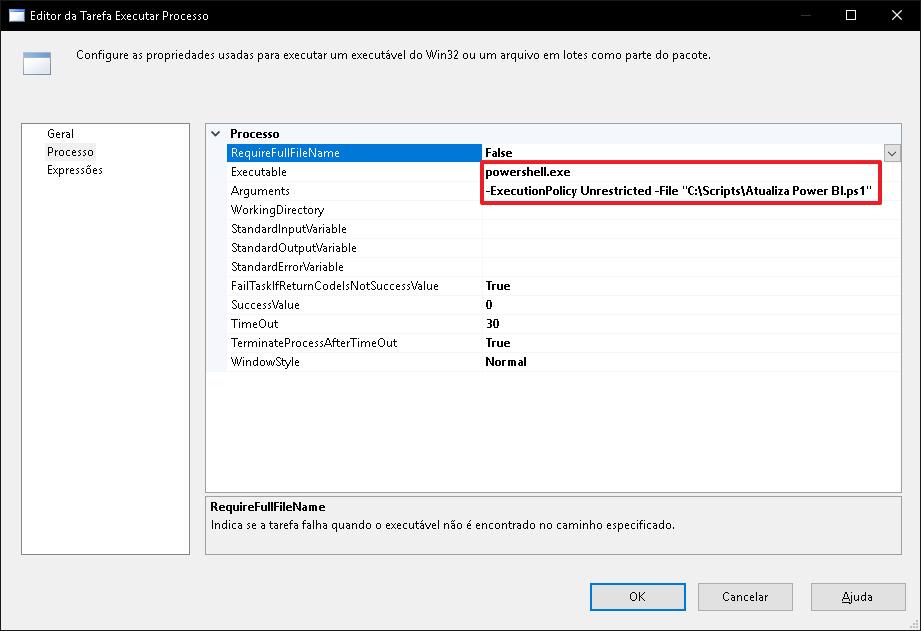
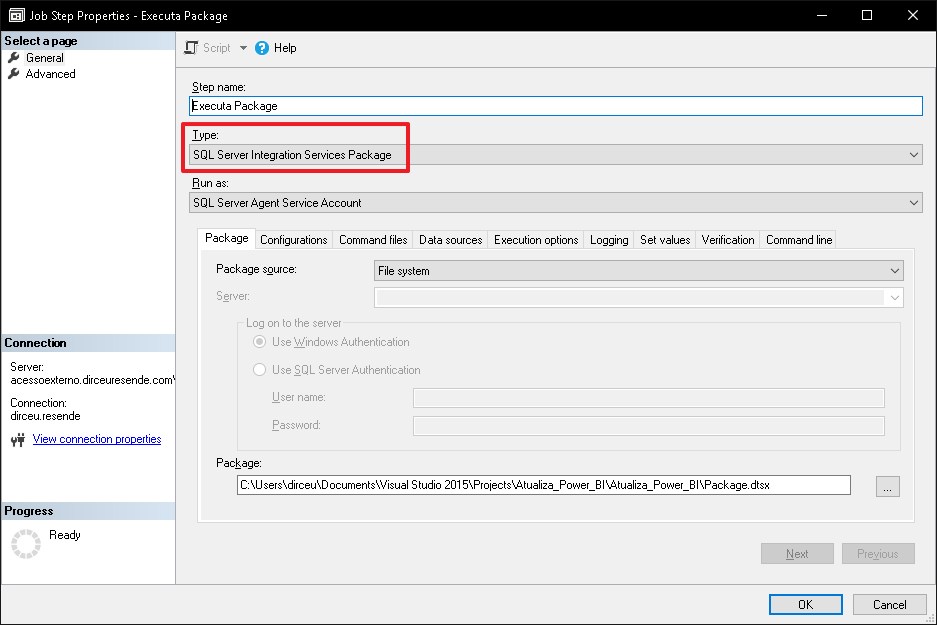
If your SSIS package is already being automatically executed by SQL Server Agent, you don't need to do anything else. Otherwise, add another step to your SQL Server Agent job to execute the package that will update Power BI:
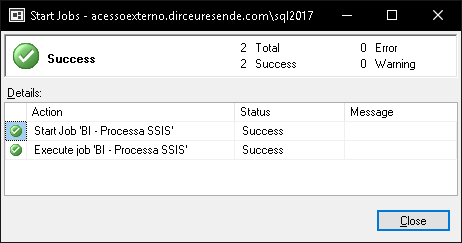
When the job runs, the Power BI data will be updated at the end of the run
Conclusion
Using this Powershell script that I shared in the article, you will now be able to automatically update Power BI data right after data processing in the database, without the need to try to synchronize the time that data processing ends with the time that the Power BI update schedule starts there in the service.
Example of automatic updating using Powershell:
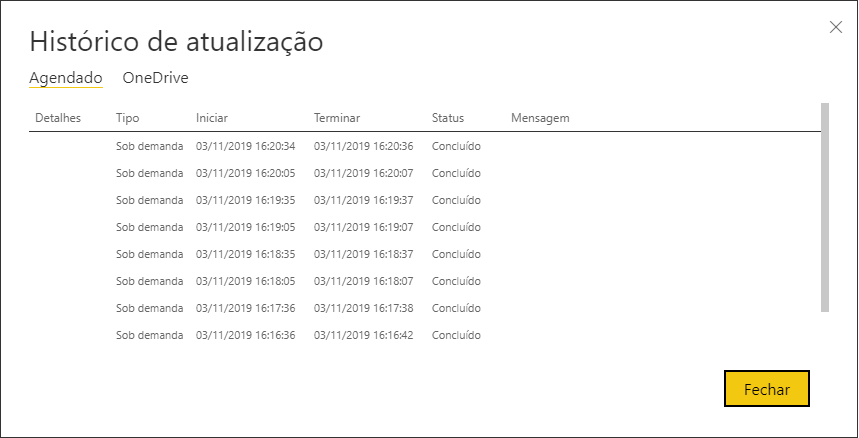
It is worth remembering again that updates using the API remain within the limit of 8 daily updates for the Pro account (and 48 for the Premium account). In other words, use it wisely... lol
I hope you liked this tip and see you next time!

Comentários (0)
Carregando comentários…