
Hey guys!
During the creation of my article SQL Server Reporting Services (SSRS) – Which reports are most accessed? And which ones are not being used? (which I just published), I found some errors when testing connectivity with the database through the Power BI Report Server, which I had installed a few minutes ago for this article, where when trying to return the data when I clicked on the “Load data” button, in the “Data visualization” tab, it presented the error as shown below:
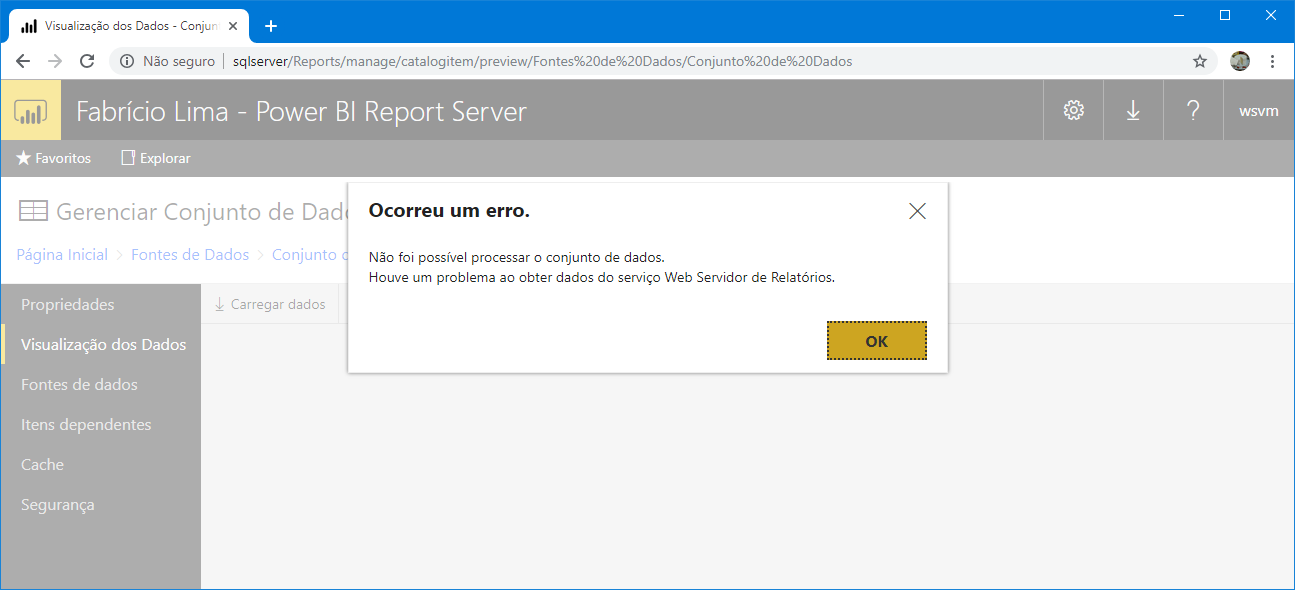
Error message transcript:
The dataset could not be processed.
There was a problem getting data from the Report Server web service.
I tested the connectivity of my data source and it was working normally:

When I tested using Report Builder, there were no problems either:

So we started to investigate the problem further. The first step is to analyze the Power BI Report Server logs, which are normally located in the “C:\Program Files\Microsoft Power BI Report Server\PBIRS\LogFiles” directory:

Analyzing the log file, at the approximate time when I tried to view the data and the error was generated, I identified the error message below:
at System.Data.Common.DbProviderFactories.GetFactory(String providerInvariantName)
at Microsoft.ReportingServices.DataExtensions.OracleClientConnectionWrapper..ctor()

It appeared to be a driver problem on the Reporting Services server itself. As the message talks about .Net Framework Data Provider, I went to confirm if the .NET Framework was installed and it really was.
The next step was to analyze the .NET Framework machine.config file to validate that the driver entries were correct. The file machine.config It is usually located in “C:\Windows\Microsoft.NET\Framework\v4.0.30319\Config” and when opening the file and checking the provider entries in System.Data, I identified that there was a problem there, as it was empty:

One of the solutions was to try to reinstall the Microsoft .NET Framework to see if records would be generated in machine.config, but this solution would take a long time. As an alternative, I opened the .NET Framework 2.0 machine.config, usually located in “C:\Windows\Microsoft.NET\Framework\v2.0.50727\CONFIG”, and checked if the records were valid:

Beauty! Records are populated in the .NET Framework 2.0. I copied the System.Data records from the Framework 2.0 machine.config and replaced the ones that were in Framework 4.0 (which were empty). After this change, I tried to run the “Preview Data” option in Power BI Report Server again and the error continued to appear on the screen, but when analyzing the log, the message has now changed:

The error message now indicates a permissions problem when accessing the “dirceuresende” database, which the shared dataset uses. The connection problem was then resolved and it was enough to create a user for this login in the target database and grant select access to the table used for the problem to be definitively resolved:

Don't you know Power BI Report Server yet? Would you like to know more about this tool? Don't forget to check out my article Video – Power BI vs Reporting Services: Who is better?.
That's it, folks!
A big hug and see you later!
Note: Everything demonstrated in this article applies to both Power BI Report Server and SQL Server Reporting Services (SSRS), as both use the same structure.

Comentários (0)
Carregando comentários…