
Hey guys,
How are you today?
In this post, I will demonstrate how to use the XLMA language (XML for Analysis) to perform queries and send commands to Analysis Services through Transact-SQL (T-SQL) queries, which can be used in a SQL Agent job to automate this process, allowing you to automate backup/restore routines, for example, of your Analysis Services cubes.
Creating Linked Server for Analysis Services
In order for you to be able to send XMLA queries from SQL Server to Analysis Services, we will need to create a Linked Server for Analysis Services.
Creating the Linked Server through the SQL Server Management Studio interface
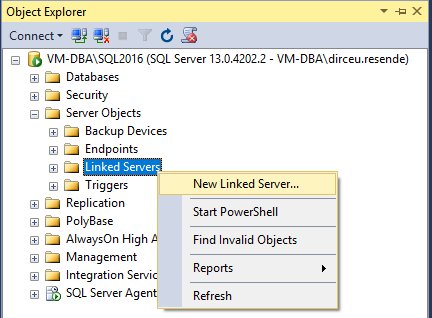
To create the Linked Server through the SQL Server Management Studio interface, navigate in the Object Explorer to “Server Objects” and right-click on the “Linked Servers” folder, selecting the “New Linked Server…” option.
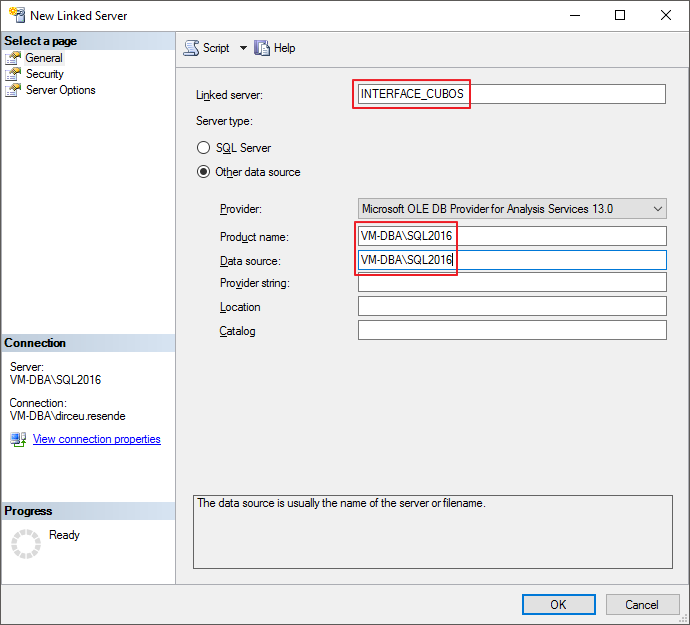
Define the name of your Linked Server, select the protocol “Microsoft OLE DB Provider for Analysis Services XX.0”. In the product name and data source field, enter the name of the instance where your Analysis Services are located.
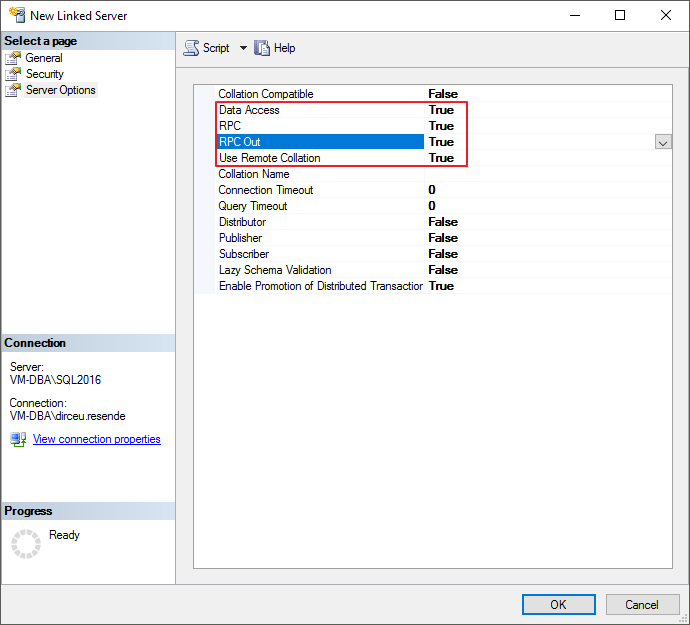
On this screen, mark the “Data Access”, “RPC”, “RPC Out” and “Use Remote Collation” fields as True, as shown in the image below:
And finally, define how users will access your Linked Server. I checked the option “Be made using login’s current security context”, so that the connection is made using the permissions of the AD user in question.
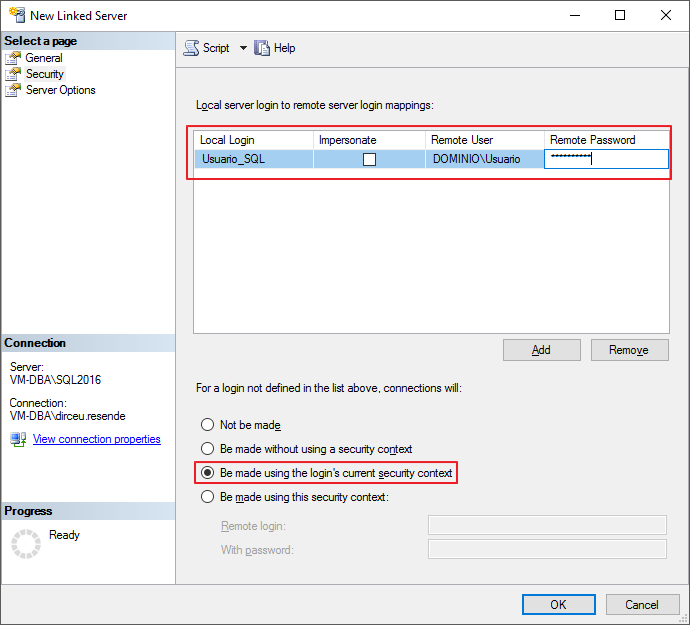
It is worth noting that Analysis Services only works with Windows AD logins and does not support SQL Server logins. If a SQL Server user (such as an application user) needs to use this LinkedServer, you will need to do a login mapping, where you can define which Windows AD login will be used to log into Analysis Services when the connection is made through a specific SQL Server login.
Creating the Linked Server using command line (TSQL)
To create the Linked Server using the command line (TSQL), simply execute the query below:
USE [master]
GO

EXEC master.dbo.sp_addlinkedserver @server = N'INTERFACE_CUBOS', @srvproduct=N'VM-DBA\SQL2016', @provider=N'MSOLAP', @datasrc=N'VM-DBA\SQL2016'

-- Impersonate para conexão onde "Usuario_SQL" se conecta no Analysis Services como "VM-DBA\dirceu.resende"
EXEC master.dbo.sp_addlinkedsrvlogin @rmtsrvname=N'INTERFACE_CUBOS',@useself=N'True',@locallogin=NULL,@rmtuser=NULL,@rmtpassword=NULL
EXEC master.dbo.sp_addlinkedsrvlogin @rmtsrvname=N'INTERFACE_CUBOS',@useself=N'False',@locallogin=N'User_SQL',@rmtuser=N'VM-DBA\dirceu.resende',@rmtpassword='minha_senha'

GO

EXEC master.dbo.sp_serveroption @server=N'INTERFACE_CUBOS', @optname=N'collation compatible', @optvalue=N'false'
GO

EXEC master.dbo.sp_serveroption @server=N'INTERFACE_CUBOS', @optname=N'data access', @optvalue=N'true'
GO

EXEC master.dbo.sp_serveroption @server=N'INTERFACE_CUBOS', @optname=N'dist', @optvalue=N'false'
GO

EXEC master.dbo.sp_serveroption @server=N'INTERFACE_CUBOS', @optname=N'pub', @optvalue=N'false'
GO

EXEC master.dbo.sp_serveroption @server=N'INTERFACE_CUBOS', @optname=N'rpc', @optvalue=N'true'
GO

EXEC master.dbo.sp_serveroption @server=N'INTERFACE_CUBOS', @optname=N'rpc out', @optvalue=N'true'
GO

EXEC master.dbo.sp_serveroption @server=N'INTERFACE_CUBOS', @optname=N'sub', @optvalue=N'false'
GO

EXEC master.dbo.sp_serveroption @server=N'INTERFACE_CUBOS', @optname=N'connect timeout', @optvalue=N'0'
GO

EXEC master.dbo.sp_serveroption @server=N'INTERFACE_CUBOS', @optname=N'collation name', @optvalue=NULL
GO

EXEC master.dbo.sp_serveroption @server=N'INTERFACE_CUBOS', @optname=N'lazy schema validation', @optvalue=N'false'
GO

EXEC master.dbo.sp_serveroption @server=N'INTERFACE_CUBOS', @optname=N'query timeout', @optvalue=N'0'
GO

EXEC master.dbo.sp_serveroption @server=N'INTERFACE_CUBOS', @optname=N'use remote collation', @optvalue=N'true'
GO

EXEC master.dbo.sp_serveroption @server=N'INTERFACE_CUBOS', @optname=N'remote proc transaction promotion', @optvalue=N'true'
GO
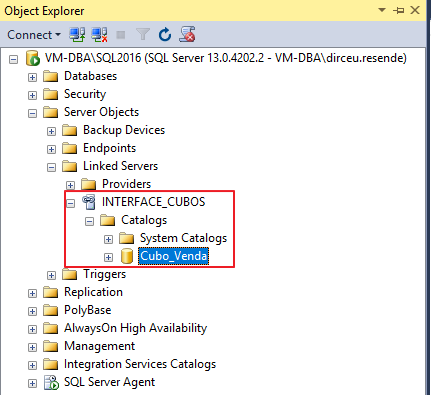
If the connection is made successfully, you will have this view when accessing the Linked Server created:
How to identify Cube information
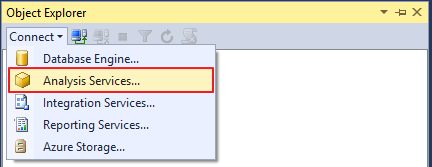
To backup/restore Analysis Services cubes, we will need some important information about the Cube in question. To do this, create a new connection to Analysis Services through the SQL Server Management Studio Object Explorer.
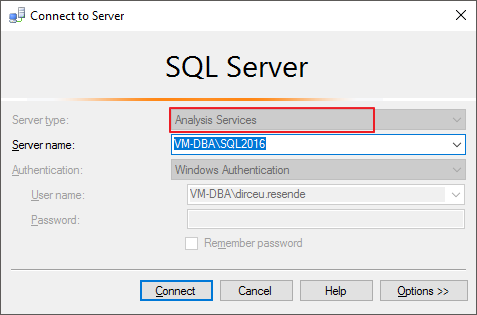
Authentication is the same as connecting through SQL Server
Right-click on the Cube in question and select the properties option
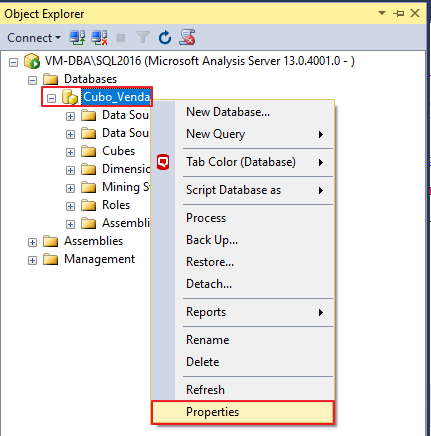
On this screen, you will be able to view the Database Id and Database Name, which we will need later

An easy way to check if the Linked Server is working is to run a query on it:
SELECT
    [CATALOG_NAME],
    [CUBE_NAME],
    [LAST_SCHEMA_UPDATE],
    [LAST_DATA_UPDATE],
    [IS_DRILLTHROUGH_ENABLED],
    [IS_LINKABLE],
    [IS_WRITE_ENABLED],
    [IS_SQL_ENABLED]
FROM
    OPENQUERY(INTERFACE_CUBOS, 'SELECT * FROM $system.MDSchema_Cubes WHERE [CUBE_SOURCE] = 1')

Now that you have created your linked interface server between SQL Server and Analysis Services and can identify the difference between the Name and ID of objects, such as Databases, Cubes, Dimensions, Partitions, etc., you can now perform your XLMA queries and send commands to Analysis Services in an easy and practical way.
To check out everything you can do using XLMA in SQL Server, be sure to access this link.
That's it folks,
A hug and see you in the next post.

Comments (0)
Loading comments...