
What's up, guys!
In this post I bring you a simple solution, but one that I really liked, because it helped me significantly reduce the processing time of an Azure Data Factory (ADF) pipeline by changing the Service Objective and resizing an Azure SQL Database using T-SQL commands before processing began, and returning to the original tier at the end of all processing.
To change the Azure SQL Database tier, you can use the Azure portal interface, Powershell, Azure CLI, Azure DevOps and a series of other alternatives, in addition to our beloved Transact-SQL (T-SQL), which, in my view, is the easiest and most practical choice of all.
See how easy it is:
ALTER DATABASE [dirceuresende]
MODIFY(SERVICE_OBJECTIVE = 'S3')
The problem with all these solutions, especially in the scenario I'm talking about, is that changing the Service Objective, aka Service Tier, is not done immediately, that is, you execute the command and Azure SQL will change the tier at the time Azure sees fit. It can take 1 second, 10 seconds, 60 seconds, etc... And when the Azure SQL Database tier changes, the sessions are disconnected.
In the scenario I listed above, where I change the tier before starting data processing, if I simply execute the T-SQL command and continue processing, in the middle of it Azure will change the tier, the connection will drop for a few seconds and the database will be unavailable for a few seconds.
You can also use Retry in all components of your pipeline and thus avoid this being a problem for you, because when the connection drops, retry will be activated and operations will be carried out again, but you would have to configure retry in all components instead of configuring it only in the upsizing component, you may have been charged for data movement and use of ADF resources during this time that you processed for nothing. Furthermore, side effects may occur if a component is not prepared to be interrupted mid-execution and executed again.
Another possible solution is to place a Wait operator in Azure Data Factory and specify any time that you think is enough for Azure to change the tier. From my tests, the time required for Azure SQL Database to change the tier is usually between 50 and 90 seconds.
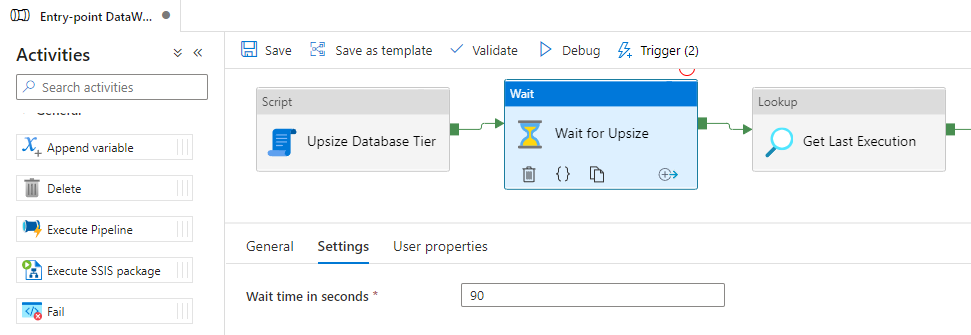
While this may work in some cases (and not in others), this solution doesn't seem very reliable to me. If the time to change the tier exceeds the limit I defined, I will have waited a long time and it will still fail in the middle of processing. And if the change ends sooner, I will have waited a long time unnecessarily.
I looked for some solutions to solve my problem and ended up falling for the idea of Data Platform MVP Greg Low in this post here, but I chose to create my procedure aiming to have a simpler solution to try to solve this problem.
Stored Procedure source code
CREATE PROCEDURE dbo.stpAltera_Tier_DB (
    @ServiceLevelObjective VARCHAR(50),
    @TimeoutEmSegundos INT = 60
)
AS
BEGIN

    SET NOCOUNT ON

    DECLARE
        @Query NVARCHAR(MAX),
        @DataHoraLimite DATETIME2 = DATEADD(SECOND, @TimeoutEmSegundos, GETDATE()),
        @ServiceLevelObjectiveAtual VARCHAR(20) = CONVERT(VARCHAR(100), DATABASEPROPERTYEX( DB_NAME(), 'ServiceObjective' ))

    IF (@ServiceLevelObjectiveAtual <> @ServiceLevelObjective)
    BEGIN

        SET @Query = N'ALTER DATABASE [' + DB_NAME() + '] MODIFY (SERVICE_OBJECTIVE = ''' + @ServiceLevelObjective + ''');'
        EXEC sp_executesql @Query;

        WHILE ((DATABASEPROPERTYEX( DB_NAME(), 'ServiceObjective' ) <> @ServiceLevelObjective) AND GETDATE() <= @DataHoraLimite)
        BEGIN
            WAITFOR DELAY '00:00:00.500';
        END
    END

END
Using this procedure is very simple:
EXEC dbo.stpAltera_Tier_DB
    @ServiceLevelObjective = 'S3',
    @TimeoutEmSegundos = 60
After executing the command, the procedure will wait until the change is made by Azure, reevaluating every 500 milliseconds whether the change has already been made, respecting the defined time limit. If the limit is reached, the procedure will end execution even if the change has not yet taken effect. If the change takes effect less than the time limit, the procedure will end execution as soon as the tier is changed, avoiding wasted time.
To execute this procedure through Azure Data Factory, we will use the “new” Script component, available on March 6, 2022:
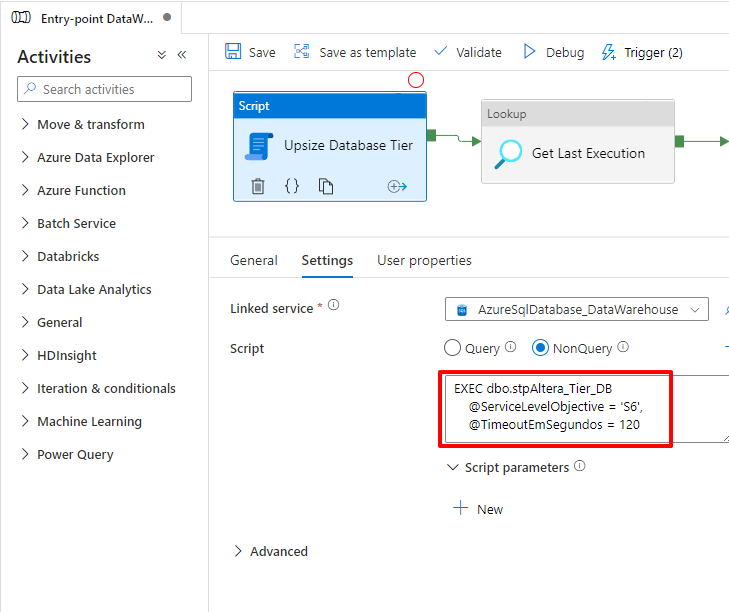
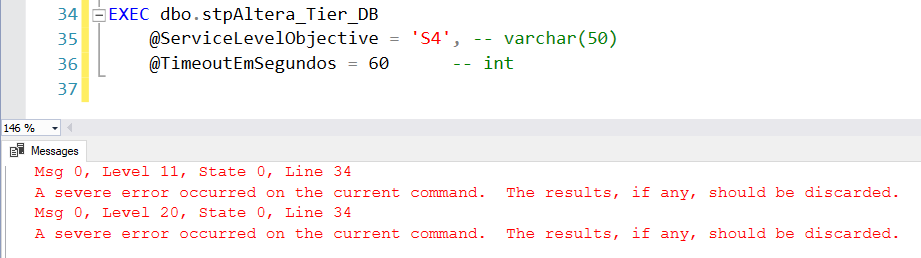
As Azure SQL Database eliminates all connections and the database is unavailable for a few seconds, even with this treatment, the procedure will return an error because its session itself was eliminated:
In Azure Data Factory, there will also be an error when executing this procedure when the exchange is made:
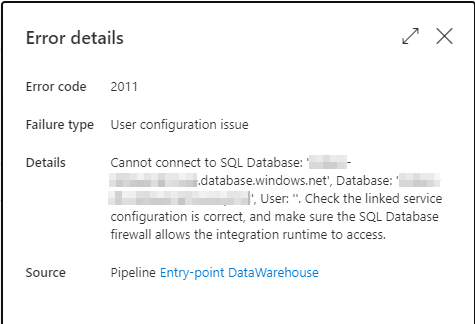
For this solution to work, we will define a Retry for this Script block, so that when it fails (and it will fail), it enters the Retry, waits another 10 seconds and executes the Procedure again.
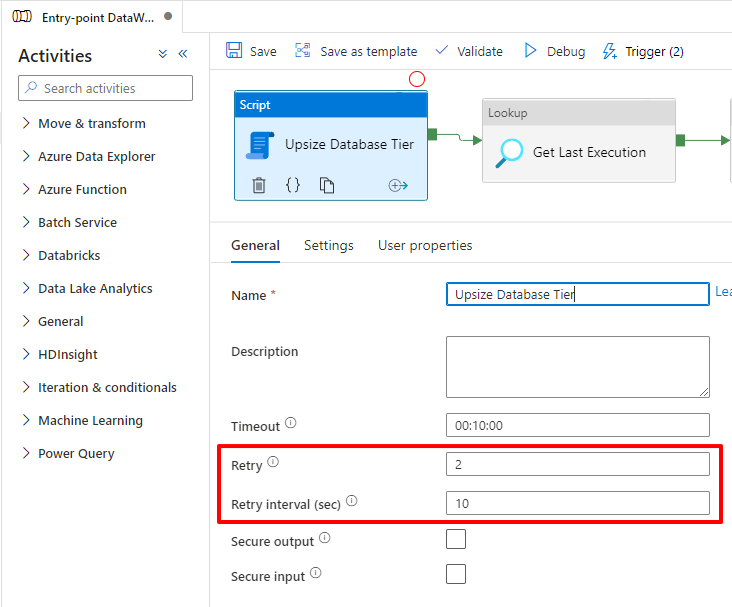
In the second execution of the Stored Procedure, as the change will be made by the same tier as the previous execution, the command will be executed instantly and Azure will just ignore the command and return successful execution, as shown below:

And with that, your bank now has the new tier and you can start processing the data. At the end of processing, I downscale to return the tier to the original value, but this time, I don't need to wait for the change to finish, as I won't process anything else.
Therefore, I can use the most basic way to return to the previous tier:
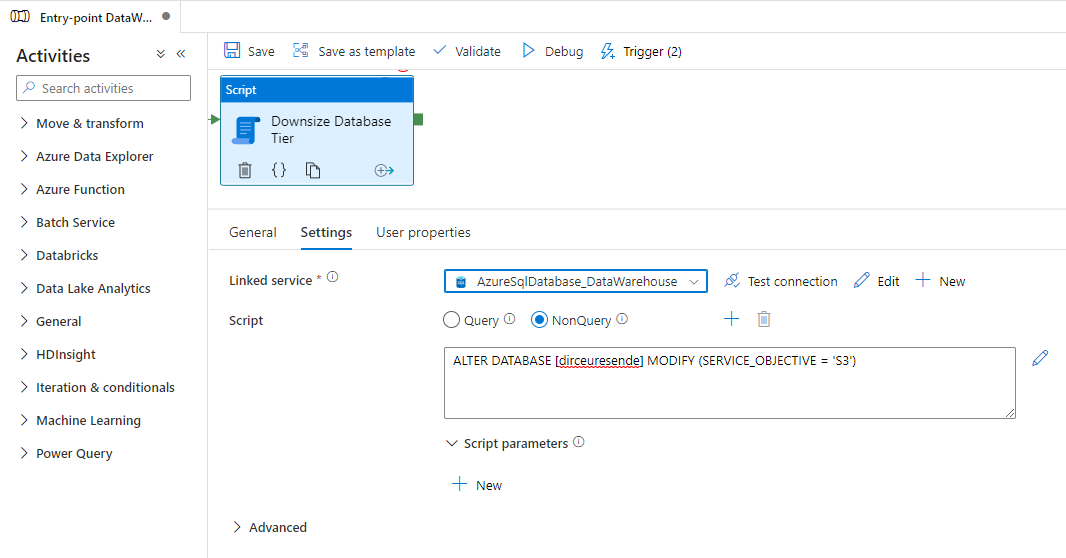
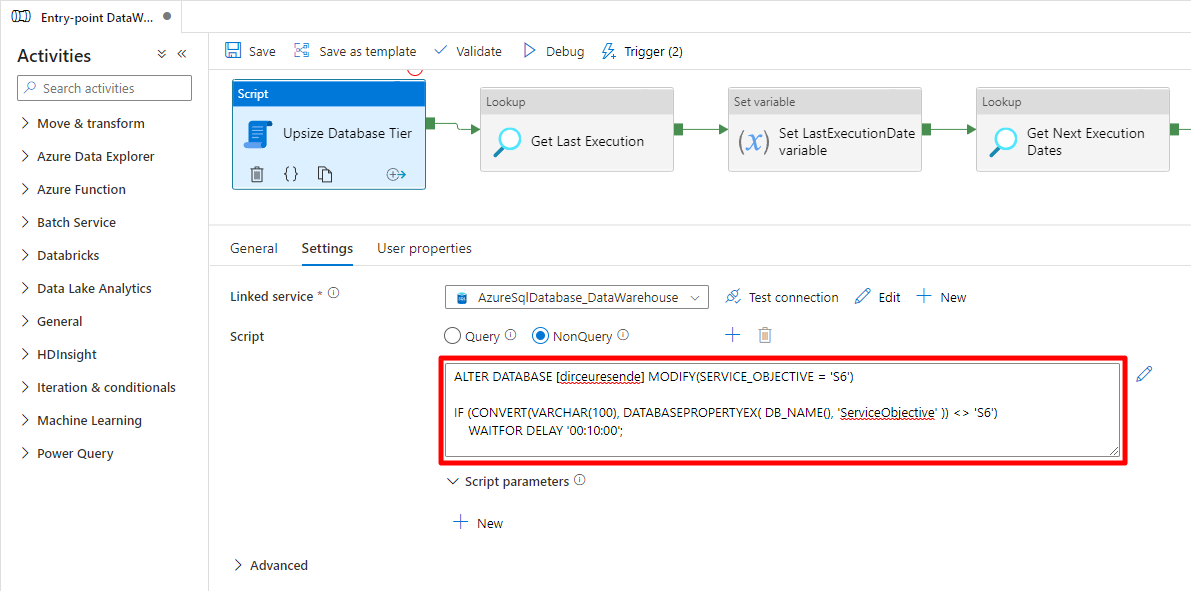
To be very honest with you, thinking about simplicity first, not even the Stored Procedure is necessary in the end. As the connection is always interrupted, I can just place a simple IF with a very long WAITFOR DELAY inside the Script block and have the same behavior:
ALTER DATABASE [dirceuresende] MODIFY(SERVICE_OBJECTIVE = 'S6')

IF (CONVERT(VARCHAR(100), DATABASEPROPERTYEX( DB_NAME(), 'ServiceObjective' )) <> 'S6')
    WAITFOR DELAY '00:10:00';
Script block:
Execution result:
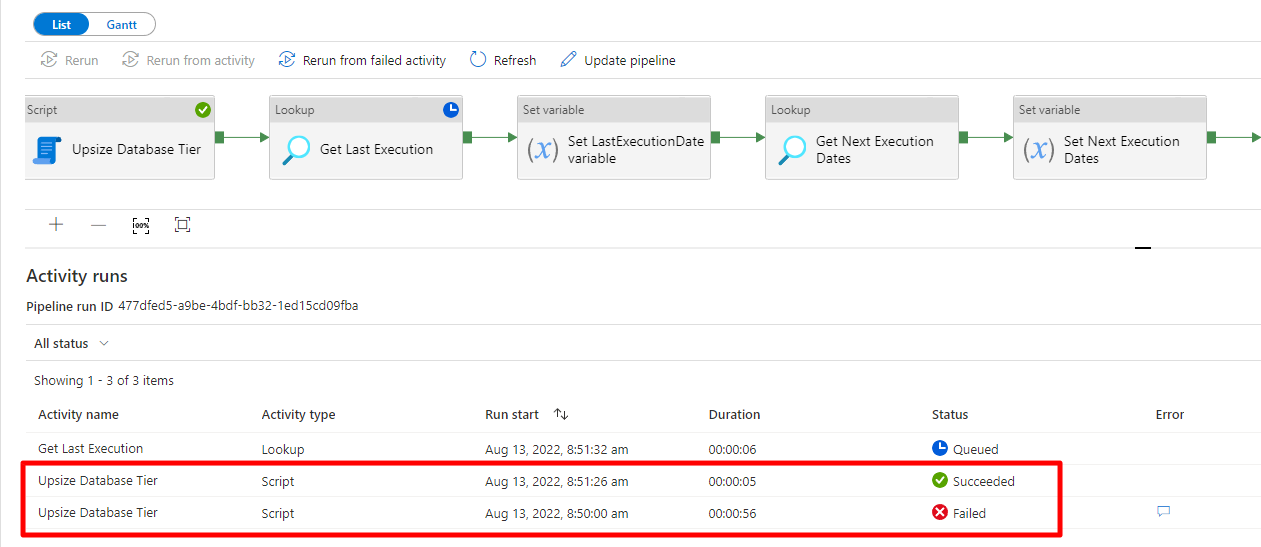
And just like using the Stored Procedure, the routine gave an error in the first execution, waiting until the tier change took effect in the bank. When this occurs, the connection is interrupted and the execution returns failure.
Azure Data Factory waits 10 seconds (time I set) after the failure and tries again. This time, execution is very quick, since the tier has already been changed to the chosen tier. This second execution returns success and the pipeline cycle continues normally.
The behavior ended up being the same as Procedure, but much simpler. I set a very long wait (10 minutes), which will end up being the time limit that Azure will have to make the change, which is much more than enough. By finishing the change early, the cycle continues without having to wait those 10 minutes.
It turned out that the solution was even simpler than I thought. Now you can increase the tier of your Azure SQL Database before starting ETL processing using Azure Data Factory, so that processing is faster, and at the end of processing, you return to the original tier, paying extra only during the time you were processing data. A smart way to have a much better performance while paying much less 🙂
I hope you liked this tip and see you next time.

Comments (0)
Loading comments...