
Hey guys,
Good afternoon!
In this post I will demonstrate how to recover the password of the SQL Server Administrator user (sa), if it has been lost or changed by a malicious user or if you simply no longer remember the password. Many less experienced DBA's may become desperate with this situation and resort to reinstalling the product to recover this password and the solutions are really quite simple.
Using SQLCMD
The first way to recover the SA user password is using SQLCMD (To learn more about SQLCMD, access this post).
As it is always present and comes with the product, I consider it the most practical solution, although it DOES NOT work if the login with the domain group has not been created (or has been removed), which allows connections using Windows Authentication (AD).
To recover the password, open the Windows Command Prompt (cmd) on the server that will have the password changed and type the commands below to connect to the database:
sqlcmd -S <nome_do_servidor>\<instancia> -E
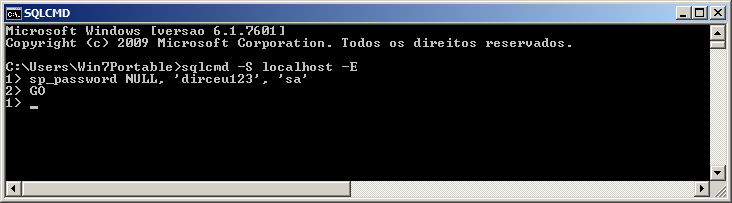
After connecting, simply run the commands below to change the password:
sp_password NULL, 'dirceu123', 'sa' -- Essa SP será removida em futuras versões do SQL Server
GO
As sp_password will be deactivated in future versions, we can also use the ALTER LOGIN command to change the password.
ALTER LOGIN sa WITH PASSWORD = 'dirceu123'
GO
Example:
Using SQL Management Studio
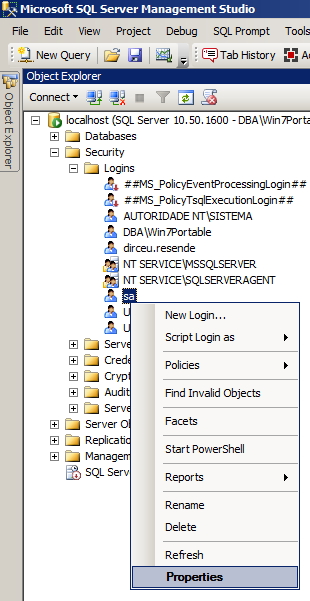
Another alternative to recovering your password is to log in locally to your database through Management Studio using Windows AD authentication and manually change the password.

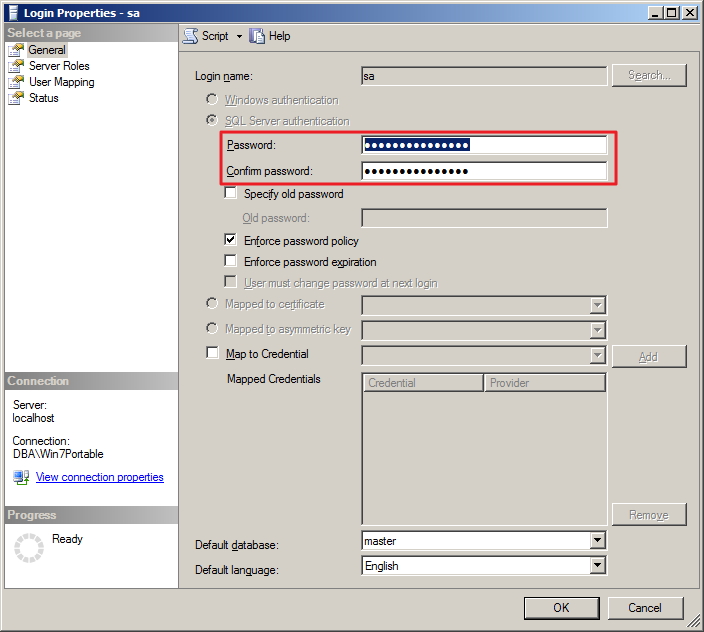
Now just go into the security options and change the SA user password (or any other password of your choice)
I can't connect using Windows Authentication
It occurs when you do not remember the SA user password, the instance's default role has been deleted and it is not possible to connect to the instance in any way.
The first step is to stop the SQL Server instance using Configuration Manager.
To open Configuration Manager, simply run the command SQLServerManager10.msc or Start > All Programs > Microsoft SQL Server -your_version- > Configuration Tools > SQL Server Configuration Manager
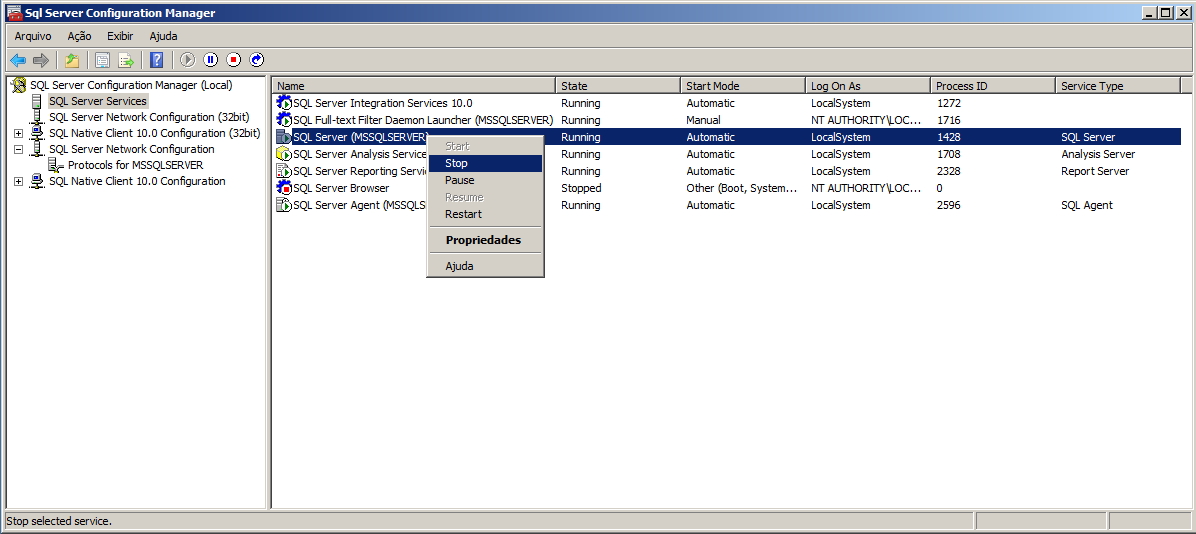
Now let's start the instance in single user mode (-m) or with minimum settings (-f). To do this, type the command below in the Command Prompt:
cd "C:\Program Files\Microsoft SQL Server\MSSQL10_50.MSSQLSERVER\MSSQL\Binn"
SQLServr.Exe –m
An alternative way to accomplish this configuration is by manipulating Windows services:
net stop mssqlserver
net start mssqlserver /m
With this, you can now log in normally to the instance using the sqlcmd command and change your password, since the login will be done with the server's default user, even if it has been deleted.
If you have disabled access to the Administrators role (usually the role with the same name as the instance), you may not be able to log in to the instance even using this procedure, but you can try with the solution below.
Using PsExec
A fantastic utility from sysinternals, PsExec allows you to run applications using the NT AUTHORITY\SYSTEM user, which has native access to SQL Server.
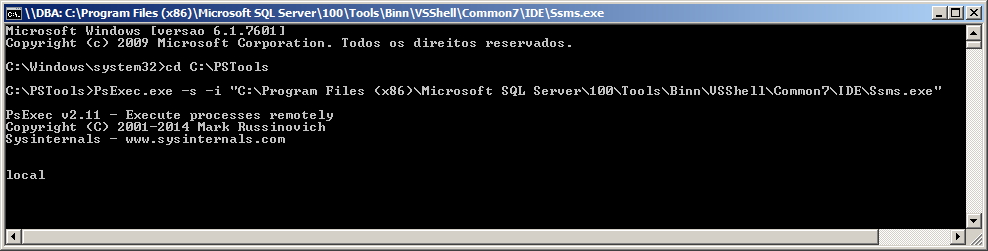
To perform password recovery, simply download PsExec in this link, extract to a local folder on your server and execute the commands below in the Command Prompt (as Administrator), where the -s parameter is used to use the system account, while -i enables interactive mode:
cd C:\PSTools
PsExec.exe -s -i "C:\Program Files (x86)\Microsoft SQL Server\100\Tools\Binn\VSShell\Common7\IDE\Ssms.exe"
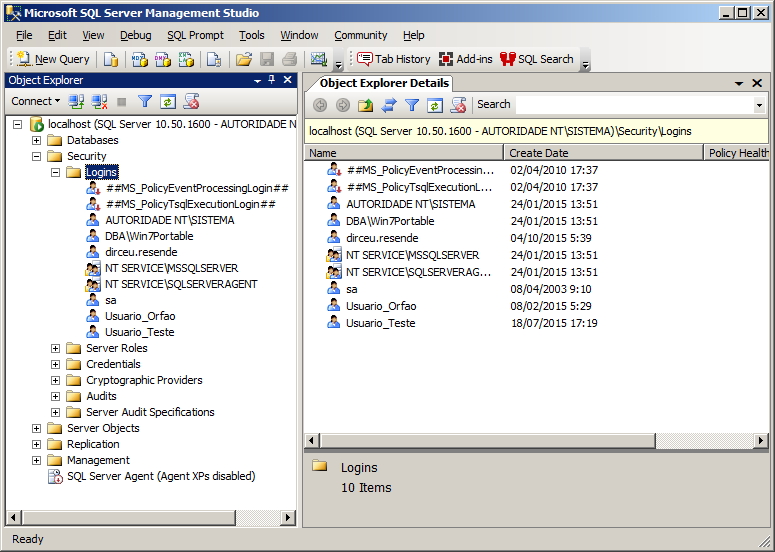
Now just create, change or enable the users you need to manage your instance.
Using third-party software
Another way to quickly recover the Administrator password is to use third-party software to perform this task. Generally this form of unlocking is preferred by people who manage SQL Server databases and don't have much technical knowledge (yes, this happens) and end up choosing to pay for these tools.
When you have already tried ALL the other alternatives and were unable to recover (if all users are blocked), you can use one of these tools as an option, as it does not require a connection to the database, since the tool acts directly on the MDF file of the master database and changes the bits forcing the password to be changed, almost a cracking procedure.
Some of the best-known tools for this are:
– SQL Server Password Geeker
– Elcomsoft Advanced SQL Password Recovery
– MS SQL Server Password Unlocker
That's it, folks!
Until next time
how to reset reset change recover administrator password sa SQL Server, how to recover recover change lost password lost password PsTools PsExec
how to reset reset change recover administrator password sa SQL Server, how to recover recover change lost password lost password PsTools PsExec

Comments (0)
Loading comments...