
Hey guys,
Good afternoon.
In this post I will comment on a problem I recently encountered in a company, in which no application was able to connect to the production database, presenting the message “Login failed for user ‘usuario’.”
Introduction and description of the problem
In the company where this connection error occurred, there are several applications that connect to the production SQL Server database, using the same user, with SQL Server authentication. Given this scenario, it becomes difficult to identify from the database which application a session is associated with, or even which AD user is logged into the application and performing those actions on the database.
To make this identification possible, an experienced analyst developed a change in the C# applications, so that he informed the name of the user logged in to AD and the name of the system in the “Program Name” parameter, in the connection string with the database, looking something like this:
Data Source=myServer; Initial Catalog=myDB; User Id=myUsername; Password=myPassword; Application Name=UsuarioAD/Sistema;
We did the tests and everything worked very well. The application was sending the user/system and through WhoIsActive it was possible to clearly identify the user and system responsible for each session in the production database, through the program_name column.
A few minutes after this change went live in production, several tickets and alerts began to arrive reporting the error “Login failed for user ‘usuario’.”, where the source hostnames were the production IIS servers.
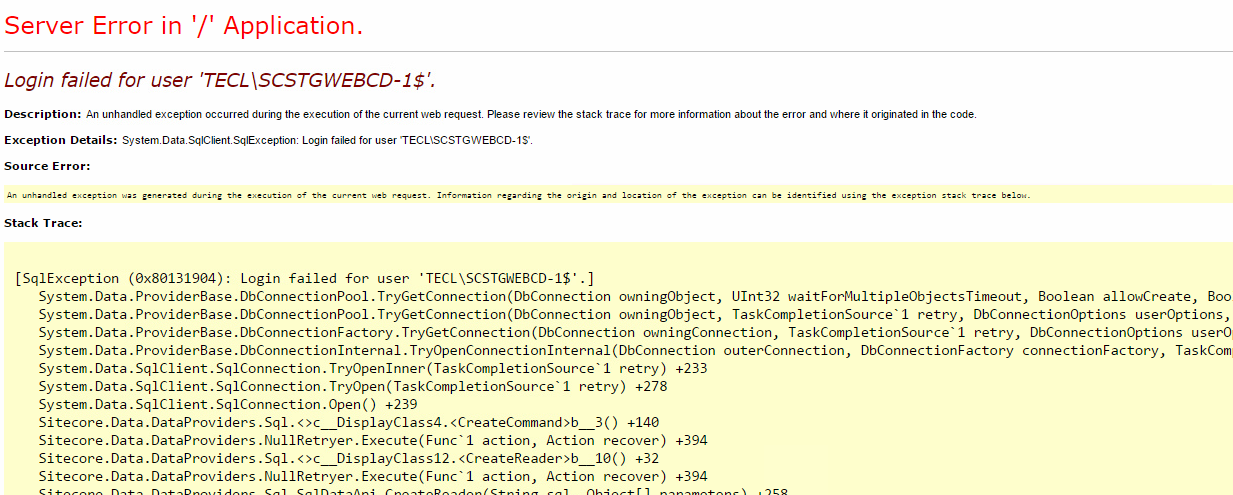
The first step in trying to identify what was happening was to analyze the database. We validated that the password was correct, and the login was successful, using the application user, as until then, I was suspecting a password change.
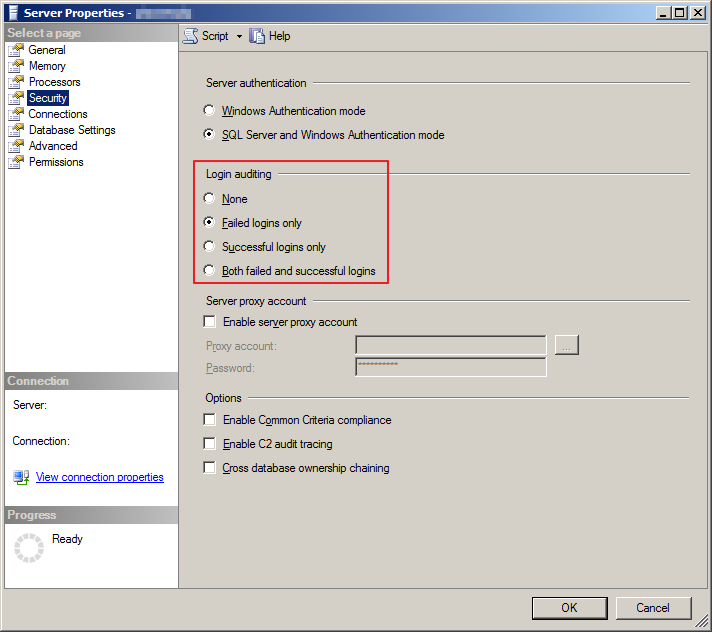
It was checked in the SQL Server logs (Management > SQL Server logs) and there was no record of login failure due to incorrect password. I confirmed in the server settings that the Login auditing option for login failures was indeed enabled (figure below) and there was indeed no record of incorrect passwords on the production servers.
After that, we confirmed that the connection string, which was changed, was indeed pointing to the production server. Meanwhile, the error messages were accumulating and although this was occurring, several users were able to use the system normally, connecting to the database normally. We did some tests on the system screen and the error was intermittent: Sometimes it worked, sometimes it showed a “Login failed” error.
We decided to restart the IIS servers, which solved the problem for a few minutes, but it soon reoccurred about 20 minutes later.
It was then that they raised the point of the SQL Server connection pool. According to Microsoft documentation (https://msdn.microsoft.com/en-us/library/8xx3tyca(v=vs.110).aspx), a pool of 100 connections (default value) is created for each unique connection string, i.e. for each user/system combination, SQL Server was reserving 100 connections!
Due to this change in the connection string, the bank's connection limit ended up being reached and causing the problem mentioned in the post.
For those who don't know, the connection pool is a very useful feature, as it considerably reduces the overhead generated in applications due to opening/closing connections, since the connection pool keeps connections to the database always open (during a certain period), even if inactive due to lack of activity, and manages the opening/closing of connections to the database.
Parameters related to Connection Pool in the connection string
| Parameter | Default value | Description |
|---|---|---|
| Max Pool Size | 100 | The maximum number of connections allowed in the pool. Valid values are greater than or equal to 1. Values that are less than Min Pool Size generate an error. |
| Min Pool Size | 0 | The minimum number of connections allowed in the pool. Valid values are greater than or equal to 0. Zero (0) in this field means that no minimum connection is initially opened. Values greater than Max Pool Size generate an error. |
| Pooling | 'true' | When the value of this key is set to true, any newly created connection will be added to the pool when closed by the application. On a next attempt to open the same connection, that connection will be drawn from the pool. Connections are considered equal if they have the same connection string. Different connections have different connection strings. The value of this key can be "true", "false", "yes" or "no". |
| PoolBlockingPeriod | Self | Defines the blocking period behavior for a connection pool. More information by accessing this link. |
Connection Pool Tests
If this happens to you, or a developer has the same idea, now you know the impacts of changing the connection string and how to resolve it. In this case, as a connection pool would be opened for each user/system, a smaller pool could be used, of 4 connections, for example, but there would be many pools open in the bank and the need to keep opening and closing connections would continue to exist, meaning that the connection pool would not make much sense in this mode of operation.
After solving the problem, the development team decided to prove this theory by creating a small program that simply opened 100 connections using a normal connection string, with the Application Name fixed and the Max Pool Size parameter configured with the value 20. After execution, only 20 connections were opened in the bank.
By changing the program to generate random values for the Application Name parameter, SQL Server actually reserved 20 connections for each of the 100 connections made.
How to identify the number of SQL Server instance connections
To perform these checks on the number of connections on the instance, you can use one of the queries below:
SELECT
    original_login_name,
    [host_name],
    client_interface_name,
    COUNT(*)
FROM
    sys.dm_exec_sessions
GROUP BY
    original_login_name,
    [host_name],
    client_interface_name
ORDER BY
    1, 2, 3


SELECT
    B.login_name,
    B.[host_name],
    B.[program_name],
    DB_NAME(B.database_id) AS [database],
    COUNT(*) AS connections
FROM
    sys.dm_exec_connections             A
    LEFT JOIN sys.dm_exec_sessions      B   ON  A.session_id = B.session_id
GROUP BY
    B.login_name,
    B.[host_name],
    B.[program_name],
    DB_NAME(B.database_id)


-- Apenas SQL Server 2014 em diante
SELECT
    DB_NAME(A.database_id) AS [database],
    A.is_user_process,
    COUNT(A.session_id) AS connections
FROM
    sys.dm_exec_sessions A
GROUP BY
    DB_NAME(A.database_id),
    A.is_user_process
ORDER BY
    1,
    2


SELECT *
FROM sys.dm_os_performance_counters A
WHERE A.counter_name = 'User Connections'
How to identify the maximum number of SQL Server instance connections
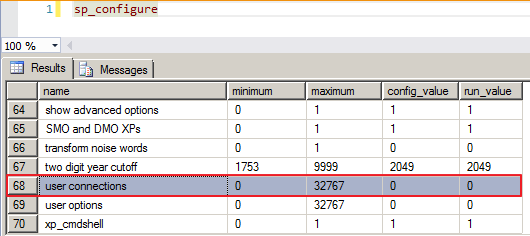
To identify the maximum limit of users configured on the instance (SQL Server's maximum limit is 32,767 connections), you can use one of the commands below:


How to change the maximum number of SQL Server instance connections
To change the maximum number of SQL Server connections, you can use the command below:
USE [master]
GO
EXEC sp_configure 'show advanced options', 1;
GO
RECONFIGURE;
GO
EXEC sp_configure 'user connections', 5000; -- Alterando para 5.000 conexões no máximo
GO
RECONFIGURE;
GO
The user connections option specifies the maximum number of simultaneous user connections allowed on an instance of SQL Server. The actual number of user connections allowed also depends on the version of SQL Server you are using and the limits of your application or applications and hardware. SQL Server allows a maximum of 32,767 user connections.
Because user connections is a dynamic (self-configuring) option, SQL Server adjusts the maximum number of user connections automatically as needed, up to the maximum value allowed. For example, if only 10 users are logged in, 10 user connection objects are allocated. In most cases, you do not need to change the value of this option. The default is 0, which means the maximum allowed user connections (32,767) are allowed.
That's it, folks!
I hope you enjoyed this post and see you later!

Comments (0)
Loading comments...