
Hey guys,
Goodnight.
In this post, I will demonstrate how to solve a very strange problem in SQL Server Reporting Services 2016, which occurs when I was trying to delete some mobile reports and received this error message:
Error invoking authorization extension.
As this message is not at all explanatory, I decided to try to analyze the Reporting Services log files (generally located in “C:\Program Files\Microsoft SQL Server\MSRS13.Sua_Instancia\Reporting Services\LogFiles”) to try to identify some hint as to the source of the problem, but I found the following message in one of the files:
Microsoft.ReportingServices.Portal.WebHost!library!b!12/02/2016-14:22:00:: e ERROR: Throwing Microsoft.ReportingServices.Diagnostics.Utilities.AuthorizationExtensionException: , Microsoft.ReportingServices.Diagnostics.Utilities.AuthorizationExtensionException: Error invoking authorization extension. —> System.NullReferenceException: Object reference not set to an instance of an object.
at Microsoft.ReportingServices.Authorization.SdAndType.GetRightSecDesc(SecurityItemType crtItemType, Hashtable secDescHash, Byte[]& primSecDesc, Byte[]& secSecDesc)
at Microsoft.ReportingServices.Authorization.WindowsAuthorization.InnerCheckAccess(String userName, IntPtr userToken, SecurityItemType itemType, Byte[] secDesc, UInt32& rightsMask, ReportSecDescType rptSecDescType)
at Microsoft.ReportingServices.Authorization.WindowsAuthorization.<>c__DisplayClassa.
at Microsoft.ReportingServices.Diagnostics.RevertImpersonationContext.<>c__DisplayClass1.
at System.Security.SecurityContext.Run(SecurityContext securityContext, ContextCallback callback, Object state)
at Microsoft.ReportingServices.Diagnostics.RevertImpersonationContext.Run(ContextBody callback)
at Microsoft.ReportingServices.Authorization.WindowsAuthorization.CheckAccess(String userName, IntPtr userToken, Byte[] secDesc, FolderOperation requiredOperation)
at Microsoft.ReportingServices.Library.Security.<>c__DisplayClass1f.
at Microsoft.ReportingServices.Diagnostics.ExtensionBoundary.Invoke(Method m)
As you noticed, the error message was not very clear. I decided to try opening the report in the Microsoft SQL Server Mobile Report Publisher tool, and the error message below appeared:
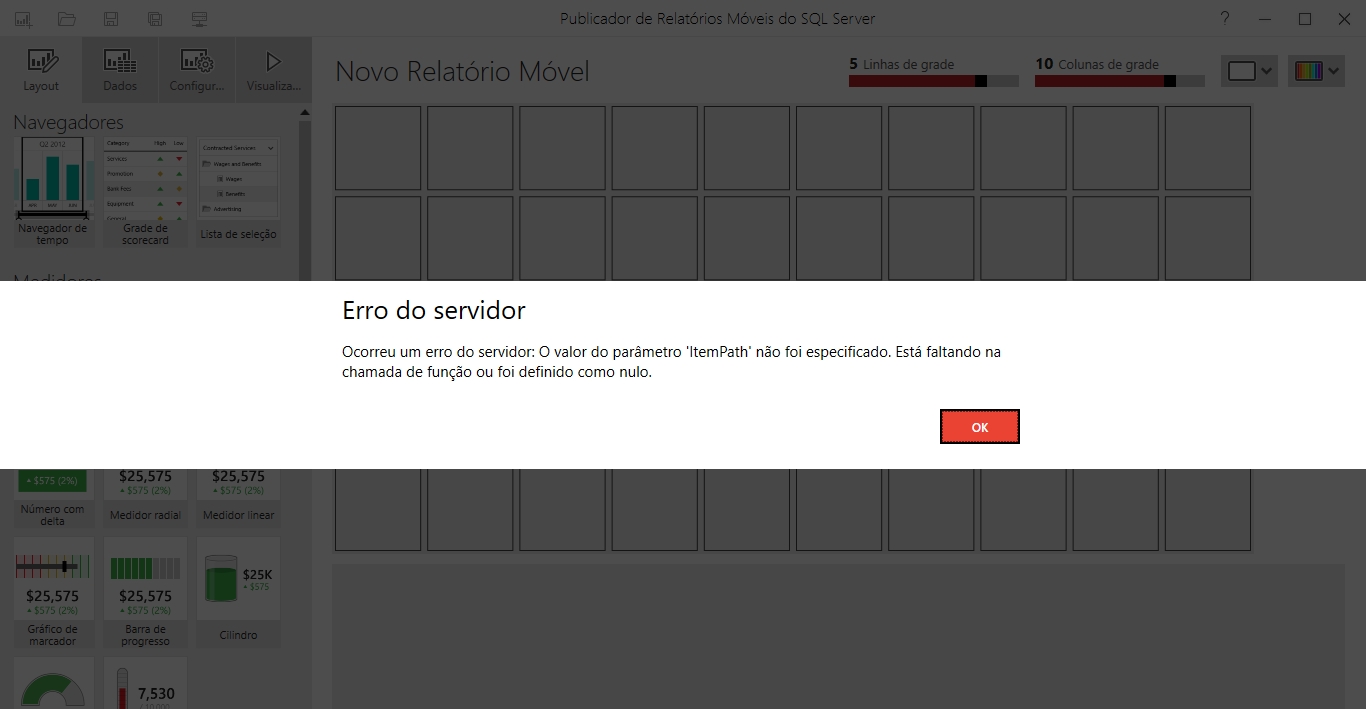
I imagine that this problem occurred because there were reports using a certain dataset, which was deleted without being removed from the report first (The tool should not allow deletion if there are dependencies).
Solving the problem and deleting the files
As I couldn't find any solution using graphical tools, I decided to try to solve this through the database, connecting to the instance where Reporting Services was installed and accessing the ReportServer database.
For those who have never used this database, the 2 main tables are:
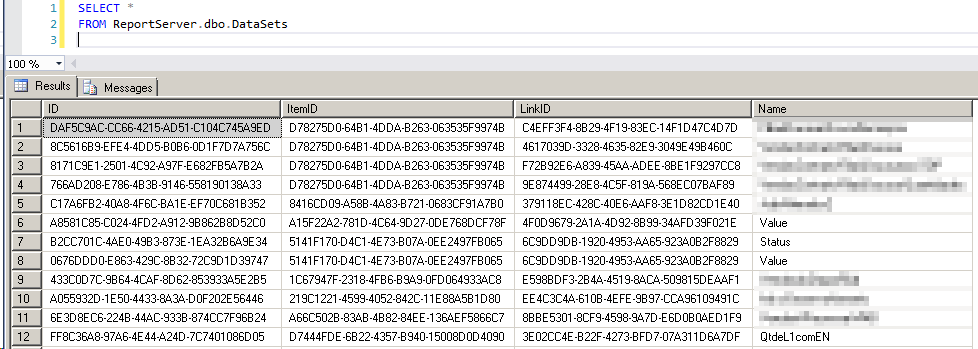
– Datasets: Table that stores the relationships between datasets and reports.
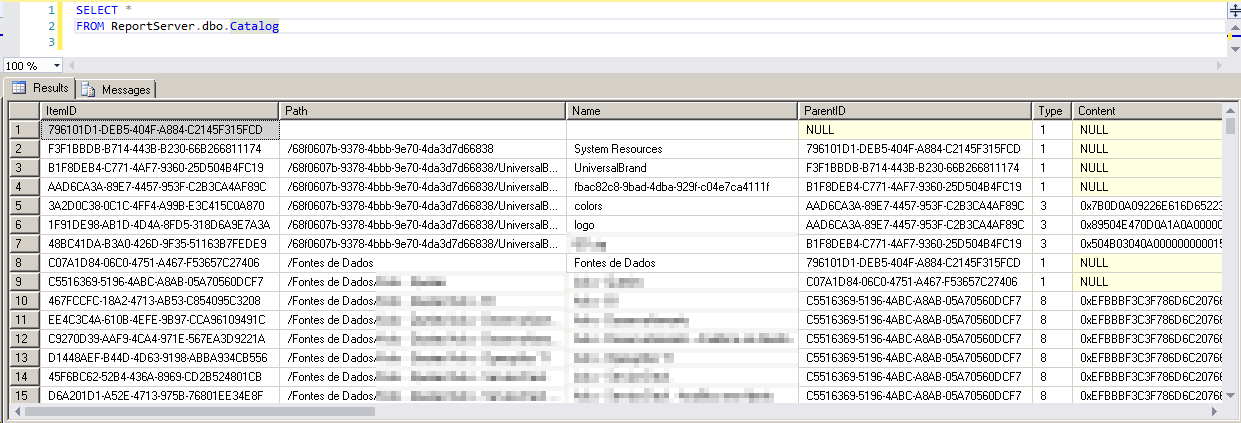
– Catalog: Table that stores the reports and the entire structure and organization of Reporting Services objects. It is the main table of contents.
As there were several reports with this problem, where I was unable to delete them, I moved them to a folder called “Trash” and ran the queries below:
DELETE A
FROM ReportServer.dbo.DataSets A
JOIN ReportServer.dbo.[Catalog] B ON A.ItemID = B.ItemID
WHERE [Path] LIKE '%Lixo%';

DELETE
FROM ReportServer.dbo.[Catalog]
WHERE [Path] LIKE '%Lixo%';
As a result, the “Trash” folder and all objects within it were successfully deleted from the database and no longer appear in the Reporting Services Web Portal.
Manual solution: Editing the report file
Another solution for this would be to download the report file and extract it to a folder (just like you do with a ZIP file). Opening this folder, you will find the file sources.xml, which contains the datasets used by the report.
The file should have content similar to this:
<DataSources>
  <Shared Guid="5430d1fe-c55a-4540-9a6a-d96ca2a39e67" Name="Dataset" WorksheetIndex="0" ServerUri="http://localhost:80/relatorios/" DataItemLocation="/Dataset" Hash="" />
  <Shared Guid="8ea514dc-fc9f-47cf-9fd2-f9e546c4e075" Name="Dataset2" WorksheetIndex="1" ServerUri="http://localhost:80/relatorios/" DataItemLocation="/Dataset2" Hash="" />
</DataSources>
Also edit the file metadata.xml, where this part of the file is what interests us:
<dataSets>
  <dataSet name="Dataset" type="Shared" mrp:DataSourceType="Shared" mrp:Server="http://localhost:80/relatorios/" mrp:OriginalWorksheet="" mrp:OriginalWorksheetIndex="0" mrp:OriginalPath="" mrp:OriginalUser="">
    <id>5430d1fe-c55a-4540-9a6a-d96ca2a39e67</id>
    <path>/Dataset</path>
    <isParameterized>false</isParameterized>
  </dataSet>
  <dataSet name="Dataset2" type="Shared" mrp:DataSourceType="Shared" mrp:Server="http://localhost:80/relatorios/" mrp:OriginalWorksheet="" mrp:OriginalWorksheetIndex="1" mrp:OriginalPath="" mrp:OriginalUser="">
    <id>8ea514dc-fc9f-47cf-9fd2-f9e546c4e075</id>
    <path>/Dataset2</path>
    <isParameterized>false</isParameterized>
  </dataSet>
</dataSets>
Now edit the file definition.xml, which contains all the objects that make up the report, and look for all objects where the input is the name of the excluded dataset. The excerpt we are analyzing are the descendant nodes of the
<GalleryElement Name="SimpleDataGrid" Type="Microsoft.ReportingServices.MobileReportPublisher.Gallery.SimpleDataGrid, Microsoft.ReportingServices.MobileReportPublisher.Gallery, Version=1.0.3895.0, Culture=neutral, PublicKeyToken=89845dcd8080cc91" Accent="False" AggregateByCategory="False" AggregateByTime="False" RowNumbers="Auto">
  <SchemaItem Id="Data" Input="Dataset2" AggregationRule="None" Filters="" />
  <Title>Grade de dados simples 1</Title>
  <SubTitle></SubTitle>
  <ColumnDefinitions>
    <GridViewTextColumnDefinition Title="instance_id" ColumnType="Number" AggregationType="None" IsVisible="True" ValueColumn="instance_id" StringFormat="General" />
    <GridViewTextColumnDefinition Title="job_id" ColumnType="Text" IsVisible="True" ValueColumn="job_id" />
    <GridViewTextColumnDefinition Title="step_id" ColumnType="Number" AggregationType="None" IsVisible="True" ValueColumn="step_id" StringFormat="General" />
    <GridViewTextColumnDefinition Title="step_name" ColumnType="Text" IsVisible="True" ValueColumn="step_name" />
    <GridViewTextColumnDefinition Title="sql_message_id" ColumnType="Number" AggregationType="None" IsVisible="True" ValueColumn="sql_message_id" StringFormat="General" />
    <GridViewTextColumnDefinition Title="sql_severity" ColumnType="Number" AggregationType="None" IsVisible="True" ValueColumn="sql_severity" StringFormat="General" />
    <GridViewTextColumnDefinition Title="message" ColumnType="Text" IsVisible="True" ValueColumn="message" />
    <GridViewTextColumnDefinition Title="run_status" ColumnType="Number" AggregationType="None" IsVisible="True" ValueColumn="run_status" StringFormat="General" />
    <GridViewTextColumnDefinition Title="run_date" ColumnType="Number" AggregationType="None" IsVisible="True" ValueColumn="run_date" StringFormat="General" />
    <GridViewTextColumnDefinition Title="run_time" ColumnType="Number" AggregationType="None" IsVisible="True" ValueColumn="run_time" StringFormat="General" />
    <GridViewTextColumnDefinition Title="run_duration" ColumnType="Number" AggregationType="None" IsVisible="True" ValueColumn="run_duration" StringFormat="General" />
    <GridViewTextColumnDefinition Title="operator_id_emailed" ColumnType="Number" AggregationType="None" IsVisible="True" ValueColumn="operator_id_emailed" StringFormat="General" />
    <GridViewTextColumnDefinition Title="operator_id_netsent" ColumnType="Number" AggregationType="None" IsVisible="True" ValueColumn="operator_id_netsent" StringFormat="General" />
    <GridViewTextColumnDefinition Title="operator_id_paged" ColumnType="Number" AggregationType="None" IsVisible="True" ValueColumn="operator_id_paged" StringFormat="General" />
    <GridViewTextColumnDefinition Title="retries_attempted" ColumnType="Number" AggregationType="None" IsVisible="True" ValueColumn="retries_attempted" StringFormat="General" />
    <GridViewTextColumnDefinition Title="server" ColumnType="Text" IsVisible="True" ValueColumn="server" />
  </ColumnDefinitions>
</GalleryElement>
Lastly, inside the folder "date", delete the .json file whose title is the name of the deleted dataset. Now save everything back to the .RSMOBILE file you downloaded and edited and open that file in Mobile Report Publisher.
Ready. Your report is opening again, without the deleted dataset. You can now publish it again.
I hope you enjoyed the post and see you later.

Comments (0)
Loading comments...