Hey guys!!
In this very quick, objective and short post, I'm going to share a tip for opening SQL Server Configuration Manager when you can't find its shortcut at all. From time to time, I will access a client's environment and when I try to locate the SQL Server Configuration Manager (that tool for configuring SQL services) and I cannot find it in the start menu or in the search:
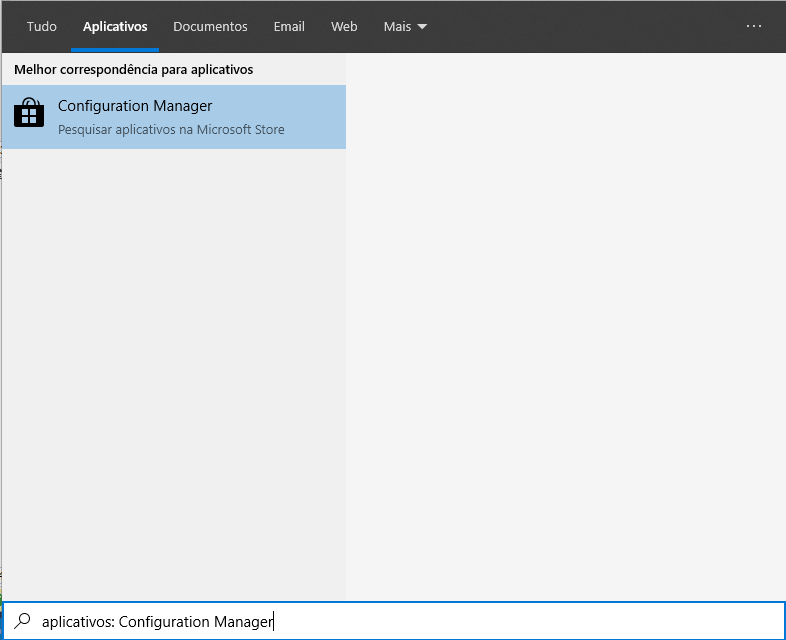
If you can't find SQL Configuration Manager on your server, simply open the Start Menu and type:
- SQLServerManager10.msc (SQL Server 2008)
- SQLServerManager11.msc (SQL Server 2012)
- SQLServerManager12.msc (SQL Server 2014)
- SQLServerManager13.msc (SQL Server 2016)
- SQLServerManager14.msc (SQL Server 2017)
- SQLServerManager15.msc (SQL Server 2019)
Example:
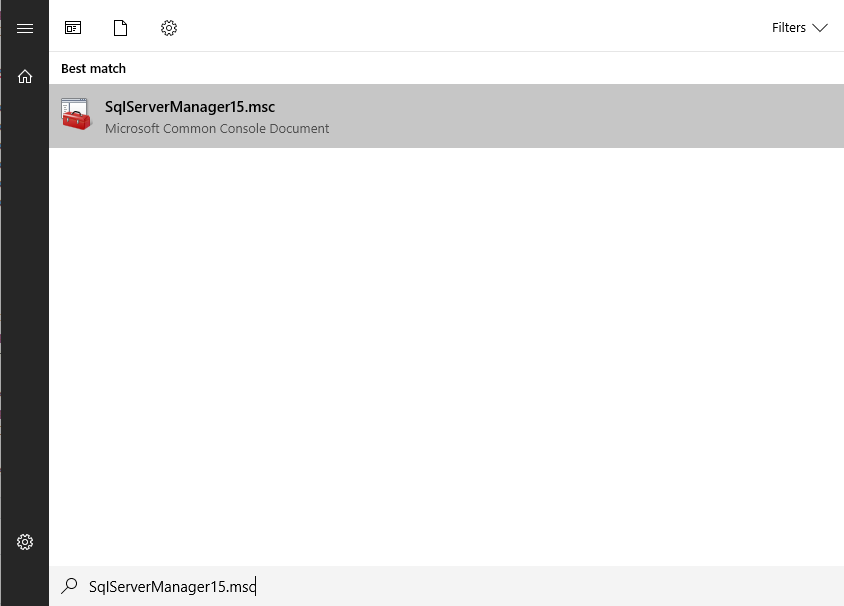
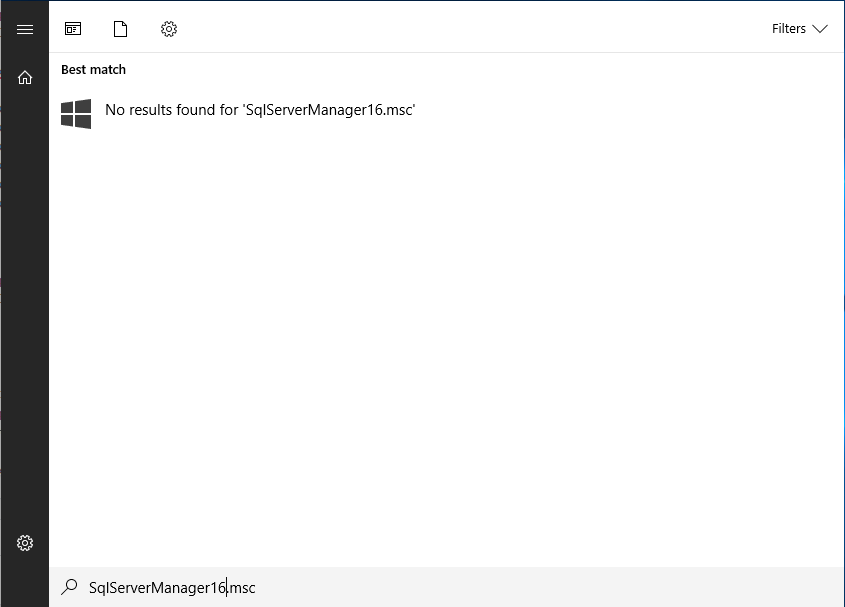
Remembering that it will only return results if this specific version is installed on your server:
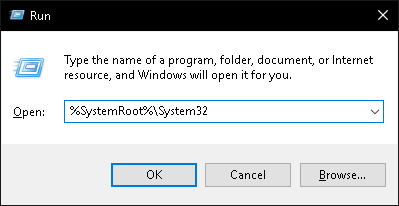
You can also go to Start Menu > Run (Shortcut: WinKey + R) and run these commands:
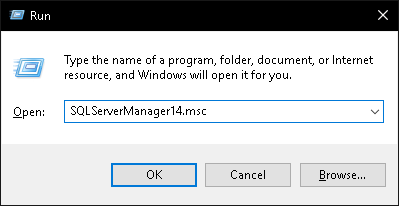
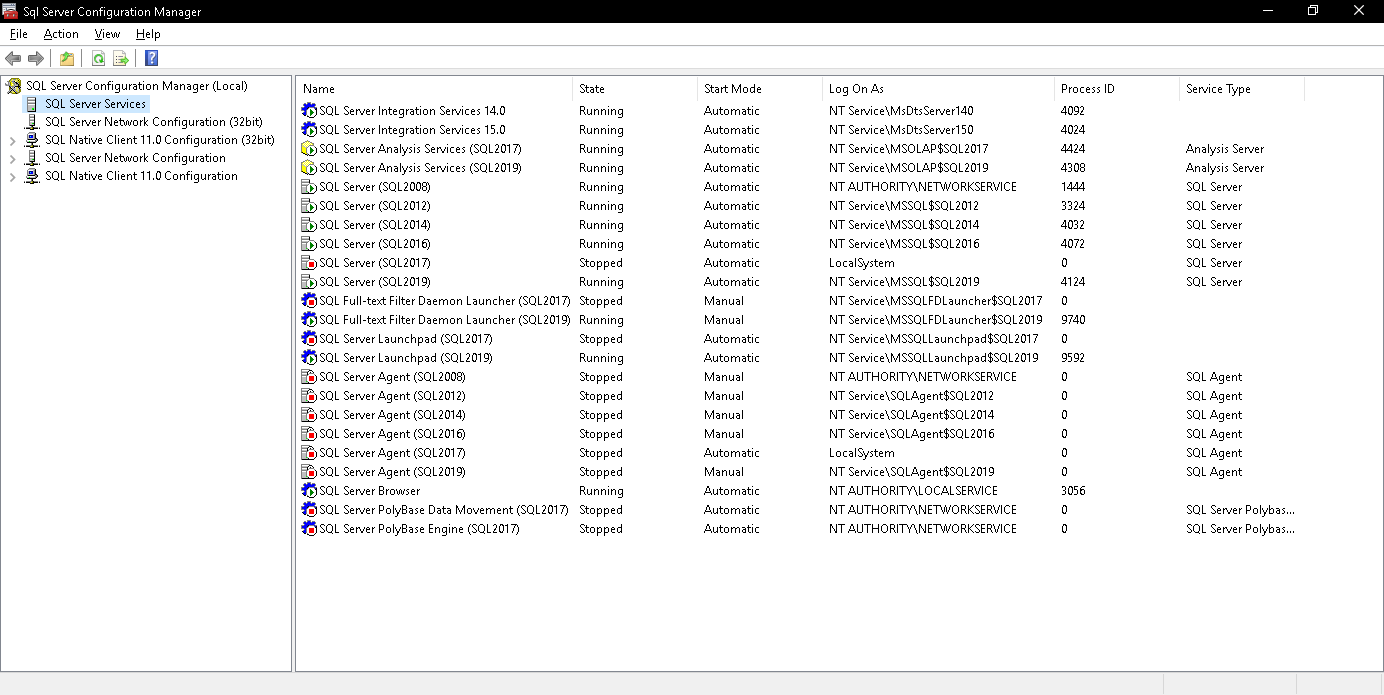
When clicking the “OK” button on the run screen, SQL Server Configuration Manager will open:
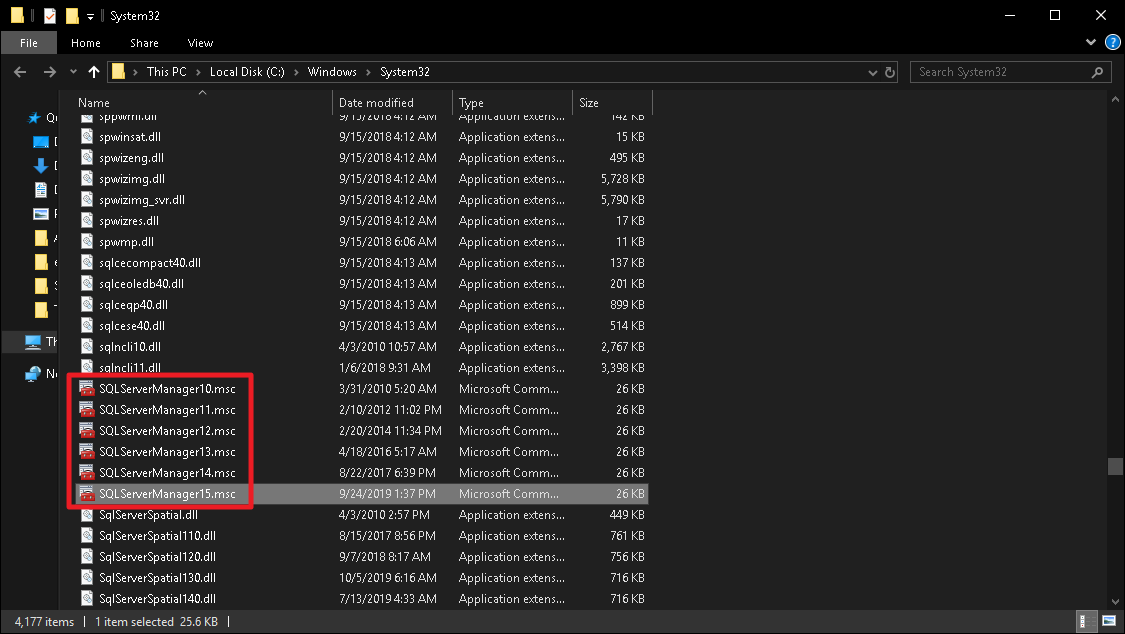
Another easy way to locate this executable is by opening the C:\Windows\System32 (%SystemRoot%\System32) directory:
Once you open this directory, you will be able to find which versions of SQL Server Configuration Manager are installed:
Just double click to open the application:
If you want to make future uses easier, you can also create a shortcut for this application on the desktop, taskbar or wherever you see fit.
And that's it, folks!
I said the post would be quick, small and objective... lol
I hope you liked this tip, which is very useful when you are faced with this situation for the first time.

Comments (0)
Loading comments...