
Hey guys,
Good afternoon!
In this post I will demonstrate how we can access the Windows registry and obtain useful information about the SQL Server instance.
If you want to know how to consult any Windows registry key, as well as make changes to keys and values, access the post SQL Server – How to read, list, create, change and delete Windows Registry keys (Regedit) using the CLR (C#)
Using the sys.dm_server_registry DMV
Available from SQL Server 2008 R2 onwards, the sys.dm_server_registry DMV allows you to easily access registry information relating to the SQL Server instance on which the query is being performed.
The query is very simple:
SELECT * FROM sys.dm_server_registry
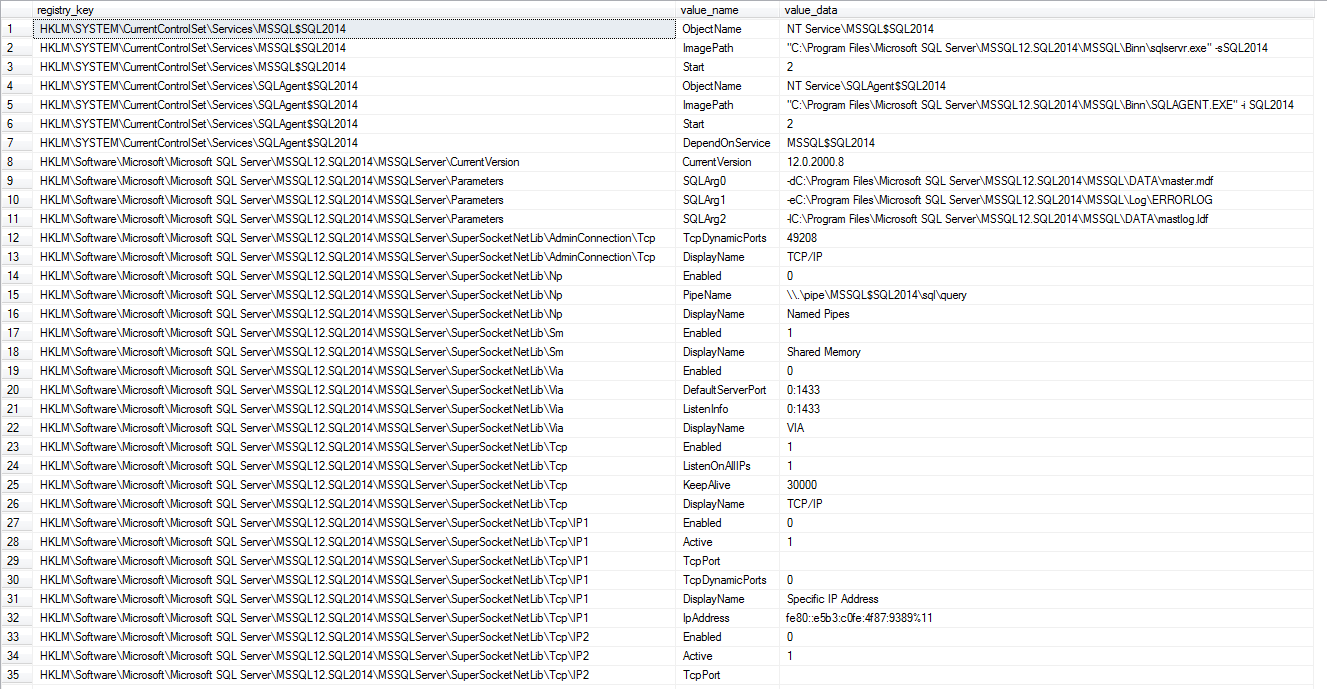
And the result of the query will be something like this:
Now let's compare with the Windows Registry itself (RegEdit):
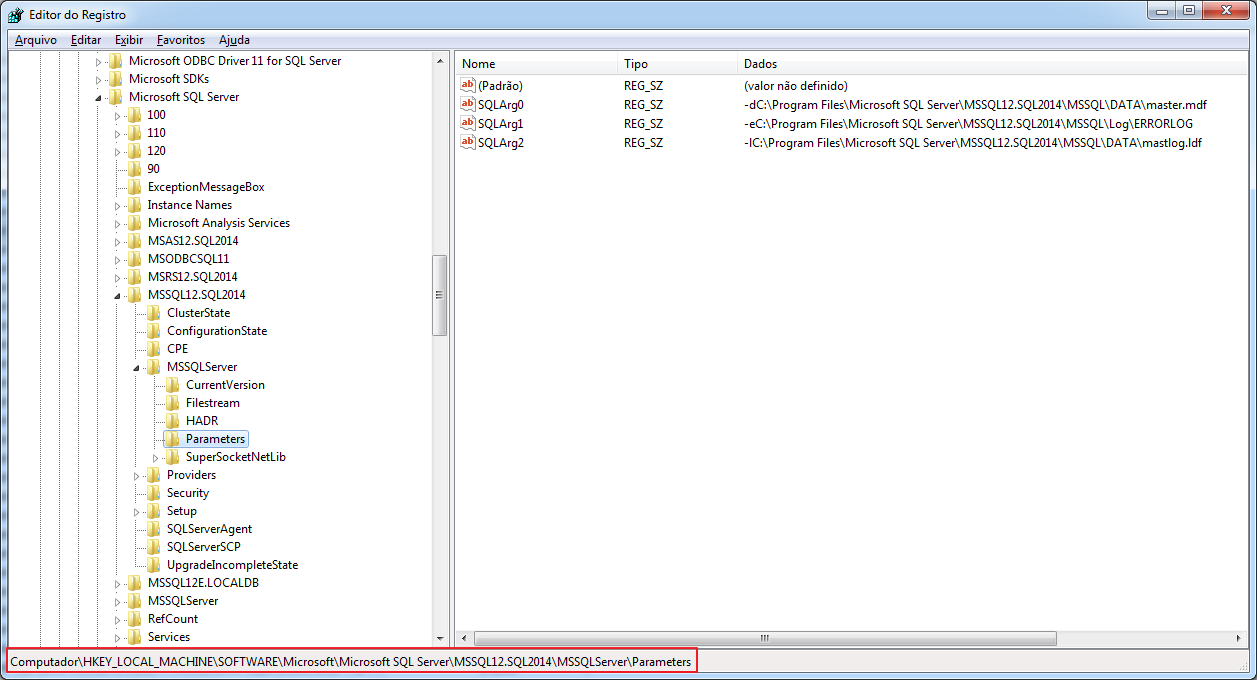
Note that the DMV returns several different keys from the Windows registry and groups them into a single view, so that it makes the DBA's life easier and does not need to consult several keys to obtain the information they need.
If we compare the records under the key “HKLM\Software\Microsoft\Microsoft SQL Server\MSSQL12.SQL2014\MSSQLServer\Parameters”, we will see that they are the same values.
This is very useful for finding out some information about the instance, such as the port used, for example (I already commented on this in the post How to identify the port used by the SQL Server instance)
Using the extended procedure xp_instance_regread
Available from SQL Server 2000 onwards, this extended procedure does not have much documentation on the Internet or from Microsoft itself (as do most XP's), but it is very useful for retrieving and querying instance information in the Windows Registry, mainly because it is available in all versions of SQL Server to date.
Its use is very simple, and unlike DMV, it only returns one record. Therefore, it is not possible to list the keys and values at once, they must be consulted manually. For this reason, the DMV and this procedure have different concepts and purposes.
Example of use to return the instance version:
DECLARE @dir NVARCHAR(4000)

EXEC master.dbo.xp_instance_regread
    N'HKEY_LOCAL_MACHINE',
    N'Software\Microsoft\MSSQLServer\MSSQLServer\CurrentVersion\',
    N'CurrentVersion',
    @dir OUTPUT

SELECT @dir
Note: It is worth remembering that, like other Extended Procedures, an OUTPUT variable with more than 4,000 characters is not allowed as a parameter to receive the returned data.
If an NVARCHAR(4001) or NVARCHAR(MAX) is entered, for example, the OUTPUT variable will generate an error message or will have no value (NULL), in the case of NVARCHAR(MAX).
Using the xp_regread extended procedure
Like XP xp_instance_regread, this procedure is available from version 2000 of SQL Server to current versions and allows you to consult any registry key on the server where the instance is installed.
Anyone who has been following my blog for a while will already know about XP xp_regread through the post SQL Server undocumented extended procedures. If you haven't accessed this post yet, don't waste time! It is worth it.
The big difference between XP and xp_instance_regread is that xp_instance_regread “converts” the path entered, transforming “Microsoft\MSSQLServer” into “Microsoft\Microsoft SQL Server\
Ex: If you enter “Software\Microsoft\MSSQLServer\MSSQLServer\CurrentVersion\”, SP will convert to “HKEY_LOCAL_MACHINE\SOFTWARE\Microsoft\Microsoft SQL Server\MSSQL12.SQL2014\MSSQLServer” (in my case), which is the default installation location of the instance I am connected to.
This is especially important when the server has more than one instance installed. With exactly the same code, you can query your instance's keys without worrying about changing your code's registry key for each instance.
Example of using xp_regread:
DECLARE @dir NVARCHAR(4000)

EXEC master.dbo.xp_regread
    N'HKEY_LOCAL_MACHINE',
    N'SOFTWARE\Microsoft\Microsoft SQL Server\MSSQL12.SQL2014\MSSQLServer\CurrentVersion',
    N'CurrentVersion',
    @dir OUTPUT

SELECT @dir
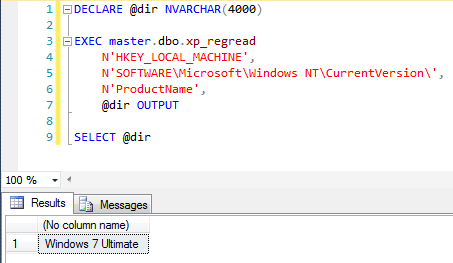
As you can see, using this SP we need to inform the full path of the registry key. However, it allows us to perform queries on any Windows registry key, like the example below:
That's it, guys!
Thanks for visiting and see you in the next post!

Comments (0)
Loading comments...