Hey guys!!
This time, I'm bringing a very useful resource for managing SQL Server instances on shared servers (which have more than 1 instance), which is Resource Governor.
What is Resource Governor
View content
Resource Governor is nothing more than a feature available from SQL Server 2008 Enterprise that gives us the possibility of managing the server's workload and resource consumption, specifying limits on the amount of CPU and memory that incoming requests can use, according to a profile to be defined (based on hostname, user name, AD group, software used, etc.), preventing these users from causing major impacts on the environment as a whole.
An important observation to be said is that Resource Governor received an important upgrade from SQL Server 2014, which is the possibility of controlling and managing the I/O load of received requests, allowing you to limit the maximum amount of IOPS used for certain profiles.
Not only determining maximum quantities, Resource Governor can also be used to define minimum quantities of resources that will be used by the profile (Pool) and ensure that these defined quantities are always available for these sessions.
Resource Governor is widely used to limit certain database access profiles and prevent sessions from different instances from having to compete for server resources with each other. Some examples where the use of Resource Governor can be implemented:
limit the maximum IOPS usage of ad-hoc user queries
limit the maximum CPU usage of instance jobs
limit the maximum amount of memory used on a specific system
limit the maximum IOPS usage of users who are part of a certain AD group
set the maximum amount of parallelism of queries for a given profile
How Resource Governor works
View content
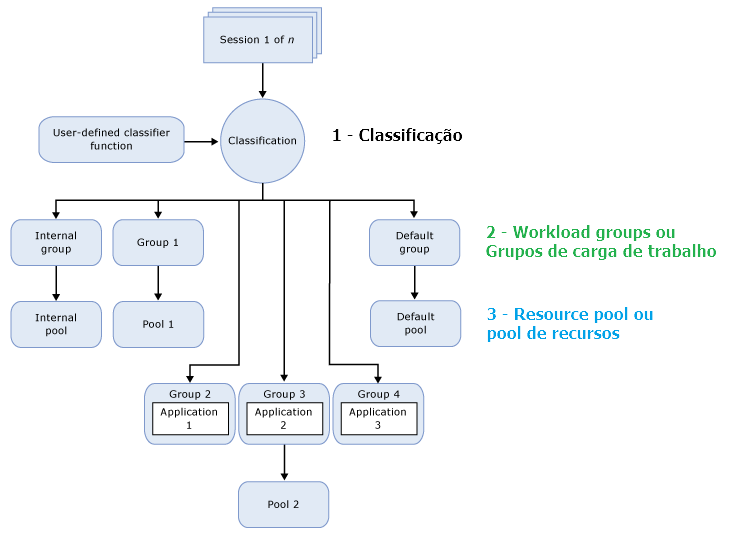
The internal functioning of Resource Governor comes down to three main components (Classifier Function, Workload Group and Resource Pool), and they act as follows:
A new connection is created and a request is made by this session (Session 1 of n).
The session is classified according to pre-defined criteria by the Classifier function. These criteria can be user name, AD group they are part of, system role or database role they are part of, name of the software used, etc.
The session request is routed to a workload group according to the return from the classification function, for example, Group 4.
The workload group uses the resource pool it is associated with, for example, Pool 2.
The resource pool provides and limits the resources required by the application, for example, Application 3.
Classification functions or Classifier Functions are functions created by the user in the “master” database, which will be automatically applied to all new connections made to the instance that has Resource Governor enabled.
These functions will return the name of the workload group to be used by this new connection and based on the logic implemented by it, which can use native functions in SQL Server such as HOST_NAME(), APP_NAME(), SUSER_NAME(), SUSER_SNAME(), IS_SRVROLEMEMBER() and IS_MEMBER() to determine criteria to classify the session and determine which workload group will be used when program_name like '%Management Studio%', for example.
For this reason, it is important to keep in mind that a poorly implemented function or one that uses a lot of resources to assign sessions can end up causing a major performance problem in the instance. For this reason, it is good practice to enable the DAC connection to allow connection to the instance bypassing the use of the sort function. If you don't do this and need to
If you have not created a classification function, or have not assigned the function to the Resource Governor or the function returns “default”, NULL or the name of a group returned by the function does not exist, this session will be routed to the “default” workload group.
It is worth mentioning that only one classification function can be used by the Resource Governor and, as the function is created using the WITH SCHEMABINDING parameter, it can only be removed or changed if you remove the function's association with the Resource Governor, using the command
ALTER RESOURCE GOVERNOR WITH (CLASSIFIER_FUNCTION=NULL).
Example of creation
CREATE FUNCTION fncClassifica_ResourceGovernor()
RETURNS SYSNAME
WITH SCHEMABINDING
AS
BEGIN

    DECLARE @grp_name AS SYSNAME

    IF (SUSER_NAME() = 'Report_User')
        SET @grp_name = 'Group1'

    IF (APP_NAME() LIKE '%Management Studio%')
        SET @grp_name = 'Group2'

    RETURN @grp_name

END
GO

ALTER RESOURCE GOVERNOR WITH (CLASSIFIER_FUNCTION=dbo.fncClassifica_ResourceGovernor)
ALTER RESOURCE GOVERNOR RECONFIGURE
Workload groups are like containers for requests with similar criteria. Each workload group is associated with a resource pool, and a resource pool can be associated with N workload groups.
The workload group of a session is defined through the Classifier function and it has some very important functions and limitations, such as defining the importance of requests that are part of the workload group.
Through the parameter IMPORTANCE = { LOW | MEDIUM (Default) | HIGH }, you can define that requests from this workload group will have priority over connections from another workload group that are using the same resource pool (this parameter does not affect requests that are using another resource pool). This value is used to define the order of the list of requests from the same scheduler. If you have other schedulers available, 1 query with LOW importance and 1 query with HIGH importance, the 2 queries can be executed concurrently.
The REQUEST_MAX_MEMORY_GRANT_PERCENT parameter specifies the maximum amount (in %) of memory that a connection can take from the pool. Note that specifying this value to 0 will prevent queries that use SORT and HASH JOIN from executing.
The REQUEST_MAX_CPU_TIME_SEC parameter allows you to define the maximum time, in seconds, that a query can execute (the default value is 0, i.e., no limit). If the request exceeds the time limit, a trace event will be generated. Until the SQL Server 2017 CU3 version, the session was not interrupted when it reached this limit, but from this version onwards, this can be configured using traceflag 2422.
The MAX_DOP parameter allows you to define the maximum amount of parallelism (Maximum Degree Of Parallelism – MAXDOP) of requests made in the workload group, where the default value is 0 and the allowed values are between 0 and 64. This configuration overrides the sp_configure 'max degree of parallelism' parameter and also the query hint OPTION(MAXDOP N).
The GROUP_MAX_REQUESTS parameter defines the maximum number of simultaneous requests executed by the workload group. The default value is 0, i.e. no limitation. When this number is reached, new connections will be in wait state until the number of simultaneous requests drops below the maximum.
Example of creation
CREATE WORKLOAD GROUP [Group1]
WITH (
    GROUP_MAX_REQUESTS=0,
    IMPORTANCE=LOW,
    REQUEST_MAX_CPU_TIME_SEC=2,
    REQUEST_MAX_MEMORY_GRANT_PERCENT=25,
    REQUEST_MEMORY_GRANT_TIMEOUT_SEC=0,
    MAX_DOP=0
) USING [PoolA]
GO
The resource pool represents the server's physical resources. You can think of the pool as a virtual SQL Server instance within a SQL Server instance. Two resource pools (internal and default) are created when SQL Server is installed and you can create more pools as per your need (maximum 64 user pools).
The internal pool is used for SQL Server background processes and takes priority over any other pool. If he needs all the resources available in the instance, he will use them. In addition to the internal pool, there is also the default pool, which is used for the rest of the connections that have not been classified to use the internal pool or the user's custom pools.
When you create a pool, you must specify the maximum and minimum CPU, Memory, and I/O (IOPS) limits.
The MIN_CPU_PERCENT parameter allows you to specify the minimum CPU value used by all pool requests, and is especially useful when CPU contention occurs, as SQL Server will ensure that this value is available for use by connections in this pool. If the pool is not in use, this reserved CPU will be available for use by other pools until the pool in question has connections again.
The MAX_CPU_PERCENT parameter allows you to specify the maximum % of CPU that pool requests can use on the instance. Note that the maximum CPU percentage is an opportunistic maximum. If CPU capacity is available, the workload will use it up to 100%. The maximum value will only be applied when there is contention for CPU resources.
The CAP_CPU_PERCENT parameter defines a “true” maximum limit of CPU usage by the pool. Workloads associated with the pool can use CPU capacity above the MAX_CPU_PERCENT value when it is available, but not above the CAP_CPU_PERCENT value.
The MIN_MEMORY_PERCENT parameter allows you to specify and reserve a minimum amount of memory that will always be pre-allocated on the instance for the pool, regardless of whether the pool is being used or not.
It is worth remembering that the sum of the minimum value of all pools cannot be greater than 100% and the value of the pool's MAX_CPU_PERCENT parameter must be greater than the value of the MIN_CPU_PERCENT parameter.
The MIN_IOPS_PER_VOLUME and MAX_IOPS_PER_VOLUME parameters are used to determine the minimum and maximum amounts of IOPS used by the pool's connections.
Example of creation
CREATE RESOURCE POOL [PoolA]
WITH (
    MIN_CPU_PERCENT=0,
    MAX_CPU_PERCENT=20,
    CAP_CPU_PERCENT=20,
    MIN_MEMORY_PERCENT=0,
    MAX_MEMORY_PERCENT=30,
    AFFINITY SCHEDULER = AUTO,
    MIN_IOPS_PER_VOLUME=0,
    MAX_IOPS_PER_VOLUME=300
)
GO
Now that we've seen how Resource Governor works in theory, let's put everything into practice in the example below:
USE [master]
GO

----------------------------------------------------------------------------------------------
-- "Limpeza" do Resource Governor
----------------------------------------------------------------------------------------------

ALTER RESOURCE GOVERNOR WITH (CLASSIFIER_FUNCTION=NULL)
GO

ALTER RESOURCE GOVERNOR RECONFIGURE
GO

ALTER RESOURCE GOVERNOR DISABLE
GO

IF (EXISTS(SELECT NULL FROM sys.resource_governor_workload_groups WHERE [name] = 'Grupo1')) DROP WORKLOAD GROUP [Grupo1]
GO

IF (EXISTS(SELECT NULL FROM sys.resource_governor_resource_pools WHERE [name] = 'PoolA')) DROP RESOURCE POOL [PoolA]
GO

IF (OBJECT_ID('dbo.fncClassifica_ResourceGovernor') IS NOT NULL) DROP FUNCTION dbo.fncClassifica_ResourceGovernor
GO


----------------------------------------------------------------------------------------------
-- Criação do Pool de Recursos
----------------------------------------------------------------------------------------------

CREATE RESOURCE POOL [PoolA]
WITH (
    MIN_CPU_PERCENT=0,
    MAX_CPU_PERCENT=20,
    CAP_CPU_PERCENT=20,
    MIN_MEMORY_PERCENT=0,
    MAX_MEMORY_PERCENT=30,
    AFFINITY SCHEDULER = AUTO,
    MIN_IOPS_PER_VOLUME=0,
    MAX_IOPS_PER_VOLUME=300
)
GO


----------------------------------------------------------------------------------------------
-- Criação do Workload Group
----------------------------------------------------------------------------------------------

CREATE WORKLOAD GROUP [Grupo1]
WITH (
    GROUP_MAX_REQUESTS=0,
    IMPORTANCE=LOW,
    REQUEST_MAX_CPU_TIME_SEC=2,
    REQUEST_MAX_MEMORY_GRANT_PERCENT=25,
    REQUEST_MEMORY_GRANT_TIMEOUT_SEC=0,
    MAX_DOP=0
) USING [PoolA]
GO


----------------------------------------------------------------------------------------------
-- Criação da função de classificação
----------------------------------------------------------------------------------------------

CREATE FUNCTION fncClassifica_ResourceGovernor()
RETURNS SYSNAME
WITH SCHEMABINDING
AS
BEGIN

    DECLARE @grp_name AS SYSNAME, @Usuario VARCHAR(200) = SUSER_NAME(), @Programa VARCHAR(200) = APP_NAME()

    IF (@Usuario = 'Report_User')
        SET @grp_name = 'Grupo1'
    ELSE IF (@Programa LIKE '%Management Studio%')
        SET @grp_name = 'Grupo2'


    RETURN @grp_name

END
GO


----------------------------------------------------------------------------------------------
-- Habilita o Resource Governor, aplica a função de classificação e confirma as alterações
----------------------------------------------------------------------------------------------

ALTER RESOURCE GOVERNOR WITH (CLASSIFIER_FUNCTION=dbo.fncClassifica_ResourceGovernor)
GO

ALTER RESOURCE GOVERNOR RECONFIGURE
GO
Result:
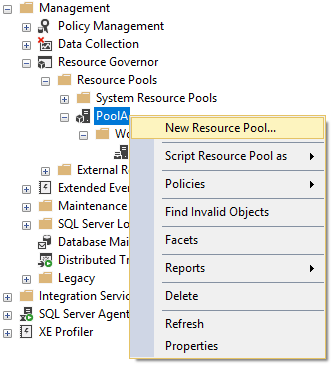
If you prefer, you can also use the Management Studio interface (GUI) to configure the Resource Group and Workload group:
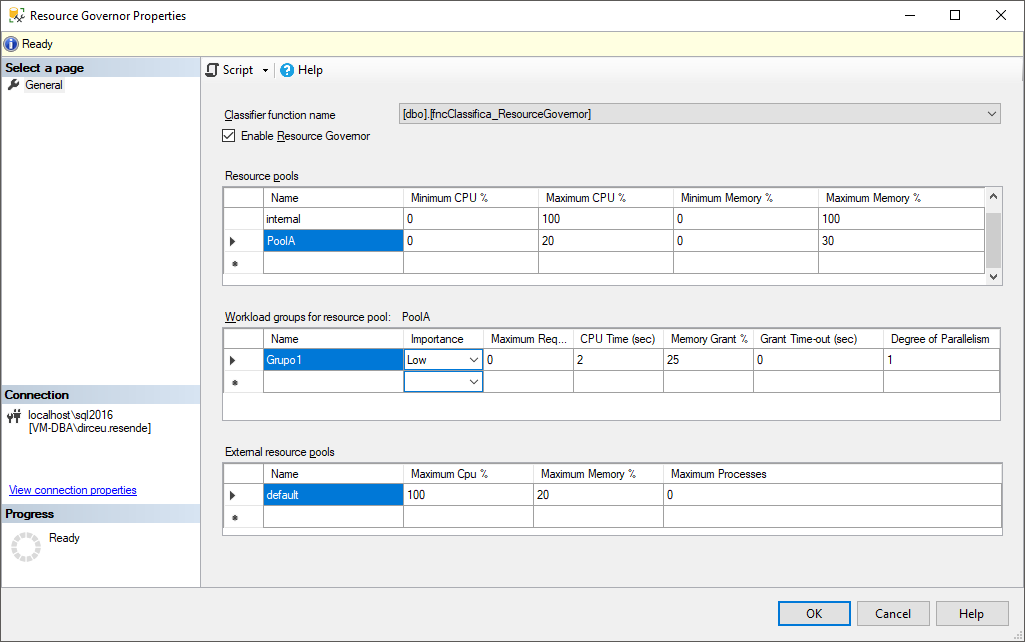
And with that, open the Resource Group and Workload group editing/creation interface (it's the same interface for both):
It is worth remembering that not all parameters are available in the SQL Server Management Studio interface (I tested in version 17.4), such as, for example, I/O parameters. Therefore, I suggest you use the command line to manage Resource Governor.
Testing Resource Governor
View content
For those who have never used or tested Resource Governor, the following questions may arise:
– And query performance? Will it change after implementing this feature?
– Does Resource Governor really work?
– Is it really possible to limit resources, such as disk, for certain sessions?
Let's do a simple test to prove this:
Create a counter in Windows Perfmon (Performance Monitor) to monitor the Disk Read IO/sec counter of the MSSQL$SQL2016:Resource Pool Stats object.
Create a Resource Pool, limiting the maximum amount of IOPS (MAX_IOPS_PER_VOLUME) to 200.
Run the command DBCC CHECKDB (dirceuresende ) WITH NO_INFOMSGS
Wait a few seconds and change the resource pool, increasing the maximum amount of IOPS by 2,000.
Run the DBCC CHECKDB (dirceuresende ) WITH NO_INFOMSGS command again
Collect results and compare graphs
After carrying out these steps, let's analyze the result:
As seen in the graph, Resource Governor fulfilled its role and correctly limited the amount of disk IOPS used to 200 IOPS. After increasing the limit to 2,000 IOPS, we were able to observe that the disk managed to reach 1,000 IOPS and could not exceed this value due to hardware limitations, where it can also be seen that due to the higher IOPS consumption limit, the time to execute checkdb was shorter.
How to disable Resource Governor
View content
To disable Resource Governor on your instance, simply use the commands below:
ALTER RESOURCE GOVERNOR WITH (CLASSIFIER_FUNCTION = NULL)
GO

ALTER RESOURCE GOVERNOR RECONFIGURE;
GO

ALTER RESOURCE GOVERNOR DISABLE;
GO
Remembering that current connections must be terminated (or restart the instance), otherwise the Resource Governor will continue to be active and you will receive this error message:
Msg 10904, Level 16, State 2, Line 11
Resource governor configuration failed. There are active sessions in workload groups being dropped or moved to different resource pools. Disconnect all active sessions in the affected workload groups and try again.
To also exclude Workloads groups and Resource Pools, you can also use the commands below:
ALTER RESOURCE GOVERNOR WITH (CLASSIFIER_FUNCTION = NULL)
GO

DECLARE @Query VARCHAR(MAX) = ''


SELECT @Query += 'DROP WORKLOAD GROUP ' + QUOTENAME(name) + ';'
FROM sys.resource_governor_workload_groups
WHERE [name] not in ('internal','default');

EXEC(@Query)

SET @Query = ''

SELECT @Query += 'DROP RESOURCE POOL ' + QUOTENAME([name]) + ';'
FROM sys.resource_governor_resource_pools
WHERE [name] NOT IN ('internal','DEFAULT');

EXEC(@Query)


ALTER RESOURCE GOVERNOR RECONFIGURE;
GO

ALTER RESOURCE GOVERNOR DISABLE;
GO
Monitoring Resource Governor usage
View content
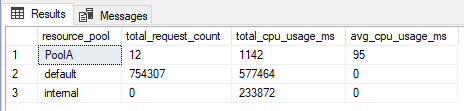
After activating Resource Governor, you can monitor resource pool CPU usage at a glance using the query below:
SELECT
    A.[name] AS resource_pool,
    COALESCE(SUM(B.total_request_count), 0) AS total_request_count,
    COALESCE(SUM(B.total_cpu_usage_ms), 0) AS total_cpu_usage_ms,
    (CASE WHEN SUM(B.total_request_count) > 0 THEN SUM(B.total_cpu_usage_ms) / SUM(B.total_request_count) ELSE 0 END) AS avg_cpu_usage_ms
FROM
    sys.dm_resource_governor_resource_pools AS A
    LEFT OUTER JOIN sys.dm_resource_governor_workload_groups AS B ON A.pool_id = B.pool_id
GROUP BY
    A.[name]
Result:
Or monitor all CPU parameters of pools and workload groups:
SELECT
    A.[name] AS resource_pool,
    B.[name] AS workload_group,
    A.total_cpu_usage_ms,
    A.min_cpu_percent,
    A.max_cpu_percent,
    A.cap_cpu_percent,
    A.total_cpu_delayed_ms,
    A.total_cpu_active_ms,
    A.total_cpu_violation_delay_ms,
    A.total_cpu_violation_sec,
    A.total_cpu_usage_preemptive_ms,
    B.total_cpu_limit_violation_count,
    B.total_cpu_usage_ms,
    B.max_request_cpu_time_ms,
    B.request_max_cpu_time_sec,
    B.total_cpu_usage_preemptive_ms
FROM
    sys.dm_resource_governor_resource_pools AS A
    LEFT OUTER JOIN sys.dm_resource_governor_workload_groups AS B ON A.pool_id = B.pool_id
You can also monitor the I/O usage of resource pools using the query below:
You can also use the query below to check which workload group is used by the active sessions currently running:
SELECT
    B.[name],
    A.*
FROM
    sys.dm_exec_sessions AS A WITH (NOLOCK)
    LEFT JOIN sys.dm_resource_governor_workload_groups B ON A.group_id = B.group_id
WHERE
    A.session_id > 50
    AND A.session_id <> @@SPID
    AND (A.[status] != 'sleeping' OR (A.[status] = 'sleeping' AND A.open_transaction_count > 0))
Below, I will list some good practices to use in Resource Governor to avoid future problems when using this resource:
Using the DAC: Because all new connections go through the Resource Governor classification function, a problem in this function can make it difficult to access the instance to fix the problem. To easily get around this, you can enable and use the DAC (Dedicated Administrator Connection) on your instance, and thus be able to log in and change the classification function. If you don't know how to do this, read this post Enabling and using dedicated remote administrator connection (DAC) in SQL Server.
Beware of the sorting function: As mentioned above, a coding error in the classification function can lead to very bad effects in your instance. To do this, avoid using functions or resources that can increase the response time of this function as much as possible. If the function needs to query a physical table, ensure that access is fast enough and the indexes are satisfying the conditions of this query.
Default Pool and Default Workgroup: A good practice when using Resource Governor is to leave a portion of the resources available for the default pool and the default workload group. This is important because all sessions that are not internal SQL Server processes and cannot be classified into any custom pool will be part of the default pool. If this pool does not have necessary resources available, these requests may experience slowdown issues.
Always monitor: After implementing Resource Governor, you must always be attentive and monitor the flow of requests and validate that they are being directed to the correct workload groups, in addition to monitoring possible new needs that require a change in the classification function
Be careful with memory settings: As already mentioned in this post, the memory settings are pre-allocated when creating the pool, that is, even if the pool does not have any active connection and is not using this pre-allocated memory, it will continue to be reserved by the pool.






Comments (0)
Loading comments...