
Hey guys,
Good morning!
In this post I will show you how to identify the port used by the SQL Server instance. As you may know, the default port for TCP/IP connections is 1433 and for UDP connections it is 1434. However, if you have more than one installation on the same server, it will be possible to use these ports for only one of the instances, making it interesting for us to identify this information.
Identifying the port by reading SQL Server error logs
The SQL Server error log is a great place to know what happens to your SQL Server instance. Using the extended stored procedure xp_readerrorlog, we can easily obtain this information.
EXEC master.dbo.xp_readerrorlog 0, 1, N'Server is listening on', 'ipv', NULL, NULL, N'asc'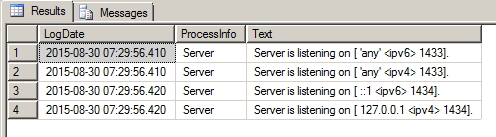
Identifying the port by catalog views (DMV)
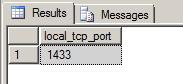
Another quick way to obtain information is by consulting system catalog views (DMV’s), as per the examples below:
SELECT TOP 1 local_tcp_port
FROM sys.dm_exec_connections
WHERE local_tcp_port IS NOT NULL
Using the sys.dm_server_registry DMV (Only from SQL Server 2008 R2):
SELECT value_data
FROM sys.dm_server_registry
WHERE registry_key LIKE '%IPALL%'
AND value_name LIKE 'Tcp%Port%'
AND NULLIF(value_data, '') IS NOT NULL
Identifying the port via the Windows registry
An alternative as practical as the first would be to perform a T-SQL Query querying data from the Windows registry through the extended stored procedure xp_regread.
DECLARE @Instancia NVARCHAR(50)
DECLARE @Porta VARCHAR(100)
DECLARE @RegKey_Instancia NVARCHAR(500)
DECLARE @RegKey NVARCHAR(500)

SET @Instancia = CONVERT(NVARCHAR, ISNULL(SERVERPROPERTY('INSTANCENAME'), 'MSSQLSERVER'))


-- SQL Server 2000
IF ( SELECT CONVERT( VARCHAR (1), (SERVERPROPERTY ('ProductVersion'))) ) = 8
BEGIN

    IF (@Instancia = 'MSSQLSERVER')
        SET @RegKey = 'SOFTWARE\Microsoft\' + @Instancia + '\MSSQLServer\SuperSocketNetLib\TCP\'
    ELSE
        SET @RegKey = 'SOFTWARE\Microsoft\Microsoft SQL Server\' + @Instancia + '\MSSQLServer\SuperSocketNetLib\TCP\'

    EXEC master.dbo.xp_regread
        @rootkey = 'HKEY_LOCAL_MACHINE',
        @key = @RegKey,
        @value_name = 'TcpPort',
        @value = @Porta OUTPUT

    SELECT @@SERVERNAME AS Servidor, @Instancia AS Instancia, @Porta AS Porta

END


-- SQL Server 2005 ou superiores
IF ( SELECT CONVERT( VARCHAR (1), (SERVERPROPERTY ('ProductVersion'))) ) <> 8
BEGIN

    SET @RegKey_Instancia = 'SOFTWARE\Microsoft\Microsoft SQL Server\Instance Names\SQL'

    EXEC master.dbo.xp_regread
        @rootkey = 'HKEY_LOCAL_MACHINE',
        @key = @RegKey_Instancia,
        @value_name = @Instancia,
        @value = @Porta OUTPUT

    SET @RegKey = 'SOFTWARE\Microsoft\Microsoft SQL Server\' + @Porta + '\MSSQLServer\SuperSocketNetLib\TCP\IPAll'

    EXEC master.dbo.xp_regread
        @rootkey = 'HKEY_LOCAL_MACHINE',
        @key = @RegKey,
        @value_name = 'TcpPort',
        @value = @Porta OUTPUT

    SELECT @@SERVERNAME AS Servidor, @Instancia AS Instancia, @Porta AS Porta

END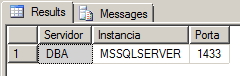
Identifying the port with SQL Server Configuration Manager
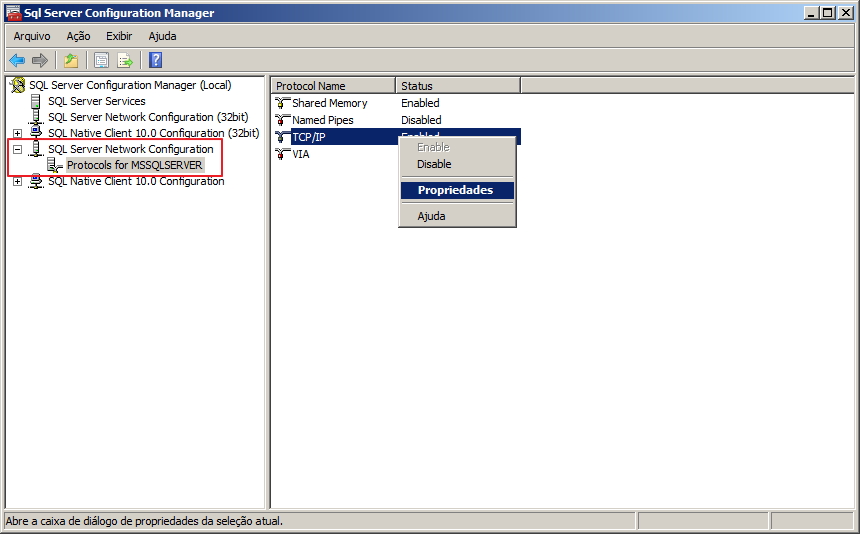
Another alternative for this, if you have access to the server, is using SQL Server Configuration Manager.
To open this utility, simply use the Start Menu > Programs > Microsoft SQL Server 2008 R2 (Or its version) > Configuration Tools and open the application SQL Server Configuration Manager.
A quicker alternative is to open the Run menu, and type SQLServerManager10.msc (10 represents the version of your SQL Server)
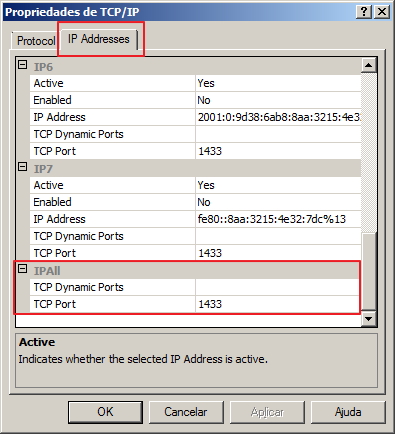
Identifying the port with the Server Event Viewer
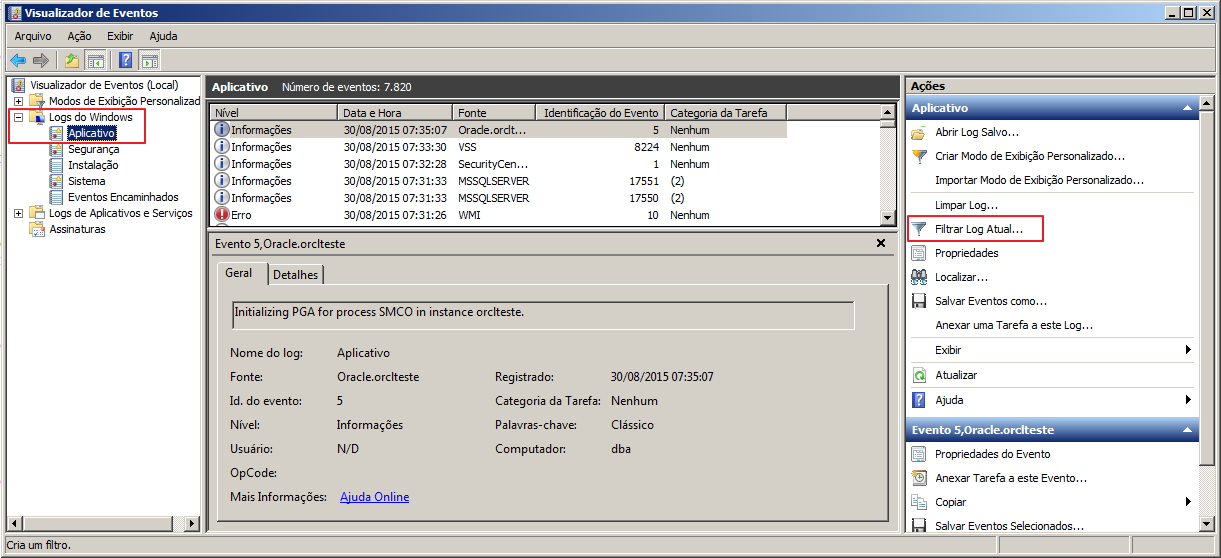
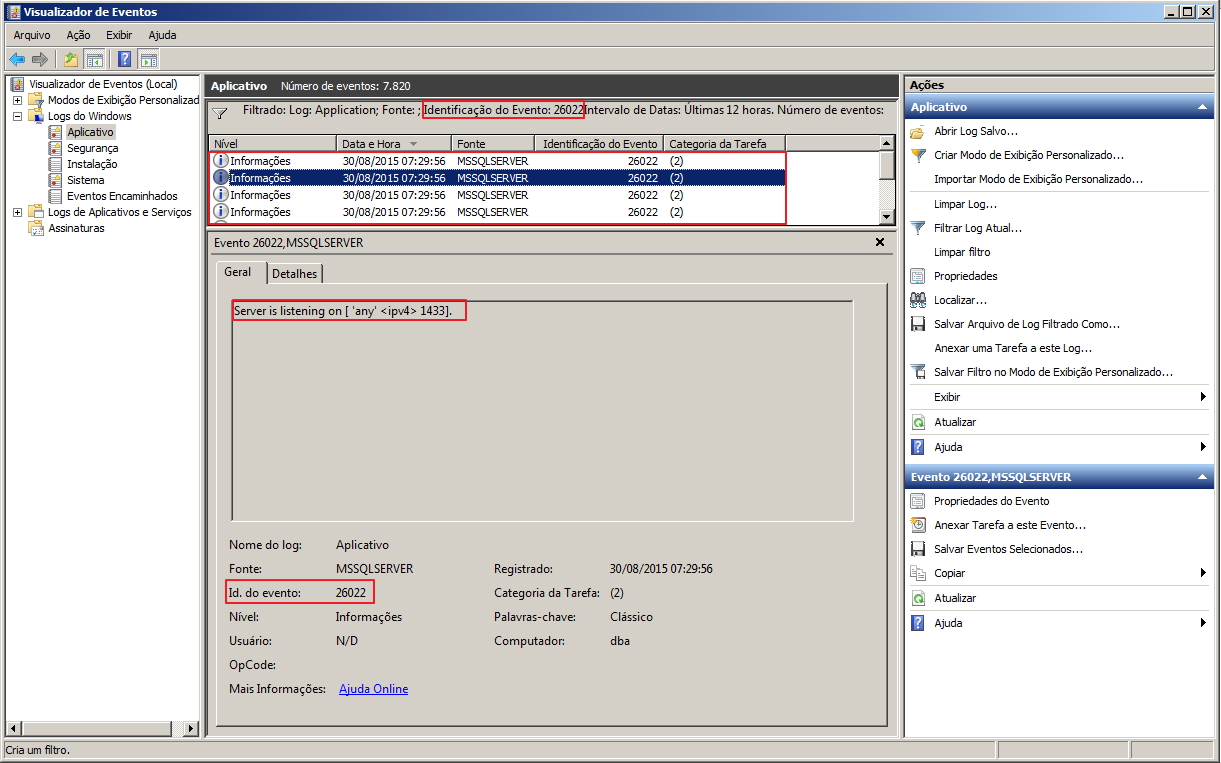
Finally, we can check the port used by our instance by consulting the Application event log.
To open this application, you must go to: Control Panel > Administrative Tools > Event Viewer Or open the Run menu and type: eventvwr.msc
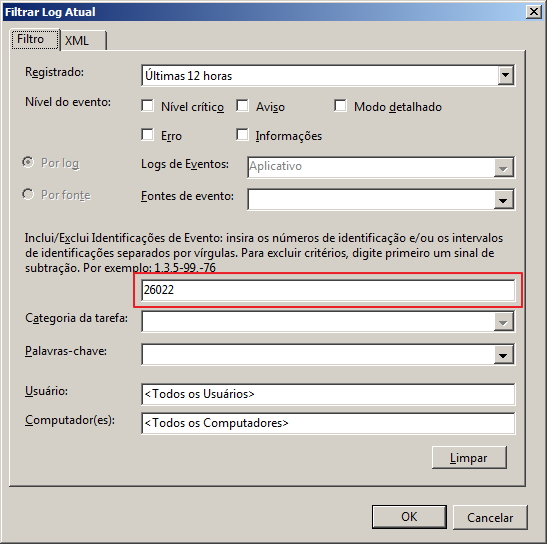
In the left panel, expand the “Windows Log” menu and then select the “Application” option. In the right panel, click on the “Filter current log” option and filter by event ID 26022
That's it, folks!
Until next time!

Comentários (0)
Carregando comentários…