Hey guys!
On the holiday of 05/01, I took the beta test “DP-300 – Administering Relational Databases on Microsoft Azure”, which is focused on DBA's who work or want to work with Azure and wanted to share tips for taking a smooth exam at home, especially because of COVID-19.
The first challenge for this test was taking the exam at home for the first time. The experience initially wasn't the best, as I didn't have the right tips to take the exam at home and I almost missed the deadline to take the test, but then everything went well and now I just want to take the test at home... lol
Prerequisites and Care Before Thinking about Taking the Test:
- To take the exam, you will need a good internet connection, a webcam where your face appears at all times and a microphone (can be a headset)
- Choose a place with good lighting and where you will not be interrupted in any way during the test: If anyone talks to you or appears in the video, your test will be canceled immediately and you will lose your current progress and money paid for the exam
- You cannot cover your mouth with your hands: It must always be visible. Be careful with this
- Is your Internet connection stable? If your computer freezes or the connection drops, you may miss the test (Microsoft will try to call you first)
- Choose a place without decoration, with NOTHING on your table, not even close to you: Paper, decorations, dolls, monitors, cell phones, clocks and nothing like that is allowed near you. If you have more than one monitor on your desk, Microsoft will ask you to remove it from the test site or unplug the power cord.
- Once the test has started, under NO WAY can you leave your table for nothing. You will be monitored throughout the test
- Close ALL programs that are open on your computer, even those in the system tray, leave only the browser open (for now)
- Access the website http://www.pearsonvue.com/microsoft/op one day before the test and run the System Test. This test is exactly the same as the process of taking the test, validating the software installed on your PC, asking you to register, take photos of the place where you will take the test, a photo of your document (Passport or license), etc.
Remember to click on the “Copy Access Code” button before downloading the test software.
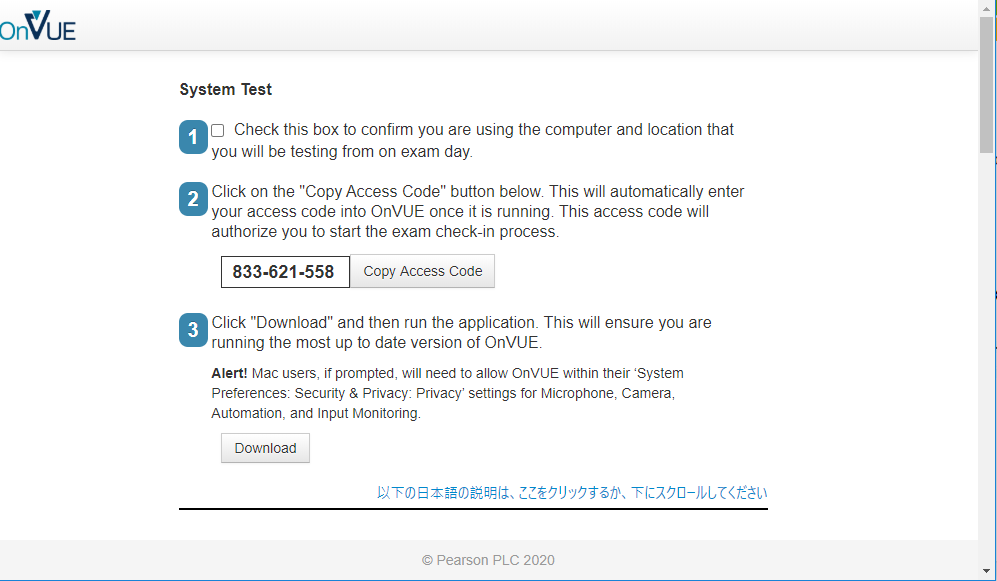
- I had some problems when running the system test due to some software that I had installed on the computer, such as TeamViwer, AnyDesk, Logitech Capture (My webcam software), SearchUI.exe (Cortana) and a few others. Even closing the application, the software still indicated that the process was running and I had to UNINSTALL this detected software to be able to take the exam. That's why I recommend taking the test 1 day before to take precautions and prepare to take the test 40 minutes before the scheduled time (you'll have to do the entire testing process again)
- I have not yet tried to do the test using a Virtual Machine (VM) to avoid these problems related to software installed on the computer, but I did a System Test within a local virtual machine and the test was carried out successfully.
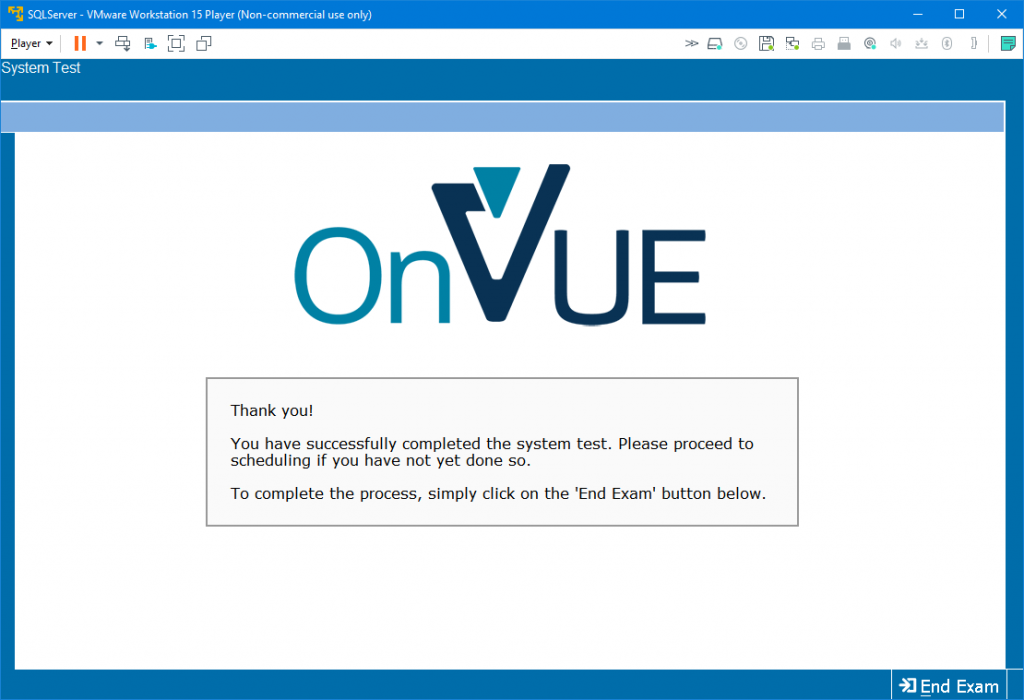
In my next test I will try to take the exam in a VM and let you know if it went well (or if I lost the test lol)
- If you are trying to take the test on an OS or browser that has restrictive website access policies (such as Windows Server, for example), you will need to release the following addresses:
– *.starttest.com
– *.startpractice.com
– *.proctorcam.com


Tips for taking your test:
-
The first step of all is to access your Dashboard at the address https://www.microsoft.com/en-us/learning/dashboard.aspx and access the option “Start a previously scheduled online proctored exam”
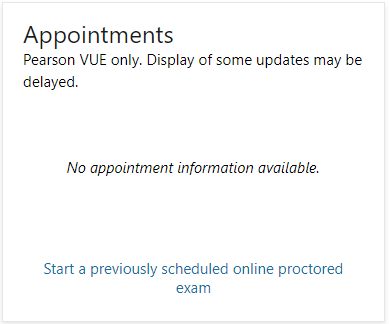
- Be careful with the test time, as you only have 15 minutes after the scheduled time to start your test. And it will take you about 20 minutes to go through the entire process the first time (especially if you have software being detected by the test), so plan to start this process about 30 minutes before the scheduled time.
- During the test and registration to start the exam, you will be asked to enter your cell phone number, where you will receive an SMS with a link where you must access to perform some steps using your cell phone, such as taking photos of your documents and the environment (4 photos, front, back, left and right of your table).
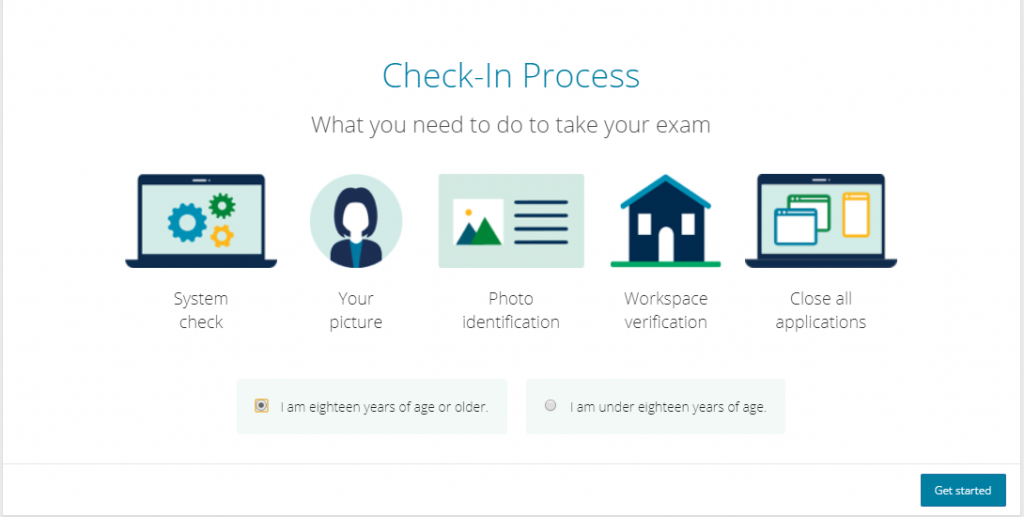
- After completing this step, a message will appear asking you to put your cell phone away and continue the process in the browser. Keep your cell phone in a place well away from the test and where it does not appear on your webcam (and in silent mode)
- After the previous step, you will be asked to download the test software and close your browser and ANY OTHER SOFTWARE THAT IS RUNNING before running the test software. Even if you have already downloaded it minutes before to perform the test, I recommend that you download it again and run the newly downloaded file, which will perform some validations of the software running on your computer. If everything goes well, it will allow you to start the test.
- Wait a few minutes while someone from Microsoft releases your proof and you can get started. At this point, your camera is already recording.
- Good luck!


Taking the above precautions, I took tests at home more than once, and I didn't even need to interact with anyone from Microsoft anywhere during the test.
The process itself was VERY smooth, especially the second time, where I already had more experience of how it worked, and today I don't think about looking for a training center to take the certification test: I can schedule a test on any day, at any time, even more than one test on the same day. MUCH more comfortable for me.
I hope you liked this tip and good luck to you!

Comentários (0)
Carregando comentários…