
Hey guys!
In this post, I will demonstrate to you how to monitor and audit data changes in tables using Change Data Capture (CDC) in SQL Server. I had already written the post SQL Server – How to create a data change history for your tables (audit logs), which uses the table triggers feature to perform this task, but I would like to show a more robust (and less manual) solution, which has been available since SQL Server 2008 (Enterprise, Developer and Trial – Thanks for the tip, Fabio Colli) and from SQL Server 2016 SP1 onwards it also became available in the Standard edition. In Azure SQL Database, it is supported from the S3 tier onwards.
Widely used in tables that undergo changes and that require audits and change logs, CDC allows you to create a history of data changes made to a table, all automatically and without needing to create triggers or anything like that. With this excellent feature, we can identify data insertions, changes (data before and after the update) and data deleted from the table, as well as structural changes (DDL) made to the monitored tables.
Once this feature is activated on a table, a new mirror table will be created, with the same columns as the original table and a few more metadata columns to control the changes made to the original table. This new table, which will be created automatically, accepts normal queries (SELECT) on its data. It is worth noting that monitoring remains active, even after restarting the service.
Change Data Capture (CDC) has a low impact on the database, as it works through a SQL Agent job (one job for each database that has CDC enabled) that reads the transaction log asynchronously and stores the changes in the history table. For this reason, the database recovery model is automatically changed to FULL if it is in SIMPLE.
Which databases have CDC active?
View contentSELECT [name], is_cdc_enabled
FROM sys.databasesExample:
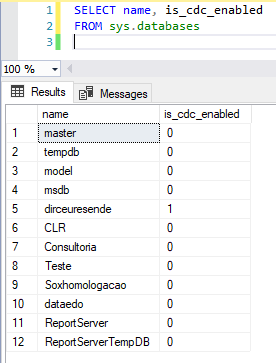
Which tables are being monitored with CDC?
View contentSELECT [name], is_tracked_by_cdc
FROM sys.tablesExample:
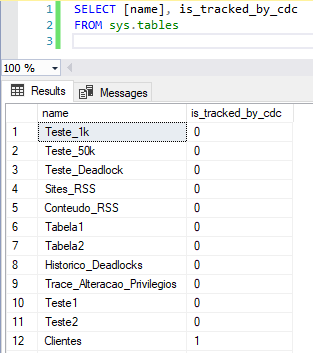
How to enable CDC on a database (Level 1)
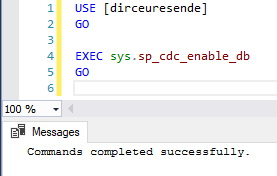
View contentUsage example:
USE [dirceuresende]
GO

EXEC sys.sp_cdc_enable_db
GO
Result:
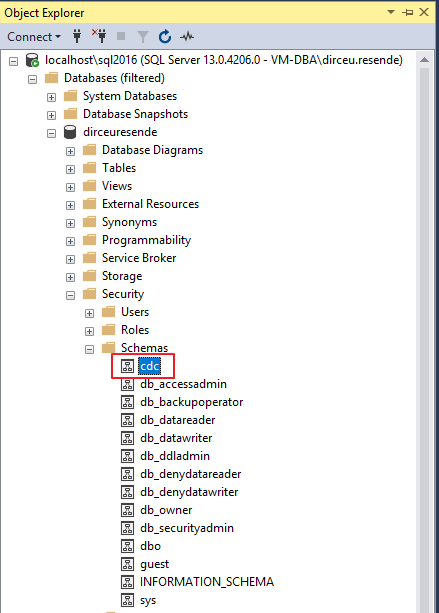
Once CDC has been activated on the instance, you can verify that a “cdc” schema will be created in the database in question:
Additionally, some system tables were created using the “cdc” schema:
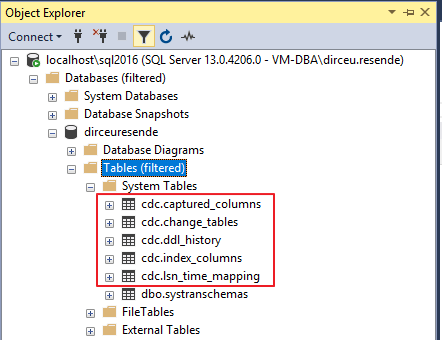
The tables created by CDC are:
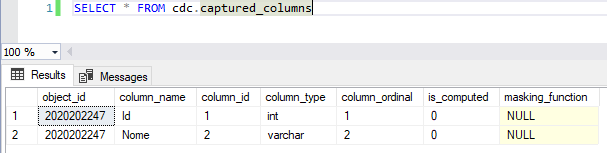
- cdc.captured_columns: This system table will list all the columns of the tables that have CDC enabled. This information can also be queried using the sys.sp_cdc_get_source_columns system SP.
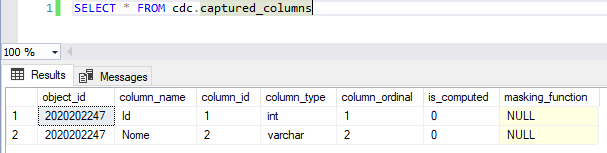
- cdc.change_tables: This system table will list all tables that have CDC enabled. This information can also be queried using the sys.sp_cdc_help_change_data_capture system SP.

- cdc.ddl_history: This system table will store all DDL changes made to tables that have CDC enabled. This information can also be queried using the sys.sp_cdc_get_ddl_history system SP.

Reference: https://docs.microsoft.com/en-us/sql/relational-databases/system-tables/cdc-ddl-history-transact-sql
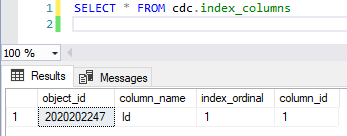
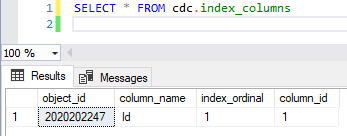
- cdc.index_columns: This table stores information about the indexes associated with tables that have CDC enabled. This information can also be queried using the sys.sp_cdc_help_change_data_capture system SP.
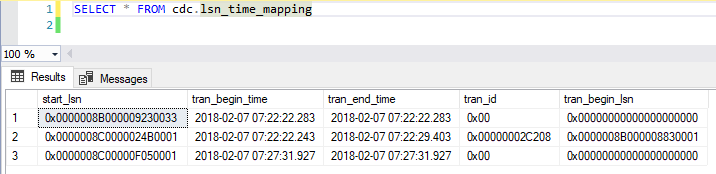
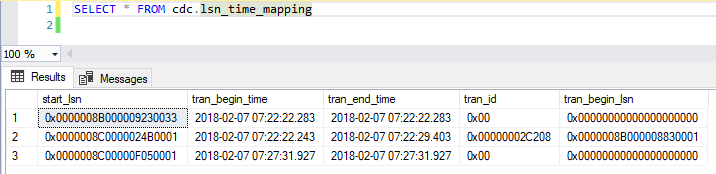
- cdc.lsn_time_mapping: Returns one row for each transaction in the table with CDC enabled. This table is used to map the committed values between the Log Sequence Number (LSN) and the time the transaction is committed. This information can also be retrieved with the sys.fn_cdc_map_lsn_to_time and sys.fn_cdc_map_time_to_lsn functions.


How to enable CDC and monitor table changes (Level 2)
View contentUsage example:
USE [dirceuresende]
GO

EXEC sys.sp_cdc_enable_table
@source_schema = N'dbo',
@source_name   = N'Clientes',
@role_name     = NULL
GO
Result:
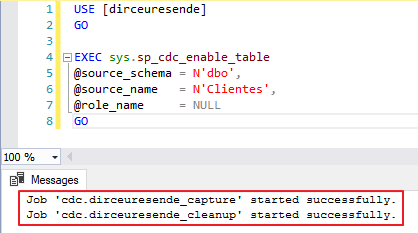
After executing the above SP, Change Data Capture (CDC) monitoring was enabled on the desired table. With this, a new table, in the format cdc.schema_tabela_CT, will be created with the same columns as the original table and some more metadata tables to control the change.
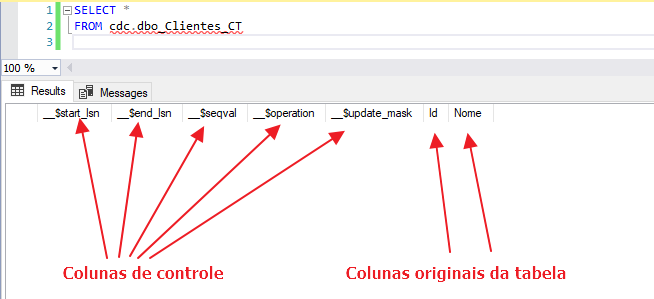
If you want to monitor changes in specific columns, and not all columns in the table, you can use this syntax:
USE [dirceuresende]
GO

EXEC sys.sp_cdc_enable_table
@source_schema = N'dbo',
@source_name   = N'Clientes',
@role_name     = NULL,
@captured_column_list = '[Id], [Nome], [Teste]'
GO
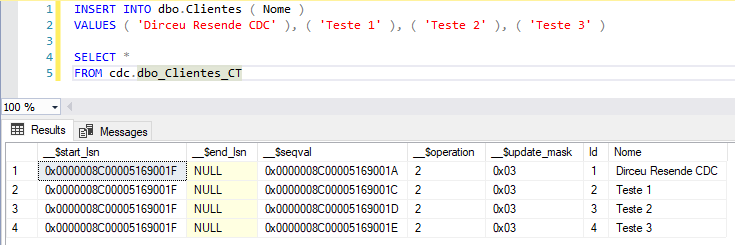
Now, let's make some changes to the table to see how CDC behaves?
Data entry
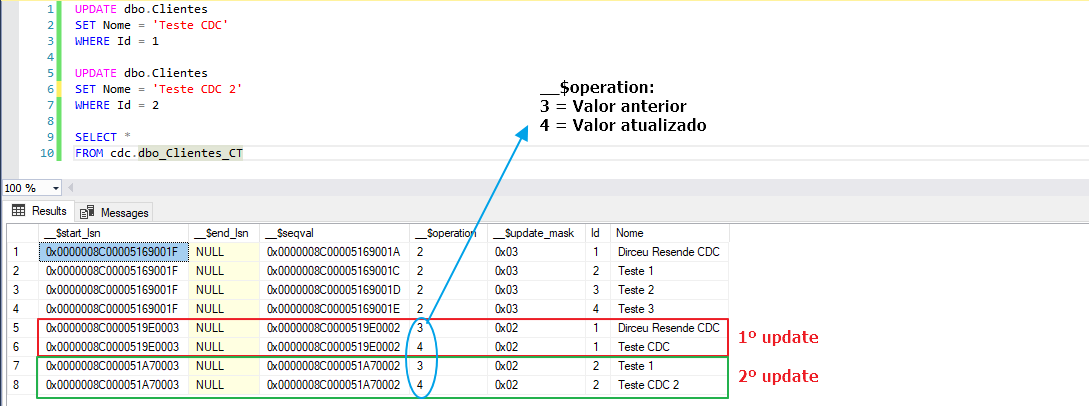
Data update
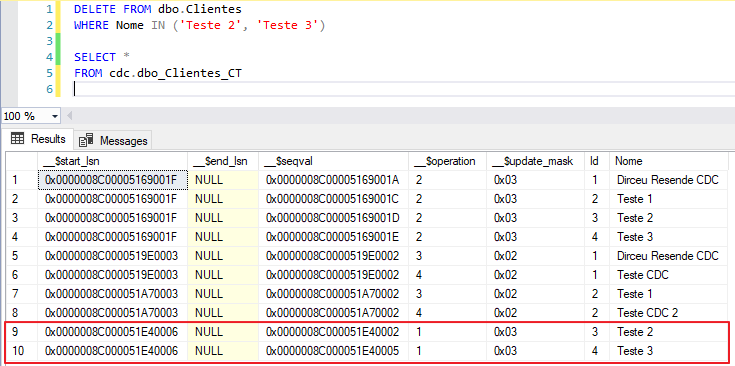
Data removal
Truncating table data
As you can see in the screenshot below, once CDC is activated on a table, you will not be able to truncate the data in a table.

Changing the table structure
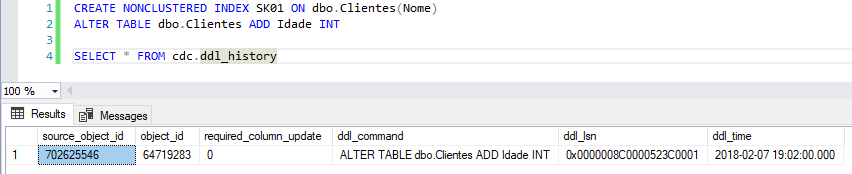
As you can see, the column __$operation allows us to identify the type of operation performed on the table, in which the possible values are:
- 1: DELETE
- 2: INSERT
- 3: Value BEFORE UPDATE
- 4: Value AFTER UPDATE
Remember to enable CDC at the database level before trying to enable CDC on a table. If you don't do this, you will encounter this error message:
What jobs are these created by the CDC?
View content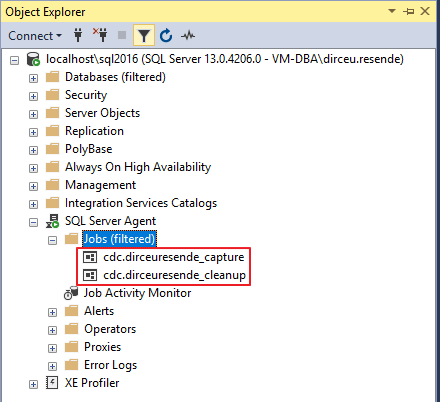
And these 2 jobs have the following purpose:
- cdc.dirceuresende_capture: Job that runs whenever SQL Server Agent starts and runs the system SP sys.sp_MScdc_capture_job, which in turn executes the SP sys.sp_cdc_scan, starting monitoring the table.
Reference: https://technet.microsoft.com/en-us/library/cc645591(v=sql.105).aspx
- cdc.dirceuresende_cleanup: Job that runs daily at 02:00 and has the purpose of controlling the size of the CDC control tables, to prevent them from growing uncontrollably. This job runs the system SP sys.sp_MScdc_cleanup_job,
which in turn executes the SP sys.sp_cdc_cleanup_job_internal.Reference: https://technet.microsoft.com/en-us/library/cc645885(v=sql.105).aspx
How do I configure CDC data retention?
View contentTo this question, the answer is NO. By default, data will grow until it reaches SQL Server's default limit (4320 minutes = 3 days), which could be a lot or a little depending on your needs.
If you want to change the retention time, you can use the stored procedure sys.sp_cdc_change_job:
EXEC sp_cdc_change_job
    @job_type='cleanup',
    @retention=10080 -- 7 dias (quantidade de minutos de retenção)
The maximum value for this retention parameter is 52494800 minutes (100 years), but if you want to disable this limit, simply disable the cleanup job (cdc.dirceuresende_cleanup)
To view the current retention parameters, use the query below:
SELECT
    [retention],
    ([retention]) / ((60 * 24)) AS RetentionInDays,
    *
FROM
    msdb.dbo.cdc_jobs;
Result:

How to disable CDC on a database (Level 1)
View contentExample:
USE [dirceuresende]
GO

EXEC sys.sp_cdc_disable_db
GO
Result:
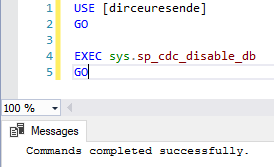
It is worth remembering that when you disable CDC at the database level, ALL active CDC monitoring at the table level will also be disabled and the historical data will all be lost as well (and you will NOT be changed about the existence of these active monitoring at the table level).
How to disable CDC on a table (Level 2)
View contentIt is worth remembering that it is possible to disable CDC at the database level, even if there is active monitoring at the table level (and you will NOT be alerted to the existence of this). At the end of this topic I left some warnings about what happens when you do this. Read until the end!
Identifying the CDC capture instance name:
USE [dirceuresende]
GO

EXEC sys.sp_cdc_help_change_data_capture
GO

SELECT OBJECT_NAME([object_id]), OBJECT_NAME(source_object_id), capture_instance
FROM cdc.change_tables
Result:

Once we have identified the instance name (dbo_Clientes), we can now run the sys.sp_cdc_disable_table to effectively disable CDC on this table:
USE [dirceuresende]
GO

EXEC sys.sp_cdc_disable_table
    @source_schema = 'dbo', -- sysname
    @source_name = 'Clientes', -- sysname
    @capture_instance = 'dbo_Clientes' -- sysname
Result:
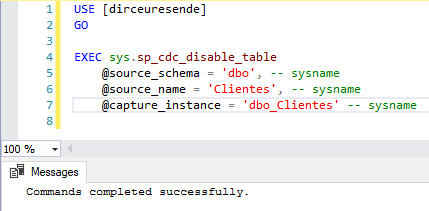
After disabling CDC on the table, you can see that the monitoring table was automatically deleted. BE VERY CAREFUL with this, so as not to lose the recorded values and lose your history. If you want to disable CDC but do not intend to lose history, copy the data from the history table to another table before disabling CDC on the table.
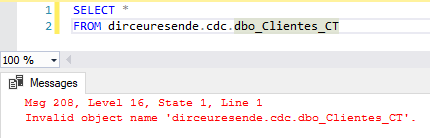
It is worth remembering that when deactivating CDC at the database level, ALL active CDC monitoring at the table level will also be deactivated and all historical data will be lost as well.
Change Data Capture (CDC) and Backup/Restore operations
View contentThat's it, folks!
I hope you liked this post and that it can be useful to you!
A hug and see you next time!

Comments (0)
Loading comments...