
Hey guys!
In this post I would like to talk about the part of SQL Server Security focused on passwords: Password Policies, Password Expiration, Mandatory Password Change and Login Lockout after N attempts.
Video with Article Summary
Password Policies (CHECK_POLICY)
Click here to view this contentOne of the objectives of the password policy is to avoid this type of scenario below, where someone tries to authenticate at the bank through trial and error, without being blocked, until they find a combination where they can log in to the bank.
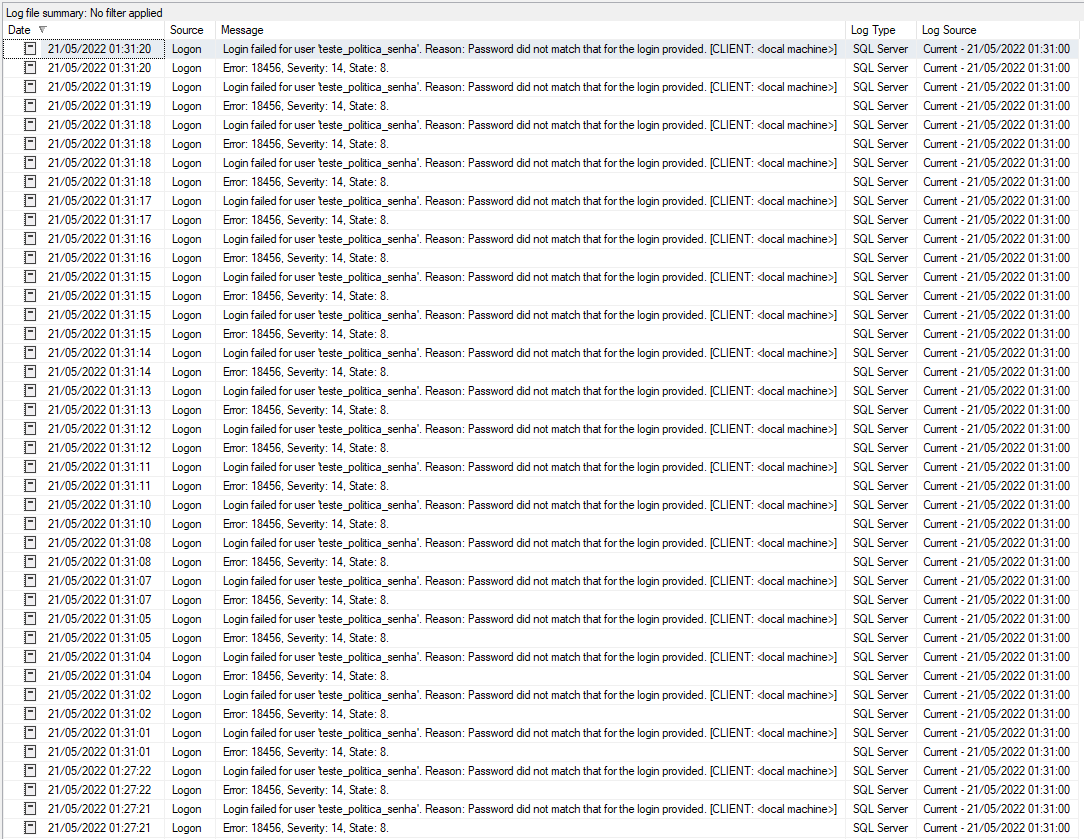
In addition to restricting simple or empty passwords, the password policy can automatically block logins after N incorrect user/password attempts (this number is configurable), in addition to allowing passwords to expire after N days and having to be changed periodically.
To create a user with password policy enabled, you can use this command:
USE [master]
GO

CREATE LOGIN [teste_politica_senha]
WITH
    PASSWORD = 'BdP@BPptxENu',
    CHECK_POLICY = ON
GO
To check SQL logins that do not have the password policy enabled, use the query below:
SELECT
    A.[name],
    A.[type_desc],
    A.is_disabled,
    A.create_date,
    A.modify_date,
    A.is_policy_checked,
    A.is_expiration_checked,
    LOGINPROPERTY(A.[name],'BadPasswordCount') AS [BadPasswordCount],
    LOGINPROPERTY(A.[name],'BadPasswordTime') AS [BadPasswordTime],
    LOGINPROPERTY(A.[name],'DaysUntilExpiration') AS [DaysUntilExpiration],
    LOGINPROPERTY(A.[name],'HistoryLength') AS [HistoryLength],
    LOGINPROPERTY(A.[name],'IsExpired') AS [IsExpired],
    LOGINPROPERTY(A.[name],'IsLocked') AS [IsLocked],
    LOGINPROPERTY(A.[name],'IsMustChange') AS [IsMustChange],
    LOGINPROPERTY(A.[name],'LockoutTime') AS [LockoutTime],
    LOGINPROPERTY(A.[name],'PasswordLastSetTime') AS [PasswordLastSetTime],
    LOGINPROPERTY(A.[name],'PasswordHashAlgorithm') AS [PasswordHashAlgorithm]
FROM
    sys.sql_logins A
    JOIN sys.server_principals B ON A.[sid] = B.[sid]
WHERE
    A.is_disabled = 0
    AND B.is_fixed_role = 0
    AND A.is_policy_checked = 0
Result:

You can also view the Login properties to confirm that this option is enabled
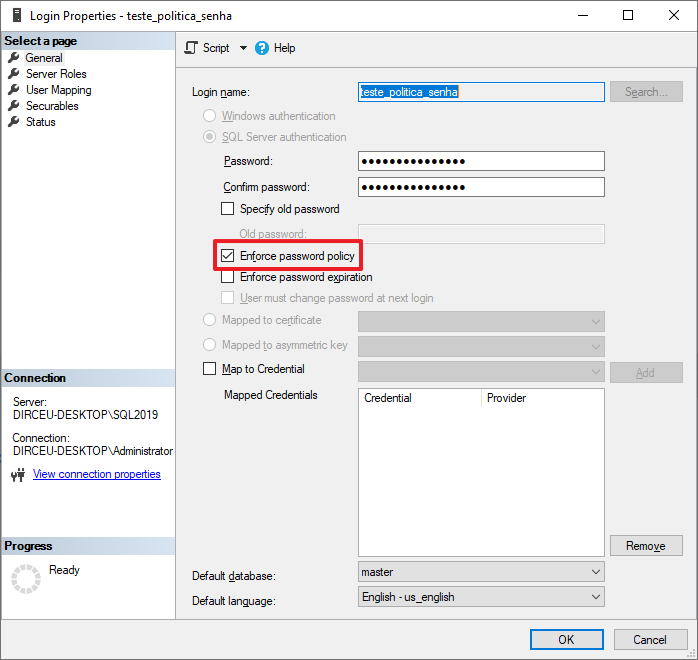
Speaking of password policy, you can check out on this link here the Windows password policy, used by SQL Server for logins with SQL authentication.
When enabling password policy for a SQL login, you must follow the policy below:
- Password cannot contain the user's account name
- The password must be at least 8 (eight) characters long
- Passwords can be up to 128 characters long. Use long and complex passwords
- Null or blank passwords are not allowed
- It is not permitted to use the same computer name or login as a password
- Passwords that are not allowed: “password”, “admin”, “administrator”, “sa”, “sysadmin”
- The password must contain characters from at least three of the four categories below:
– Latin capital letters (A to Z)
– Latin lowercase letters (a to z)
– Numbers (0 to 9)
– Non-alphanumeric characters such as: exclamation mark (!), dollar sign ($), numeric sign (#) or percentage (%).
- CHECK_EXPIRATION is also set to ON unless explicitly set to OFF
- Password history is initialized with the hash value of the current password
- The account lockout duration, account lockout limit and reset account lockout counter after options are also enabled
When CHECK_POLICY is changed to OFF, the following behavior occurs:
- CHECK_EXPIRATION will also be set to OFF
- Password history will be erased
- lockout_time value is reset
To check some additional information in the Windows settings, such as the number of login failures to block a login, you can open the “Local Security Policy” screen by typing the command “secpol.msc” in the Start menu
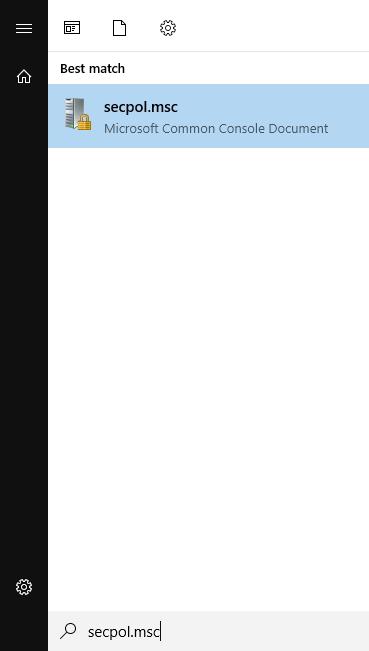
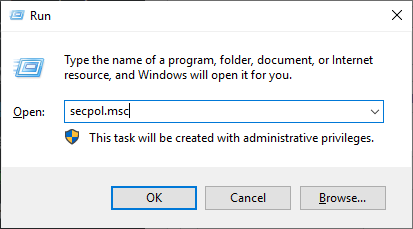
Or on the Run screen:
Navigate to the “Account Policies” directory and then the “Password Policy” directory
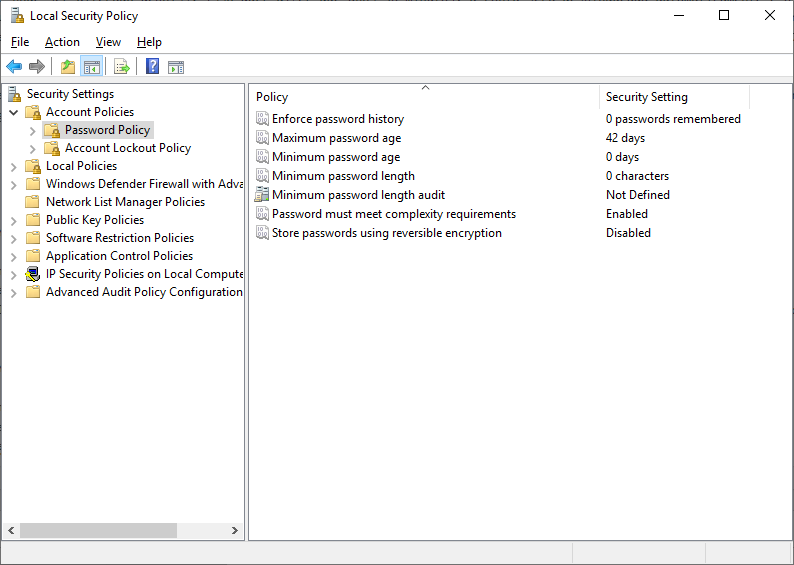
There are some interesting settings on this screen regarding password complexity:
- Enforce password history: Number of passwords that will be stored to ensure that a previously used password is used again. This value must be between 0 and 24 passwords and the default value is 0 (zero)
- Minimum password length: Pretty obvious here. Defines the minimum number of characters that a password must have to be accepted as a valid password. Acceptable values for this parameter are between 1 and 14. The default value is 0 (zero), which means there is no minimum size
- Password must meet complexity requirements: This parameter defines whether password policies should be used and passwords that do not fit the policy should be prevented from being created. The default value is Enabled and if disabled, SQL Server will not validate password complexity even if you enable the CHECK_POLICY property in SQL Login
When trying to create a password with fewer characters than defined on this screen, you will see this error message:
Password validation failed. The password does not meet the operating system policy requirements because it is too short.
Password Expiration (CHECK_EXPIRATION)
Click here to view this contentTo create a user whose password expires, you can use the command below:
USE [master]
GO

CREATE LOGIN [teste_expiracao_senha]
WITH
    PASSWORD = 'BdP@BPptxENu',
    CHECK_POLICY = ON,
    CHECK_EXPIRATION = ON
GO
To check expired or soon to expire users, you can use the below query:
SELECT
    A.[name],
    A.[type_desc],
    A.is_disabled,
    A.create_date,
    A.modify_date,
    A.is_policy_checked,
    A.is_expiration_checked,
    A.password_hash,
    LOGINPROPERTY(A.[name],'BadPasswordCount') AS [BadPasswordCount],
    LOGINPROPERTY(A.[name],'BadPasswordTime') AS [BadPasswordTime],
    LOGINPROPERTY(A.[name],'DaysUntilExpiration') AS [DaysUntilExpiration],
    LOGINPROPERTY(A.[name],'HistoryLength') AS [HistoryLength],
    LOGINPROPERTY(A.[name],'IsExpired') AS [IsExpired],
    LOGINPROPERTY(A.[name],'IsLocked') AS [IsLocked],
    LOGINPROPERTY(A.[name],'IsMustChange') AS [IsMustChange],
    LOGINPROPERTY(A.[name],'LockoutTime') AS [LockoutTime],
    LOGINPROPERTY(A.[name],'PasswordLastSetTime') AS [PasswordLastSetTime],
    LOGINPROPERTY(A.[name],'PasswordHashAlgorithm') AS [PasswordHashAlgorithm]
FROM
    sys.sql_logins A
    JOIN sys.server_principals B ON A.[sid] = B.[sid]
WHERE
    A.is_disabled = 0
    AND B.is_fixed_role = 0
    AND (
        LOGINPROPERTY( A.[name], 'IsExpired' ) = 1
        OR LOGINPROPERTY( A.[name], 'DaysUntilExpiration' ) < 15
    )
Result:

You can also view the Login properties to confirm that this option is enabled
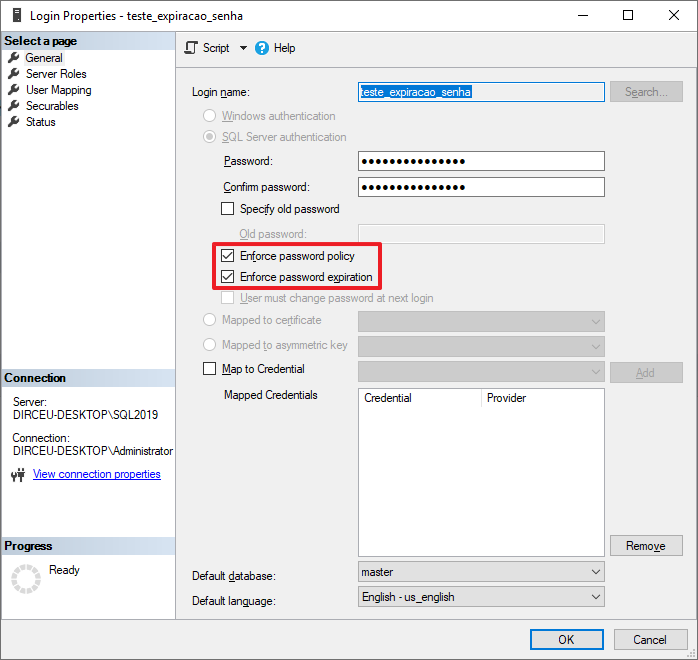
To change the number of days that passwords expire, you can open the “Local Security Policy” screen by typing the command “secpol.msc” in the Start menu
Or on the Run screen:
Navigate to the “Account Policies” folder and then “Password Policy”
Edit the “Maximum password age” property and define a number from 1 to 999 to define the number of days that a password expires. The default value is 42 days.
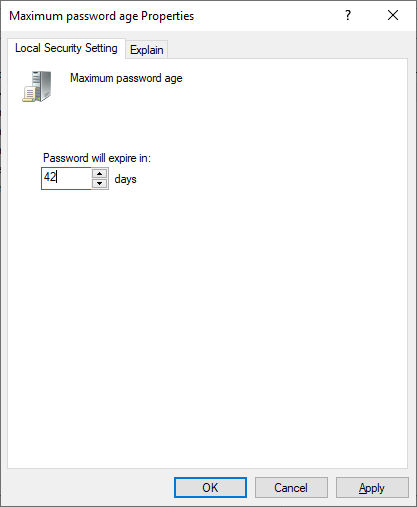
If you set the value 0 (zero), this means that the password will not expire. That is, even if you enable this password expiration option in SQL Server, it will not expire because the Windows policy setting is set to not expire.

Mandatory Password Change (MUST_CHANGE)
Click here to view this contentTo create a login where he must change the password on the first use, you use something like this:
USE [master]
GO

CREATE LOGIN [teste3]
WITH
    PASSWORD=N'a*1'
    MUST_CHANGE,
    CHECK_EXPIRATION=ON,
    CHECK_POLICY=ON
GO
To view logins that have this MUST_CHANGE property enabled, you can use the query below:
SELECT
    A.[name],
    A.[type_desc],
    A.is_disabled,
    A.create_date,
    A.modify_date,
    A.is_policy_checked,
    A.is_expiration_checked,
    LOGINPROPERTY(A.[name],'BadPasswordCount') AS [BadPasswordCount],
    LOGINPROPERTY(A.[name],'BadPasswordTime') AS [BadPasswordTime],
    LOGINPROPERTY(A.[name],'DaysUntilExpiration') AS [DaysUntilExpiration],
    LOGINPROPERTY(A.[name],'HistoryLength') AS [HistoryLength],
    LOGINPROPERTY(A.[name],'IsExpired') AS [IsExpired],
    LOGINPROPERTY(A.[name],'IsLocked') AS [IsLocked],
    LOGINPROPERTY(A.[name],'IsMustChange') AS [IsMustChange],
    LOGINPROPERTY(A.[name],'LockoutTime') AS [LockoutTime],
    LOGINPROPERTY(A.[name],'PasswordLastSetTime') AS [PasswordLastSetTime],
    LOGINPROPERTY(A.[name],'PasswordHashAlgorithm') AS [PasswordHashAlgorithm]
FROM
    sys.sql_logins A
    JOIN sys.server_principals B ON A.[sid] = B.[sid]
WHERE
    A.is_disabled = 0
    AND B.is_fixed_role = 0
    AND LOGINPROPERTY( A.[name], 'IsMustChange' ) = 1
Result:

Unlike the other 2 properties (CHECK_POLICY and CHECK_EXPIRATION), it is not possible to see in the SSMS interface whether the MUST_CHANGE property is enabled, only using T-SQL.
When trying to log in with this user in the database with this newly created user (test3), you will see this screen here:
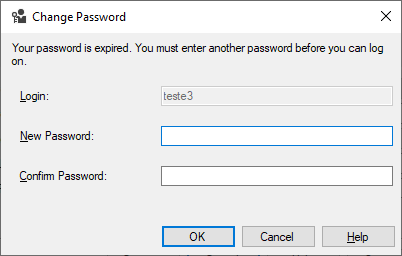
To force an existing login to change its password, you can change its password to any one and activate the MUST_CHANGE option
USE [master]
GO

ALTER LOGIN [teste3] WITH PASSWORD = 'senhaqualquer123*' MUST_CHANGE
Login blocked after N attempts
Click here to view this contentIf this combination is not configured correctly, you can try to connect as many times as you want, and SQL will only store connection failures in the log (if it is configured to do so), but will not block login.
One way to prevent this from happening is to only use logins with Windows authentication (best option), or set a limit on the number of failed logins to automatically block.
To do this, you can open the “Local Security Policy” screen by typing the command “secpol.msc” in the Start menu
Or on the Run screen:
Navigate to the “Account Policies” directory and then the “Account Lockout Policy” directory
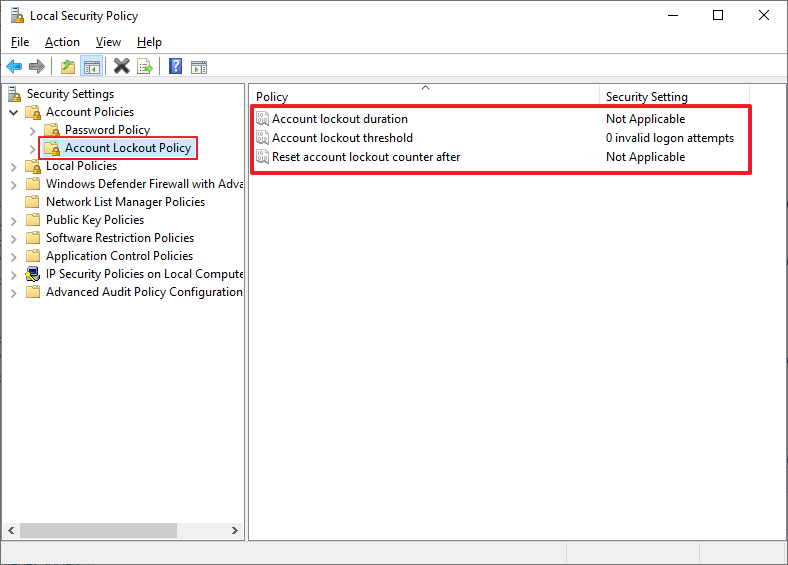
The default setting is the one in the screenshot, NOT blocking users due to failed connection attempts due to user/password error, which I find very insecure.
We can even confirm that with a value of 0 (zero), the password will NOT be blocked due to connection failures

I will change this setting to block after 5 connection failures in a row

And soon after confirming this change, a new dialog window appears suggesting you to also change the “Account lockout period” and “Reset account lockout counter after” settings to 30 minutes (this value can be changed later). This means that after 30 minutes, the account will be automatically unlocked and the connection failure counter will be reset.
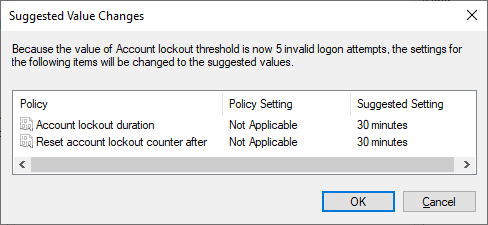
From now on, after 5 failures (I configured this value) during the login process, this SQL Login will be automatically blocked for 30 minutes (this time is also configurable).
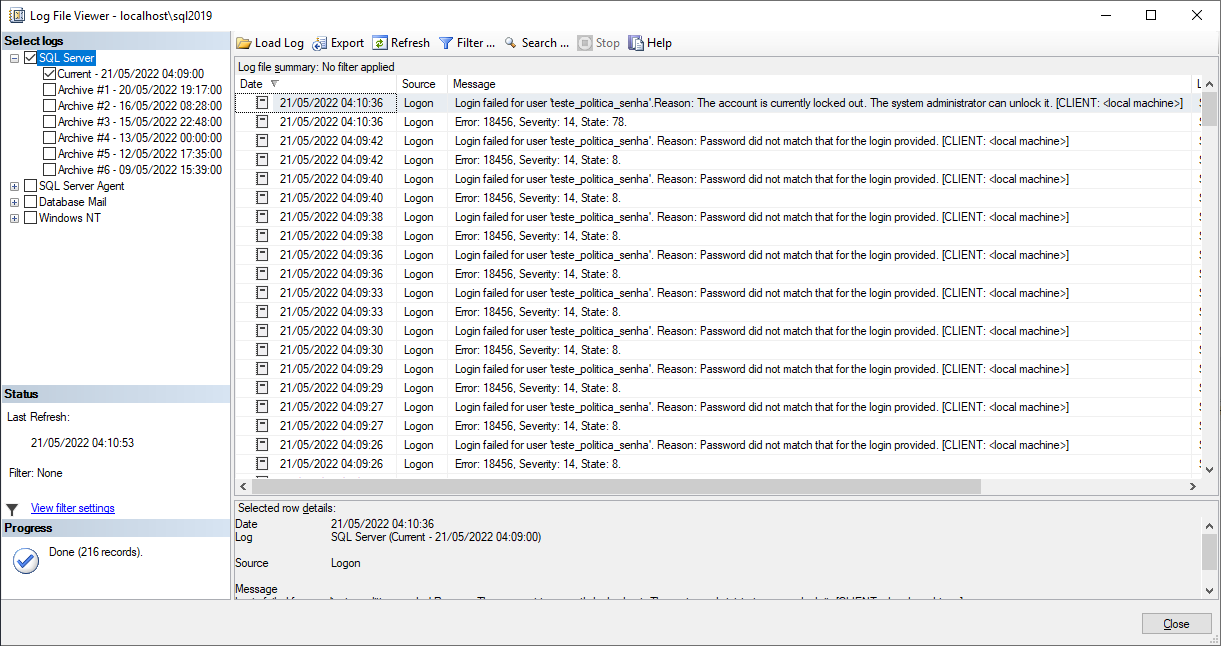
If you continue to get the password wrong, the default message for an incorrect password will be shown, even if the user is already blocked:
If the correct password is entered and the user is locked out, this error message will be shown:
To check blocked SQL logins, you can use this query:
SELECT
    A.[name],
    A.[type_desc],
    A.is_disabled,
    A.create_date,
    A.modify_date,
    A.is_policy_checked,
    A.is_expiration_checked,
    LOGINPROPERTY(A.[name],'BadPasswordCount') AS [BadPasswordCount],
    LOGINPROPERTY(A.[name],'BadPasswordTime') AS [BadPasswordTime],
    LOGINPROPERTY(A.[name],'DaysUntilExpiration') AS [DaysUntilExpiration],
    LOGINPROPERTY(A.[name],'HistoryLength') AS [HistoryLength],
    LOGINPROPERTY(A.[name],'IsExpired') AS [IsExpired],
    LOGINPROPERTY(A.[name],'IsLocked') AS [IsLocked],
    LOGINPROPERTY(A.[name],'IsMustChange') AS [IsMustChange],
    LOGINPROPERTY(A.[name],'LockoutTime') AS [LockoutTime],
    LOGINPROPERTY(A.[name],'PasswordLastSetTime') AS [PasswordLastSetTime],
    LOGINPROPERTY(A.[name],'PasswordHashAlgorithm') AS [PasswordHashAlgorithm]
FROM
    sys.sql_logins A
    JOIN sys.server_principals B ON A.[sid] = B.[sid]
WHERE
    A.is_disabled = 0
    AND B.is_fixed_role = 0
    AND LOGINPROPERTY(A.[name],'IsLocked') = 1
Result:

You can also see if this option is active through the SSMS interface when opening the SQL Login properties:
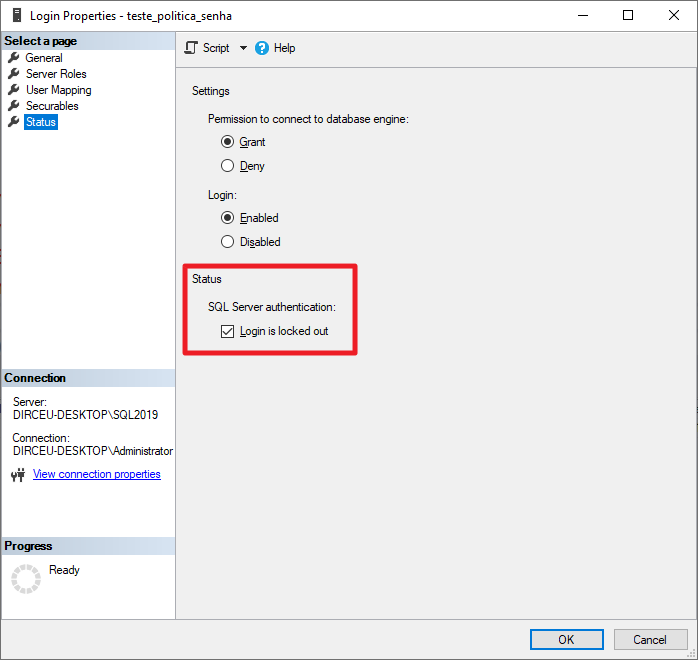
It is worth remembering that there is a configurable time where the user will be automatically unlocked after N minutes.
Local Security Policy (Without AD) or Group Policy Management (With AD)
If the machine is in a domain (very likely), these password complexity, automatic blocking and other settings must be changed using the “Group Policy Management” utility so that these changes are made in Windows Active Directory (Windows AD) and, shortly after, they will be replicated to all servers:
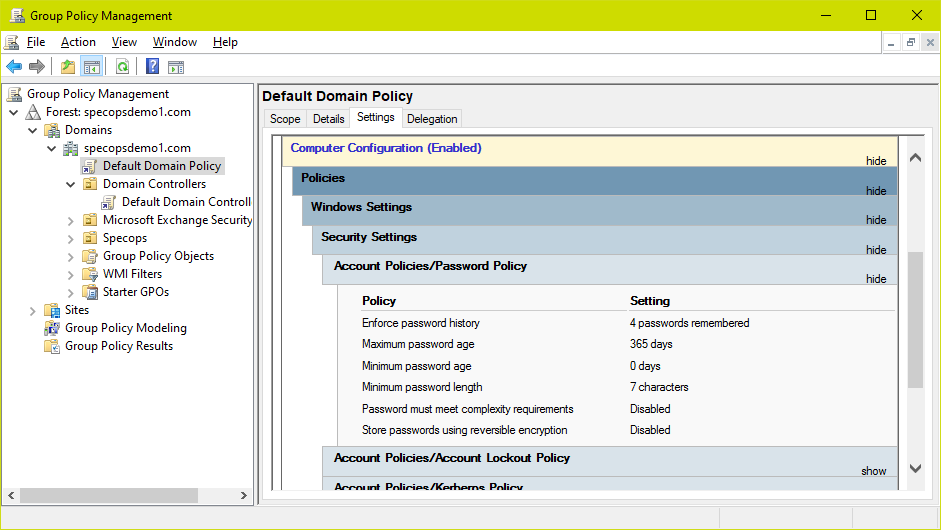
If you only change the server's local Windows settings, the next time the policies are updated, that change you made locally will be overwritten by the domain configuration.
You can use “Local Security Policy” (secpool.msc) to view the current policy being applied on the server, as it will probably be the same as the domain.
To force an update of local Active Directory policies for the local computer, you can run the “gpupdate /force” command from the DOS Prompt:
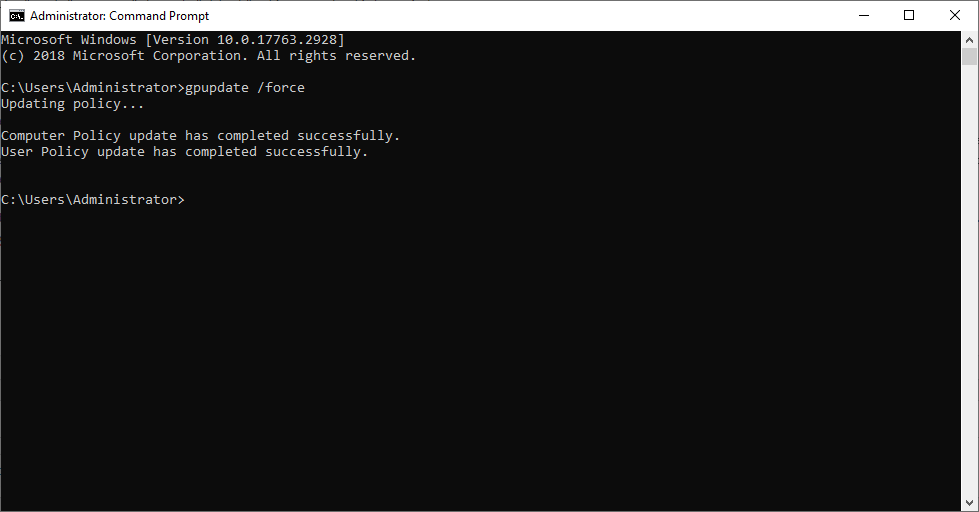
If your machine is NOT on a domain, then just change these settings in the “Local Security Policy” utility (secpool.msc), as I showed in the article.
And that's it, folks!
A big hug and see you next time!

Comments (0)
Loading comments...